Content Cards 피드 커스터마이즈
Content Cards 피드는 모바일 또는 웹 애플리케이션에 표시되는 Content Cards의 시퀀스입니다. 이 문서에서는 피드 새로고침 시기 설정, 카드 순서 지정, 여러 피드 관리, “빈 피드” 오류 메시지 등을 구성하는 방법을 다룹니다. 콘텐츠 카드 유형의 전체 목록은 Content Cards 정보를 참조하세요.
세션 생명주기에 대하여
세션은 앱이 실행된 후 Braze SDK가 사용자 활동을 추적하는 기간을 의미합니다. changeUser() 메서드를 호출하여 새로운 세션을 강제로 시작할 수도 있습니다.
기본적으로 세션은 braze.openSession()을 처음 호출할 때 시작됩니다. 세션은 비활동 상태가 30분 이상 지속되지 않는 한 활성 상태를 유지합니다(기본 세션 타임아웃을 변경하거나 사용자가 앱을 닫지 않는 한).

기본적으로 세션은 openSession()이 처음 호출될 때 시작됩니다. 앱이 백그라운드로 전환된 후 다시 포그라운드로 돌아오면, SDK는 세션이 시작된 이후 10초 이상 경과했는지 확인합니다(기본 세션 타임아웃을 변경하지 않는 한). 10초 이상 경과한 경우 새로운 세션이 시작됩니다. 사용자가 앱이 백그라운드에 있는 상태에서 종료하면, 세션 데이터는 사용자가 앱을 다시 열 때까지 Braze에 전송되지 않을 수 있다는 점에 유의하세요.
closeSession()을 호출한다고 해서 세션이 즉시 종료되지는 않습니다. 대신, 사용자가 다른 액티비티를 시작하여 openSession()을 다시 호출하지 않으면 10초 후에 세션이 종료됩니다.
기본적으로 세션은 Braze.init(configuration:)을 호출할 때 시작됩니다. 이는 UIApplicationWillEnterForegroundNotification 알림이 트리거될 때 발생하며, 앱이 포그라운드로 진입했음을 의미합니다.
앱이 백그라운드로 전환되면 UIApplicationDidEnterBackgroundNotification이 트리거됩니다. 앱은 백그라운드에 있는 동안 활성 세션을 유지하지 않습니다. 앱이 포그라운드로 돌아오면, SDK는 세션이 시작된 이후 경과된 시간을 세션 타임아웃과 비교합니다(기본 세션 타임아웃을 변경하지 않는 한). 세션이 시작된 이후의 시간이 타임아웃 기간을 초과하면 새로운 세션이 시작됩니다.
피드 새로고침
자동 새로고침
기본적으로 Content Cards 피드는 다음과 같은 경우 자동으로 새로고침됩니다:
- 새 세션이 시작될 때
- 기본 Content Cards 피드가 닫힌 후, 마지막 새로고침으로부터 60초 이상 경과한 뒤 다시 열릴 때

수동으로 새로고침하지 않고 최신 Content Cards를 동적으로 표시하려면, 카드 생성 시 첫 노출 시를 선택하세요. 이 카드는 사용 가능해지면 새로고침됩니다.
실시간 전달
Braze는 세션 중 SDK가 유지하는 실시간 연결을 통해 Content Cards 업데이트가 발생하는 즉시 기기에 전달합니다. 사용자는 변경 사항을 확인하기 위해 새 세션을 시작하거나 새로고침을 기다릴 필요가 없습니다.
실시간 전달은 다음과 같은 업데이트에 적용됩니다:
- 세션 중에 사용자가 콘텐츠 카드 캠페인 대상이 되는 경우
- 사용자가 Canvas의 Content Cards 단계로 진행하는 경우
- 사용자의 피드에서 카드가 제거되는 경우
/messages/send,/campaigns/trigger/send또는/canvas/trigger/send엔드포인트와 같이 API를 통해 카드가 전송되는 경우
실시간 전달에는 다음과 같은 최소 SDK 버전이 필요합니다:
이전 SDK 버전에서는 카드가 세션 시작 시 및 새로고침 시에만 전달됩니다.
수동 새로고침
특정 시점에 피드를 수동으로 새로고침하려면:
웹 SDK에서 requestContentCardsRefresh()를 호출하여 언제든지 Braze Content Cards의 수동 새로고침을 요청할 수 있습니다.
또한 getCachedContentCards를 호출하여 마지막 Content Cards 새로고침에서 현재 사용 가능한 모든 카드를 가져올 수 있습니다.
import * as braze from "@braze/web-sdk";
function refresh() {
braze.requestContentCardsRefresh();
}
Content Cards 링크를 같은 탭이 아닌 새 브라우저 탭에서 열려면 웹 SDK 초기화 옵션에서 openCardsInNewTab: true를 설정하세요. 초기화 옵션에 대한 자세한 내용은 웹 SDK 리포지토리 가이드를 참조하세요.
Android SDK에서 requestContentCardsRefresh를 호출하여 언제든지 Braze Content Cards의 수동 새로고침을 요청할 수 있습니다.
Braze.getInstance(context).requestContentCardsRefresh();
Braze.getInstance(context).requestContentCardsRefresh()
Swift SDK에서 Braze.ContentCards 클래스의 requestRefresh 메서드를 호출하여 언제든지 Braze Content Cards의 수동 새로고침을 요청할 수 있습니다:
Swift에서는 선택적 완료 핸들러를 사용하거나 네이티브 Swift 동시성 API를 사용한 비동기 반환으로 Content Cards를 새로고침할 수 있습니다.
완료 핸들러
AppDelegate.braze?.contentCards.requestRefresh { result in
// Implement completion handler
}
Async/Await
let contentCards = await AppDelegate.braze?.contentCards.requestRefresh()
[AppDelegate.braze.contentCards requestRefreshWithCompletion:^(NSArray<BRZContentCardRaw *> * contentCards, NSError * error) {
// Implement completion handler
}];
전체 동기화 vs. 부분 동기화
Braze SDK는 서버에서 Content Cards를 가져올 때 두 가지 유형의 동기화를 사용합니다:
- 전체 동기화: 사용자가 받을 수 있는 모든 Content Cards를 가져옵니다. 전체 동기화는 7일마다 자동으로 실행되거나
changeUser()가 호출될 때 실행됩니다. - 부분 동기화: 마지막 요청 이후 새로운 Content Cards만 가져옵니다. 사용자에게 제공할 새 카드가 없는 경우 응답은 카드 0개를 반환합니다. 부분 동기화는
requestContentCardsRefresh()가 호출될 때마다 실행됩니다(마지막 전체 동기화 이후 7일이 경과한 경우에는 전체 동기화가 트리거됩니다).
부분 동기화는 서버 부하와 기기 배터리 사용량을 줄여줍니다. 이미 수신된 Content Cards는 SDK에 로컬로 저장되므로, 부분 동기화가 새 카드 0개를 반환하더라도 사용자는 사용 가능한 카드를 계속 볼 수 있습니다.
사용량 제한
Braze는 토큰 버킷 알고리즘을 사용하여 다음과 같은 사용량 제한을 적용합니다:
- 기기당 최대 5회의 새로고침 호출(사용자 및
openSession()호출 간 공유) - 제한에 도달한 후, 180초(3분)마다 새로운 호출이 사용 가능해집니다
- 시스템은 언제든지 사용할 수 있도록 최대 5회의 호출을 유지합니다
subscribeToContentCards()는 사용량이 제한된 경우에도 캐시된 카드를 반환합니다

Braze SDK는 성능과 안정성을 위해 사용량 제한도 적용합니다. 자동화된 테스트를 실행하거나 수동 QA를 수행할 때 이 점을 유의하세요. 자세한 내용은 Braze SDK 사용량 제한을 참조하세요.
표시되는 카드 순서 커스터마이징
Content Cards가 표시되는 순서를 변경할 수 있습니다. 이를 통해 시간에 민감한 프로모션과 같은 특정 유형의 콘텐츠를 우선적으로 표시하여 사용자 경험을 세밀하게 조정할 수 있습니다.
showContentCards():의 filterFunction 매개변수를 사용하여 피드에서 Content Cards의 표시 순서를 커스터마이징합니다. 예를 들어:
braze.showContentCards(null, (cards) => {
return sortBrazeCards(cards); // Where sortBrazeCards is your sorting function that returns the sorted card array
});
ContentCardsFragment는 Content Cards가 피드에 표시되기 전에 정렬이나 수정을 처리하기 위해 IContentCardsUpdateHandler에 의존합니다. 커스텀 업데이트 핸들러는 ContentCardsFragment의 setContentCardUpdateHandler를 통해 설정할 수 있습니다.
다음은 기본 IContentCardsUpdateHandler이며, 커스터마이징의 출발점으로 사용할 수 있습니다:
Java 예제 보기
public class DefaultContentCardsUpdateHandler implements IContentCardsUpdateHandler {
// Interface that must be implemented and provided as a public CREATOR
// field that generates instances of your Parcelable class from a Parcel.
public static final Parcelable.Creator<DefaultContentCardsUpdateHandler> CREATOR = new Parcelable.Creator<DefaultContentCardsUpdateHandler>() {
public DefaultContentCardsUpdateHandler createFromParcel(Parcel in) {
return new DefaultContentCardsUpdateHandler();
}
public DefaultContentCardsUpdateHandler[] newArray(int size) {
return new DefaultContentCardsUpdateHandler[size];
}
};
@Override
public List<Card> handleCardUpdate(ContentCardsUpdatedEvent event) {
List<Card> sortedCards = event.getAllCards();
// Sort by pinned, then by the 'updated' timestamp descending
// Pinned before non-pinned
Collections.sort(sortedCards, new Comparator<Card>() {
@Override
public int compare(Card cardA, Card cardB) {
// A displays above B
if (cardA.getIsPinned() && !cardB.getIsPinned()) {
return -1;
}
// B displays above A
if (!cardA.getIsPinned() && cardB.getIsPinned()) {
return 1;
}
// At this point, both A & B are pinned or both A & B are non-pinned
// A displays above B since A is newer
if (cardA.getUpdated() > cardB.getUpdated()) {
return -1;
}
// B displays above A since A is newer
if (cardA.getUpdated() < cardB.getUpdated()) {
return 1;
}
// At this point, every sortable field matches so keep the natural ordering
return 0;
}
});
return sortedCards;
}
// Parcelable interface method
@Override
public int describeContents() {
return 0;
}
// Parcelable interface method
@Override
public void writeToParcel(Parcel dest, int flags) {
// No state is kept in this class so the parcel is left unmodified
}
}
Kotlin 예제 보기
class DefaultContentCardsUpdateHandler : IContentCardsUpdateHandler {
override fun handleCardUpdate(event: ContentCardsUpdatedEvent): List<Card> {
val sortedCards = event.allCards
// Sort by pinned, then by the 'updated' timestamp descending
// Pinned before non-pinned
sortedCards.sortWith(Comparator sort@{ cardA: Card, cardB: Card ->
// A displays above B
if (cardA.isPinned && !cardB.isPinned) {
return@sort -1
}
// B displays above A
if (!cardA.isPinned && cardB.isPinned) {
return@sort 1
}
// At this point, both A & B are pinned or both A & B are non-pinned
// A displays above B since A is newer
if (cardA.updated > cardB.updated) {
return@sort -1
}
// B displays above A since A is newer
if (cardA.updated < cardB.updated) {
return@sort 1
}
0
})
return sortedCards
}
// Parcelable interface method
override fun describeContents(): Int {
return 0
}
// Parcelable interface method
override fun writeToParcel(dest: Parcel, flags: Int) {
// No state is kept in this class so the parcel is left unmodified
}
companion object {
// Interface that must be implemented and provided as a public CREATOR
// field that generates instances of your Parcelable class from a Parcel.
val CREATOR: Parcelable.Creator<DefaultContentCardsUpdateHandler?> = object : Parcelable.Creator<DefaultContentCardsUpdateHandler?> {
override fun createFromParcel(`in`: Parcel): DefaultContentCardsUpdateHandler? {
return DefaultContentCardsUpdateHandler()
}
override fun newArray(size: Int): Array<DefaultContentCardsUpdateHandler?> {
return arrayOfNulls(size)
}
}
}
}
Jetpack Compose에서 Content Cards를 필터링하고 정렬하려면 cardUpdateHandler 매개변수를 설정합니다. 예를 들어:
ContentCardsList(
cardUpdateHandler = {
it.sortedWith { cardA, cardB ->
// A displays above B
if (cardA.isPinned && !cardB.isPinned) {
return@sortedWith -1
}
// B displays above A
if (!cardA.isPinned && cardB.isPinned) {
return@sortedWith 1
}
// At this point, both A & B are pinned or both A & B are non-pinned
// A displays above B since A is newer
if (cardA.updated > cardB.updated) {
return@sortedWith -1
}
// B displays above A since A is newer
if (cardA.updated < cardB.updated) {
return@sortedWith 1
}
0
}
}
)
정적 Attributes.defaults 변수를 직접 수정하여 카드 피드 순서를 커스터마이징합니다.
var attributes = BrazeContentCardUI.ViewController.Attributes.defaults
attributes.transform = { cards in
cards.sorted {
if $0.pinned && !$1.pinned {
return true
} else if !$0.pinned && $1.pinned {
return false
} else {
return $0.createdAt > $1.createdAt
}
}
}
let viewController = BrazeContentCardUI.ViewController(braze: AppDelegate.braze, attributes: attributes)
BrazeContentCardUI.ViewController.Attributes를 통한 커스터마이징은 Objective-C에서 사용할 수 없습니다.
“빈 피드” 메시지 커스터마이징
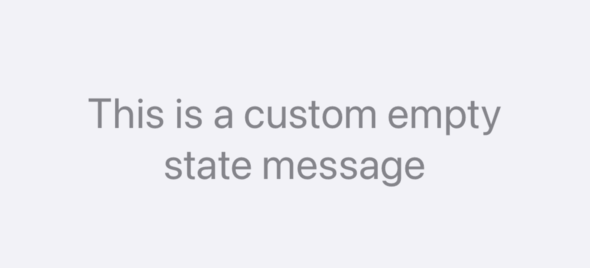
사용자가 어떤 Content Cards에도 해당하지 않는 경우, SDK는 다음과 같은 “빈 피드” 오류 메시지를 표시합니다: “We have no updates. Please check again later.” 이 “빈 피드” 오류 메시지를 다음과 유사하게 커스터마이징할 수 있습니다:
웹 SDK는 “빈 피드” 문구를 프로그래밍 방식으로 교체하는 것을 지원하지 않습니다. 피드가 표시될 때마다 교체하는 방법을 선택할 수 있지만, 피드를 새로고침하는 데 시간이 걸릴 수 있으며 빈 피드 텍스트가 즉시 표시되지 않을 수 있으므로 권장하지 않습니다.
ContentCardsFragment가 사용자가 어떤 Content Cards에도 해당하지 않는다고 판단하면, 빈 피드 오류 메시지를 표시합니다.
특수 어댑터인 EmptyContentCardsAdapter가 표준 ContentCardAdapter를 대체하여 이 오류 메시지를 표시합니다. 커스텀 메시지 자체를 설정하려면 문자열 리소스 com_braze_feed_empty를 재정의하세요.
이 메시지를 표시하는 데 사용되는 스타일은 Braze.ContentCardsDisplay.Empty를 통해 확인할 수 있으며, 다음 코드 스니펫에 재현되어 있습니다:
<style name="Braze.ContentCardsDisplay.Empty">
<item name="android:lineSpacingExtra">1.5dp</item>
<item name="android:text">@string/com_braze_feed_empty</item>
<item name="android:textColor">@color/com_braze_content_card_empty_text_color</item>
<item name="android:textSize">18.0sp</item>
<item name="android:gravity">center</item>
<item name="android:layout_height">match_parent</item>
<item name="android:layout_width">match_parent</item>
</style>
Content Cards 스타일 요소 커스터마이징에 대한 자세한 내용은 스타일 커스터마이징을 참조하세요.
Jetpack Compose로 “빈 피드” 오류 메시지를 커스터마이징하려면 ContentCardsList에 emptyString을 전달할 수 있습니다. 또한 ContentCardListStyling에 emptyTextStyle을 전달하여 이 메시지를 추가로 커스터마이징할 수 있습니다.
ContentCardsList(
emptyString = "No messages today",
style = ContentCardListStyling(
emptyTextStyle = TextStyle(...)
)
)
대신 표시하고 싶은 Composable이 있는 경우, ContentCardsList에 emptyComposable을 전달할 수 있습니다. emptyComposable이 지정되면 emptyString은 사용되지 않습니다.
ContentCardsList(
emptyComposable = {
Image(
painter = painterResource(id = R.drawable.noMessages),
contentDescription = "No messages"
)
}
)
관련 Attributes를 설정하여 뷰 컨트롤러의 빈 상태를 커스터마이징합니다.
var attributes = BrazeContentCardUI.ViewController.Attributes.defaults
attributes.emptyStateMessage = "This is a custom empty state message"
attributes.emptyStateMessageFont = .preferredFont(forTextStyle: .title1)
attributes.emptyStateMessageColor = .secondaryLabel
앱의 ContentCardsLocalizable.strings 파일에서 현지화 가능한 Content Cards 문자열을 재정의하여 빈 Content Cards 피드에 자동으로 표시되는 문구를 변경합니다.
다중 피드 구현하기
Content Cards를 앱에서 필터링하여 특정 카드만 표시할 수 있으므로, 다양한 사용 사례에 맞는 여러 Content Cards 피드를 운영할 수 있습니다. 예를 들어, 트랜잭션 피드와 마케팅 피드를 동시에 유지할 수 있습니다. 이를 구현하려면 Braze 대시보드에서 키-값 페어를 설정하여 다양한 카테고리의 Content Cards를 만드세요. 그런 다음 앱이나 사이트에서 이러한 유형의 Content Cards를 다르게 처리하는 피드를 만들어, 일부 유형은 필터링하고 나머지는 표시하도록 합니다.
1단계: 카드에 키-값 페어 설정하기
Content Cards Campaign을 만들 때, 각 카드에 키-값 페어 데이터를 설정합니다. 이 키-값 페어를 사용하여 카드를 분류합니다. 키-값 페어는 카드 데이터 모델의 extras 속성에 저장됩니다.
이 예시에서는 feed_type 키를 가진 키-값 페어를 설정하여 해당 Content Cards가 어떤 피드에 표시되어야 하는지를 지정합니다. 값은 home_screen 또는 marketing과 같이 커스텀 피드에 맞는 값으로 설정합니다.
2단계: Content Cards 필터링하기
키-값 페어를 할당한 후, 표시하려는 카드를 보여주고 다른 유형의 카드를 필터링하는 로직이 포함된 피드를 생성합니다. 이 예시에서는 feed_type: "Transactional" 키-값 페어와 일치하는 카드만 표시합니다.
다음 예시는 Transactional 유형 카드에 대한 Content Cards 피드를 보여줍니다:
/**
* @param {String} feed_type - value of the "feed_type" KVP to filter
*/
function showCardsByFeedType(feed_type) {
braze.showContentCards(null, function(cards) {
return cards.filter((card) => card.extras["feed_type"] === feed_type);
});
}
그런 다음, 커스텀 피드에 대한 토글을 설정할 수 있습니다:
// show the "Transactional" feed when this button is clicked
document.getElementById("show-transactional-feed").onclick = function() {
showCardsByFeedType("Transactional");
};
자세한 내용은 SDK 메서드 설명서를 참조하세요.
기본적으로 Content Cards 피드는 ContentCardsFragment에 표시되며, IContentCardsUpdateHandler는 Braze SDK로부터 ContentCardsUpdatedEvent를 수신한 후 표시할 카드 목록을 반환합니다. 그러나 카드를 정렬만 할 뿐 직접적인 필터링은 처리하지 않습니다.
2.1단계: 커스텀 핸들러 만들기
대시보드에서 Card.getExtras()로 설정한 키-값 페어를 사용하여 커스텀 IContentCardsUpdateHandler를 구현함으로써 Content Cards를 필터링한 다음, 이전에 설정한 feed_type 값과 일치하지 않는 카드를 목록에서 제거하도록 수정할 수 있습니다.
Java 예시 보기
private IContentCardsUpdateHandler getUpdateHandlerForFeedType(final String desiredFeedType) {
return new IContentCardsUpdateHandler() {
@Override
public List<Card> handleCardUpdate(ContentCardsUpdatedEvent event) {
// Use the default card update handler for a first
// pass at sorting the cards. This is not required
// but is done for convenience.
final List<Card> cards = new DefaultContentCardsUpdateHandler().handleCardUpdate(event);
final Iterator<Card> cardIterator = cards.iterator();
while (cardIterator.hasNext()) {
final Card card = cardIterator.next();
// Make sure the card has our custom KVP
// from the dashboard with the key "feed_type"
if (card.getExtras().containsKey("feed_type")) {
final String feedType = card.getExtras().get("feed_type");
if (!desiredFeedType.equals(feedType)) {
// The card has a feed type, but it doesn't match
// our desired feed type, remove it.
cardIterator.remove();
}
} else {
// The card doesn't have a feed
// type at all, remove it
cardIterator.remove();
}
}
// At this point, all of the cards in this list have
// a feed type that explicitly matches the value we put
// in the dashboard.
return cards;
}
};
}
Kotlin 예시 보기
private fun getUpdateHandlerForFeedType(desiredFeedType: String): IContentCardsUpdateHandler {
return IContentCardsUpdateHandler { event ->
// Use the default card update handler for a first
// pass at sorting the cards. This is not required
// but is done for convenience.
val cards = DefaultContentCardsUpdateHandler().handleCardUpdate(event)
val cardIterator = cards.iterator()
while (cardIterator.hasNext()) {
val card = cardIterator.next()
// Make sure the card has our custom KVP
// from the dashboard with the key "feed_type"
if (card.extras.containsKey("feed_type")) {
val feedType = card.extras["feed_type"]
if (desiredFeedType != feedType) {
// The card has a feed type, but it doesn't match
// our desired feed type, remove it.
cardIterator.remove()
}
} else {
// The card doesn't have a feed
// type at all, remove it
cardIterator.remove()
}
}
// At this point, all of the cards in this list have
// a feed type that explicitly matches the value we put
// in the dashboard.
cards
}
}
2.2단계: 프래그먼트에 추가하기
IContentCardsUpdateHandler를 생성한 후, 이를 사용하는 ContentCardsFragment를 만드세요. 이 커스텀 피드는 다른 ContentCardsFragment와 동일하게 사용할 수 있습니다. 앱의 여러 부분에서 대시보드에 제공된 키를 기반으로 서로 다른 Content Cards 피드를 표시하세요. 각 프래그먼트에 커스텀 IContentCardsUpdateHandler가 적용되어 있으므로, 각 ContentCardsFragment 피드에는 고유한 카드 세트가 표시됩니다.
Java 예시 보기
// We want a Content Cards feed that only shows "Transactional" cards.
ContentCardsFragment customContentCardsFragment = new ContentCardsFragment();
customContentCardsFragment.setContentCardUpdateHandler(getUpdateHandlerForFeedType("Transactional"));
Kotlin 예시 보기
// We want a Content Cards feed that only shows "Transactional" cards.
val customContentCardsFragment = ContentCardsFragment()
customContentCardsFragment.contentCardUpdateHandler = getUpdateHandlerForFeedType("Transactional")
이 피드에 표시할 콘텐츠 카드를 필터링하려면 cardUpdateHandler를 사용하세요. 예시:
ContentCardsList(
cardUpdateHandler = {
it.filter { card ->
card.extras["feed_type"] == "Transactional"
}
}
)
The following example will show the Content Cards feed for Transactional type cards:
// Filter cards by the `Transactional` feed type based on your key-value pair.
let transactionalCards = cards.filter { $0.extras["feed_type"] as? String == "Transactional" }
한 단계 더 나아가, Attributes 구조체의 transform 속성을 설정하여 뷰 컨트롤러에 표시되는 카드를 필터링할 수 있습니다. 이렇게 하면 기준에 맞게 필터링된 카드만 표시됩니다.
var attributes = BrazeContentCardUI.ViewController.Attributes.defaults
attributes.transform = { cards in
cards.filter { $0.extras["feed_type"] as? String == "Transactional" }
}
// Pass your attributes containing the transformed cards to the Content Card UI.
let viewController = BrazeContentCardUI.ViewController(braze: AppDelegate.braze, attributes: attributes)
// Filter cards by the `Transactional` feed type based on your key-value pair.
NSMutableArray<BRZContentCardRaw *> *transactionalCards = [[NSMutableArray alloc] init];
for (BRZContentCardRaw *card in AppDelegate.braze.contentCards.cards) {
if ([card.extras[@"feed_type"] isEqualToString:@"Transactional"]) {
[transactionalCards addObject:card];
}
}