Crowdin
Crowdin is an AI-driven localization management platform that helps teams automate the translation of their software, apps, and marketing content.
Connect Crowdin to Braze to manage translations for your campaigns and Canvas experiences. Automated synchronization works with machine translation, Translation Memory, and glossaries so human and automated workflows stay consistent.
This integration is maintained by Crowdin.
About the integration
Crowdin offers two apps for Braze: Braze Campaigns & Canvas and Braze Email Templates. Choose based on the Braze features you localize. The following table compares them.
Choose the right Crowdin app
| Channel or feature | Braze Campaigns & Canvas | Braze Email Templates |
|---|---|---|
| Campaigns | ✅ Supported | ❌ Not supported |
| Canvas steps | ✅ Supported | ❌ Not supported |
| Email templates | ❌ Not supported | ✅ Supported |
| Content Blocks | ❌ Not supported | ✅ Supported |
Prerequisites
| Requirement | Description |
|---|---|
| Crowdin account | A Crowdin.com account or Crowdin Enterprise account is required. |
| Crowdin project | Before you connect Braze, create a translation project in Crowdin or Crowdin Enterprise. |
| Braze REST API key | A Braze REST API key with permissions for campaigns, Canvas, Content Blocks, custom attributes, email, and templates. |
| Braze REST endpoint | Your specific Braze REST endpoint URL (for example, https://rest.iad-03.braze.com). |
| Braze multi-language settings | Locales must be configured in your Braze dashboard under Settings > Localization Settings. |
Braze Campaigns & Canvas integration
If you localize content inside live messages, use the Braze Campaigns & Canvas app to sync translatable strings from your Campaign and Canvas drafts with Braze multi-language support.
For a video walkthrough, see Braze Campaigns & Canvas integration.
Step 1: Set up multi-language settings in Braze
Before you connect Crowdin, add your target languages in Braze.
- In Braze, go to Settings > Localization Settings.
- Add the languages you plan to support.
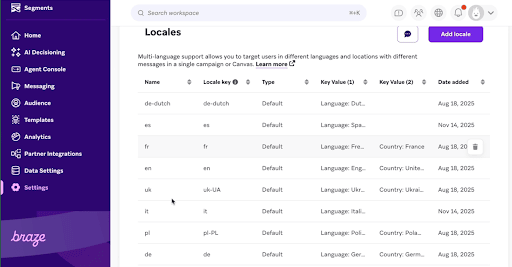
- Note each Locale key (for example,
en-US,fr-FR,es-ES). You use these values when you map languages in Crowdin.
Step 2: Set up the Braze project in Crowdin
- In your Crowdin Enterprise or Crowdin.com account, go to Store in the navigation menu.
- Search for Braze Campaigns & Canvas, then select Install.
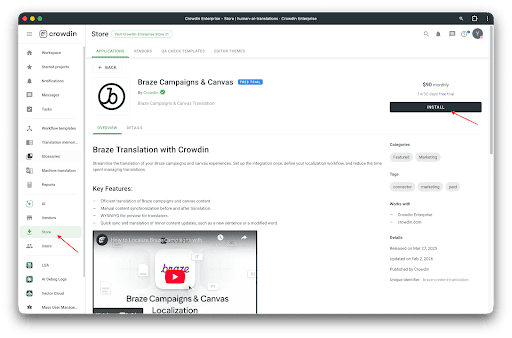
- Select the project (or projects) where you want to use this integration.
- To open the integration, go to your project Integrations > Braze Campaigns & Canvas.
Connecting Braze to Crowdin
Authorize the connection with your Braze API credentials:
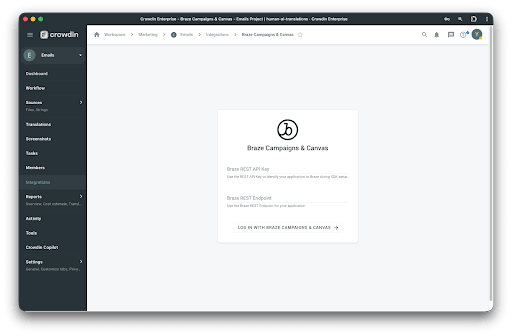
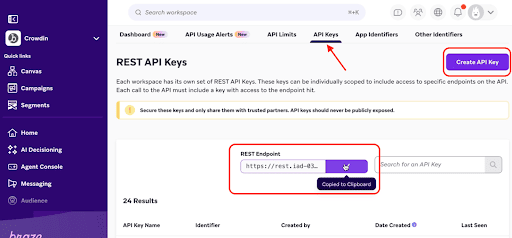
- Braze REST API key: Create this in Braze under Settings > APIs and Identifiers > API Keys. Grant the permissions this integration needs (campaigns, Canvas, Content Blocks, and custom attributes).
- Braze REST endpoint: Enter the URL for your Braze instance (for example,
https://rest.iad-03.braze.com). For more information, see REST API endpoints.
Select Log in with Braze Campaigns & Canvas.
Step 3: Configure language mapping in Crowdin
After you connect your account, map each Crowdin project language to the matching Braze locale.
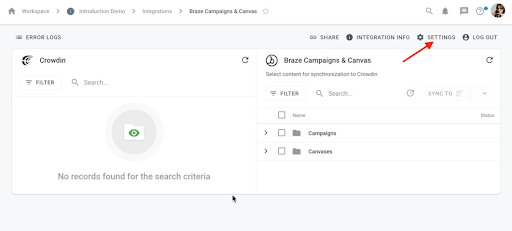
- In the Braze Campaigns & Canvas integration dashboard, select the Settings gear icon in the top action bar.
- Open the General Settings tab.
- Enter locale keys. Crowdin lists your project languages (for example, French, Italian). In each field, enter the matching Braze locale key.
- For example, if Braze uses
itfor Italian, enteritnext to Italian in Crowdin. - Each entry must match the Locale key for that locale in Braze Localization Settings exactly.
- For example, if Braze uses
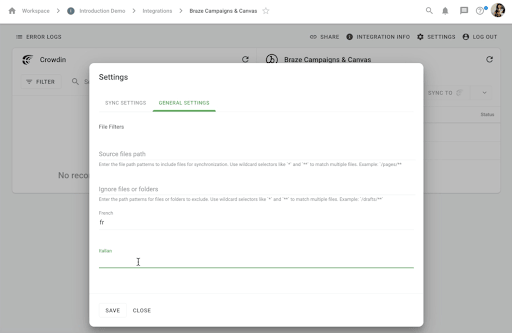
- Select Save to confirm the mapping.
Step 4: Add translation tags to your Braze message
Crowdin reads the same Liquid translation tags Braze uses for multi-language messages. Add {% translation your_id_here %} and {% endtranslation %} around every piece of text, image URL, or link URL you want translated. Each block needs a unique id (for example, greeting or welcome_header).
Example:
{% translation greeting %}Hello!{% endtranslation %}
For HTML, Liquid in links, and other patterns, follow the same rules as in Translating locales (for example, keep tags around the smallest segments possible, and wrap only language-specific parts of URLs when localizing links).
Save your Braze message as a Draft before Crowdin can detect and pull the content.
Step 5: Manage translations in Crowdin
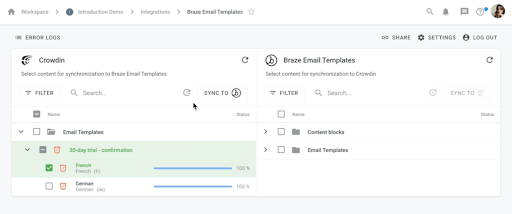
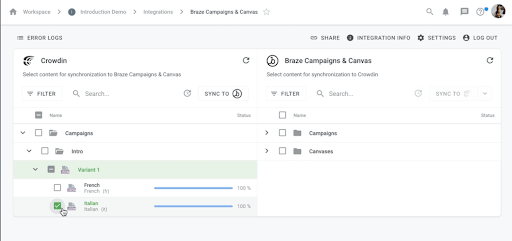
The integration screen has two sides:
- Braze panel: Your campaigns and Canvases.
- Crowdin panel: Content already synced for translation.
Syncing content
- In the Braze panel, select the checkbox for the campaign or Canvas to translate.
- Select Sync to Crowdin.
- When the sync is complete, the file appears in the Crowdin panel. Translators can open the strings in the Crowdin Editor.
Returning translations to Braze
- When translations are 100% complete in Crowdin, return to the Integrations tab.
- Select the completed content in the Crowdin panel.
- Select Sync to Braze. This pushes the translated strings into the corresponding language variants in your Braze campaign.
Step 6: Preview the message as a multi-language user in Braze
To confirm the integration:
- Open your campaign in the Braze Message Composer.
- Go to the Test tab.
- Select Preview Message as User.
- Search for a user profile that has a
languageattribute matching one of your translated locales. - Confirm that the content switches from the source language to the translated version.
Braze Email Templates integration
If you localize email at the template level, use the Braze Email Templates app to sync HTML from your Braze Media Library.
For a video walkthrough, see Braze Email Templates integration.
Step 1: Install the app
- In your Crowdin project, go to the Store tab.
- Search for Braze Email Templates and select Install.
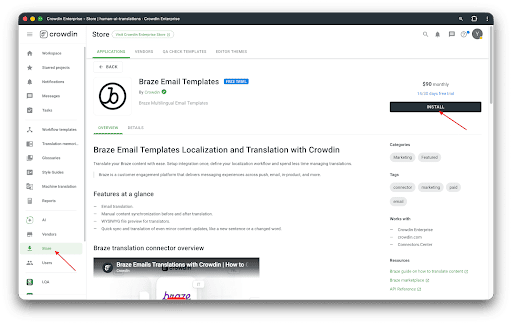
- Select the project (or projects) where you want to use this integration.
- To open the integration, go to your project Integrations > Braze Email Templates.
Step 2: Connect to Braze
Authorize the connection with your Braze API credentials:
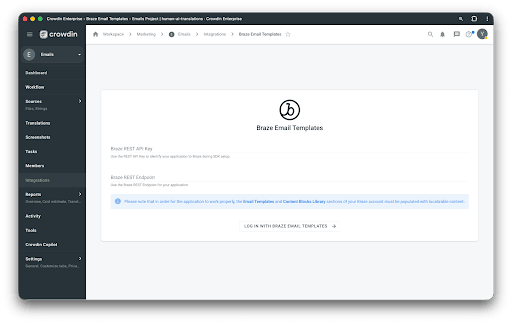
- Braze REST API key: Grant
templates.emailandcontent_blocks(read and write). Create the key in Braze under Settings > APIs and Identifiers > API Keys.
- For Braze REST endpoint, use your instance-specific URL (for example,
https://rest.iad-03.braze.com). - Select Log in with Braze Email Templates.
Step 3: Sync content for translation
The integration screen shows your Braze library:
- Braze panel: Email Templates and Content Blocks you can sync.
- Crowdin panel: Content in translation.
- In the Braze panel, select the checkbox next to the templates or blocks you want to localize.
- Select Sync to Crowdin.
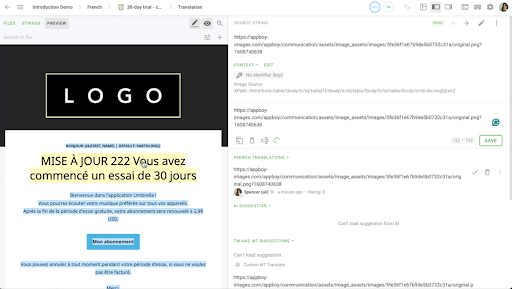
- Crowdin pulls the HTML source. Translators work in the Crowdin Editor with a live WYSIWYG preview so the layout stays intact.
Step 4: Deliver translated templates
When translations reach 100% completion:
- Select the completed files in the Crowdin panel.
- Select Sync to Braze.
- Crowdin automatically creates localized versions of these assets in your Braze media library (for example,
Template_Name_fr).