Mozart Data
Mozart Data is an all-in-one modern data platform powered by Fivetran, Portable, and Snowflake.
The Braze and Mozart Data integration allows you to:
- Use Fivetran to import Braze data into Snowflake
- Create transforms by combining Braze data with other applications data and effectively analyze user behaviors
- Import data from Snowflake into Braze to create new customer engagement opportunities
- Combine Braze data with other applications data to gain a more holistic understanding of user behaviors
- Integrate with a business intelligence tool to further explore the data that is stored in Snowflake
Prerequisites
| Requirement | Description |
|---|---|
| Mozart Data account | A Mozart Data account is required to take advantage of this partnership. Sign up for a Mozart Data account |
| Snowflake Account Option 1: New Account |
Select Create a New Snowflake Account during the Mozart Data account creation process for Mozart Data to provision a new Snowflake account for you. |
| Snowflake Account Option 2: Existing Account |
If your organization already has a Snowflake account, you can use the Mozart Data Connected option. Select the Already Have a Snowflake Account option to connect an existing Snowflake account. To pursue this option, a user with account-level permissions must follow these steps. |
Integration
The integration is supported for both syncing data from Braze to Mozart Data and Mozart Data to Braze.
Syncing data from Braze to Mozart Data
Step 1: Set up Braze connector
- In Mozart Data, go to Connectors and select Add Connector.
- Search for “Braze” and select the connector card.
- Enter a destination schema name where all of the synced data from Braze will be stored. We recommend using the default schema name
braze. - Select Add Connector.
Step 2: Fill out the Fivetran connector form
The Fivetran connector page opens after you finish step 1. Fill out the given fields, then select Continue > Save & Test to complete the Fivetran connector.
Fivetran begins syncing data from your Braze account to your Snowflake data warehouse. You can access query data from Mozart Data after the connector finishes syncing.
Syncing data from Mozart Data to Braze
Step 1: Set up a Snowflake data warehouse
Follow the Cloud Data Ingestion instructions to set up a table, user, and permission from the Snowflake interface. Note that this step requires admin-level Snowflake access.
Step 2: Set up your Snowflake integration in Braze
After setting up your Snowflake warehouse, in Mozart Data, go to the Integration page and select Braze. The Braze integration view lists the credentials to copy into Braze.
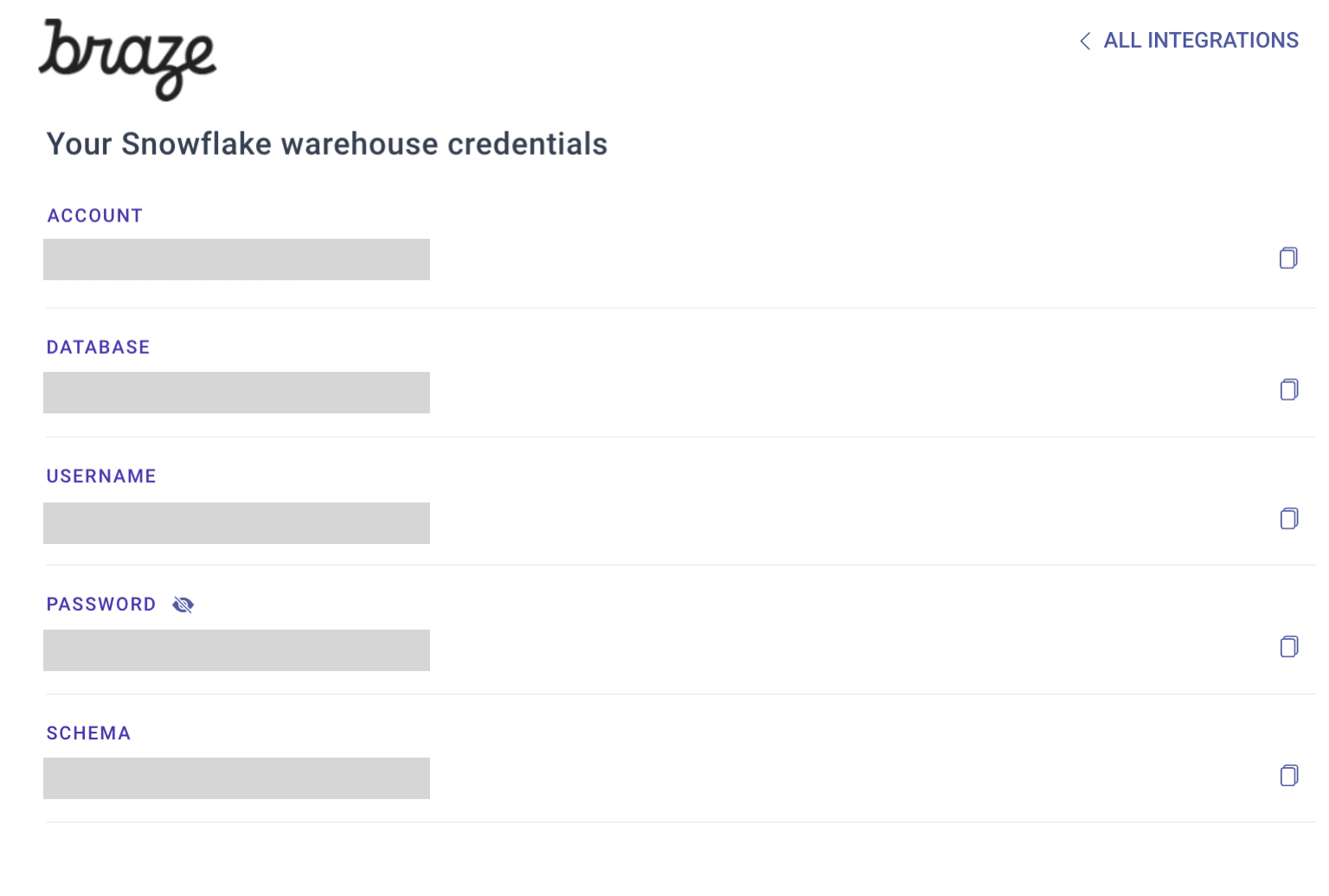
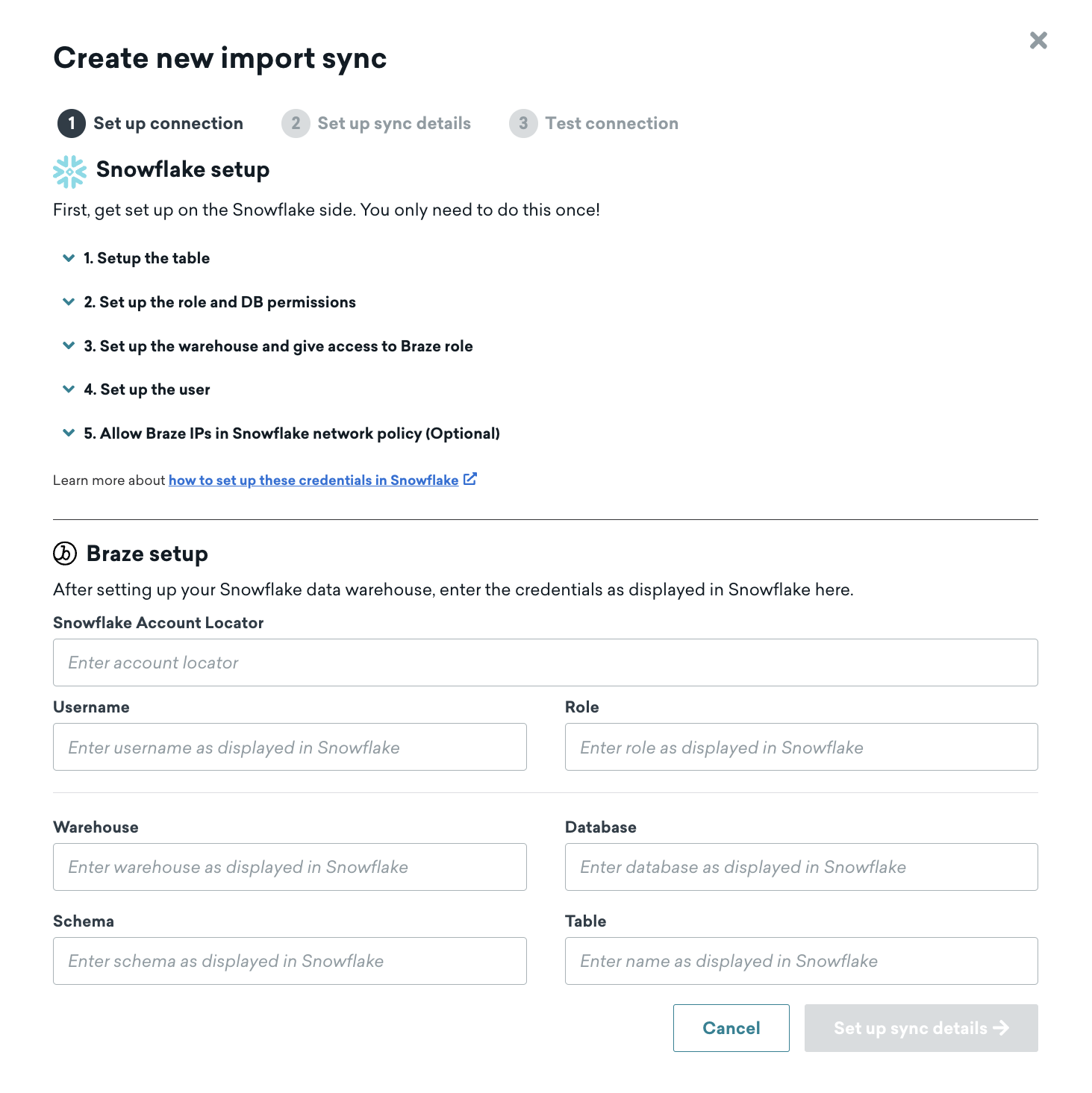
Next, while signed into Braze, go to Integrations > Technology Partners > Snowflake to begin the integration process. Copy the credentials from Mozart Data and add them to the Snowflake Data import page. Select Set up sync details and input your Snowflake account and source table information.
Next, choose a name for your sync, provide contact emails, and select a data type and a sync frequency on the Braze Snowflake import configuration screen.
Step 3: Add a public key to the Braze user
At this point, go back to Snowflake to complete the setup. Add the public key displayed on the Braze dashboard to the user you created for Braze to connect to Snowflake.
For additional information on how to do this, see the Snowflake documentation. If you want to rotate the keys at any point, Mozart Data can generate a new key pair and provide you with the new public key.
1
ALTER USER BRAZE_INGESTION_USER SET rsa_public_key='Braze12345...';
Step 4: Test connection
Once the user is updated with the public key, return to the Braze dashboard and select Test connection. If successful, you’ll see a preview of the data. If, for some reason, the connection is unsuccessful, an error message will display to help troubleshoot the issue.
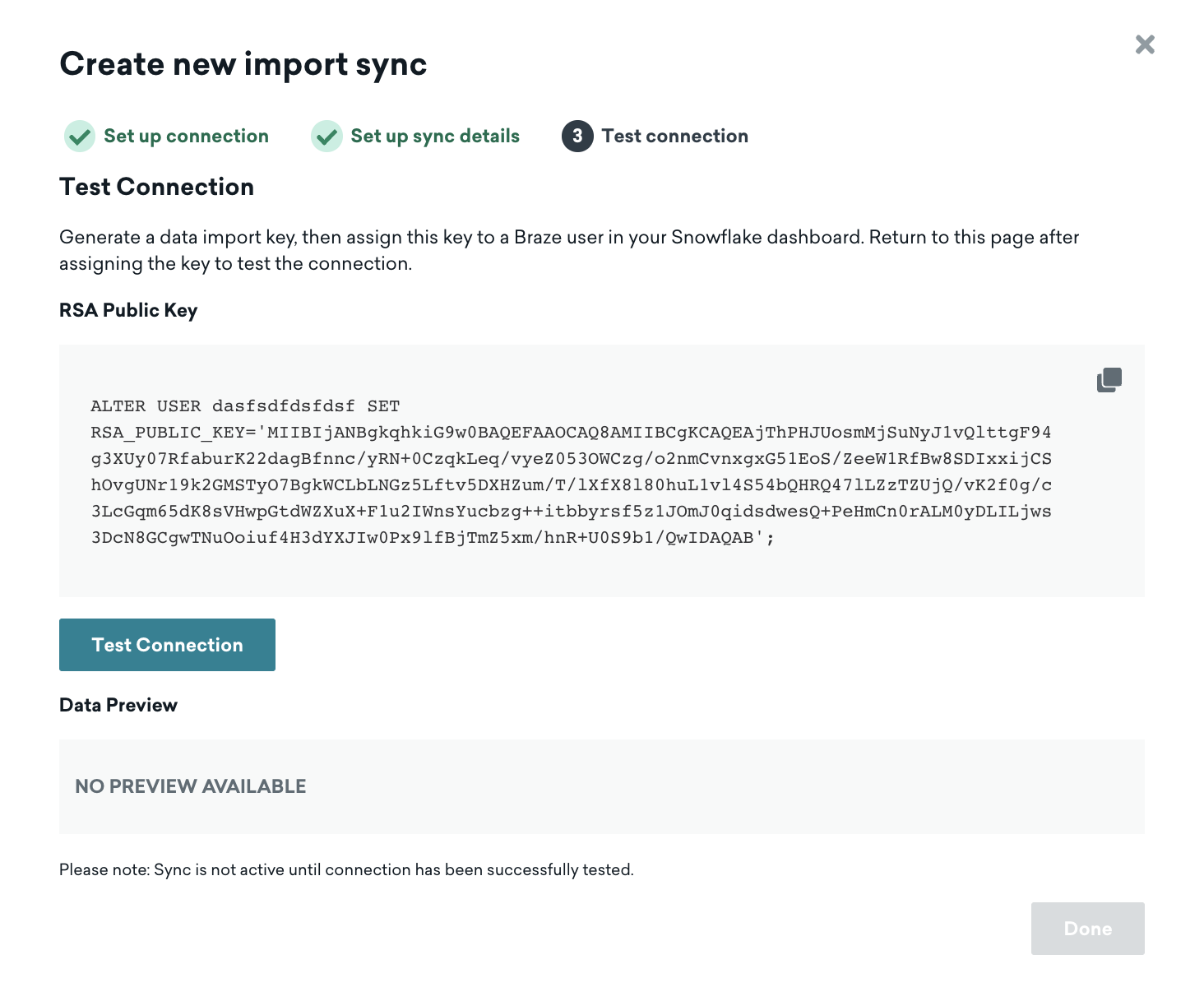

You must successfully test an integration before it can move from Draft to Active state. If you need to close out of the creation page, your integration will be saved, and you can revisit the details page to make changes and test.
Using this integration
How to access Braze data as a Mozart Data user
Upon successfully creating a Mozart Data account, you can access your Braze data synced to your Snowflake data warehouse from Mozart Data.
Transforms
Mozart Data offers a SQL transformation layer to allow users to create a view or table. You can create a user-level dimension table (for example, dim_users) to summarize each user’s product usage data, transactional history, and engagement activities with Braze messages.
Analysis
Using the transform models or raw data synced from Braze, you can analyze users’ engagement with Braze messages. Additionally, you can combine the Braze data with other application data and analyze how the insights you gained from users’ interaction with the Braze messages relate to other data you may have about the users. For example, their demographic information, shopping history, product usage, and customer service engagement.
This can help you make more informed decisions about engagement strategies to improve user retention. This can all be done within Mozart Data’s interface using the Query tool, where you can export the results into a Google Sheet or CSV to prepare for a presentation.
Business intelligence (BI)
Ready to visualize and share your insights with other team members? Mozart Data integrates with almost every BI tool. If you do not already have a BI tool, contact Mozart Data to set up a free Metabase account.