Shopify segments sync
The Shopify segments sync extends your Shopify store into Braze, giving your marketing team direct access to richer user data that lives in Shopify, including signals that aren’t captured by the standard Braze Shopify integration. By syncing Shopify segments as cohorts, you align audience definitions across both platforms and deliver consistent, coordinated user experiences whether you target them in Shopify or reach them through a Braze campaign.

The Shopify segments sync is currently in beta. To request access, contact your customer success manager.
Prerequisites
| Requirement | Description |
|---|---|
| Braze Shopify integration | The Braze Shopify app must be installed on your Shopify store and connected to a Braze workspace. For setup instructions, see Shopify Standard Integration Setup or Shopify Custom Integration Setup. |
| Shopify user permission | The Shopify user initiating the segment sync must have the Export permission to export user data. For more information on Shopify permissions, see Shopify’s store permissions documentation. |
How it works
The Shopify segments sync works in two phases.
- Initial backfill: When you first sync a segment, Braze backfills all current members and creates a corresponding cohort in Braze. The backfill runs asynchronously and may take a few moments to complete.
- Ongoing sync: After the initial backfill, Braze also subscribes to Shopify webhooks so membership stays synced in near real-time.
| Webhook topic | Effect in Braze |
|---|---|
customer.joined_segment |
The user is added to the corresponding Braze cohort. |
customer.left_segment |
The user is removed from the corresponding Braze cohort. |
If a sync fails, the action extension modal displays an error banner explaining what happened and how to proceed. Some errors offer a Retry sync action. Others require an admin or configuration change.
Data import integration
Step 1: Select a Shopify segment to sync
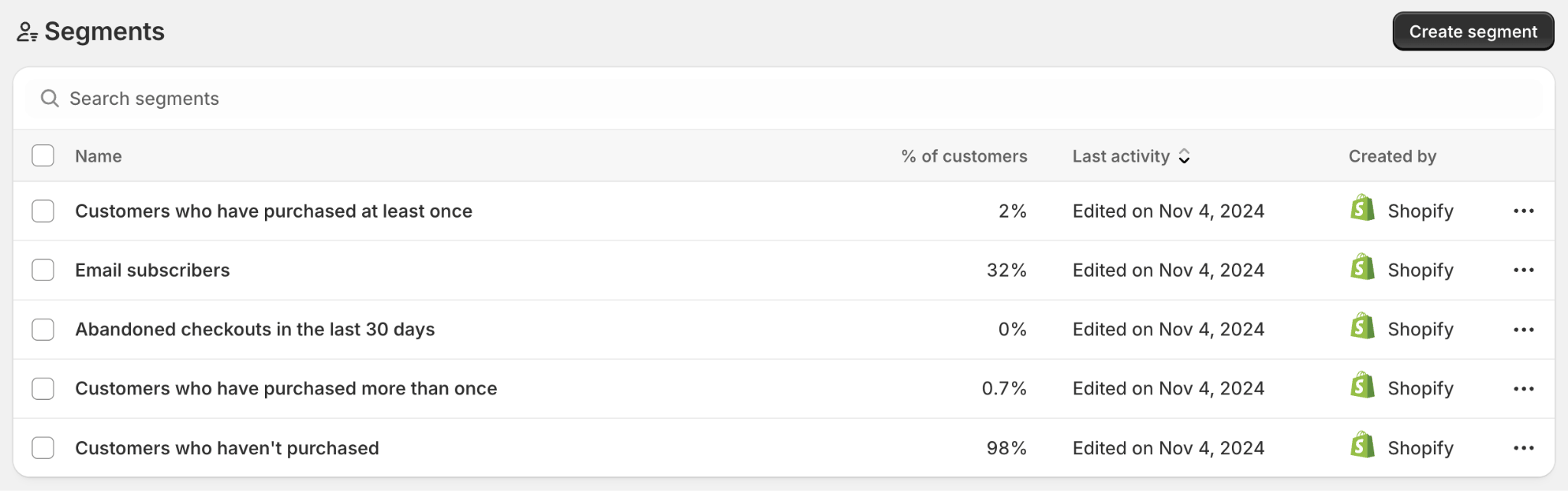
In Shopify, go to Customers > Segments, and select the segment you want to sync to Braze. You can sync any segment built using Shopify’s native segmentation, including segments based on order history, product purchases, customer tags, lifetime spend, and metafields.
Step 2: Initiate the sync
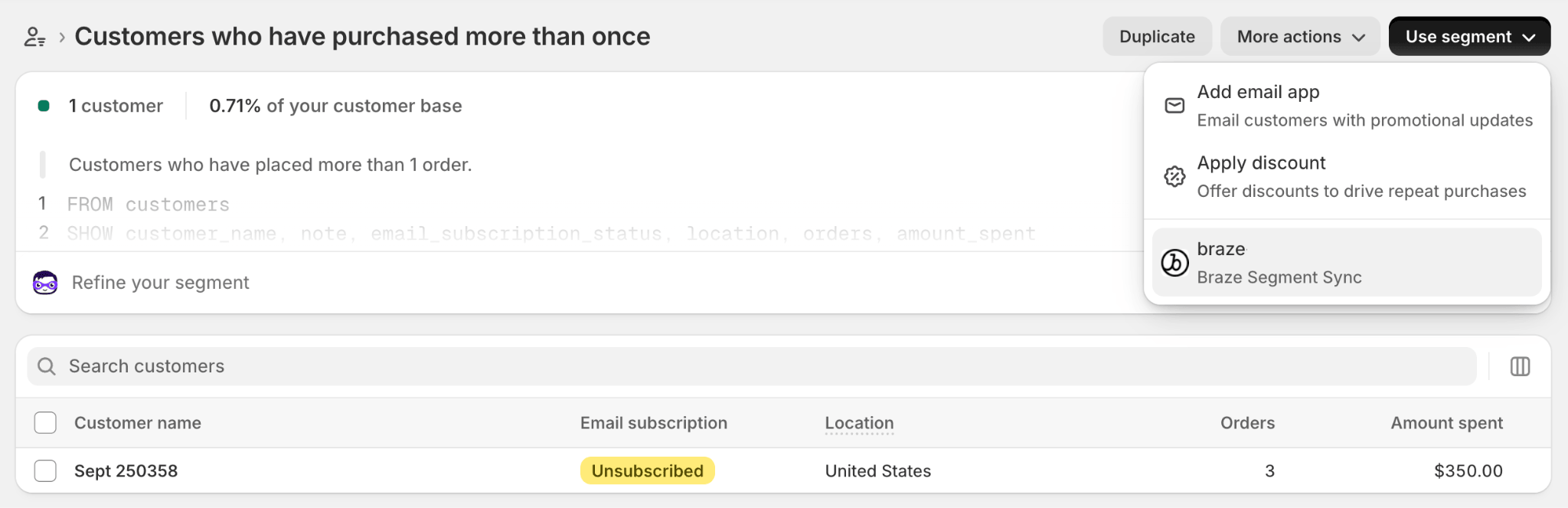
- On Shopify’s segment detail page, open the Use segment dropdown and select Braze Segment Sync.
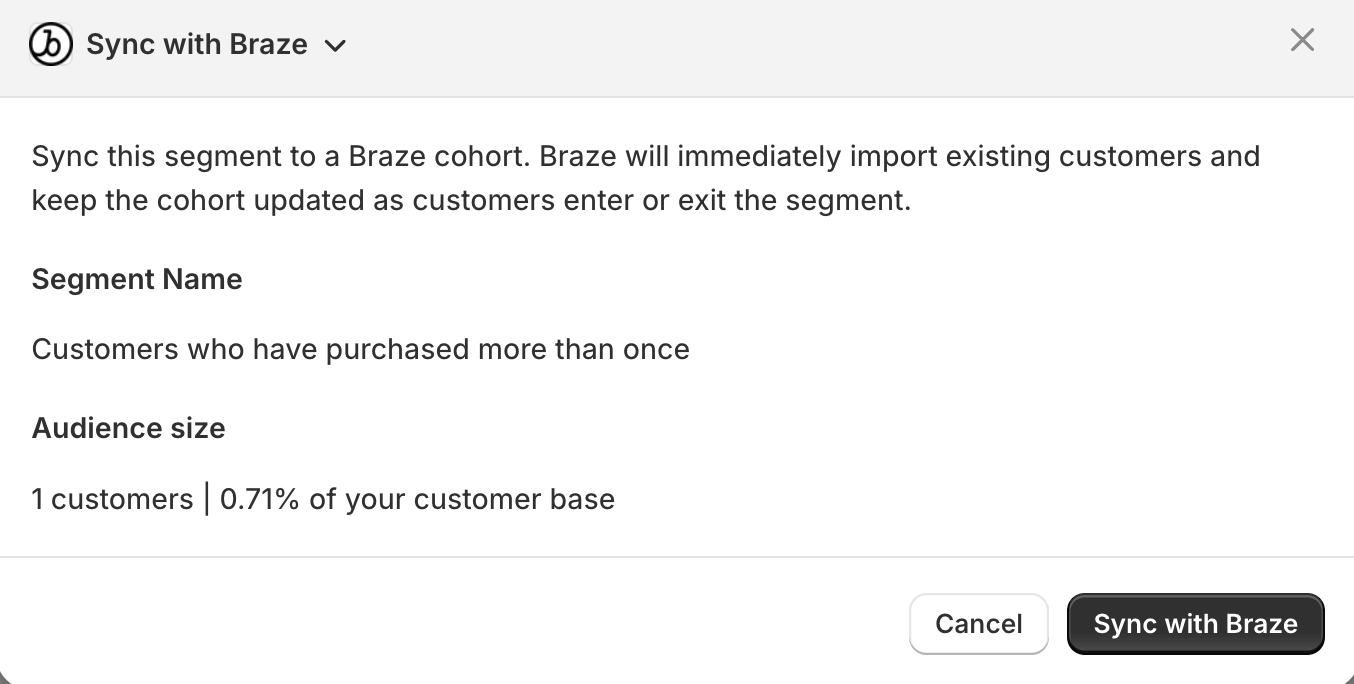
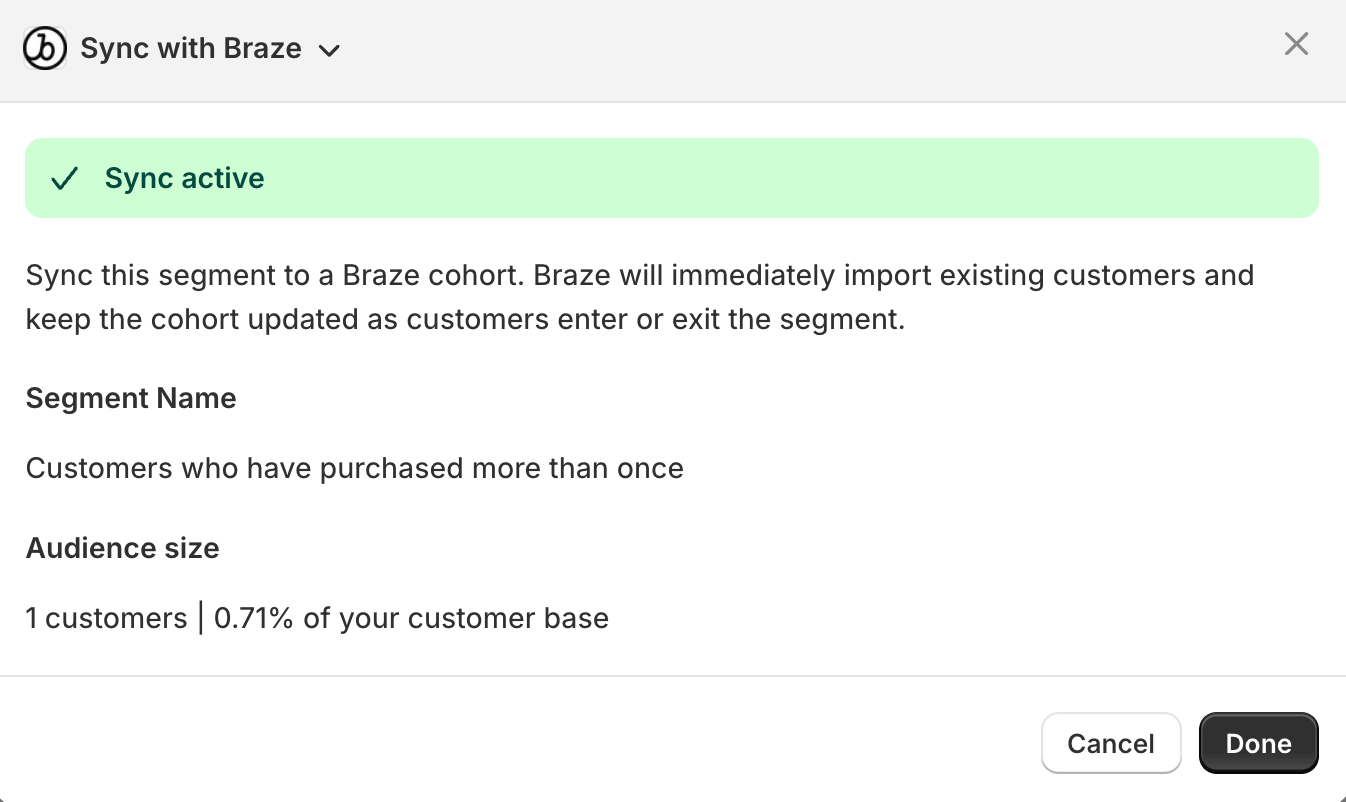
- The Braze action extension modal opens, displaying the segment name and audience size. Select Sync with Braze to begin the import.
- The modal transitions to a syncing state and shows a progress banner while Braze imports the members.
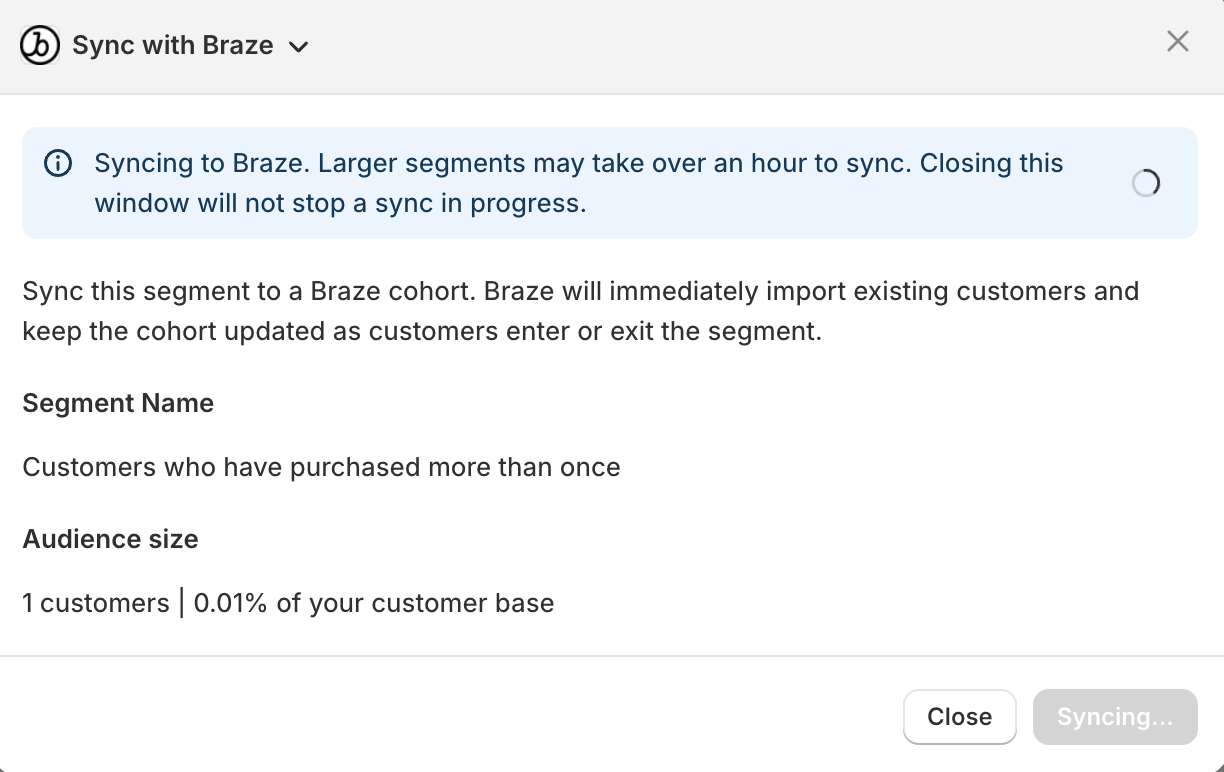
- Select Close. The sync continues in the background. Closing the modal doesn’t stop it.
To check whether the sync has completed, close and reopen the modal. When the sync finishes, the modal opens with a success banner.
Step 3: Create a Braze segment with the Cohort Membership filter
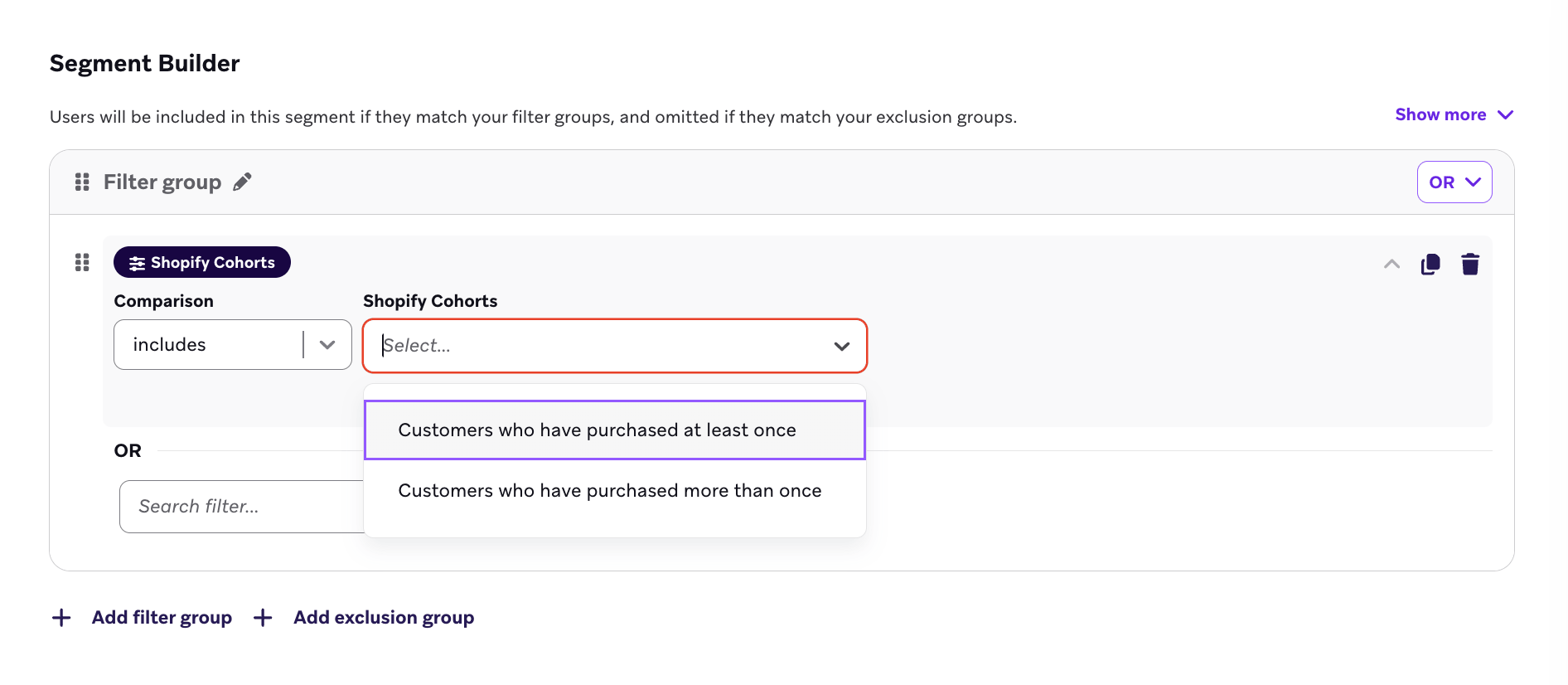
In Braze, go to Audience > Segments, and create a new segment. In Add Filter, select the Cohort Membership filter and select your synced Shopify segment from the dropdown. After saving, you can reference this Braze segment when targeting users in a campaign or Canvas.
Re-syncing a segment
After a segment is synced, you can refresh cohort membership at any time from the same action extension.
- In Shopify, open the synced segment and select Use segment > Braze Segment Sync.
- In the modal, select Sync now.
- In the confirmation dialog, select Sync now to start the re-sync.
Re-syncing is additive: users who match the current Shopify segment are added to the cohort, but users who no longer match remain in the cohort.
Managing synced segments in Braze
You can manage every synced segment from the Braze dashboard. Go to Partner Integrations > Technology Partners, select your Shopify integration, and open the Manage users tab.
Sync status
Every synced segment has a sync status.
| Status | Description |
|---|---|
| Syncing | Braze is importing the segment’s members. |
| Queued | The segment is waiting for an open sync slot. |
| Active | The segment is synced and membership updates in near real-time. |
| Paused | Membership updates for this segment are paused. |
| Error | The last sync attempt failed. Select Retry sync to try again. |
Syncing segments in bulk
To sync additional segments, edit the integration, go to the Manage users step, and select Edit segments in the Sync segments section. In the selection modal:
- Select any number of segments. 25 segments are synced at a time; the rest queue automatically.
- Segments that are already syncing are locked. To remove a segment, delete it in Shopify.
Save your changes to start the syncs.
Pausing a single segment
To pause syncing for one segment, select Pause sync on its row in the segments table and confirm. When a segment’s sync is paused:
- The cohort and its members stay in Braze and stay targetable. Campaigns and Canvases that use the cohort continue to send to the cohort’s current members.
- Membership updates stop.
- Renaming the segment in Shopify still updates the cohort’s display name.
- Deleting the segment in Shopify still ends tracking.
- Sync now requests from the Shopify action extension are rejected.
To resume, select Resume sync on the row. Braze resumes membership updates and runs a catch-up sync. Users who left the Shopify segment while the sync was paused remain in the Braze cohort.
Pausing all segment syncing
To pause syncing for every segment at once, edit the integration, select Pause sync in the Sync segments section of the Manage users step, and save your settings. While all segment syncing is paused:
- The segments table shows segment names only, with a Paused status next to the heading.
- Row-level actions are unavailable until you resume.
- Braze doesn’t update cohort names for Shopify renames. Cohort names refresh when you resume.
- Sync now requests from the action extension are rejected. The extension continues to show each segment’s last-known status, and selecting Sync now doesn’t start a sync.
To resume, select Resume sync in the same section and save. Braze automatically re-syncs every previously selected segment with a catch-up sync. You don’t need to reselect them. Segments you paused individually stay paused until you resume them from their row in the segments table.
Segment updates in Shopify
Renaming a segment
When you rename a Shopify segment, Braze updates the corresponding cohort’s display name automatically. No re-sync is required. Braze also updates the cohort name while a segment’s sync is individually paused. While all segment syncing is paused, Braze updates cohort names when you resume.
Changing segment criteria
Braze doesn’t automatically update cohort membership when you change a Shopify segment’s criteria. To pick up users who newly match the criteria, re-sync the segment from the action extension. Users who no longer match remain in the cohort because re-sync doesn’t remove members. For details, see Re-syncing a segment.
User matching
Users synced from Shopify segments are matched to Braze user profiles using the shopify_customer_id alias that is set as part of the Braze Shopify integration. Users without a matching Braze user profile are skipped during sync.
For details on how the Shopify integration identifies and aliases users, see Shopify Data Features.
Braze matches synced users against existing Braze user profiles regardless of how those profiles were created, including through the Shopify historical backfill, your own data platform (such as Snowflake or another data warehouse), or direct API imports. If your cohort is smaller than your Shopify segment, it means some segment members don’t yet have a matching Braze profile. To increase match coverage, populate Braze user profiles through your preferred method before syncing.
Limitations
- One-way sync. Segment membership flows from Shopify to Braze only. Changes to cohort membership made directly in Braze are not pushed back to Shopify.
- No profile creation. Only Shopify customers who already have a Braze user profile are added to the cohort.
- No way to stop syncing from Braze. To stop syncing a segment, delete it in Shopify. The cohort and its members remain in Braze and stop updating.
- Re-sync only adds members. Re-syncing a segment adds newly matching users to the cohort but doesn’t remove users who are no longer in the Shopify segment.