Canva
Canva is a graphic design platform and tool that allows you to create visual content for social media posts, presentations, videos, and more. The Braze app in Canva also supports exporting Email designs as Braze email templates, in addition to sending static designs to your media library.
About the integration
The Braze and Canva integration supports two export paths:
| Export type | What it does |
|---|---|
| Image or design to Media Library | Sends your design as an asset to the Braze media library. |
| Email design to Braze | Publishes a Canva Email document as a Braze email template, including subject line metadata. |
Integrate Braze with Canva
Step 1: Install the Braze App in Canva
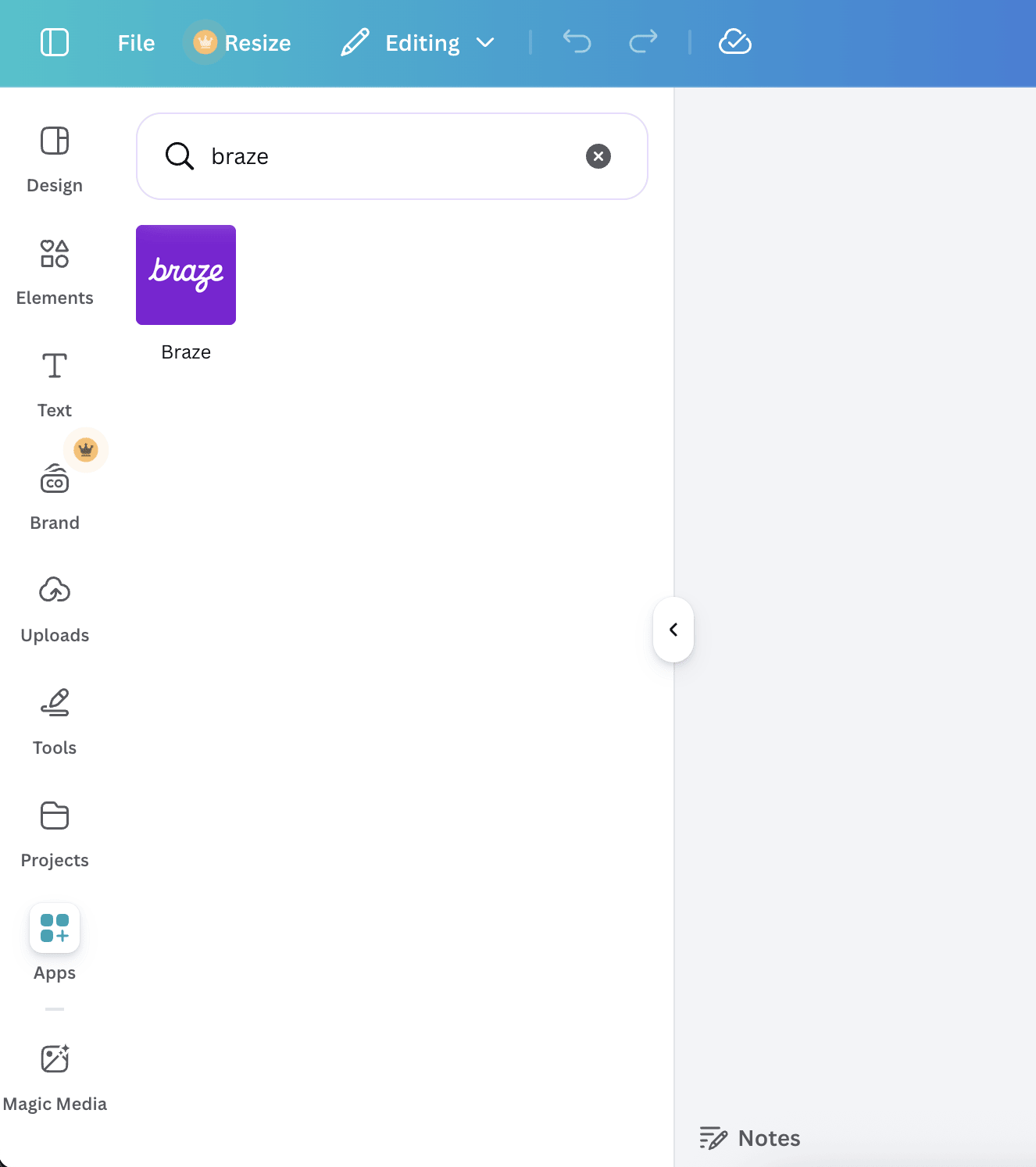
You can find the Braze App in the Canva Apps Marketplace.
After installing the app, it’s available within a design, under the Apps menu.
Step 2: Authorize your Braze account
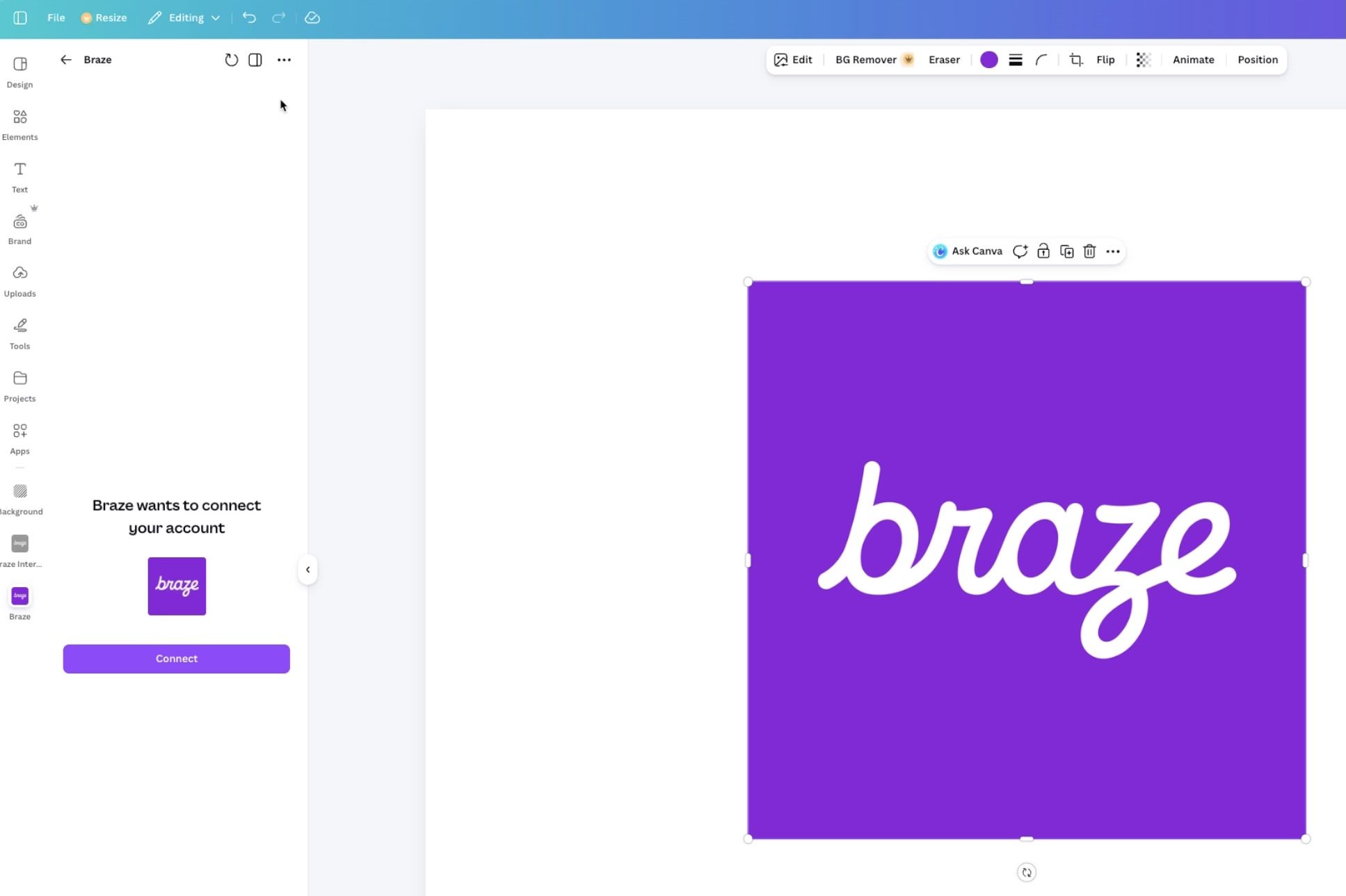
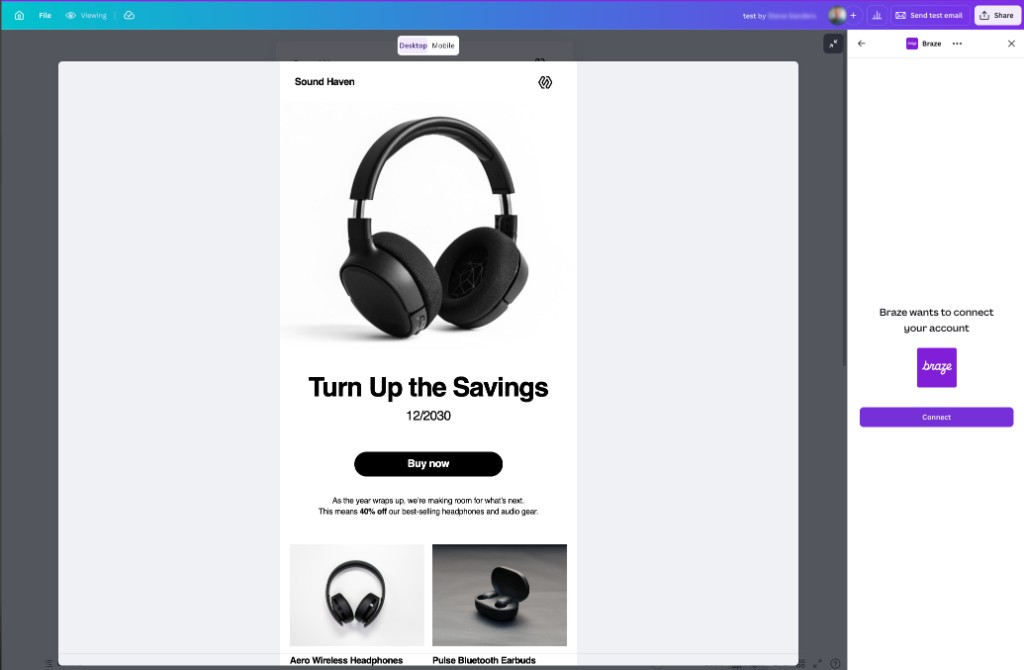
The first time you use the Braze app—whether you open it from the Apps menu (media library export) or from the Share menu (email export)—select Connect to start authorization. This lets Canva list the Braze workspaces you can access and create media library assets on your behalf.
For email exports, Canva may ask you to sign in again and approve additional access, including permission to create email templates. Accept those permissions to finish publishing email designs to Braze.
Export images to the media library
Use this flow for standard Canva designs when you want a file in the Braze media library.
The following videos show how to send designs from Canva to your Braze media library.
Video: Open the Braze app in Canva and start a media library export.
Video: Choose a Braze workspace and complete the export to the media library.
- From the Apps menu in your design, open the Braze app. If you aren’t connected yet, select Connect and complete the steps in Authorize your Braze account.
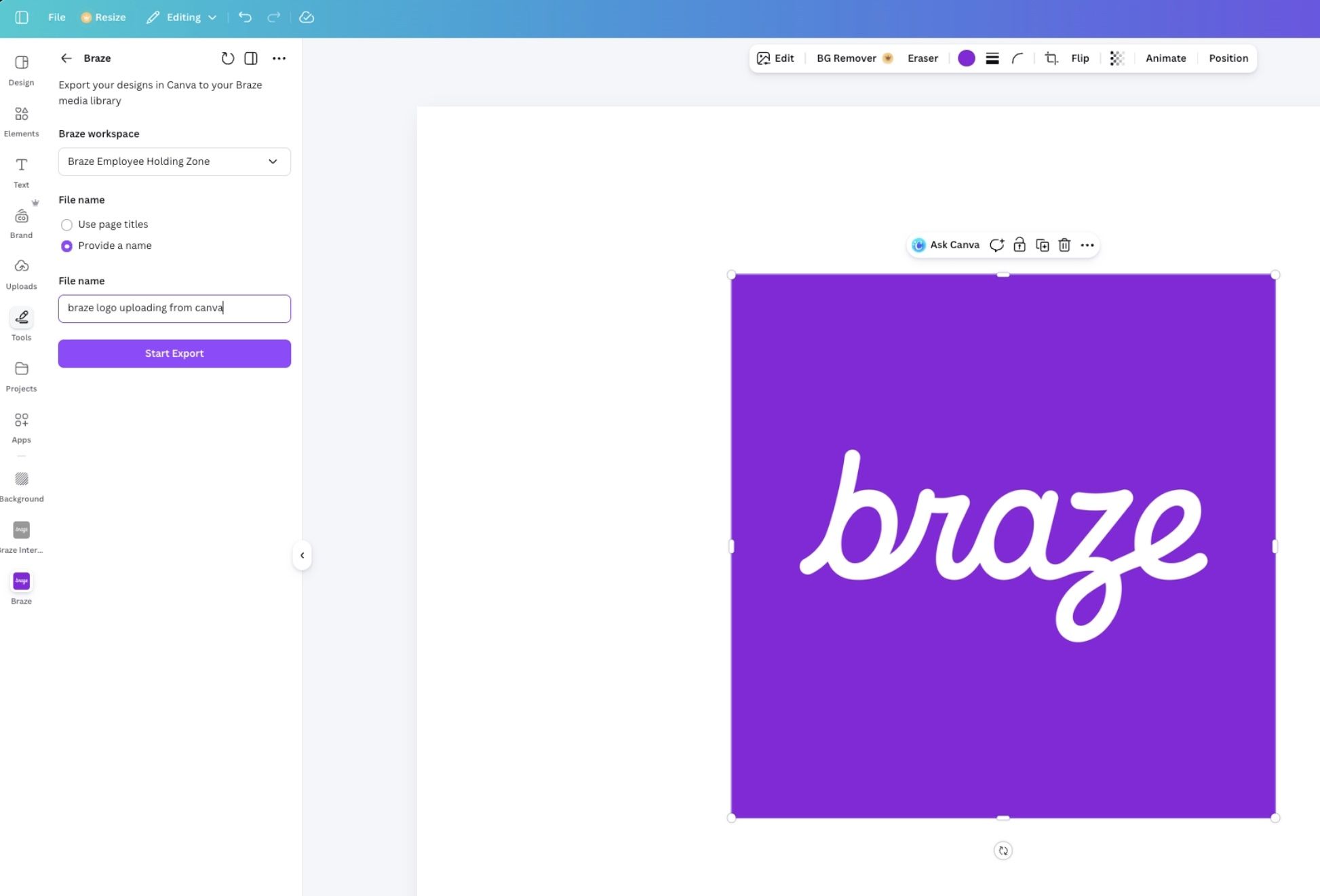
- Choose your destination workspace, optionally enter a filename, and select Start Export.
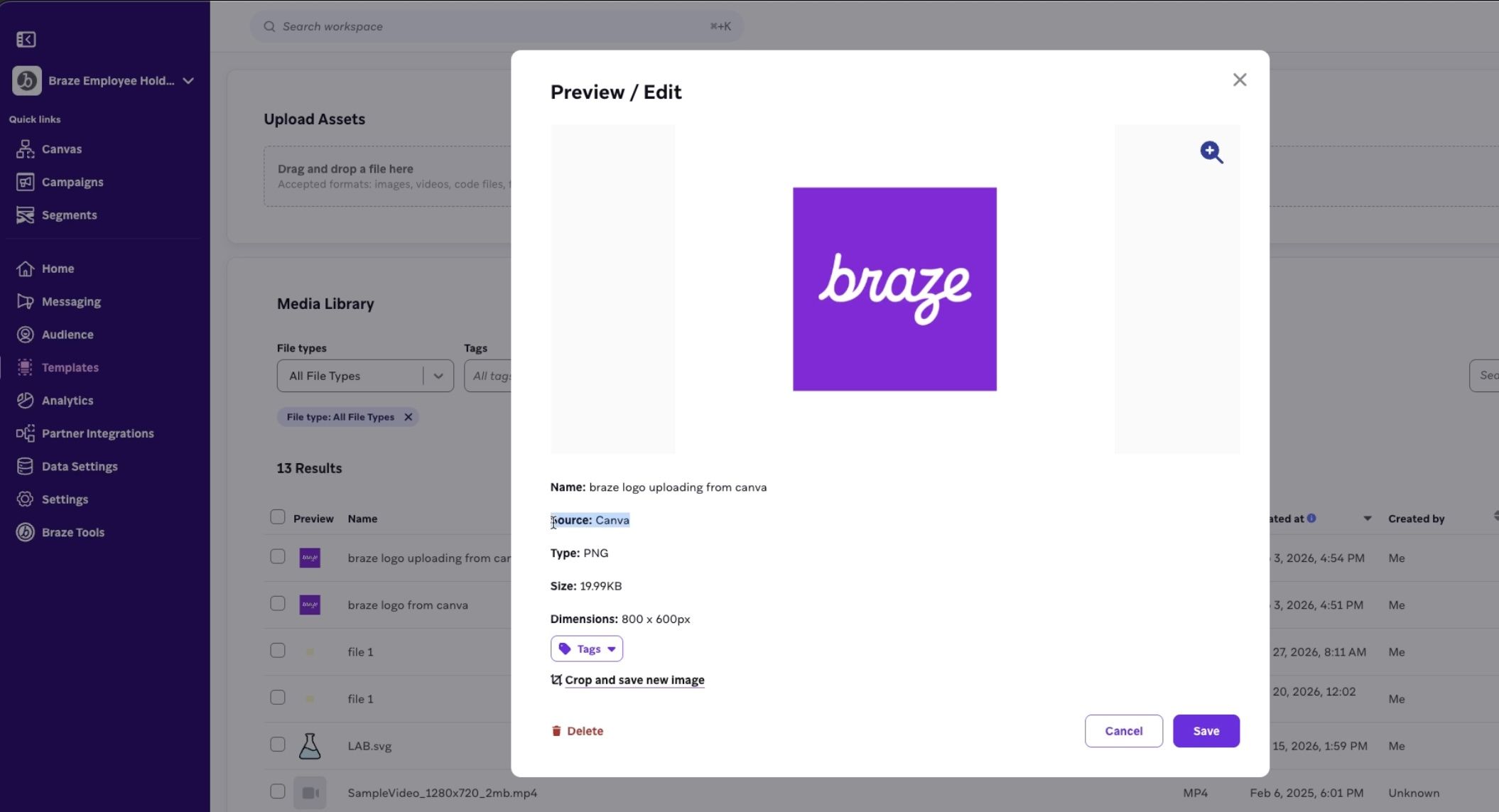
- When your export completes, your new asset is available in the Media Library, with a source of “Canva”.
Export email designs as Braze templates
Use this flow when your Canva file is an Email design type. It publishes HTML to Braze as a template (similar metadata to the image flow, but you start from Share instead of Apps).
- In Canva, create or open an Email design. Build a new message or use a Canva email template.
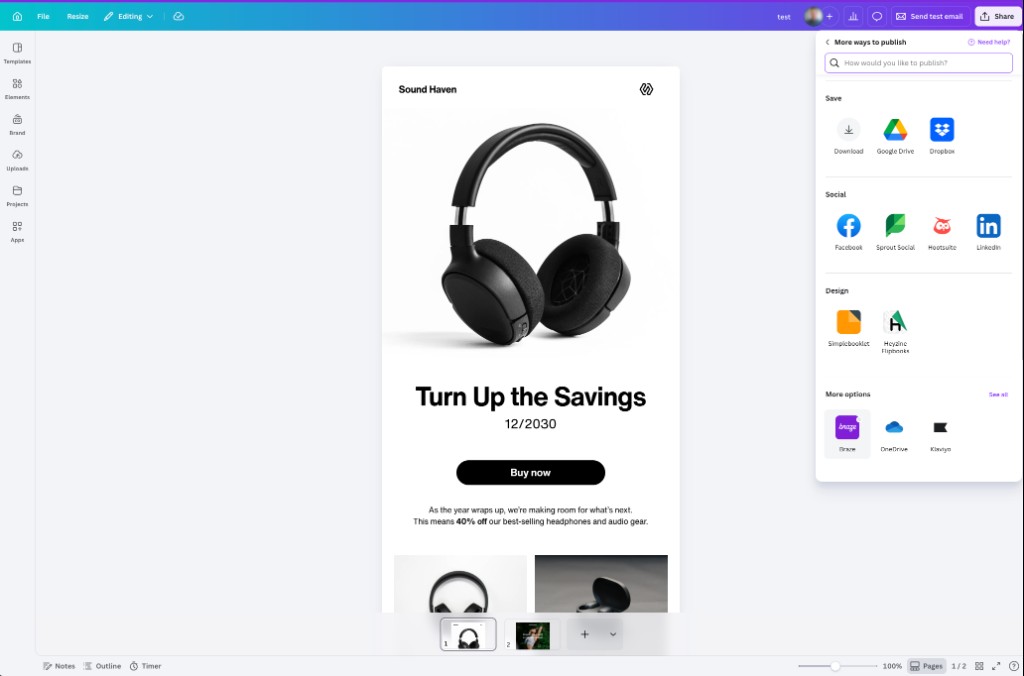
- Click Share in the editor action bar and select Braze. If Braze isn’t listed, open See more, scroll to More options to find Braze.
- If you’re prompted to connect or sign in again, select Connect in the Braze panel (or complete the browser sign-in flow) so Canva can create templates in your workspace.
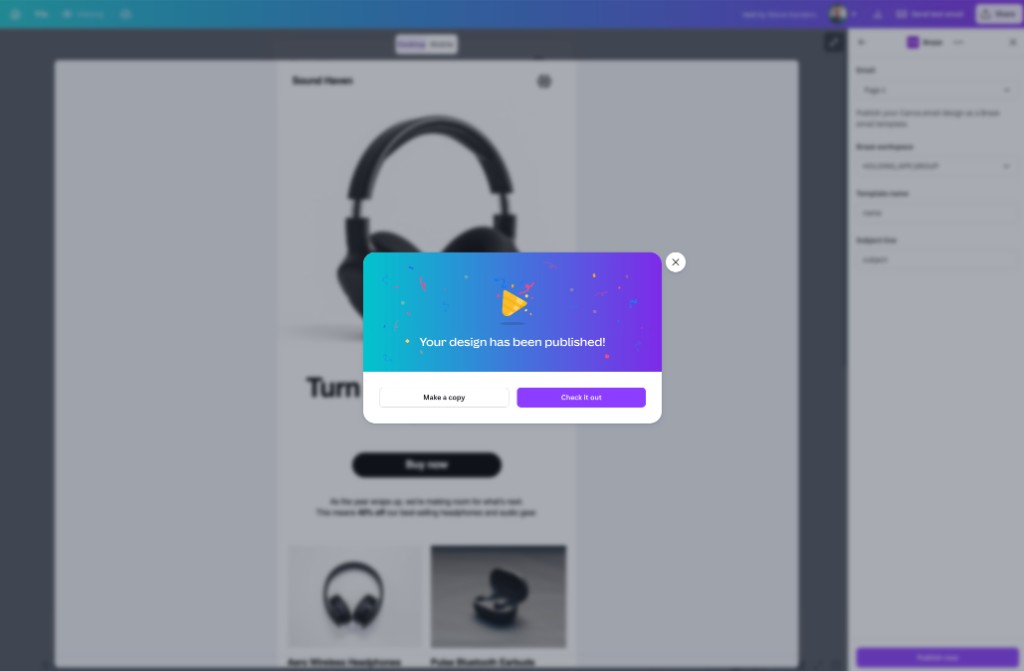
- In the Braze panel, select which Email page to publish (if the design has multiple pages), choose your Braze workspace, enter a Template name and Subject line, then select Publish now. Canva shows progress while your design publishes.

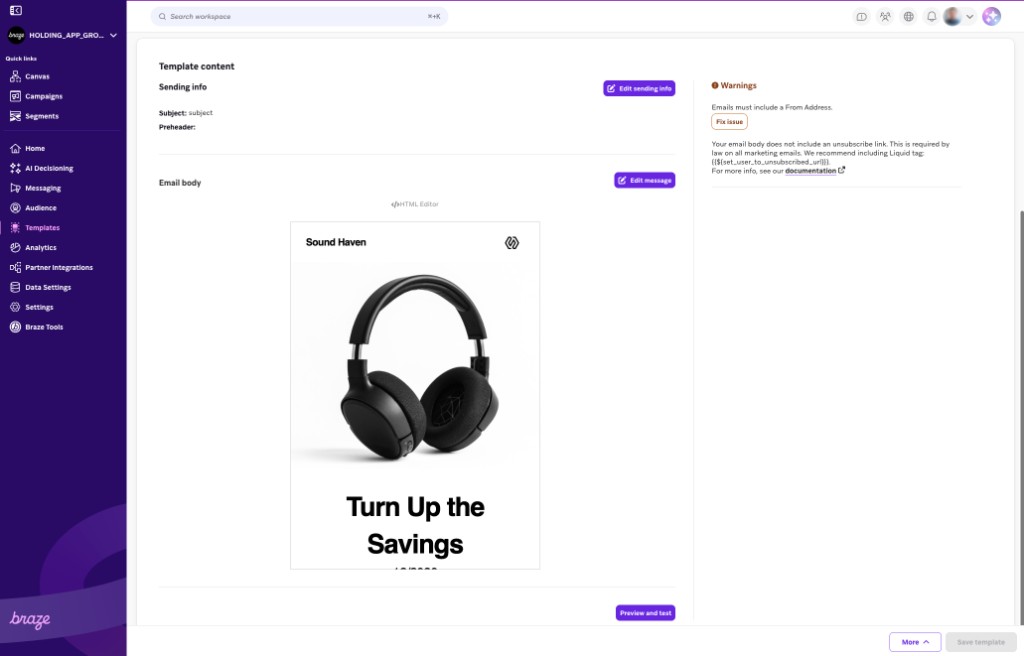
- When publishing finishes, a success message appears. Select Check it out to open the email template in Braze.
- In Braze, finish any required email settings—such as From address, preheader, and an unsubscribe link—before you use the template in a campaign or Canvas.