EmailShepherd
EmailShepherd is an agentic email creation platform built on your Email Design System that allows your whole marketing team—and AI agents—to produce on-brand, production-ready emails without bottlenecks. The Braze integration publishes approved emails directly to your Braze workspace, so marketers can scale email production in Braze without sacrificing brand consistency.
This integration is maintained by EmailShepherd.
About the integration
The Braze and EmailShepherd integration allows you to build emails on your Email Design System in EmailShepherd and export them to Braze as email templates. Your team creates and approves emails in EmailShepherd, then publishes production-ready templates to Braze without manual HTML handoff.
Prerequisites
The following are required to use this integration:
| Requirement | Description |
|---|---|
| EmailShepherd account | An EmailShepherd account is required to use this integration. |
| Braze REST API key | A Braze REST API key with full “Templates” permissions. This can be created in the Braze dashboard from Settings > API Keys. |
| Braze instance | Your Braze cluster instance aligns with your Braze dashboard and REST endpoint. |
Use cases
EmailShepherd is built for teams that want to scale email production while keeping every send on brand. It’s a strong fit if you want to:
- Enforce brand consistency at scale: Your Email Design System defines the approved components, colors, and layouts. Every email published to Braze is on-brand by construction.
- Open up email production to your whole team: A drag-and-drop builder powered by your Email Design System lets anyone build production-ready emails.
- Use agentic campaign creation: AI agents build within your Email Design System’s guardrails, so the campaigns they produce are on-brand and ready to send.
Integration
Step 1: Create your EmailShepherd connector

This is a one-time setup. After you create the connector, EmailShepherd uses these credentials for all future exports to Braze.
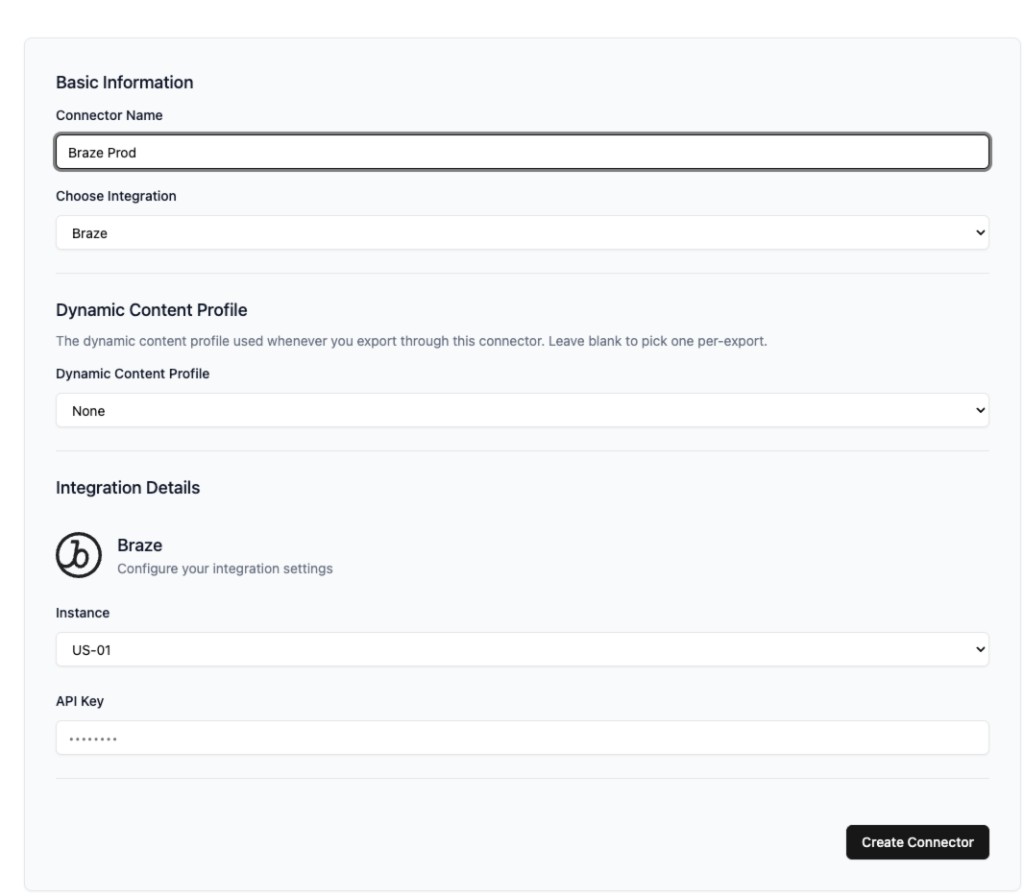
- In EmailShepherd, go to Connectors > Add connector.
- Select Braze and enter a connector name.
- Enter your API key and select your Braze instance.
- Select Create Connector to save the connection.
Step 2: Export an email from EmailShepherd
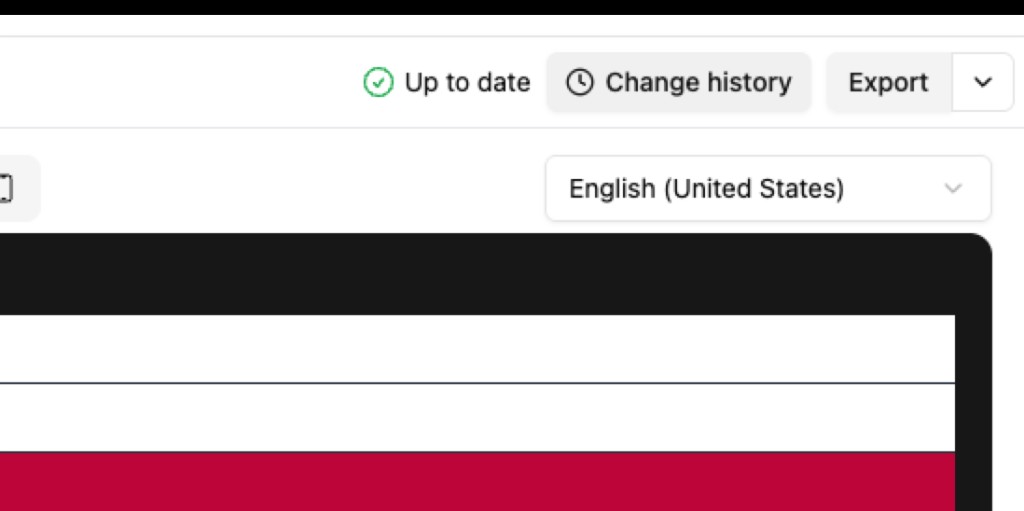
In EmailShepherd, locate an email that you want to export to Braze. Make sure it’s published, then select Export.
Step 3: Configure and publish to Braze
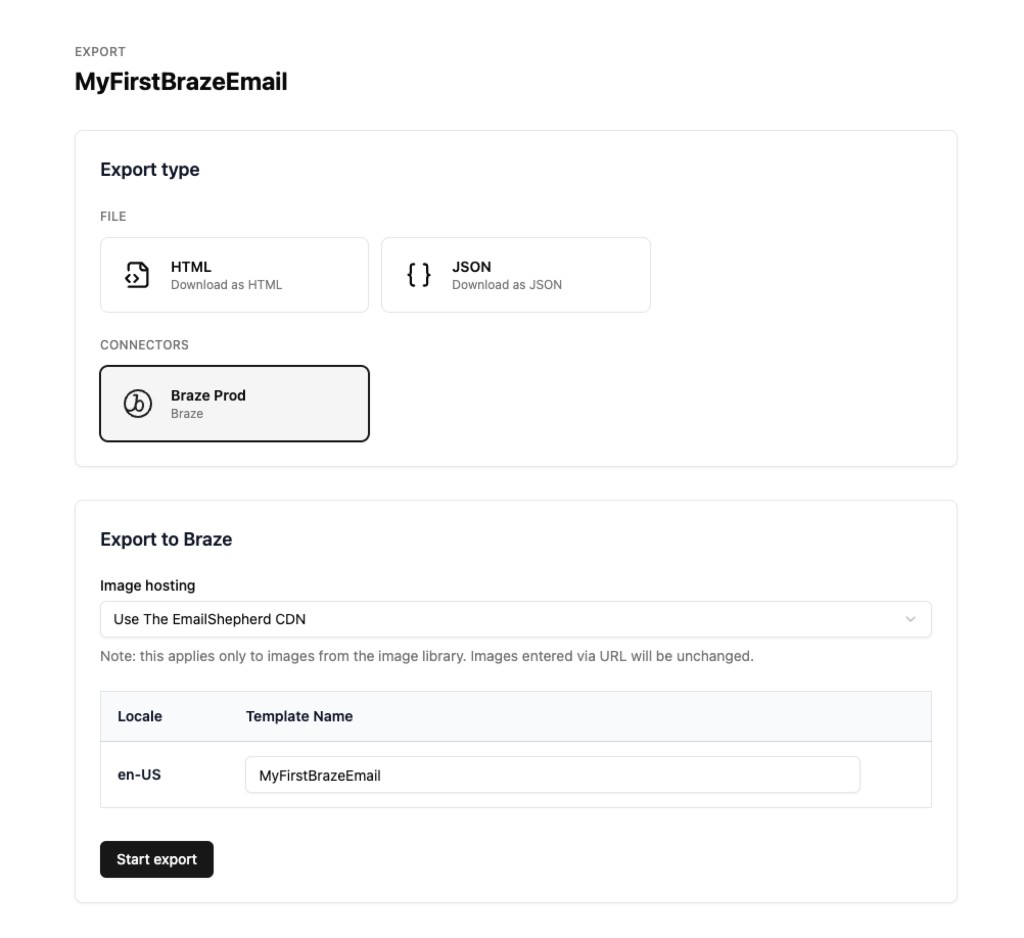
- On the export page, select your Braze connector under Connectors (for example, Braze Prod).
- Choose an Image hosting option for images from your EmailShepherd image library. Images entered by URL are not changed during export.
- Confirm the Locale and enter a Template name for the email in Braze.
- Select Start export.
Use the integration
In Braze, find your exported emails under Content > Email. You can use these templates in Braze campaigns and Canvases.
Support
For more information about EmailShepherd integrations, see the EmailShepherd documentation.