Treasure AI cohort import
This article describes how to import user cohorts from Treasure AI to Braze so you can send targeted campaigns based on data that may only exist in your warehouse.

Treasure AI cohort import is currently in beta. Contact your Braze account manager if you’re interested in participating in the beta.
Prerequisites
| Requirement | Description |
|---|---|
| Treasure AI account | A Treasure AI account is required to take advantage of this partnership. |
| Braze Data Import key | This can be captured in the Braze dashboard from Partner Integrations > Technology Partners and then select Treasure Data. |
| Braze REST endpoint | Your REST endpoint URL. Your endpoint depends on the Braze URL for your instance. |
| Static IP Address of Treasure AI | The static IP address of Treasure AI is the access point and source of the linkage for this Integration. To determine the static IP address, contact your Treasure AI Customer Success representative or Treasure AI Technical support. |
Data import integration
Step 1: Get your Braze data import key
In Braze, navigate to Partner Integrations > Technology Partners and select Treasure Data. Here, you can find your REST endpoint and generate your Braze data import key. After the key is generated, you can create a new key or invalidate an existing one.
Step 2: Create a data connection
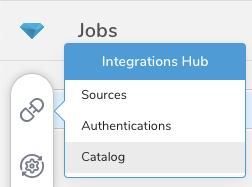
Before you create your data connection within Treasure AI, you’ll need to authenticate. First, select Integrations Hub, then Catalog.
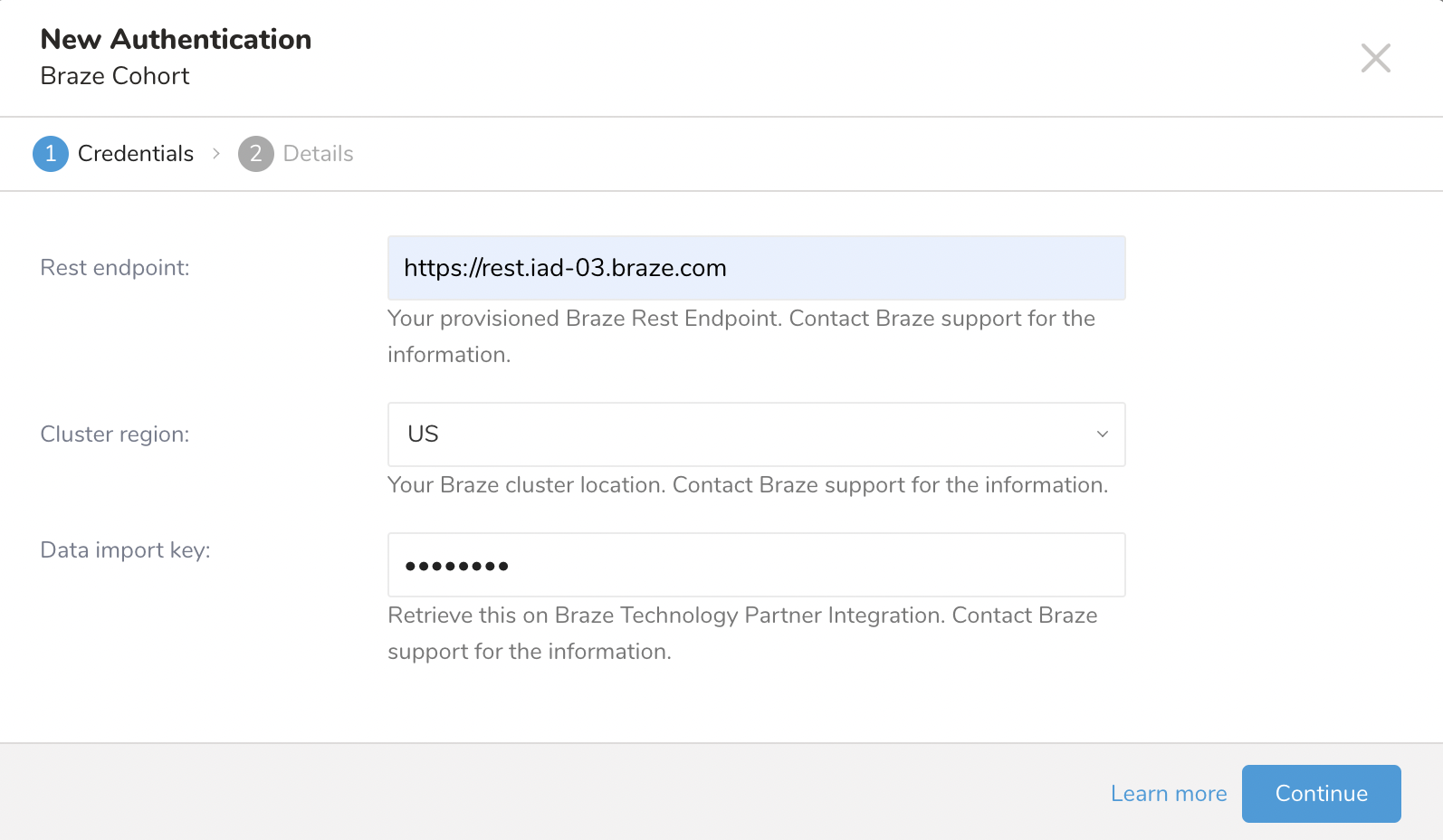
Search for the Braze Integration in the Catalog, then hover over the icon and select Create Authentication. Enter your credentials, name your authentication, then select Done.
Step 3: Define your cohort Audience
Sync your cohorts to Braze through an activation in the Audience Studio or by executing a query in the Data Workbench.
Only users who already exist within Braze are added or removed from a cohort. Cohort Import does not create new users in Braze.
Step 3.1: Define your query

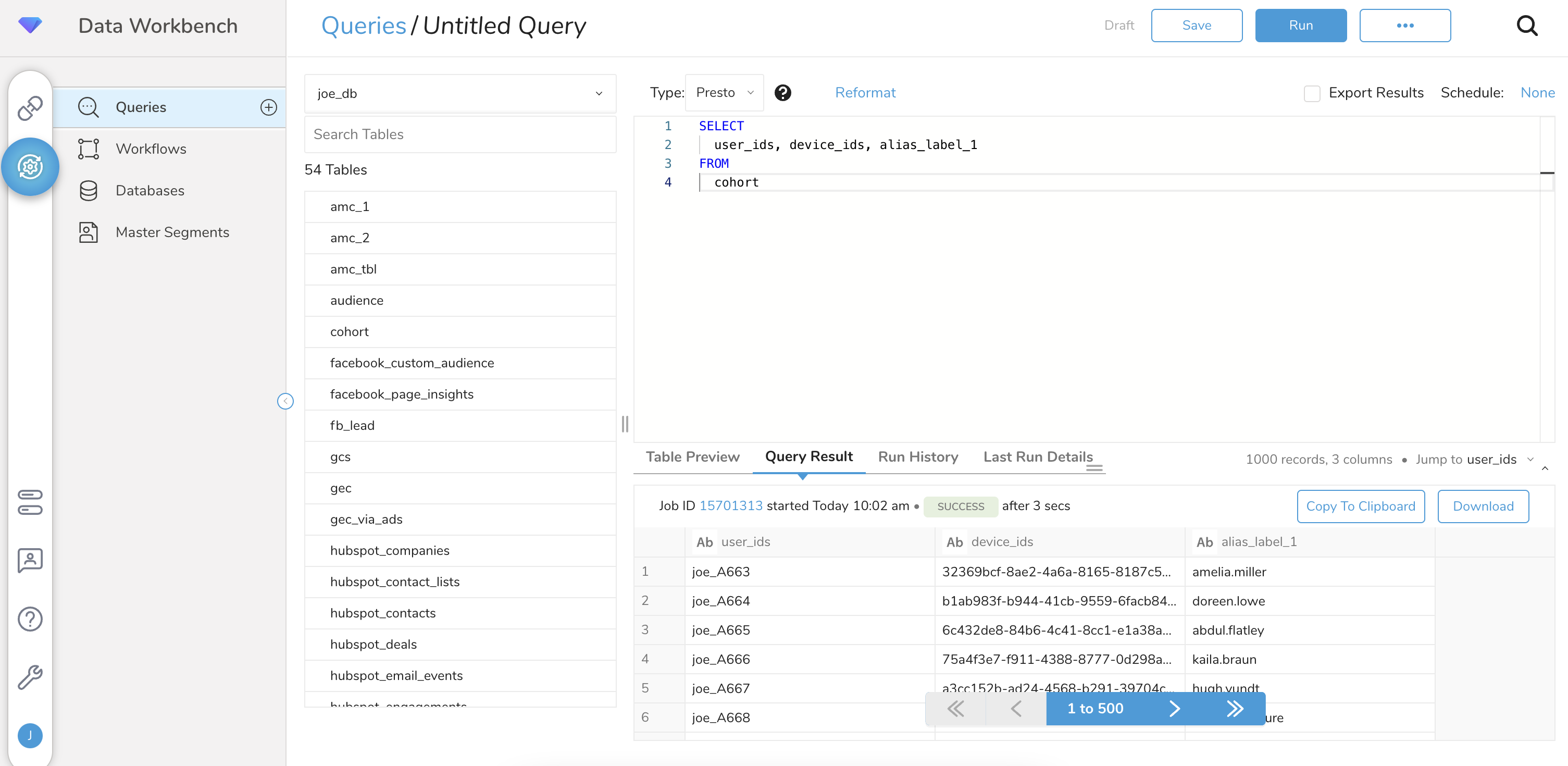
Query columns must be specified with the exact column names and data type. The query columns must include at least one of the columns: user_ids, device_ids, or braze alias column match with configuration on the UI. Only user profiles that exist within Braze are added to a cohort. Cohort Import does not create new user profiles.
- Navigate to Data Workbench > Queries.
- Select New Query.
- Run the query to validate the result set.
Use case: Syncing cohorts by identifier
Here’s an example table in Treasure AI:
| external_id | device_ids | |
|---|---|---|
TDCohort1 |
[email protected] |
1a2b3c |
TDCohort2 |
[email protected] |
4d5f6g |
TDCohort3 |
[email protected] |
7h8j9k |
TDCohort4 |
[email protected] |
1ab2cd |

The column name must be user_ids or the sync will fail.
To sync cohorts using the external ID, run the following query:
SELECT
external_id as user_ids
FROM
example_cohort_table
After running the query, these external IDs are added to the cohort in Braze:
TDCohort1TDCohort2TDCohort3TDCohort4
Here’s an example table in Treasure AI:
| external_id | device_ids | |
|---|---|---|
TDCohort1 |
[email protected] |
1a2b3c |
TDCohort2 |
[email protected] |
4d5f6g |
TDCohort3 |
[email protected] |
7h8j9k |
TDCohort4 |
[email protected] |
1ab2cd |
To sync cohorts using the user alias, run the following query:
SELECT
email
FROM
example_cohort_table
After running the query, these user aliases will be added to the cohort in Braze:
"alias_label":"email", "alias_name":"[email protected]""alias_label":"email", "alias_name":"[email protected]""alias_label":"email", "alias_name":"[email protected]""alias_label":"email", "alias_name":"[email protected]"
Here’s an example table in Treasure AI:
| external_id | device_ids | |
|---|---|---|
TDCohort1 |
[email protected] |
1a2b3c |
TDCohort2 |
[email protected] |
4d5f6g |
TDCohort3 |
[email protected] |
7h8j9k |
TDCohort4 |
[email protected] |
1ab2cd |
The column name must be device_ids or the sync will fail.
To sync cohorts using the device ID, run the following query:
SELECT
device_ids
FROM
example_cohort_table
After running the query, these device IDs will be added to the cohort in Braze:
1a2b3c4d5f6g7h8j9k1ab2cd
Step 3.2: Specify the result export target
Once the query has been built, select Export Results. You can select an existing authentication, such as the one created in the last steps, or create a new authentication to be used for output.
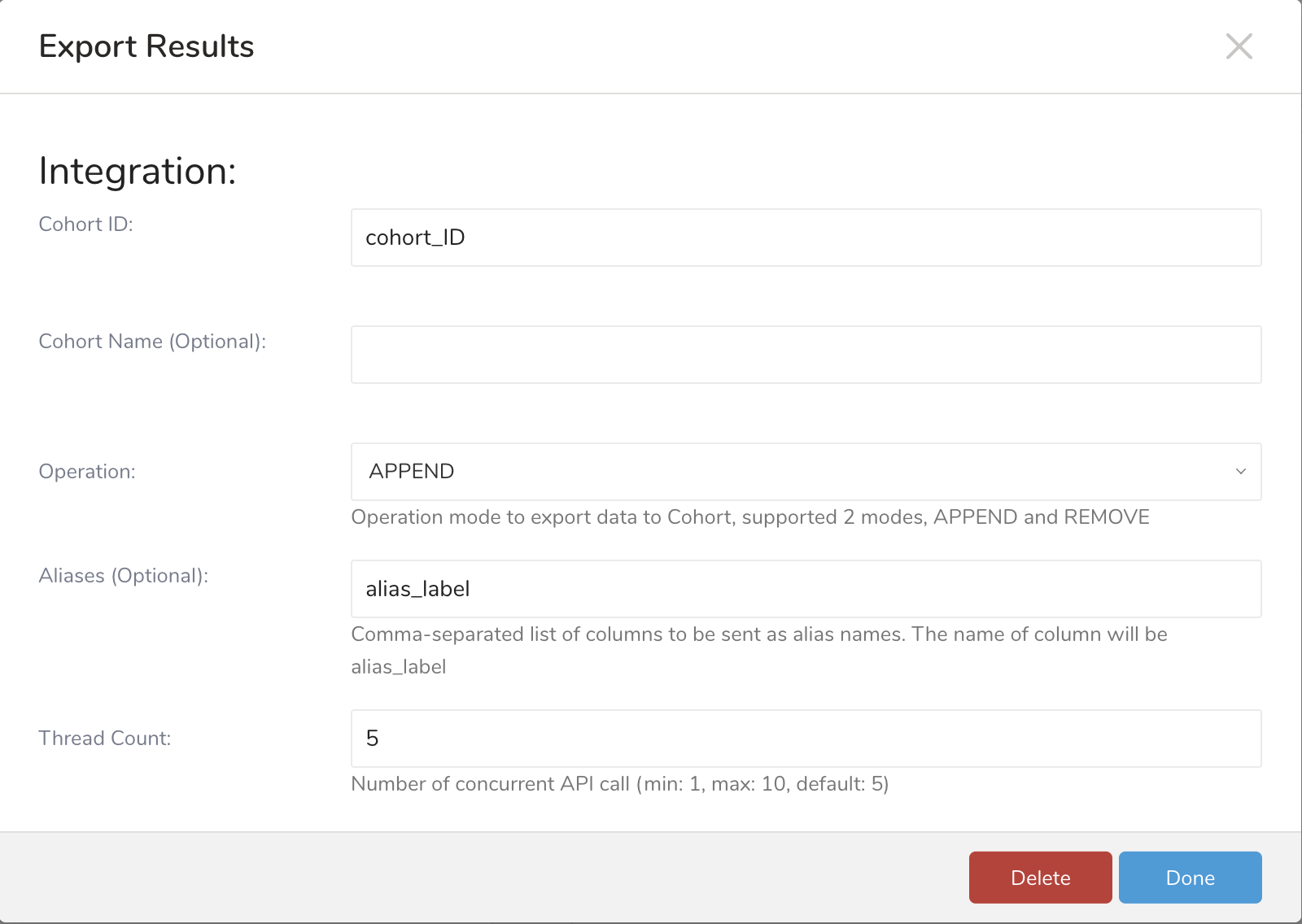
| Export Result Mapping | Description |
|---|---|
| Cohort ID | This is the backend cohort identifier that will be sent to Braze. |
| Cohort Name (Optional) | This is the name that will appear within the Cohort Filter in the Braze segmentation tool. If this is not set, the Cohort ID will be used as the Cohort Name. |
| Operation | Used to determine whether the query should add or remove profiles from the cohort in Braze. |
| Aliases (Optional) | When defined, the name of the corresponding column within your query will be sent as the alias_label, and the values of each row in the column will be sent as the alias_name. |
| Thread Count | Number of concurrent API calls. |
Follow Treasure AI’s steps for configuring your export to meet your use case.
Step 3.3: Execute the query
Save the query with a name and run, or just run the query. Upon successful completion of the query, the query result is automatically exported to Braze.
Step 3.1: Create an activation
Create a new segment or choose an existing segment to sync to Braze as a cohort. Within the segment, choose Create activation.
Step 3.2: Fill out your activation details
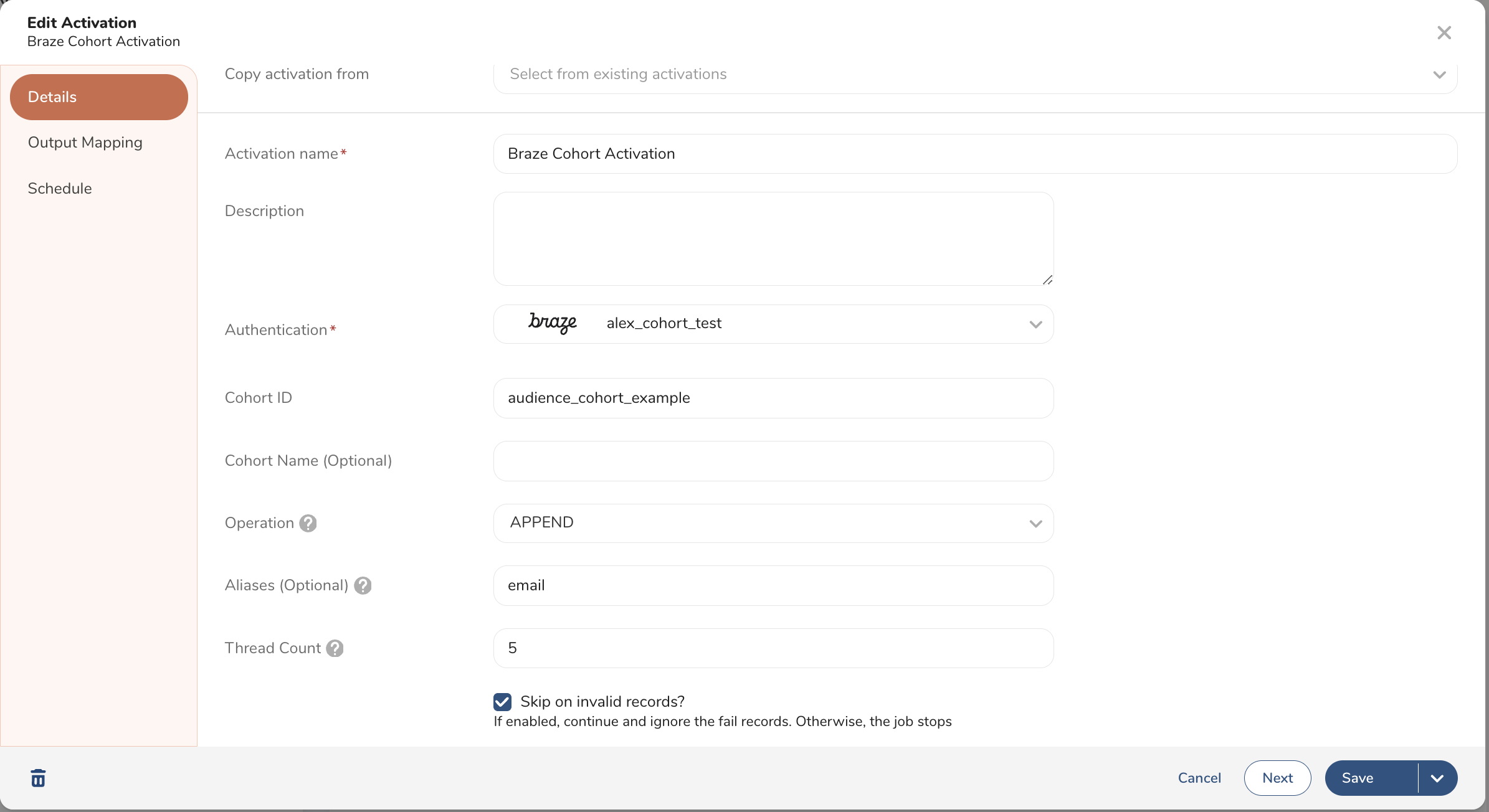
| Activation Detail Setting | Description |
|---|---|
| Activation Name | The name of your activation. |
| Activation Description | A brief description of the activation. |
| Authentication | Choose the Braze cohort authentication created in step 2. |
| Cohort ID | This is the backend cohort identifier that will be sent to Braze. |
| Cohort Name (Optional) | This is the name that will appear within the Cohort Filter in the Braze segmentation tool. If this is not set, the Cohort ID will be used as the Cohort Name. |
| Operation | Used to determine whether the query should add or remove profiles from the cohort in Braze. |
| Aliases (Optional) | When defined, the name of the corresponding column within your query will be sent as the alias_label, and the values of each row in the column will be sent as the alias_name. |
| Thread Count | Number of concurrent API calls. |
Step 3.3: Set up output mapping
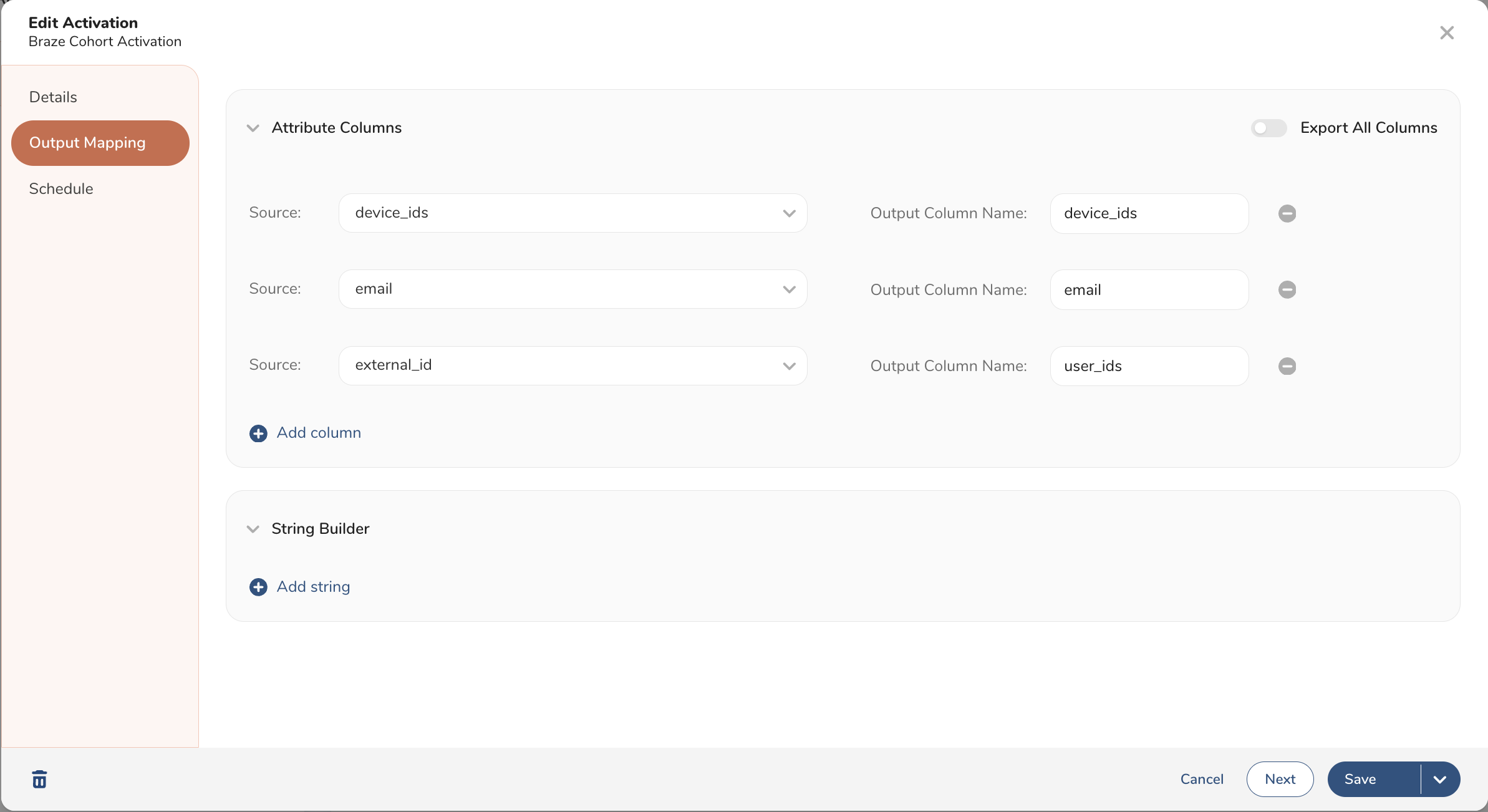
| Activation Output Mapping | Description |
|---|---|
| Attribute Columns | Determine the columns from your segment database that will be mapped as identifiers when syncing profiles to a Braze cohort. |
| String Builder | The string builder is not necessary for the Braze integration. |
- When using
device_idas the identifier, the Output Column Name must be nameddevice_ids. - When using aliases as the identifier, the Output Column Name must match the corresponding column in your query. That column name is sent as the
alias_label, and the values of each row are sent as thealias_name. - When using
external_idas the identifier, the Output Column Name must be nameduser_ids.
All non-relevant or misnamed column names will be ignored. You may choose to use more than one identifier in your syncs.
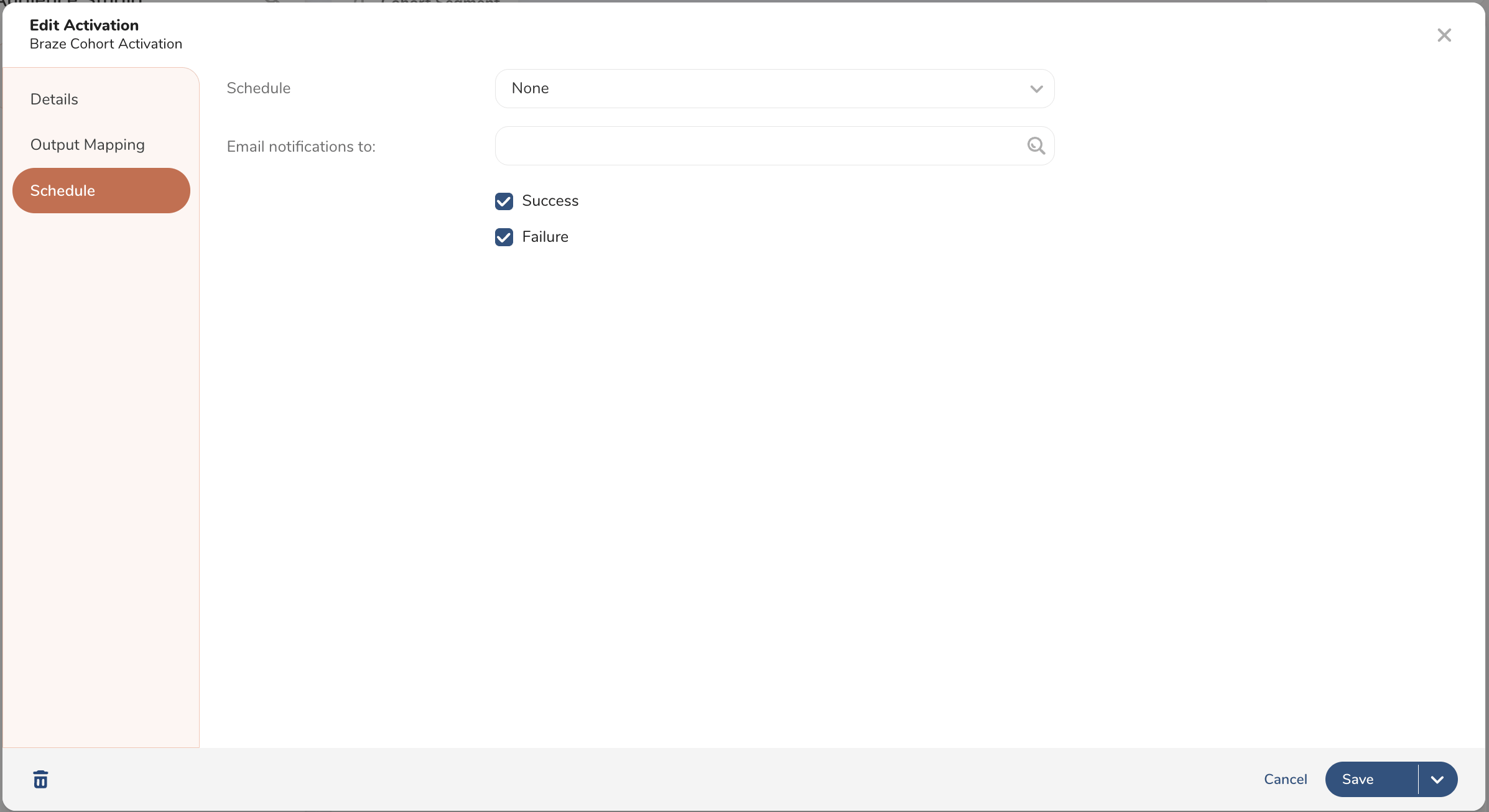
Step 3.4: Define your activation schedule
Define your desired sync schedule and save your activation.
Step 4: Create a Braze segment from the Treasure AI Export
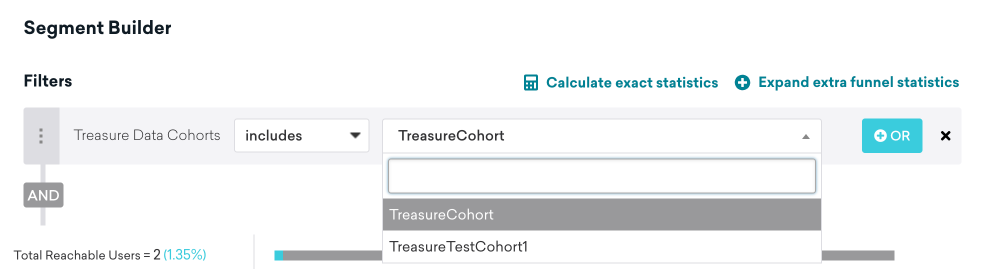
In Braze, navigate to Segments, create a new segment, and select Treasure Data Cohorts as your filter. From here, you can choose which Treasure AI cohort you wish to include. After your Treasure AI cohort segment is created, you can select it as an audience filter when creating a campaign or Canvas.
User Matching
Identified users can be matched by either their external_id or alias. Anonymous users can be matched by their device_id. Identified users who were originally created as anonymous users can’t be identified by their device_id, and must be identified by their external_id or alias.