CataBoom
CataBoom is a gamification platform. Brands use it to build and launch interactive digital experiences, including spin-to-win games, quizzes, and instant-win games. Those experiences deepen engagement and collect first-party data.
This integration is maintained by CataBoom.
About this integration
Use the Braze and CataBoom integration to add personalized game links to your messages. You can pass user identifiers and attributes between Catapult campaigns and Braze in real time. Then you can power personalized campaigns, triggers, and follow-up journeys with that data.
Prerequisites
Before you start, you need the following:
| Prerequisite | Description |
|---|---|
| Catapult account | A Catapult account is required to use this integration. |
| Braze REST API key (optional) | If you use Catapult webhooks, you need a Braze REST API key with the user data permissions your use case requires. Create the key in Braze under Settings > APIs and Identifiers > API Keys. |
| Braze REST endpoint (optional) | If you use Catapult webhooks, use the REST endpoint URL that matches the Braze URL for your Braze instance. |
Step 1: Create your game experience
Create your game experience in the Catapult platform. The following steps show a simple spinner setup that uses the Request Unique URL API on the Link Configuration page. CataBoom offers more than 200 game options, including chance-based mechanics, skill-based mechanics, and utilities such as punch cards and collect-and-win. You can follow a similar flow for other game types. For more information about CataBoom and Catapult, see the CataBoom website.
- Create the campaign.
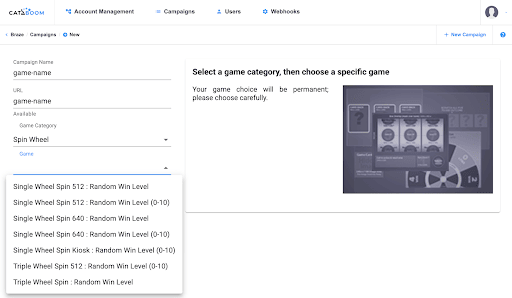
Select New Campaign in the top navigation area. Enter a campaign name, choose a URL slug, and select your game category and game type.
- Enable Request Unique URL API.
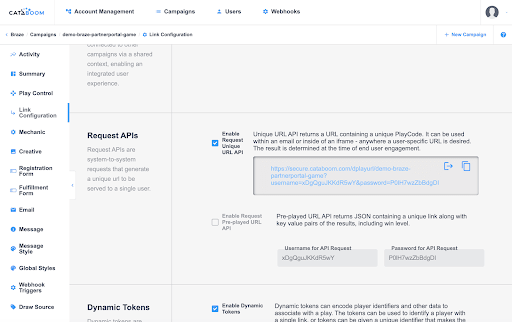
In the navigation menu, select Link Configuration.
On the Link Configuration page, enable Request Unique URL API. This option creates a system-to-system URL you can use later in Braze, such as in a Content Card.
- Set play tracking to Account ID.
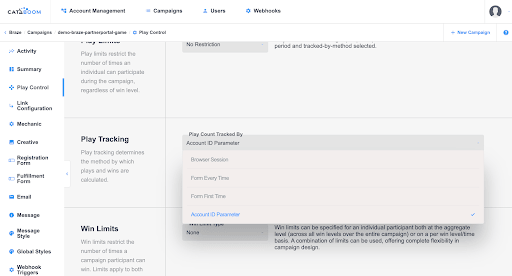
In the navigation menu, select Play Control.
On the Play Control page, under Play Tracking, set Play Count Tracked By to Account ID Parameter.
You can pass an Account ID for each player for tracking, play limits, webhooks, and other player-specific behavior. Other systems often call Account ID member ID, player ID, loyalty ID, or a similar name.
You now have enough configured to run a test in Braze. The optional steps in this section complete a typical full game setup. Catapult also offers many other settings you can use to customize gameplay.
- Add your creative (optional).
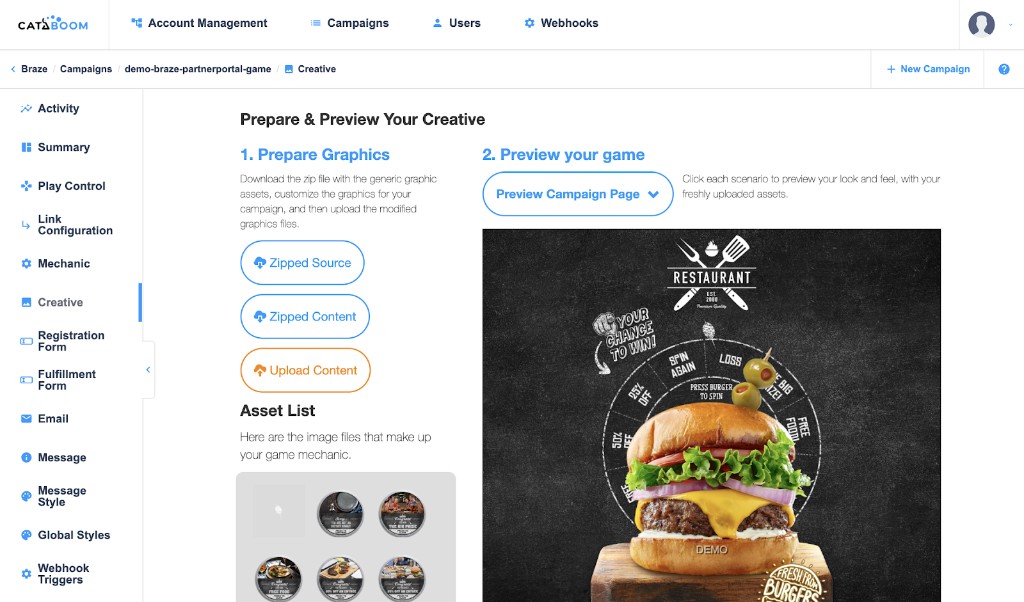
In the navigation menu, select Creative.
Upload your assets. Catapult supports full branding control for your game experience.
- Configure prizing for chance-based games (optional).
In the navigation menu, select Summary.
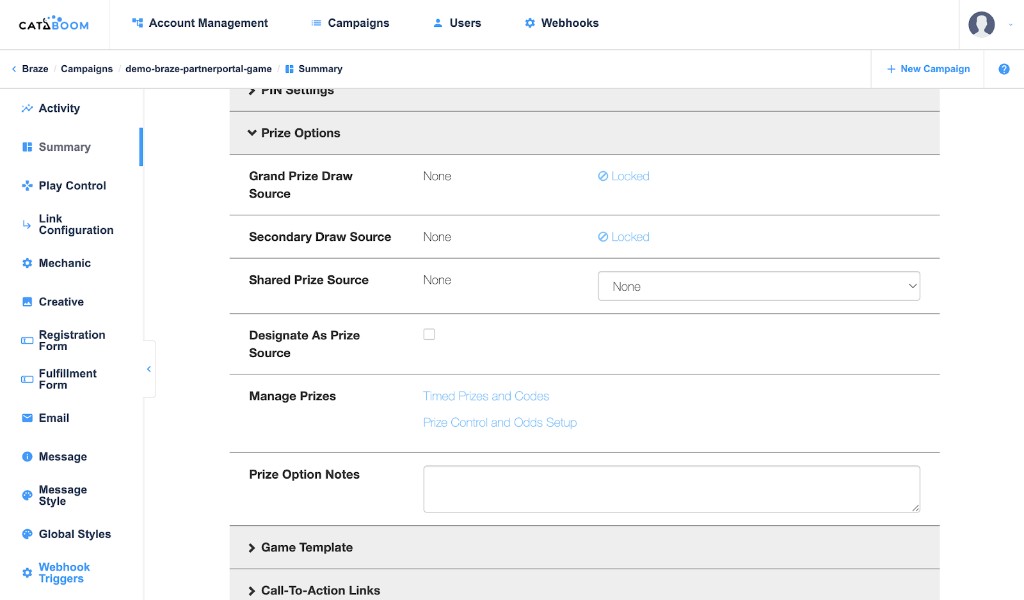
On the Summary page, expand Prize Options.
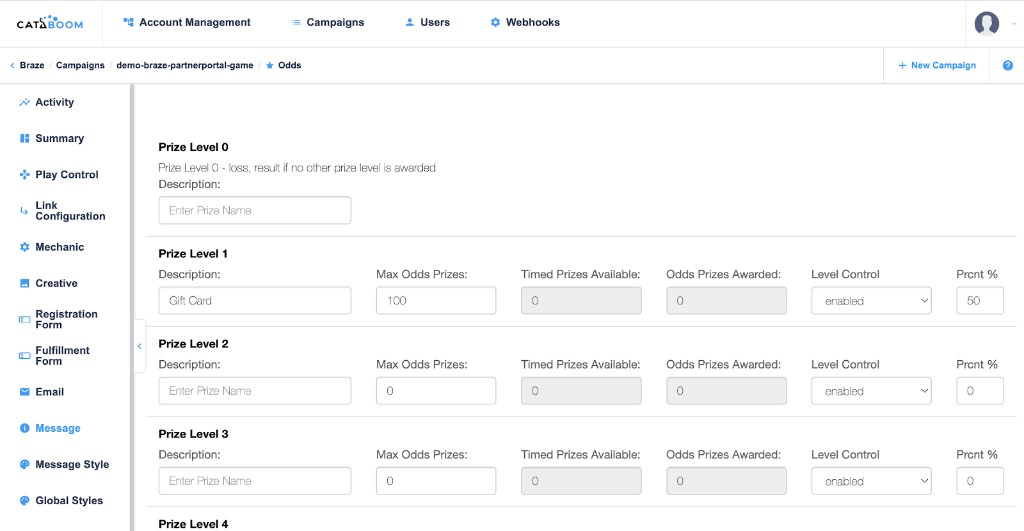
Catapult supports timed prizes, odds-based prizes, or both. To configure them, use Timed Prizes and Codes, Prize Control and Odds Setup, or both, as needed.
The following screenshots show Prize Options on the campaign summary and a simple odds configuration with a 50% win probability on level 1.
Step 2: Create a message in Braze
This example shows how to create a Content Card that uses the Request Unique URL from the Link Configuration page.
- Add Connected Content for the play URL.
In your Content Card, add copy and dynamic content as needed. Wrap your CataBoom Request Unique URL in a Connected Content tag. Add an AccountID query parameter that uses a Braze personalization tag matching the identifier you use in Catapult. The example uses {{${user_id}}}.
Replace the base URL and the username and password query parameters with the values from the Link Configuration page for your campaign in Catapult.
1
{% connected_content https://secure.cataboom.com/dplayurl/YOUR_CAMPAIGN_SLUG?username=YOUR_API_USERNAME&password=YOUR_API_PASSWORD&AccountID={{${user_id}}} :save result %}
Use the saved result in your card (for example, as the link URL or in the message body). Follow the response format from CataBoom’s API for your campaign. For more information about query parameters and Liquid in URLs, see Making an API call.
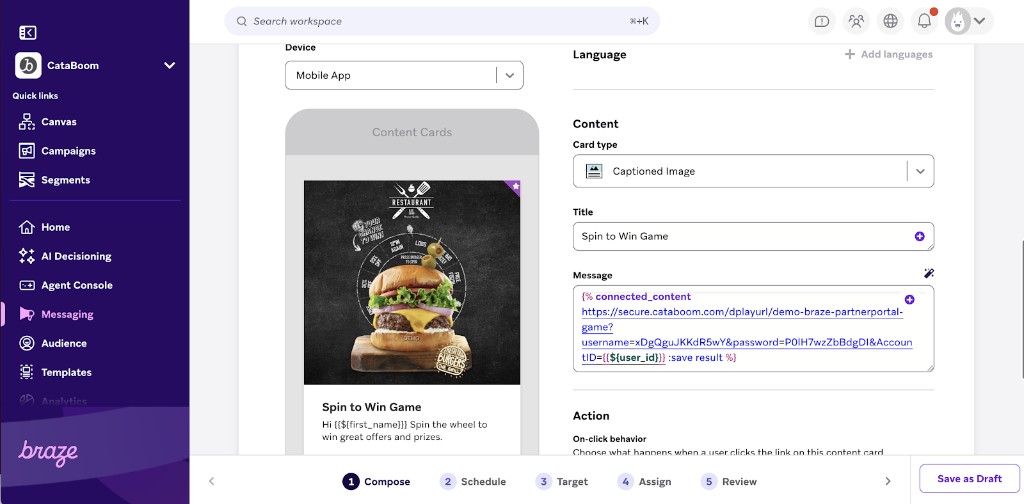
Connected Content requests a unique play link when the user opens the Content Card. You can add other query parameters for more tailored experiences.