Audience Sync to The Trade Desk
Using the Braze Audience Sync to The Trade Desk, you can dynamically sync your first-party user data from Braze directly into The Trade Desk for ad retargeting, lookalike modeling, and suppression.
Common use cases for audience syncing include:
- Retargeting your existing users on The Trade Desk with personalized campaigns.
- Sending first-party data to The Trade Desk for exclusion targeting.
- Syncing users to new or existing audiences or CRM data segments.
Prerequisites
Make sure you have the following items created, completed, or accepted before setting up the Audience Sync step with The Trade Desk in Canvas.
| Requirement | Origin | Description |
|---|---|---|
| API token | The Trade Desk | A standard API token created in The Trade Desk platform. We recommend setting the API token lifetime to up to one year to avoid minimal disruption to your Canvases with The Trade Desk Audience Sync. |
| The Trade Desk Terms & Policies | The Trade Desk | You must agree to a UID2/CRM participation policy before being enabled to send data to The Trade Desk. Contact your representative at The Trade Desk to confirm you have the appropriate signature to enable data delivery to The Trade Desk.
|
Integration
Step 1: Connect The Trade Desk account
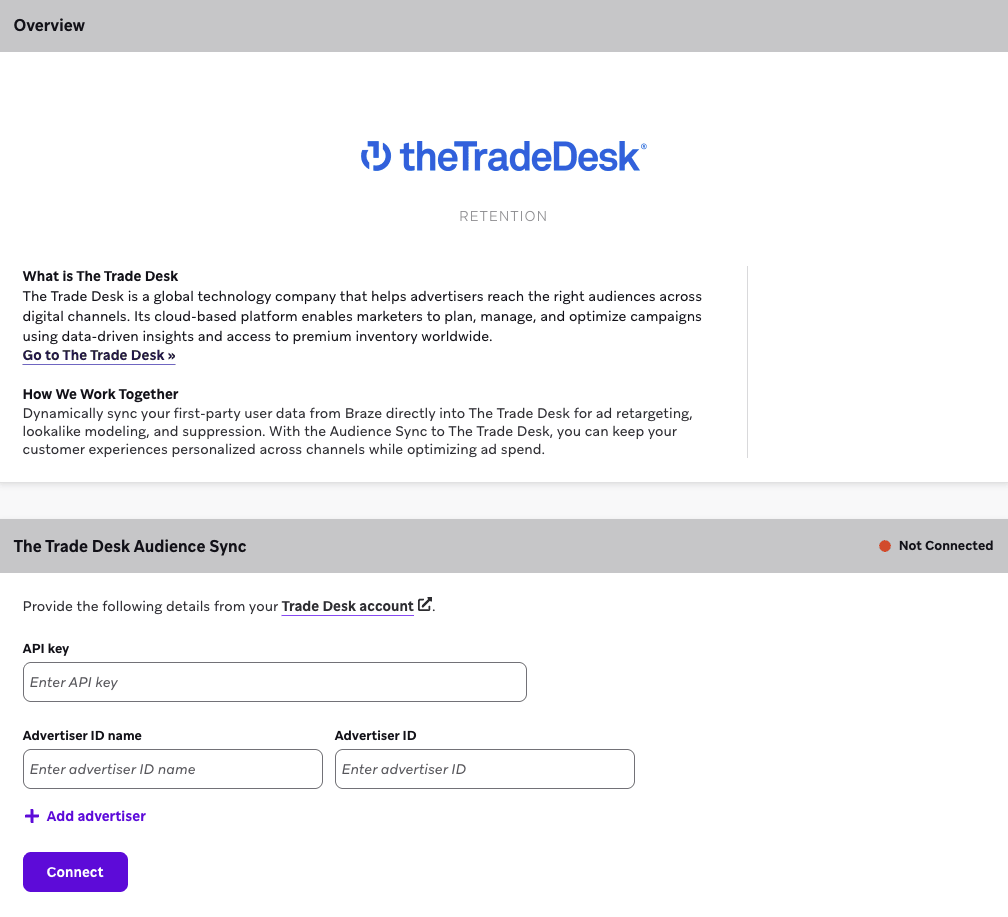
To get started, go to Partner Integrations > Technology Partners > The Trade Desk. Provide the following details from your Trade Desk account:
- API token
- Advertiser ID name (this optional name identifies the advertiser account to reference in the Audience Sync Canvas step)
- Advertiser ID
Then, select Connect.
Connect multiple The Trade Desk accounts (optional)
After connecting your first The Trade Desk account, you can add additional advertiser accounts on The Trade Desk partner page by selecting Connect more advertisers, then providing the Advertiser ID name and Advertiser ID for each account.
Step 2: Add an Audience Sync step with The Trade Desk
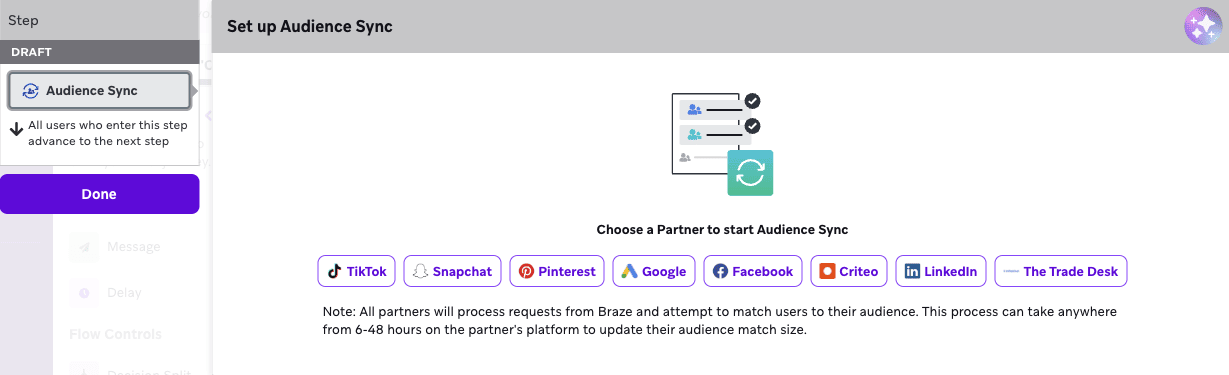
Add a component in your Canvas and select Audience Sync. Then, select The Trade Desk as the Audience Sync partner.
Step 3: Set up your sync
Next, configure your sync details:
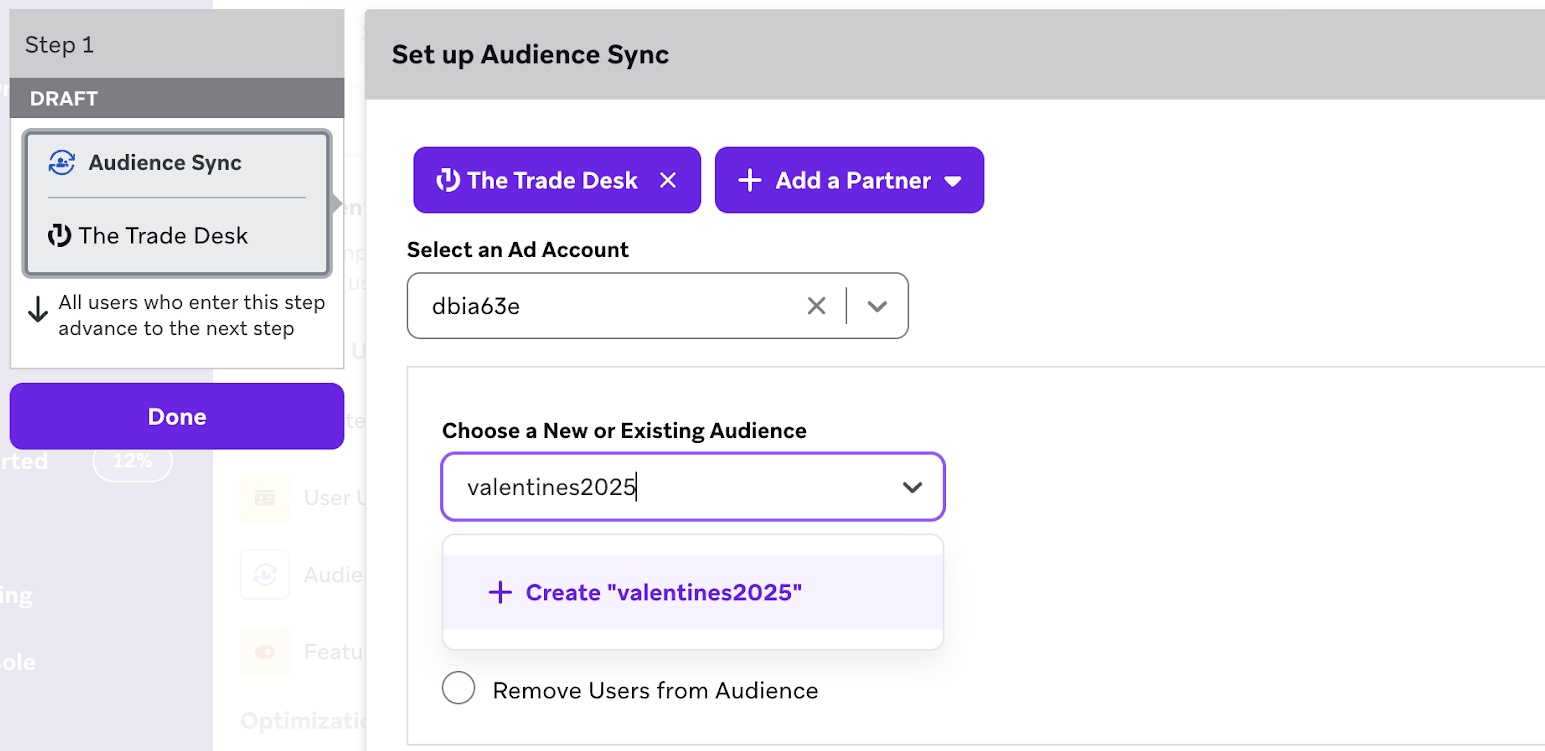
- Select an ad account.
- Choose an existing audience or create a new audience.
- Select an action to either Add Users to Audience or Remove Users from Audience.
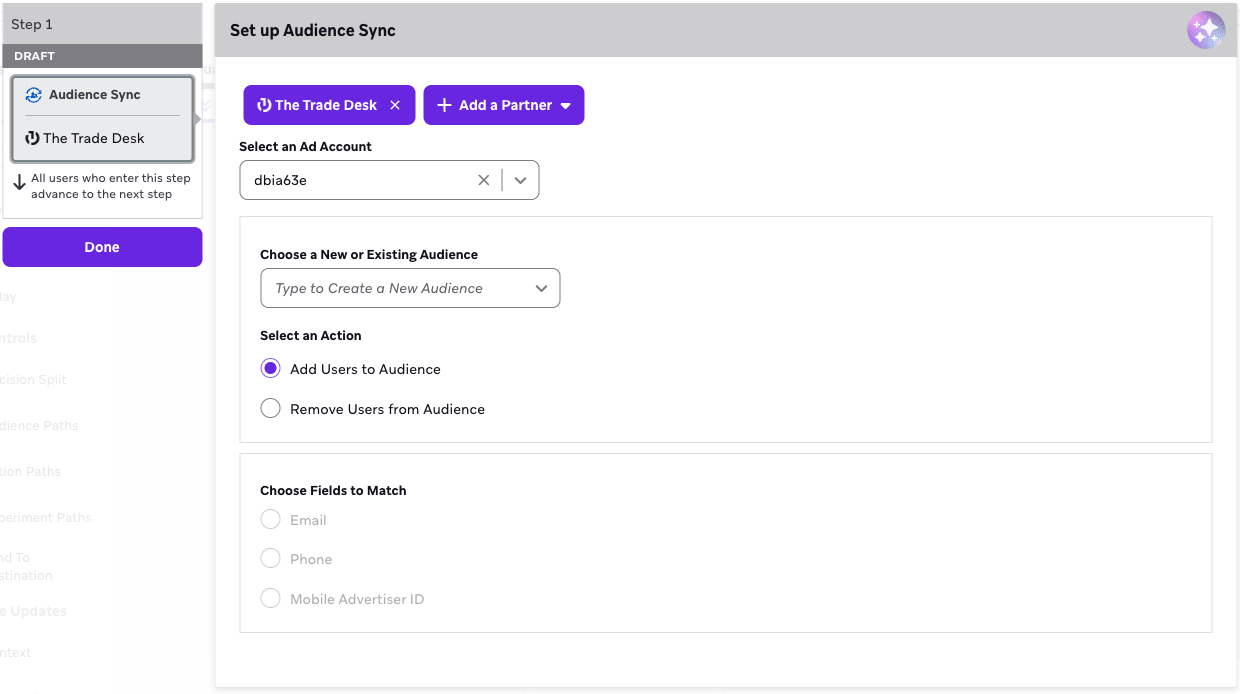
- Choose one of the following fields to match: Email, Phone, or Mobile Advertiser ID.

If you’re syncing to an audience in The Trade Desk with a region set to the EU, phone number isn’t supported by The Trade Desk. Reach out to The Trade Desk for phone number support in the EU region.
Step 4: Launch your Canvas
After you configure your Audience Sync to The Trade Desk, you’re ready to launch the Canvas! The new audience is created, and users who flow through the Audience Sync step are passed into this audience on The Trade Desk. If your Canvas contains subsequent components, your users advance to the next step in their user journey.
Frequently asked questions
How long will it take for the audience sizes to populate in The Trade Desk?
This can take up to 24 hours.
What is the minimum audience size for The Trade Desk to populate within your ad account?
There is no minimum audience size for CRM audiences in The Trade Desk.
How do I know if users have matched after passing users to The Trade Desk?
In The Trade Desk, received IDs populate next to the segment.
- Received IDs are the number of IDs we received in the last 30 days.
- Active IDs are the number of IDs we’ve seen in bidding in the last seven days.
How many audiences can The Trade Desk support?
There is no limit for how many audiences can be supported on The Trade Desk.