앱보이키트 (Objective-C 소프트웨어 개발 키트라고도 함)는 더 이상 지원되지 않으며 Swift SDK. 새로운 기능, 버그 수정, 보안 업데이트 또는 기술 지원은 더 이상 제공되지 않지만 메시징 및 분석은 정상적으로 계속 작동합니다. 자세한 내용은 새로운 Braze Swift 소프트웨어 개발 키트 소개 를 참조하세요.
기본 푸시 알림 개발자 통합 가이드를 찾고 계신가요? 찾기 here.
푸시 알림 구현 가이드
이 고급 구현 가이드(선택 사항)에서는 푸시 알림 콘텐츠 앱 확장을 활용하여 푸시 메시지를 최대한 활용하는 방법을 다룹니다. 저희 팀이 구축한 세 가지 커스텀 사용 사례와 함께 코드 스니펫 및 로깅 분석에 대한 지침도 포함되어 있습니다. Braze 데모 저장소 여기를 방문하세요! 이 구현 가이드는 Swift 구현을 중심으로 하지만 관심 있는 사람을 위해 Objective-C 스니펫도 제공됩니다.
알림 콘텐츠 앱 확장
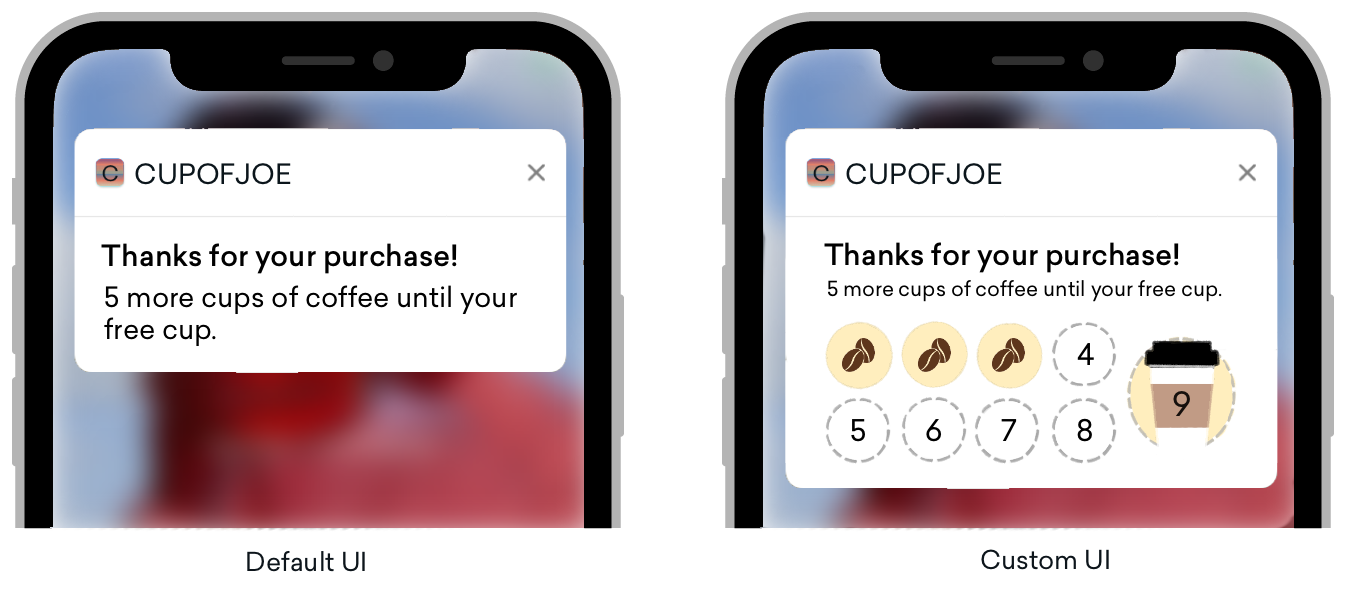
푸시 알림은 여러 플랫폼에서 표준처럼 보이지만, 기본 UI에서 일반적으로 구현되는 것보다 더 방대한 사용자 지정 옵션을 제공합니다. 푸시 알림이 확장되면 콘텐츠 알림 확장을 통해 확장된 푸시 알림의 커스텀 보기를 활성화할 수 있습니다.
푸시 알림은 세 가지 방법으로 확장할 수 있습니다.
- 푸시 배너를 길게 누릅니다.
- 푸시 배너를 아래로 스와이프
- 배너를 왼쪽으로 스와이프하고 ‘보기’를 선택합니다.
이러한 커스텀 보기는 대화형 알림, 사용자 데이터로 채워진 알림, 전화번호와 이메일 등의 정보를 캡처할 수 있는 푸시 메시지 등 다양한 유형의 콘텐츠를 표시하여 고객을 참여시킬 수 있는 스마트한 방법을 제공합니다. 이러한 방식으로 푸시를 구현하는 방법이 생소할 수도 있지만, Braze의 잘 알려진 기능 중 하나인 푸시 스토리는 알림 콘텐츠 앱 확장을 위한 커스텀 보기를 보여주는 대표적인 예입니다!
요구 사항
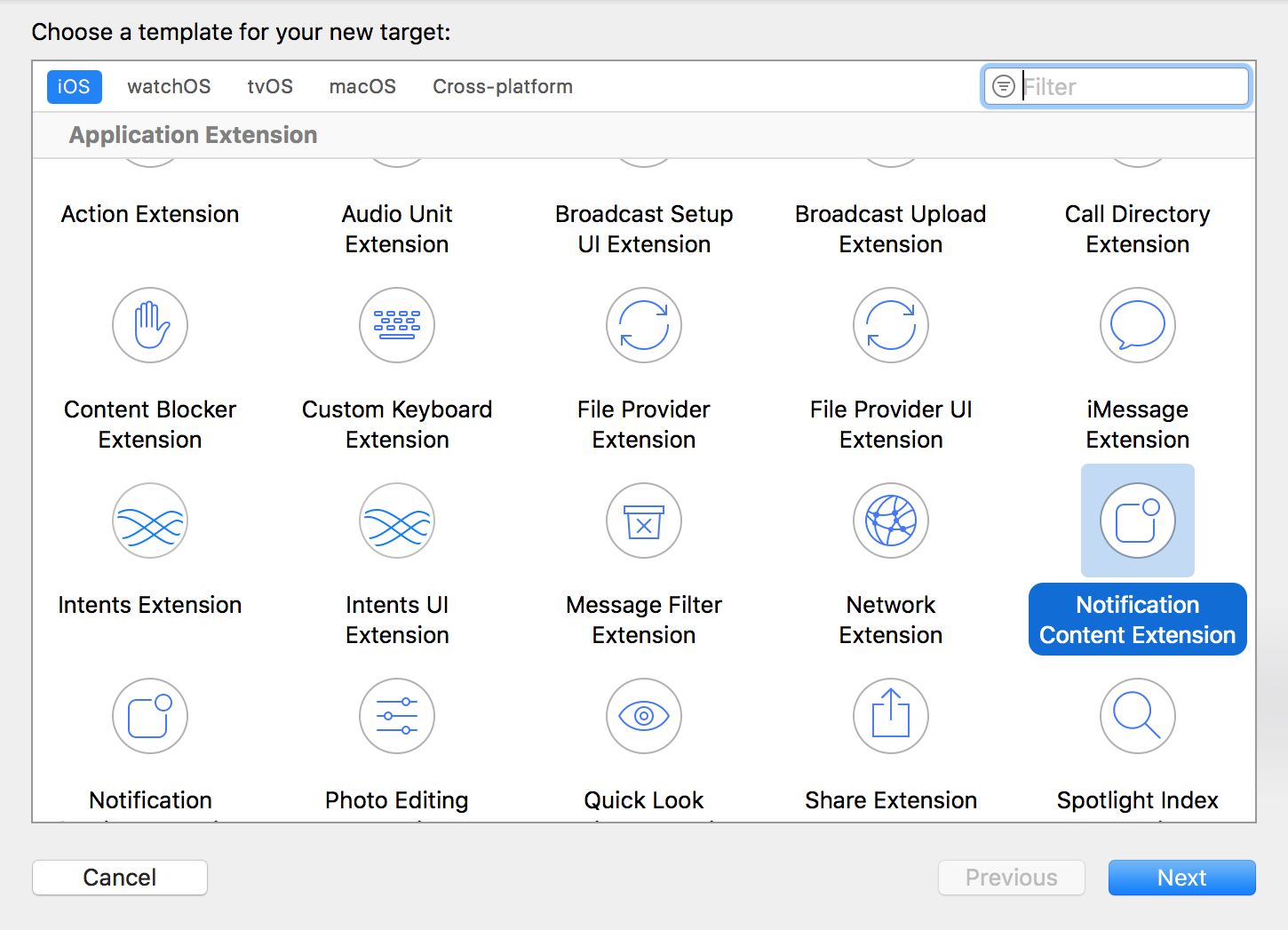
- 앱에 성공적으로 통합된 푸시 알림
- iOS 10 이상
- 코딩 언어에 따라 Xcode에서 생성되는 파일은 다음과 같습니다.
Swift
NotificationViewController.swiftMainInterface.storyboard
Objective-CNotificationViewController.hNotificationViewController.mMainInterface.storyboard
사용자 지정 카테고리 구성
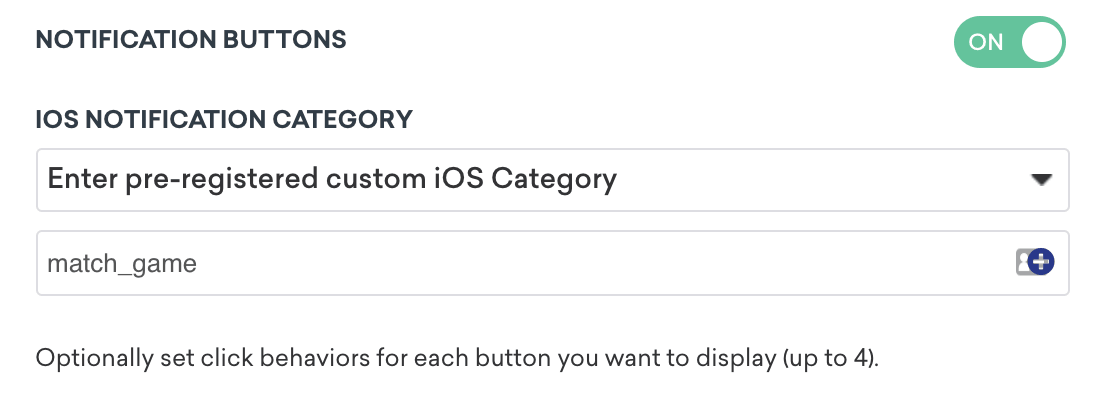
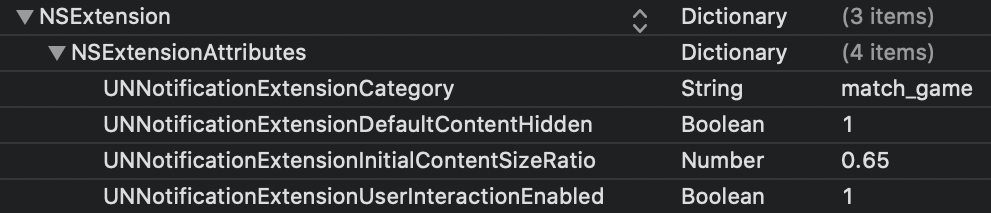
대시보드에서 사용자 지정 보기를 설정하려면 알림 버튼을 켜고 사용자 지정 카테고리를 입력해야 합니다. 그런 다음 제공한 사전 등록된 사용자 지정 iOS 카테고리를 알림 콘텐츠 확장 대상의 .plist 에서 UNNotificationExtensionCategory 과 비교하여 확인합니다. 여기에 입력한 값은 Braze 대시보드에 설정된 값과 일치해야 합니다.
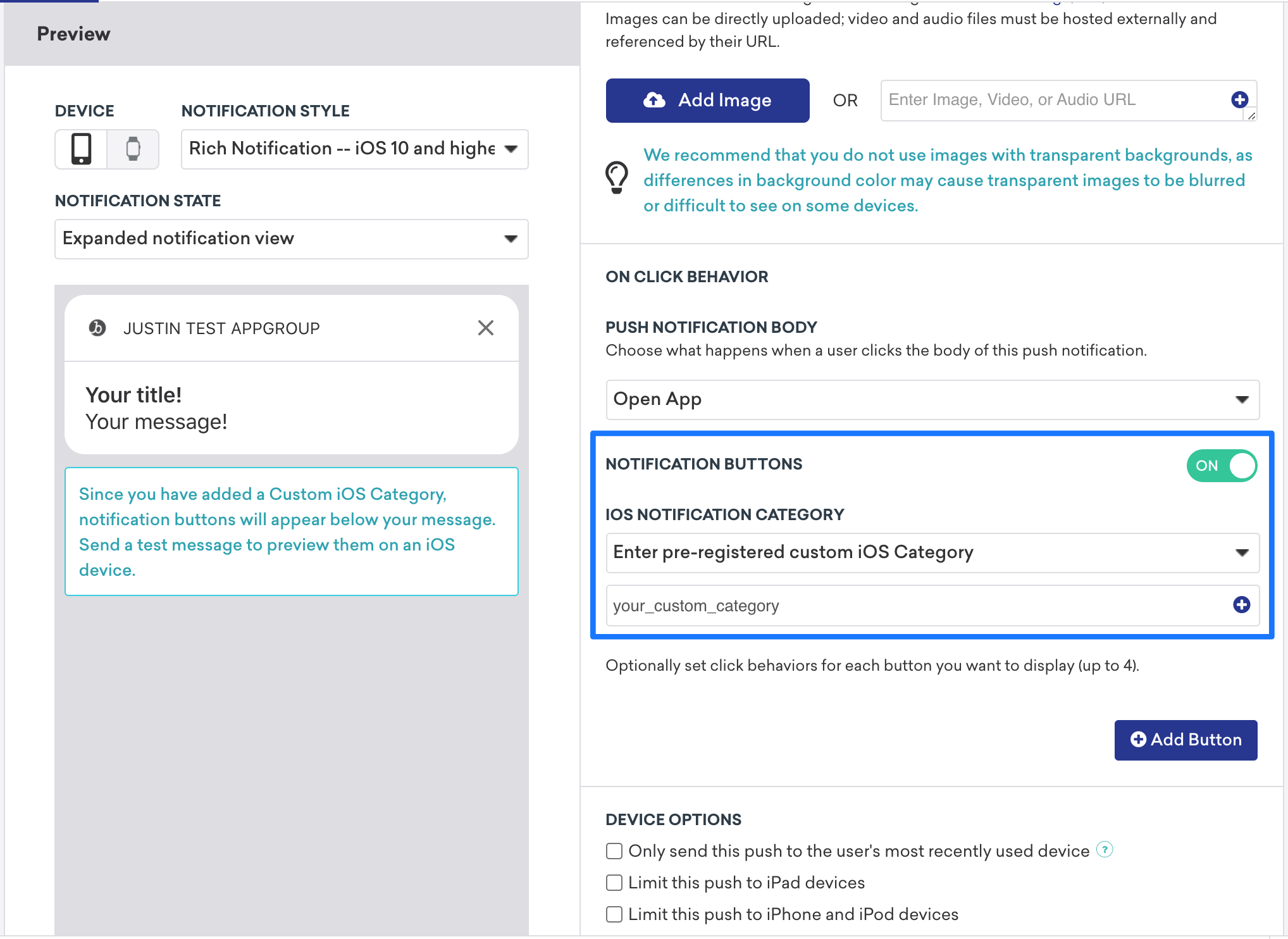

콘텐츠 확장이 포함된 푸시가 항상 눈에 띄는 것은 아니므로, 사용자가 푸시 알림을 확장하도록 유도하는 클릭 유도 문안을 포함하는 것이 좋습니다.
사용 사례 및 구현 워크스루
푸시 알림 콘텐츠 앱 확장 유형은 세 가지가 제공됩니다. 각 유형에는, 개념 안내, 잠재적 사용 사례 그리고 Braze 대시보드에서 푸시 알림 변수를 표시 및 사용하는 방법에 대한 설명이 포함됩니다.
대화형 푸시 알림
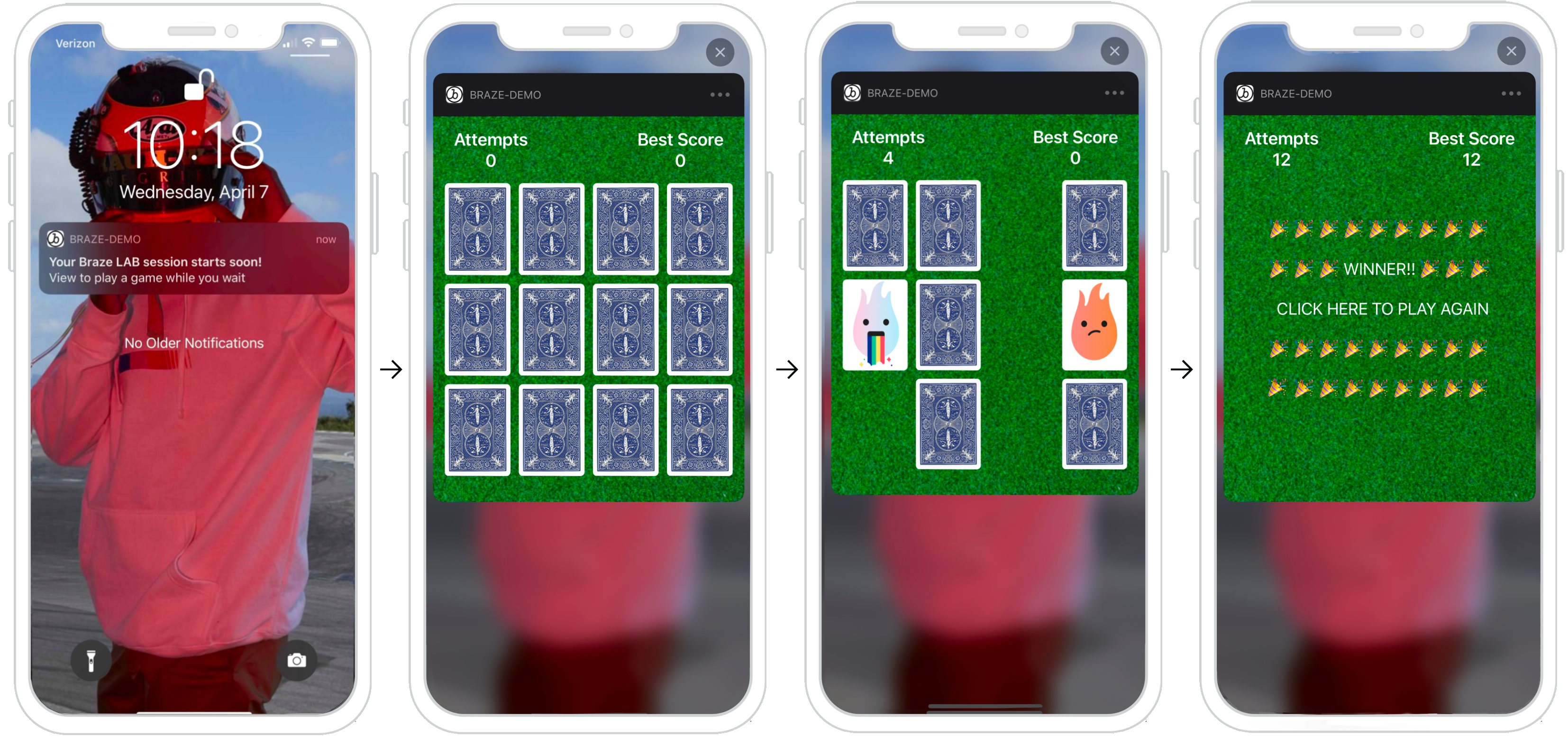
푸시 알림은 콘텐츠 확장 내에서 사용자 작업에 응답할 수 있습니다. iOS 12 이상을 실행하는 사용자의 경우, 푸시 메시지를 완전한 대화형 푸시 알림으로 전환할 수 있습니다! 이 대화형 기능은 사용자가 알림에 참여하도록 유도하는 다양한 기회를 제공합니다. 다음 예시는 사용자가 확장된 알림 내에서 매치 게임을 플레이할 수 있는 푸시를 보여줍니다.
대시보드 구성
대시보드에서 사용자 지정 보기를 설정하려면 알림 버튼 설정에서 표시하려는 특정 카테고리를 입력합니다. 다음으로, 알림 콘텐츠 확장의 .plist에서 커스텀 카테고리도 UNNotificationExtensionCategory 속성으로 설정해야 합니다. 여기에 입력한 값은 Braze 대시보드에 설정된 값과 일치해야 합니다. 마지막으로 푸시 알림에서 사용자 상호작용을 활성화하려면 UNNotificationExtensionInteractionEnabled 키를 true로 설정합니다.
기타 사용 사례
푸시 콘텐츠 확장 기능은 프로모션과 애플리케이션에 인터랙티브한 기능을 도입할 수 있는 흥미로운 옵션입니다. 예를 들어 사용자가 플레이할 수 있는 게임, 할인 옵션을 제공하는 돌림판, 목록이나 노래를 저장하는 ‘좋아요’ 버튼 등이 있습니다.
분석을 기록할 준비가 되셨습니까?
데이터 흐름의 진행 방식을 더 잘 이해하려면 다음 섹션을 참조하세요.
개인화된 푸시 알림
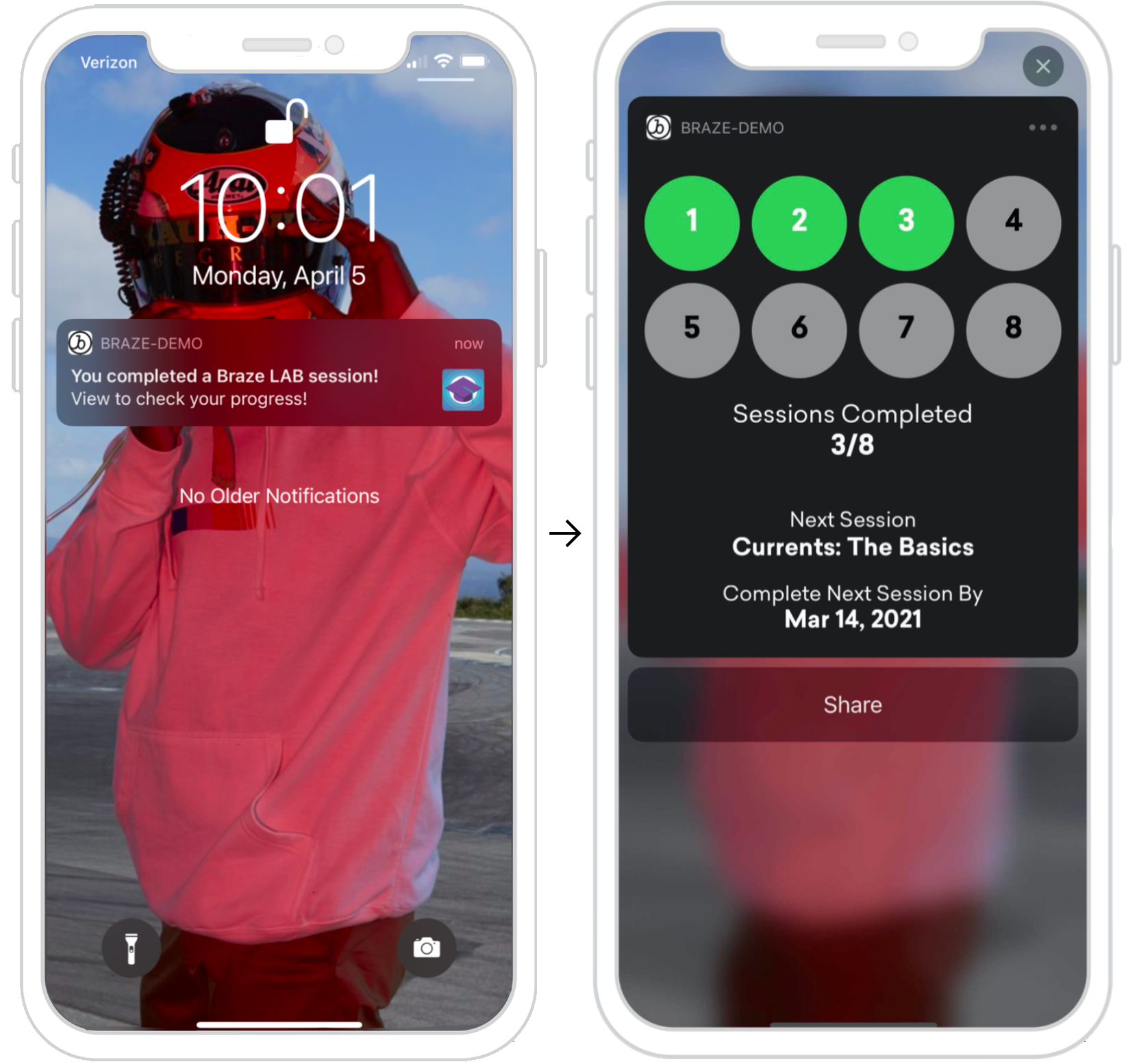
푸시 알림은 콘텐츠 확장 내에서 사용자별 정보를 표시할 수 있습니다. 오른쪽의 예는 사용자가 특정 작업(Braze 학습 과정)을 완료한 후 푸시 알림을 표시하며, 이제 이 알림을 확장하여 진행 상황을 확인하도록 권장합니다. 여기에 제공된 정보는 사용자에 따라 다르며, API 트리거를 활용하여 특정 사용자 작업을 수행하거나 세션을 완료할 때 발송될 수 있습니다.
대시보드 구성
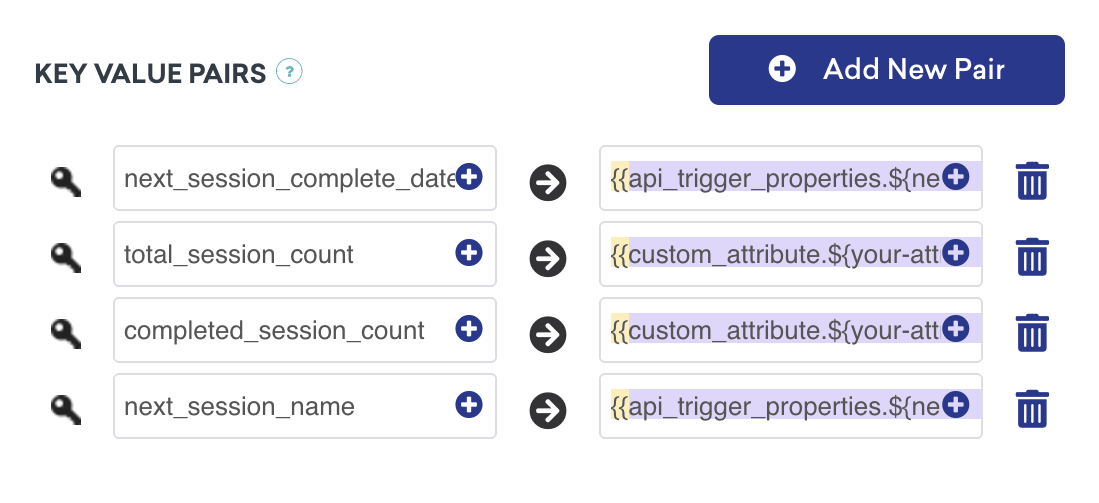
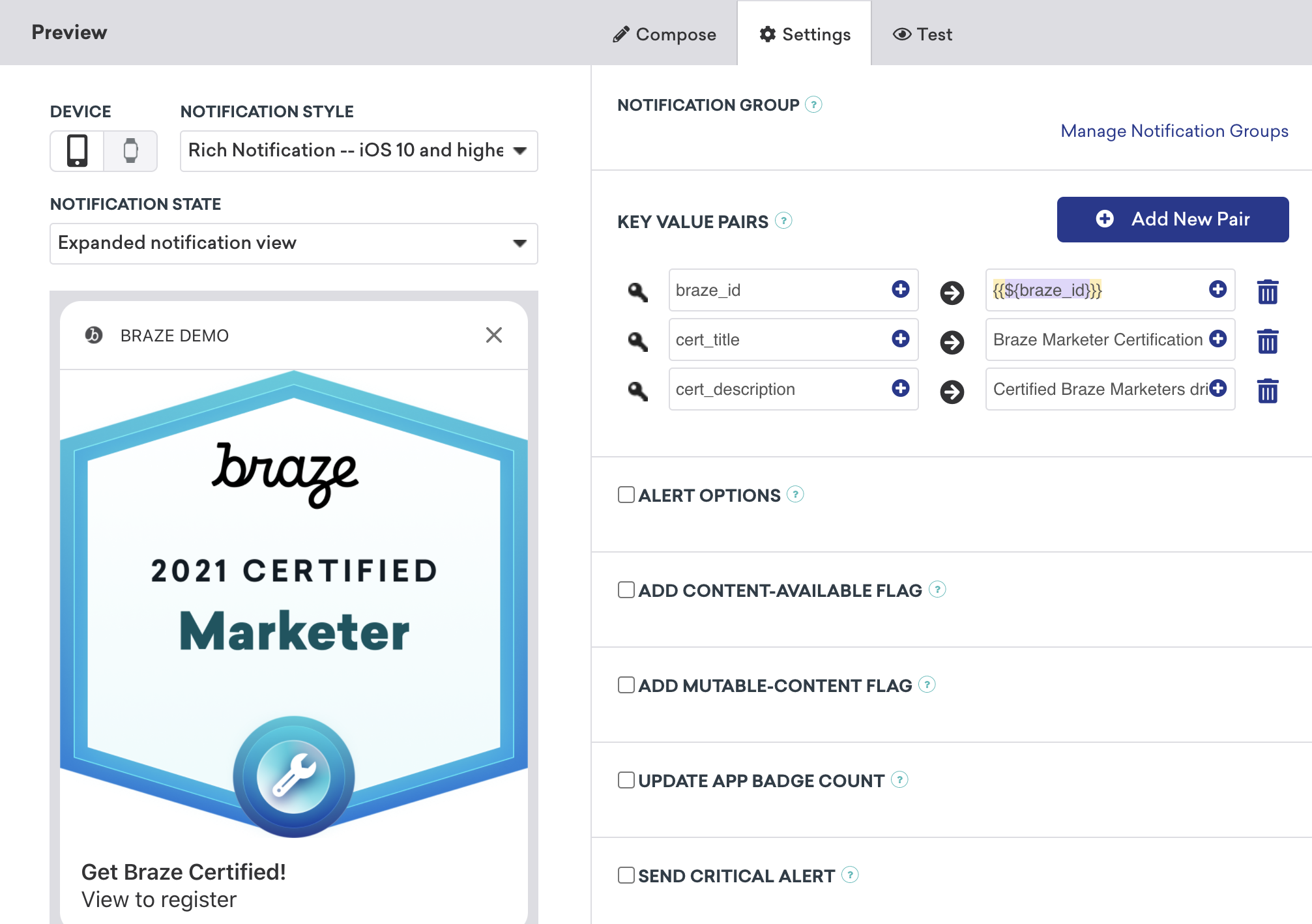
대시보드에서 개인화된 푸시를 설정하려면 표시하려는 특정 카테고리를 등록한 다음, 표준 Liquid를 사용하여 키-값 페어 내에서 메시지에서 표시할 적절한 사용자 속성을 설정해야 합니다. 이러한 보기는 특정 고객 프로필의 특정 사용자 속성을 기반으로 개인화될 수 있습니다.
키-값 쌍 처리하기
콘텐츠 확장이 알림을 받으면 다음 메서드, didReceive가 호출됩니다. NotificationViewController에서 찾을 수 있습니다. 대시보드에 제공된 키-값 페어는 userInfo 사전을 사용하여 코드에 표시됩니다.
푸시 알림에서 키-값 쌍 구문 분석하기
1
2
3
4
5
6
7
8
9
func didReceive(_ notification: UNNotification) {
  let userInfo = notification.request.content.userInfo

  guard let value = userInfo["YOUR-KEY-VALUE-PAIR"] as? String,
        let otherValue = userInfo["YOUR-OTHER-KEY-VALUE-PAIR"] as? String,
  else { fatalError("Key-Value Pairs are incorrect.")}

  ...
}
1
2
3
4
5
6
7
8
9
10
11
- (void)didReceiveNotification:(nonnull UNNotification *)notification {
  NSDictionary *userInfo = notification.request.content.userInfo;

  if (userInfo[@"YOUR-KEY-VALUE-PAIR"] && userInfo[@"YOUR-OTHER-KEY-VALUE-PAIR"]) {

  ...

  } else {
    [NSException raise:NSGenericException format:@"Key-Value Pairs are incorrect"];
  }
}
기타 사용 사례
진행 상황 기반 및 사용자 중심의 푸시 콘텐츠 확장에 대한 아이디어는 무궁무진합니다. 몇 가지 예로, 여러 플랫폼에서 진행 상황을 공유하는 옵션 추가, 잠금 해제된 업적, 펀치 카드 또는 온보딩 체크리스트가 있습니다.
분석을 기록할 준비가 되셨습니까?
데이터 흐름의 진행 방식을 더 잘 이해하려면 다음 섹션을 참조하세요.
정보 캡처 푸시 알림
푸시 알림은 콘텐츠 확장 내에서 사용자 정보를 캡처할 수 있으므로 푸시로 가능한 작업의 한계를 뛰어넘을 수 있습니다. 표시된 다음 흐름을 살펴보면 보기가 상태 변경에 응답할 수 있습니다. 이러한 상태 변경 구성요소가 각 이미지에 표시됩니다.
- 사용자가 푸시 알림을 받습니다.
- 푸시가 열리고 사용자에게 정보를 입력하라는 메시지가 표시됩니다.
- 정보가 제공되고 유효한 경우 등록 버튼이 표시됩니다.
- 확인 보기가 표시되고 푸시가 해제됩니다.
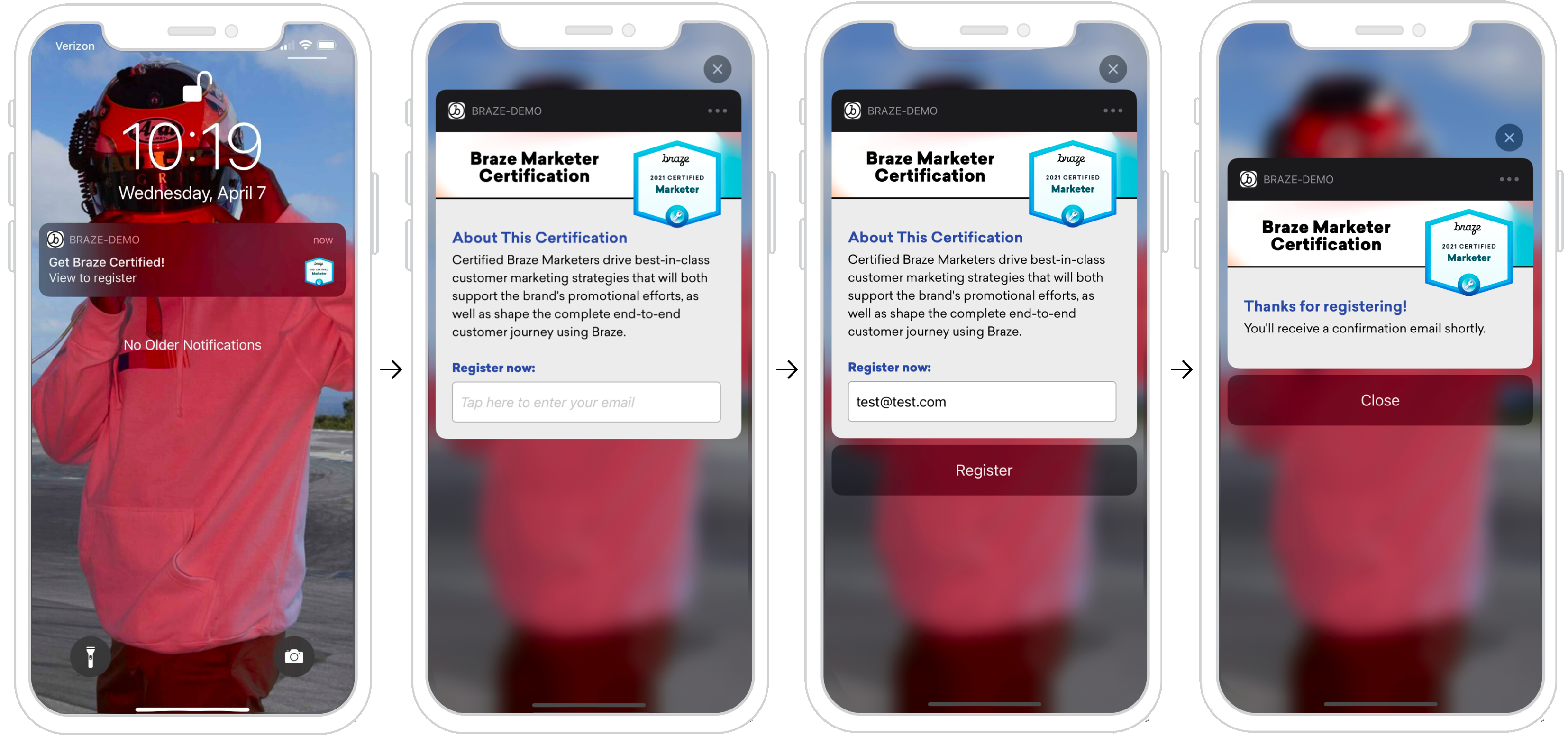
여기서 요청하는 정보는 SMS 번호 캡처와 같은 광범위한 정보일 수 있으며 이메일로 한정되지 않아도 됩니다.
대시보드 구성
대시보드에서 정보 캡처가 가능한 푸시를 설정하려면 커스텀 카테고리를 등록 및 설정하고 필요한 키-값 페어를 제공해야 합니다. 예시에서 볼 수 있듯이 푸시에 이미지를 포함할 수도 있습니다. 이렇게 하려면 리치 알림을 통합하고 캠페인에서 알림 스타일을 리치 알림으로 설정한 다음, 리치 푸시 이미지를 포함해야 합니다.
버튼 동작 처리하기
각 실행 버튼은 고유하게 식별됩니다. 이 코드는 응답 식별자가 actionIndentifier와 같은지 확인하고, 같다면 사용자가 실행 버튼을 클릭했음을 알 수 있습니다.
푸시 알림 동작 버튼 응답 처리하기
1
2
3
4
5
6
7
func didReceive(_ response: UNNotificationResponse, completionHandler completion: @escaping (UNNotificationContentExtensionResponseOption) -> Void) {
  if response.actionIdentifier == "YOUR-REGISTER-IDENTIFIER" {
    // do something
  } else {
    // do something else
  }
}
1
2
3
4
5
6
7
- (void)didReceiveNotificationResponse:(UNNotificationResponse *)response completionHandler:(void (^)(UNNotificationContentExtensionResponseOption))completion {
  if ([response.actionIdentifier isEqualToString:@"YOUR-REGISTER-IDENTIFIER"]) {
    completion(UNNotificationContentExtensionResponseOptionDismiss);
  } else {
    completion(UNNotificationContentExtensionResponseOptionDoNotDismiss);
  }
}
푸시 해제하기
푸시 알림은 실행 버튼을 누르면 자동으로 해제할 수 있습니다. 권장되는 세 가지 사전 빌드된 푸시 해제 옵션이 있습니다.
completion(.dismiss)- 알림을 해제합니다.completion(.doNotDismiss)- 알림이 계속 열려 있습니다.completion(.dismissAndForward)- 푸시가 해제되고 사용자가 애플리케이션으로 이동합니다.
기타 사용 사례
푸시 알림을 통해 사용자 의견을 요청하는 것은 많은 기업이 활용하지 않는 흥미로운 기회입니다. 이러한 푸시 메시지에서는 이름, 이메일 또는 번호와 같은 기본 정보를 요청할 수 있을 뿐만 아니라 고객 프로필을 작성하지 않은 경우 고객 프로필을 작성하거나 피드백을 제출하라는 프롬프트도 표시할 수 있습니다.
분석을 기록할 준비가 되셨습니까?
데이터 흐름의 진행 방식을 더 잘 이해하려면 다음 섹션을 참조하세요.
로그 분석
Braze API를 사용한 로깅(권장)
로깅 분석은 /users/track 엔드포인트에 접속한 고객 서버를 통해 실시간으로만 수행할 수 있습니다. 분석을 기록하려면 다음 스크린샷과 같이 키-값 페어 필드에 braze_id 값을 보내 업데이트할 고객 프로필을 식별합니다.

수동으로 로깅하기
수동으로 로깅하려면 먼저 Xcode 내에서 앱 그룹을 구성한 다음, 분석을 생성, 저장 및 검색해야 합니다. 이를 위해서는 사용자 측에서 커스텀 개발자의 작업이 필요합니다. 표시된 다음 코드 스니펫은 이 문제를 해결하는 데 도움이 됩니다.
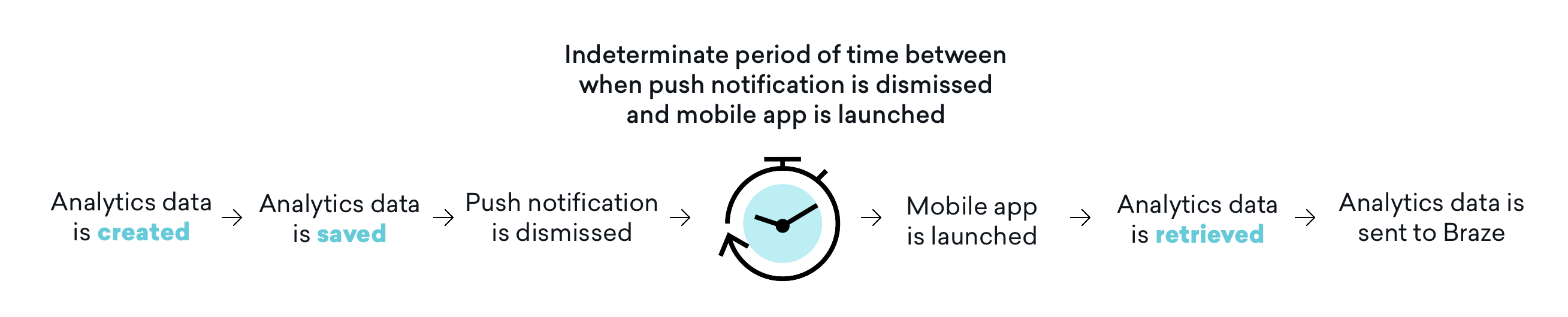
또한 모바일 애플리케이션이 후속으로 실행될 때까지 분석 데이터를 Braze로 전송하지 않는다는 점도 중요합니다. 즉, 해제 설정에 따라 푸시 알림 해제, 모바일 앱 실행 및 분석 검색 사이에 확정되지 않은 시간이 존재하기도 합니다. 이 시간 버퍼가 모든 사용 사례에 영향을 미치는 것은 아니지만, 사용자는 이 영향을 고려해야 하며, 필요한 경우 이 문제를 해결하기 위해 애플리케이션을 여는 것을 포함하여 사용자 여정을 조정해야 합니다.
1단계: Xcode 내에서 앱 그룹 구성
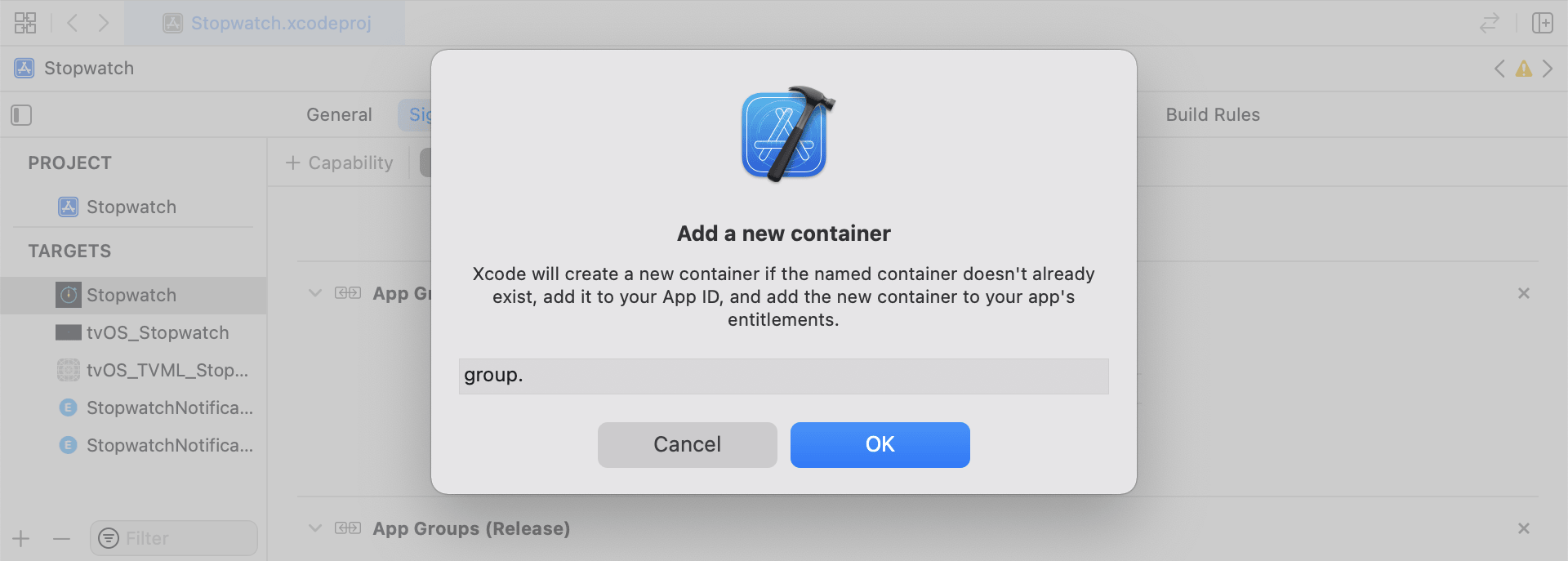
App Groups 기능을 추가합니다. 앱에 앱 그룹이 없으면 기본 앱 대상의 기능으로 이동하여 App Groups를 켜고 ‘+’ 버튼을 클릭합니다. 앱의 번들 ID를 사용하여 앱 그룹을 생성합니다. 예를 들어 앱의 번들 ID가 com.company.appname인 경우 앱 그룹 이름을 group.com.company.appname.xyz로 지정할 수 있습니다. 기본 앱 대상과 콘텐츠 확장 대상 모두에 대해 App Groups가 켜져 있는지 확인합니다.
2단계: 코드 스니펫 통합
다음 코드 스니펫은 커스텀 이벤트, 커스텀 속성 및 사용자 속성을 저장하고 전송하는 방법에 대한 유용한 참고 자료입니다. 이 가이드에서는 UserDefaults의 관점에서 설명하지만 코드는 헬퍼 파일 RemoteStorage의 형태로 표현됩니다. 사용자 속성을 전송하고 저장할 때 사용되는 추가 헬퍼 파일 UserAttributes 및 EventName Dictionary도 있습니다. 모든 헬퍼 파일은 이 가이드의 마지막 부분에서 찾을 수 있습니다.
사용자 지정 이벤트 저장
사용자 지정 이벤트를 저장하려면 분석을 처음부터 새로 만들어야 합니다. 이는 사전을 만들고 메타데이터로 채운 다음 도우미 파일을 사용하여 데이터를 저장하는 방식으로 이루어집니다.
- 이벤트 메타데이터로 사전 초기화
userDefaults를 초기화하여 이벤트 데이터 검색 및 저장- 기존 배열이 있는 경우 기존 배열에 새 데이터를 추가하고 저장합니다.
- 기존 배열이 없는 경우
userDefaults에 새 배열 저장
1
2
3
4
5
6
7
8
9
10
11
12
13
14
15
16
func saveCustomEvent(with properties: [String: Any]? = nil) {
  // 1
  let customEventDictionary = Dictionary(eventName: "YOUR-EVENT-NAME", properties: properties)

  // 2
  let remoteStorage = RemoteStorage(storageType: .suite)

  // 3
  if var pendingEvents = remoteStorage.retrieve(forKey: .pendingCustomEvents) as? [[String: Any]] {
    pendingEvents.append(contentsOf: [customEventDictionary])
    remoteStorage.store(pendingEvents, forKey: .pendingCustomEvents)
  } else {
  // 4
    remoteStorage.store([customEventDictionary], forKey: .pendingCustomEvents)
  }
}
1
2
3
4
5
6
7
8
9
10
11
12
13
14
15
16
17
- (void)saveCustomEvent:(NSDictionary<NSString *, id> *)properties {
  // 1
  NSDictionary<NSString *, id> *customEventDictionary = [[NSDictionary alloc] initWithEventName:@"YOUR-EVENT-NAME" properties:properties];

  // 2
  RemoteStorage *remoteStorage = [[RemoteStorage alloc] initWithStorageType:StorageTypeSuite];
  NSMutableArray *pendingEvents = [[remoteStorage retrieveForKey:RemoteStorageKeyPendingCustomEvents] mutableCopy];

  // 3
  if (pendingEvents) {
    [pendingEvents addObject:customEventDictionary];
    [remoteStorage store:pendingEvents forKey:RemoteStorageKeyPendingCustomAttributes];
  } else {
  // 4
    [remoteStorage store:@[ customEventDictionary ] forKey:RemoteStorageKeyPendingCustomAttributes];
  }
}
Braze에 사용자 지정 이벤트 보내기
SDK가 초기화된 후가 알림 콘텐츠 앱 확장에 저장된 모든 분석을 기록하기에 가장 좋은 시기입니다. 보류 중인 이벤트를 반복하고 ‘이벤트 이름’ 키를 확인하며 Braze에서 적절한 값을 설정하고 다음에 이 기능이 필요할 때를 대비해 스토리지를 지워 이 작업을 수행할 수 있습니다.
- 보류 중인 이벤트 배열 반복
pendingEvents사전의 각 키-값 쌍을 반복합니다.- ‘이벤트 이름’에 대한 키를 명시적으로 확인하여 적절히 값 설정
- 다른 모든 키 값은
properties사전에 추가됩니다. - 개별 사용자 지정 이벤트 기록
- 스토리지에서 보류 중인 모든 이벤트 제거
1
2
3
4
5
6
7
8
9
10
11
12
13
14
15
16
17
18
19
20
21
22
23
24
25
26
27
28
29
30
31
32
func logPendingCustomEventsIfNecessary() {
  let remoteStorage = RemoteStorage(storageType: .suite)
  guard let pendingEvents = remoteStorage.retrieve(forKey: .pendingCustomEvents) as? [[String: Any]] else { return }

  // 1
  for event in pendingEvents {
    var eventName: String?
    var properties: [AnyHashable: Any] = [:]

  // 2
    for (key, value) in event {
      if key == PushNotificationKey.eventName.rawValue {
  // 3
        if let eventNameValue = value as? String {
          eventName = eventNameValue
        } else {
          print("Invalid type for event_name key")
        }
      } else {
  // 4
        properties[key] = value
      }
    }
  // 5
    if let eventName = eventName {
      logCustomEvent(eventName, withProperties: properties)
    }
  }

  // 6
  remoteStorage.removeObject(forKey: .pendingCustomEvents)
}
1
2
3
4
5
6
7
8
9
10
11
12
13
14
15
16
17
18
19
20
21
22
23
24
25
26
27
28
29
30
31
32
- (void)logPendingEventsIfNecessary {
  RemoteStorage *remoteStorage = [[RemoteStorage alloc] initWithStorageType:StorageTypeSuite];
  NSArray *pendingEvents = [remoteStorage retrieveForKey:RemoteStorageKeyPendingCustomEvents];

  // 1
  for (NSDictionary<NSString *, id> *event in pendingEvents) {
    NSString *eventName = nil;
    NSMutableDictionary *properties = [NSMutableDictionary dictionary];

  // 2
    for (NSString* key in event) {
      if ([key isEqualToString:@"event_name"]) {
  // 3
        if ([[event objectForKey:key] isKindOfClass:[NSString class]]) {
          eventName = [event objectForKey:key];
        } else {
          NSLog(@"Invalid type for event_name key");
        }
      } else {
  // 4
        properties[key] = event[key];
      }
    }
  // 5
    if (eventName != nil) {
      [[Appboy sharednstance] logCustomEvent:eventName withProperties:properties];
    }
  }

  // 6
  [remoteStorage removeObjectForKey:RemoteStorageKeyPendingCustomEvents];
}
사용자 지정 속성 저장
사용자 지정 속성을 저장하려면 분석을 처음부터 새로 만들어야 합니다. 이는 사전을 만들고 메타데이터로 채운 다음 도우미 파일을 사용하여 데이터를 저장하는 방식으로 이루어집니다.
- 속성 메타데이터로 사전 초기화
userDefaults를 초기화하여 속성 데이터 검색 및 저장- 기존 배열이 있는 경우 기존 배열에 새 데이터를 추가하고 저장합니다.
- 기존 배열이 없는 경우
userDefaults에 새 배열 저장
1
2
3
4
5
6
7
8
9
10
11
12
13
14
15
16
func saveCustomAttribute() {
  // 1
  let customAttributeDictionary: [String: Any] = ["YOUR-CUSTOM-ATTRIBUTE-KEY": "YOUR-CUSTOM-ATTRIBUTE-VALUE"]

  // 2
  let remoteStorage = RemoteStorage(storageType: .suite)

  // 3
  if var pendingAttributes = remoteStorage.retrieve(forKey: .pendingCustomAttributes) as? [[String: Any]] {
    pendingAttributes.append(contentsOf: [customAttributeDictionary])
    remoteStorage.store(pendingAttributes, forKey: .pendingCustomAttributes)
  } else {
  // 4
    remoteStorage.store([customAttributeDictionary], forKey: .pendingCustomAttributes)
  }
}
1
2
3
4
5
6
7
8
9
10
11
12
13
14
15
16
17
- (void)saveCustomAttribute {
  // 1
  NSDictionary<NSString *, id> *customAttributeDictionary = @{ @"YOUR-CUSTOM-ATTRIBUTE-KEY": @"YOUR-CUSTOM-ATTRIBUTE-VALUE" };

  // 2
  RemoteStorage *remoteStorage = [[RemoteStorage alloc] initWithStorageType:StorageTypeSuite];
  NSMutableArray *pendingAttributes = [[remoteStorage retrieveForKey:RemoteStorageKeyPendingCustomAttributes] mutableCopy];

  // 3
  if (pendingAttributes) {
    [pendingAttributes addObject:customAttributeDictionary];
    [remoteStorage store:pendingAttributes forKey:RemoteStorageKeyPendingCustomAttributes];
  } else {
  // 4
    [remoteStorage store:@[ customAttributeDictionary ] forKey:RemoteStorageKeyPendingCustomAttributes];
  }
}
Braze에 사용자 지정 속성 보내기
SDK가 초기화된 후가 알림 콘텐츠 앱 확장에 저장된 모든 분석을 기록하기에 가장 좋은 시기입니다. 보류 중인 속성을 반복하고 Braze에서 적절한 값을 설정하며 다음에 이 기능이 필요할 때를 대비해 스토리지를 지워 이 작업을 수행할 수 있습니다.
- 보류 중인 속성 배열 반복
pendingAttributes사전의 각 키-값 쌍을 반복합니다.- 해당 키와 값으로 개별 사용자 지정 속성을 기록합니다.
- 스토리지에서 보류 중인 모든 속성 제거
1
2
3
4
5
6
7
8
9
10
11
12
13
14
15
16
17
18
19
20
21
22
func logPendingCustomAttributesIfNecessary() {
  let remoteStorage = RemoteStorage(storageType: .suite)
  guard let pendingAttributes = remoteStorage.retrieve(forKey: .pendingCustomAttributes) as? [[String: Any]] else { return }

  // 1
  pendingAttributes.forEach { setCustomAttributesWith(keysAndValues: $0) }

  // 4
  remoteStorage.removeObject(forKey: .pendingCustomAttributes)
}

func setCustomAttributesWith(keysAndValues: [String: Any]) {
  // 2
  for (key, value) in keysAndValues {
  // 3
    if let value = value as? [String] {
      setCustomAttributeArrayWithKey(key, andValue: value)
    } else {
      setCustomAttributeWithKey(key, andValue: value)
    }
  }
}
1
2
3
4
5
6
7
8
9
10
11
12
13
14
15
16
17
18
19
20
- (void)logPendingCustomAttributesIfNecessary {
  RemoteStorage *remoteStorage = [[RemoteStorage alloc] initWithStorageType:StorageTypeSuite];
  NSArray *pendingAttributes = [remoteStorage retrieveForKey:RemoteStorageKeyPendingCustomAttributes];

  // 1
  for (NSDictionary<NSString*, id> *attribute in pendingAttributes) {
    [self setCustomAttributeWith:attribute];
  }

  // 4
  [remoteStorage removeObjectForKey:RemoteStorageKeyPendingCustomAttributes];
}

- (void)setCustomAttributeWith:(NSDictionary<NSString *, id> *)keysAndValues {
  // 2
  for (NSString *key in keysAndValues) {
  // 3
    [self setCustomAttributeWith:key andValue:[keysAndValues objectForKey:key]];
  }
}
사용자 속성 저장
사용자 속성을 저장할 때는 사용자 지정 개체를 만들어 업데이트되는 속성 유형을 해독하는 것이 좋습니다(email, first_name, phone_number, 등). 개체는 UserDefaults 에서 저장/검색하는 것과 호환되어야 합니다. 이를 수행하는 방법에 대한 한 가지 예제는 UserAttribute 헬퍼 파일을 참조하세요.
- 인코딩된
UserAttribute객체를 해당 유형으로 초기화합니다. userDefaults를 초기화하여 이벤트 데이터 검색 및 저장- 기존 배열이 있는 경우 기존 배열에 새 데이터를 추가하고 저장합니다.
- 기존 배열이 없는 경우
userDefaults에 새 배열 저장
1
2
3
4
5
6
7
8
9
10
11
12
13
14
15
16
func saveUserAttribute() {
  // 1
  guard let data = try? PropertyListEncoder().encode(UserAttribute.userAttributeType("USER-ATTRIBUTE-VALUE")) else { return }

  // 2
  let remoteStorage = RemoteStorage(storageType: .suite)

  // 3
  if var pendingAttributes = remoteStorage.retrieve(forKey: .pendingUserAttributes) as? [Data] {
    pendingAttributes.append(contentsOf: [data])
    remoteStorage.store(pendingAttributes, forKey: .pendingUserAttributes)
  } else {
  // 4
    remoteStorage.store([data], forKey: .pendingUserAttributes)
  }
}
1
2
3
4
5
6
7
8
9
10
11
12
13
14
15
16
17
18
19
20
21
22
23
- (void)saveUserAttribute {
  // 1
  UserAttribute *userAttribute = [[UserAttribute alloc] initWithUserField:@"USER-ATTRIBUTE-VALUE" attributeType:UserAttributeTypeEmail];

  NSError *error;
  NSData *data = [NSKeyedArchiver archivedDataWithRootObject:userAttribute requiringSecureCoding:YES error:&error];

  if (error != nil) {
    // log error
  }
  // 2
  RemoteStorage *remoteStorage = [[RemoteStorage alloc] initWithStorageType:StorageTypeSuite];
  NSMutableArray *pendingAttributes = [[remoteStorage retrieveForKey:RemoteStorageKeyPendingUserAttributes] mutableCopy];

  // 3
  if (pendingAttributes) {
    [pendingAttributes addObject:data];
    [remoteStorage store:pendingAttributes forKey:RemoteStorageKeyPendingUserAttributes];
  } else {
  // 4
    [remoteStorage store:@[data] forKey:RemoteStorageKeyPendingUserAttributes];
  }
}
Braze에 사용자 속성 보내기
SDK가 초기화된 후가 알림 콘텐츠 앱 확장에 저장된 모든 분석을 기록하기에 가장 좋은 시기입니다. 보류 중인 속성을 반복하고 Braze에서 적절한 값을 설정하며 다음에 이 기능이 필요할 때를 대비해 스토리지를 지워 이 작업을 수행할 수 있습니다.
pendingAttributes데이터 배열 반복- 속성 데이터에서 인코딩된
UserAttribute객체를 초기화합니다. - 사용자 속성 유형(이메일)에 따라 특정 사용자 필드를 설정합니다.
- 스토리지에서 보류 중인 모든 사용자 속성 제거
1
2
3
4
5
6
7
8
9
10
11
12
13
14
15
16
17
18
func logPendingUserAttributesIfNecessary() {
  let remoteStorage = RemoteStorage(storageType: .suite)
  guard let pendingAttributes = remoteStorage.retrieve(forKey: .pendingUserAttributes) as? [Data] else { return }

  // 1
  for attributeData in pendingAttributes {
  // 2
    guard let userAttribute = try? PropertyListDecoder().decode(UserAttribute.self, from: attributeData) else { continue }

  // 3
    switch userAttribute {
    case .email(let email):
      user?.email = email
    }
  }
  // 4
  remoteStorage.removeObject(forKey: .pendingUserAttributes)
}
1
2
3
4
5
6
7
8
9
10
11
12
13
14
15
16
17
18
19
20
21
22
23
24
25
26
27
- (void)logPendingUserAttributesIfNecessary {
  RemoteStorage *remoteStorage = [[RemoteStorage alloc] initWithStorageType:StorageTypeSuite];
  NSArray *pendingAttributes = [remoteStorage retrieveForKey:RemoteStorageKeyPendingUserAttributes];

  // 1
  for (NSData *attributeData in pendingAttributes) {
    NSError *error;

  // 2
    UserAttribute *userAttribute = [NSKeyedUnarchiver unarchivedObjectOfClass:[UserAttribute class] fromData:attributeData error:&error];

    if (error != nil) {
      // log error
    }

  // 3
    if (userAttribute) {
      switch (userAttribute.attributeType) {
        case UserAttributeTypeEmail:
          [self user].email = userAttribute.userField;
          break;
      }
    }
  }
  // 4
  [remoteStorage removeObjectForKey:RemoteStorageKeyPendingUserAttributes];
}
도우미 파일
RemoteStorage Helper File
1
2
3
4
5
6
7
8
9
10
11
12
13
14
15
16
17
18
19
20
21
22
23
24
25
26
27
28
29
30
31
32
33
34
35
36
37
38
39
40
41
42
43
44
45
46
enum RemoteStorageKey: String, CaseIterable {

  // MARK: - Notification Content Extension Analytics
  case pendingCustomEvents = "pending_custom_events"
  case pendingCustomAttributes = "pending_custom_attributes"
  case pendingUserAttributes = "pending_user_attributes"
}

enum RemoteStorageType {
  case standard
  case suite
}

class RemoteStorage: NSObject {
  private var storageType: RemoteStorageType = .standard
  private lazy var defaults: UserDefaults = {
    switch storageType {
    case .standard:
      return .standard
    case .suite:
      return UserDefaults(suiteName: "YOUR-DOMAIN-IDENTIFIER")!
    }
  }()

  init(storageType: RemoteStorageType = .standard) {
    self.storageType = storageType
  }

  func store(_ value: Any, forKey key: RemoteStorageKey) {
    defaults.set(value, forKey: key.rawValue)
  }

  func retrieve(forKey key: RemoteStorageKey) -> Any? {
    return defaults.object(forKey: key.rawValue)
  }

  func removeObject(forKey key: RemoteStorageKey) {
    defaults.removeObject(forKey: key.rawValue)
  }

  func resetStorageKeys() {
    for key in RemoteStorageKey.allCases {
      defaults.removeObject(forKey: key.rawValue)
    }
  }
}
1
2
3
4
5
6
7
8
9
10
11
12
13
14
15
16
17
18
19
20
21
22
23
24
25
26
27
28
29
30
31
32
33
34
35
36
37
38
39
40
41
42
43
44
45
46
47
48
49
50
51
52
53
54
55
56
57
58
59
60
@interface RemoteStorage ()

@property (nonatomic) StorageType storageType;
@property (nonatomic, strong) NSUserDefaults *defaults;

@end

@implementation RemoteStorage

- (id)initWithStorageType:(StorageType)storageType {
  if (self = [super init]) {
    self.storageType = storageType;
  }
  return self;
}

- (void)store:(id)value forKey:(RemoteStorageKey)key {
  [[self defaults] setValue:value forKey:[self rawValueForKey:key]];
}

- (id)retrieveForKey:(RemoteStorageKey)key {
  return [[self defaults] objectForKey:[self rawValueForKey:key]];
}

- (void)removeObjectForKey:(RemoteStorageKey)key {
  [[self defaults] removeObjectForKey:[self rawValueForKey:key]];
}

- (void)resetStorageKeys {
  [[self defaults] removeObjectForKey:[self rawValueForKey:RemoteStorageKeyPendingCustomEvents]];
  [[self defaults] removeObjectForKey:[self rawValueForKey:RemoteStorageKeyPendingCustomAttributes]];
  [[self defaults] removeObjectForKey:[self rawValueForKey:RemoteStorageKeyPendingUserAttributes]];
}

- (NSUserDefaults *)defaults {
  if (!self.defaults) {
    switch (self.storageType) {
      case StorageTypeStandard:
        return [NSUserDefaults standardUserDefaults];
        break;
      case StorageTypeSuite:
        return [[NSUserDefaults alloc] initWithSuiteName:@"YOUR-DOMAIN-IDENTIFIER"];
    }
  } else {
    return self.defaults;
  }
}

- (NSString*)rawValueForKey:(RemoteStorageKey)remoteStorageKey {
    switch(remoteStorageKey) {
    case RemoteStorageKeyPendingCustomEvents:
      return @"pending_custom_events";
    case RemoteStorageKeyPendingCustomAttributes:
      return @"pending_custom_attributes";
    case RemoteStorageKeyPendingUserAttributes:
      return @"pending_user_attributes";
    default:
      [NSException raise:NSGenericException format:@"Unexpected FormatType."];
  }
}
UserAttribute Helper File
1
2
3
4
5
6
7
8
9
10
11
12
13
14
15
16
17
18
19
20
21
22
23
24
25
26
enum UserAttribute: Hashable {
  case email(String?)
}

// MARK: - Codable
extension UserAttribute: Codable {
  private enum CodingKeys: String, CodingKey {
    case email
  }

  func encode(to encoder: Encoder) throws {
    var values = encoder.container(keyedBy: CodingKeys.self)

    switch self {
    case .email(let email):
      try values.encode(email, forKey: .email)
    }
  }

  init(from decoder: Decoder) throws {
    let values = try decoder.container(keyedBy: CodingKeys.self)

    let email = try values.decode(String.self, forKey: .email)
    self = .email(email)
  }
}
1
2
3
4
5
6
7
8
9
10
11
12
13
14
15
16
17
18
19
20
21
22
23
24
25
26
@implementation UserAttribute

- (id)initWithUserField:(NSString *)userField attributeType:(UserAttributeType)attributeType {
  if (self = [super init]) {
    self.userField = userField;
    self.attributeType = attributeType;
  }
  return self;
}

- (void)encodeWithCoder:(NSCoder *)encoder {
  [encoder encodeObject:self.userField forKey:@"userField"];
  [encoder encodeInteger:self.attributeType forKey:@"attributeType"];
}

- (id)initWithCoder:(NSCoder *)decoder {
  if (self = [super init]) {
    self.userField = [decoder decodeObjectForKey:@"userField"];

    NSInteger attributeRawValue = [decoder decodeIntegerForKey:@"attributeType"];
    self.attributeType = (UserAttributeType) attributeRawValue;
  }
  return self;
}

@end
EventName Dictionary Helper File
1
2
3
4
5
6
7
8
9
10
11
12
extension Dictionary where Key == String, Value == Any {
  init(eventName: String, properties: [String: Any]? = nil) {
    self.init()
    self[PushNotificationKey.eventName.rawValue] = eventName

    if let properties = properties {
      for (key, value) in properties {
        self[key] = value
      }
    }
  }
}
1
2
3
4
5
6
7
8
9
10
11
12
13
14
15
@implementation NSDictionary (Helper)

- (id)initWithEventName:(NSString *)eventName properties:(NSDictionary *)properties {
  self = [self init];
  if (self) {
    dict[@"event_name"] = eventName;

    for(id key in properties) {
      dict[key] = properties[key];
    }
  }
  return self;
}

@end
 GitHub 에서 이 페이지를 편집합니다.