콘텐츠 카드 만들기
이 문서에서는 커스텀 콘텐츠 카드를 구현할 때 사용할 기본 접근 방식과 세 가지 일반적인 사용 사례에 대해 설명합니다. 기본적으로 수행할 수 있는 작업과 커스텀 코드가 필요한 작업을 이해하기 위해 콘텐츠 카드 커스터마이징 가이드의 다른 문서를 이미 읽었다고 가정합니다. 커스텀 콘텐츠 카드에 대한 분석을 기록하는 방법을 이해하면 특히 유용합니다.
배너 스타일 메시지에 콘텐츠 카드를 사용하시겠습니까? 배너를 사용해 보세요— 인라인, 지속적인 앱 내 및 웹 메시지에 완벽합니다.
카드 만들기
1단계: 커스텀 UI 만들기
먼저 카드를 렌더링하는 데 사용할 커스텀 HTML 구성요소를 만듭니다.
먼저 나만의 커스텀 프래그먼트를 생성합니다. 기본 ContentCardsFragment는 기본 콘텐츠 카드 유형만 처리하도록 설계되었지만 좋은 출발점이 될 수 있습니다.
먼저 커스텀 뷰 컨트롤러 구성요소를 만듭니다. 기본 BrazeContentCardUI.ViewController는 기본 콘텐츠 카드 유형만 처리하도록 설계되었지만 좋은 출발점이 될 수 있습니다.
2단계: 카드 업데이트 구독
카드가 새로고침될 때 데이터 업데이트를 구독하기 위해 콜백 함수를 등록합니다. 콘텐츠 카드 오브젝트를 구문 분석하고 title, cardDescription, imageUrl 등의 페이로드 데이터를 추출한 다음, 결과 모델 데이터를 사용하여 커스텀 UI를 채울 수 있습니다.
콘텐츠 카드 데이터 모델을 얻으려면 콘텐츠 카드 업데이트를 구독합니다. 다음 등록정보에 특히 주의하세요:
id: 콘텐츠 카드 ID 문자열을 나타냅니다. 커스텀 콘텐츠 카드에서 분석을 기록하는 데 사용되는 고유 식별자입니다.extras: Braze 대시보드의 모든 키-값 페어를 포함합니다.
id와 extras 이외의 모든 등록정보는 커스텀 콘텐츠 카드에서 구문 분석할 필요가 없습니다. 데이터 모델에 대한 자세한 내용은 각 플랫폼의 통합 문서를 참조하세요: Android, iOS, Web.
1
2
3
4
5
6
7
8
9
10
11
12
13
14
15
16
17
18
19
import * as braze from "@braze/web-sdk";

braze.subscribeToContentCardsUpdates((updates) => {
  const cards = updates.cards;
// For example:
  cards.forEach(card => {
    if (card.isControl) {
      // Do not display the control card, but remember to call `logContentCardImpressions([card])`
    }
    else if (card instanceof braze.ClassicCard || card instanceof braze.CaptionedImage) {
      // Use `card.title`, `card.imageUrl`, etc.
    }
    else if (card instanceof braze.ImageOnly) {
      // Use `card.imageUrl`, etc.
    }
  })
});

braze.openSession();
콘텐츠 카드는 subscribeToContentCardsUpdates()가 openSession() 이전에 호출된 경우에만 세션 시작 시 새로고침됩니다. 언제든지 피드를 수동으로 새로고침할 수도 있습니다.
2a단계: 비공개 구독자 변수 만들기
카드 업데이트를 구독하려면 먼저 커스텀 클래스에서 구독자를 보관할 비공개 변수를 선언합니다:
1
2
// subscriber variable
private IEventSubscriber<ContentCardsUpdatedEvent> mContentCardsUpdatedSubscriber;
2b단계: 업데이트 구독
다음 코드를 추가하여 Braze의 콘텐츠 카드 업데이트를 구독합니다. 일반적으로 커스텀 콘텐츠 카드 액티비티의 Activity.onCreate() 내부에 배치합니다:
1
2
3
4
5
6
7
8
9
10
11
12
13
// Remove the previous subscriber before rebuilding a new one with our new activity.
Braze.getInstance(context).removeSingleSubscription(mContentCardsUpdatedSubscriber, ContentCardsUpdatedEvent.class);
mContentCardsUpdatedSubscriber = new IEventSubscriber<ContentCardsUpdatedEvent>() {
    @Override
    public void trigger(ContentCardsUpdatedEvent event) {
        // List of all Content Cards
        List<Card> allCards = event.getAllCards();

        // Your logic below
    }
};
Braze.getInstance(context).subscribeToContentCardsUpdates(mContentCardsUpdatedSubscriber);
Braze.getInstance(context).requestContentCardsRefresh();
2c단계: 구독 취소
커스텀 액티비티가 화면에서 벗어날 때 구독을 취소합니다. 액티비티의 onDestroy() 라이프사이클 메서드에 다음 코드를 추가합니다:
1
Braze.getInstance(context).removeSingleSubscription(mContentCardsUpdatedSubscriber, ContentCardsUpdatedEvent.class);
2a단계: 비공개 구독자 변수 만들기
카드 업데이트를 구독하려면 먼저 커스텀 클래스에서 구독자를 보관할 비공개 변수를 선언합니다:
1
private var contentCardsUpdatedSubscriber: IEventSubscriber<ContentCardsUpdatedEvent>? = null
2b단계: 업데이트 구독
다음 코드를 추가하여 Braze의 콘텐츠 카드 업데이트를 구독합니다. 일반적으로 커스텀 콘텐츠 카드 액티비티의 Activity.onCreate() 내부에 배치합니다:
1
2
3
4
5
6
7
8
9
10
// Remove the previous subscriber before rebuilding a new one with our new activity.
Braze.getInstance(context).subscribeToContentCardsUpdates(contentCardsUpdatedSubscriber)
Braze.getInstance(context).requestContentCardsRefresh()
  // List of all Content Cards
  val allCards = event.allCards

  // Your logic below
}
Braze.getInstance(context).subscribeToContentCardsUpdates(mContentCardsUpdatedSubscriber)
Braze.getInstance(context).requestContentCardsRefresh(true)
2c단계: 구독 취소
커스텀 액티비티가 화면에서 벗어날 때 구독을 취소합니다. 액티비티의 onDestroy() 라이프사이클 메서드에 다음 코드를 추가합니다:
1
Braze.getInstance(context).removeSingleSubscription(contentCardsUpdatedSubscriber, ContentCardsUpdatedEvent::class.java)
콘텐츠 카드 데이터 모델에 접근하려면 braze 인스턴스에서 contentCards.cards를 호출합니다.
1
let cards: [Braze.ContentCard] = AppDelegate.braze?.contentCards.cards
또한 콘텐츠 카드의 변경 사항을 관찰하기 위해 구독을 유지할 수 있습니다. 두 가지 방법 중 하나로 수행할 수 있습니다:
- 취소 가능 항목 유지, 또는
AsyncStream유지.
취소 가능 항목
1
2
3
4
5
6
// This subscription is maintained through a Braze cancellable, which will observe for changes until the subscription is cancelled.
// You must keep a strong reference to the cancellable to keep the subscription active.
// The subscription is canceled either when the cancellable is deinitialized or when you call its `.cancel()` method.
let cancellable = AppDelegate.braze?.contentCards.subscribeToUpdates { [weak self] contentCards in
  // Implement your completion handler to respond to updates in `contentCards`.
}
AsyncStream
1
let stream: AsyncStream<[Braze.ContentCard]> = AppDelegate.braze?.contentCards.cardsStream
1
NSArray<BRZContentCardRaw *> *contentCards = AppDelegate.braze.contentCards.cards;
또한 콘텐츠 카드에 대한 구독을 유지하려면 subscribeToUpdates를 호출할 수 있습니다:
1
2
3
4
// This subscription is maintained through Braze cancellable, which will continue to observe for changes until the subscription is cancelled.
BRZCancellable *cancellable = [self.braze.contentCards subscribeToUpdates:^(NSArray<BRZContentCardRaw *> *contentCards) {
  // Implement your completion handler to respond to updates in `contentCards`.
}];
3단계: 분석 구현
콘텐츠 카드 노출 횟수, 클릭 및 해제는 커스텀 뷰에서 자동으로 기록되지 않습니다. 모든 측정기준을 Braze 대시보드 분석에 올바르게 기록하려면 각각의 방법을 구현해야 합니다.
4단계: 카드 테스트(선택 사항)
콘텐츠 카드를 테스트하려면:
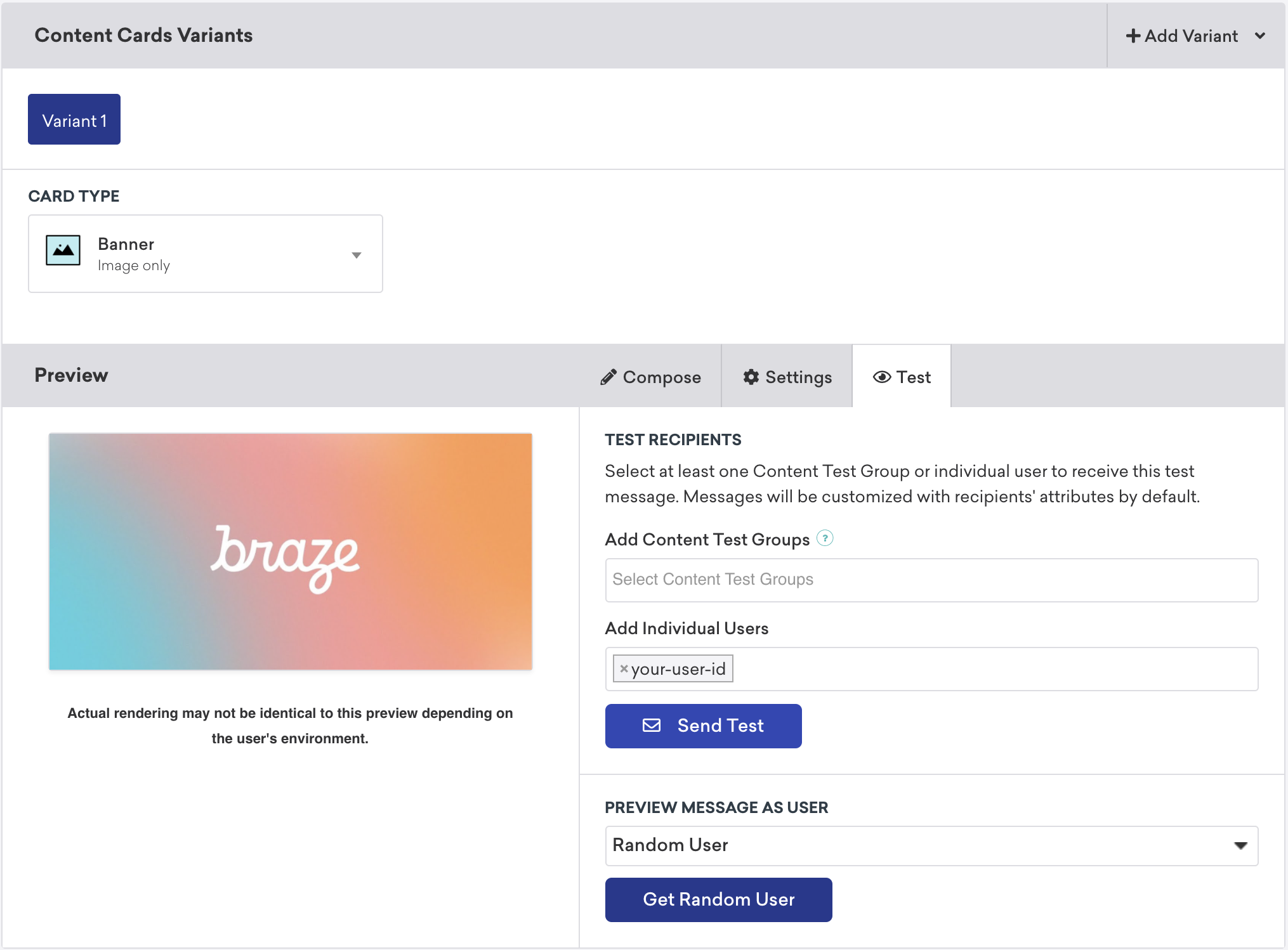
changeUser()메서드를 호출하여 애플리케이션에서 활성 사용자를 설정합니다.- Braze에서 캠페인으로 이동한 다음 새 콘텐츠 카드 캠페인을 만듭니다.
- 캠페인에서 테스트를 선택한 다음 테스트 사용자의
user-id를 입력합니다. 준비가 완료되면 테스트 보내기를 선택합니다. 곧 기기에서 콘텐츠 카드를 실행할 수 있습니다.
콘텐츠 카드 배치
콘텐츠 카드는 다양한 방식으로 사용할 수 있습니다. 세 가지 일반적인 구현 방법은 메시지 센터, 동적 이미지 광고 또는 이미지 캐러셀로 사용하는 것입니다. 이러한 각 배치에 대해 키-값 페어(데이터 모델의 extras 등록정보)를 콘텐츠 카드에 할당하고, 값에 따라 런타임 중에 카드의 동작, 모양 또는 기능을 동적으로 조정합니다.
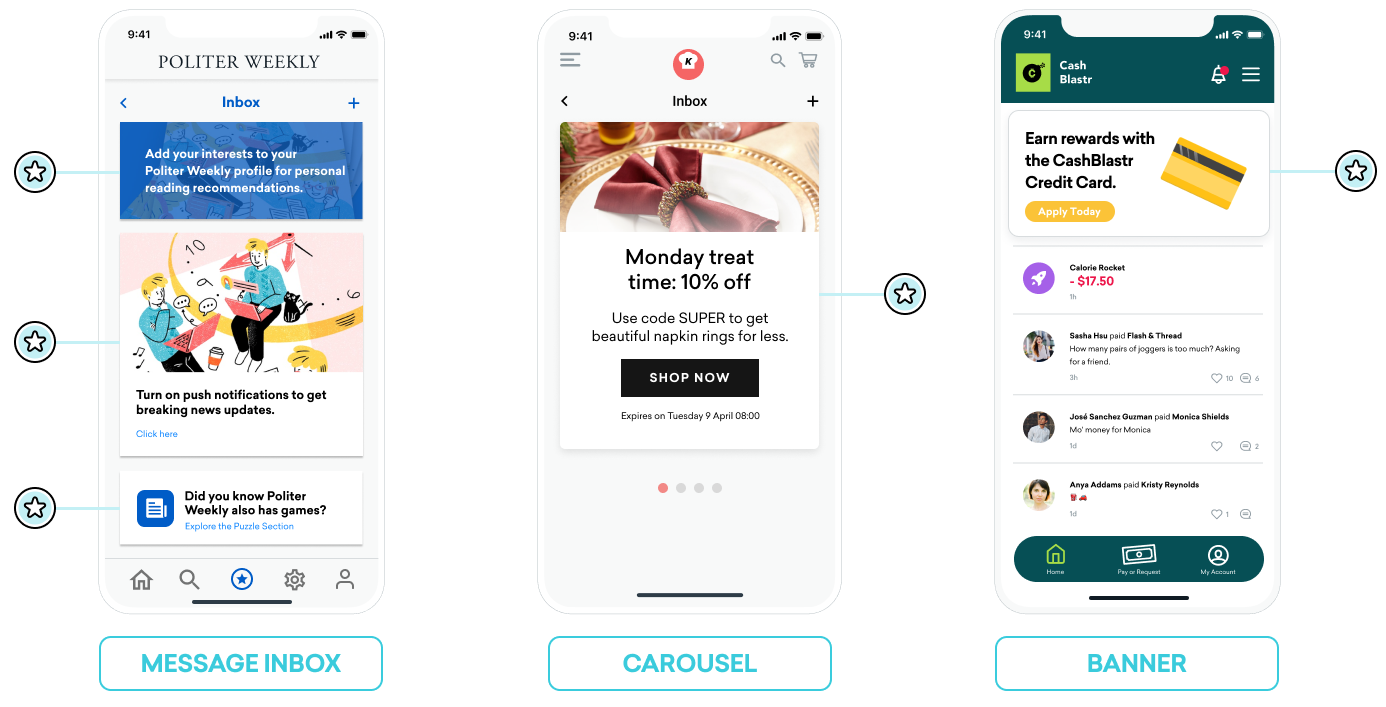
메시지 받은편지함
콘텐츠 카드를 사용하여 메시지 센터를 시뮬레이션할 수 있습니다. 이 형식에서 각 메시지는 클릭 시 이벤트를 구동하는 키-값 페어를 포함하는 고유한 카드입니다. 이러한 키-값 페어는 사용자가 받은편지함 메시지를 클릭할 때 이동 위치를 결정할 때 애플리케이션이 확인하는 핵심 식별자입니다. 키-값 페어의 값은 임의로 지정할 수 있습니다.
예시
예를 들어, 사용자가 읽기 추천을 활성화하도록 유도하는 콜투액션과 신규 가입자 세그먼트에 제공되는 쿠폰 코드 등 두 가지 메시지 카드를 만들 수 있습니다.
body, title, buttonText와 같은 키에는 마케터가 설정할 수 있는 간단한 문자열 값이 있을 수 있습니다. terms 같은 키에는 법무 부서에서 승인한 작은 문구 모음을 제공하는 값이 있을 수 있습니다. style 및 class_type 같은 키에는 앱이나 사이트에서 카드가 렌더링되는 방식을 결정하기 위해 설정할 수 있는 문자열 값이 있습니다.
읽기 추천 카드의 키-값 페어:
| 키 | 값 |
|---|---|
body |
Add your interests to your Politer Weekly profile for personal reading recommendations. |
style |
info |
class_type |
notification_center |
card_priority |
1 |
신규 가입자 쿠폰의 키-값 페어:
| 키 | 값 |
|---|---|
title |
Subscribe for unlimited games |
body |
End of Summer Special - Enjoy 10% off Politer games |
buttonText |
Subscribe Now |
style |
promo |
class_type |
notification_center |
card_priority |
2 |
terms |
new_subscribers_only |
Android 추가 정보
Android 및 FireOS SDK에서 메시지 센터 로직은 Braze의 키-값 페어로 제공되는 class_type 값에 의해 구동됩니다. createContentCardable 메서드를 사용하여 이러한 클래스 유형을 필터링하고 식별할 수 있습니다.
클릭 시 동작에 class_type 사용
콘텐츠 카드 데이터를 커스텀 클래스로 인플레이션할 때 데이터의 ContentCardClass 등록정보를 사용하여 데이터를 저장하는 데 사용해야 하는 구체적인 서브클래스를 결정합니다.
1
2
3
4
5
6
7
8
9
10
11
 private fun createContentCardable(metadata: Map<String, Any>, type: ContentCardClass?): ContentCardable?{
        return when(type){
            ContentCardClass.AD -> Ad(metadata)
            ContentCardClass.MESSAGE_WEB_VIEW -> WebViewMessage(metadata)
            ContentCardClass.NOTIFICATION_CENTER -> FullPageMessage(metadata)
            ContentCardClass.ITEM_GROUP -> Group(metadata)
            ContentCardClass.ITEM_TILE -> Tile(metadata)
            ContentCardClass.COUPON -> Coupon(metadata)
            else -> null
        }
    }
그런 다음 메시지 목록에 대한 사용자 상호작용을 처리할 때 메시지 유형을 사용하여 사용자에게 표시할 뷰를 결정할 수 있습니다.
1
2
3
4
5
6
7
8
9
10
11
12
13
14
15
16
17
18
19
20
21
22
23
24
25
override fun onCreate(savedInstanceState: Bundle?) {
        super.onCreate(savedInstanceState)
        //...
        listView.onItemClickListener = AdapterView.OnItemClickListener { parent, view, position, id ->
           when (val card = dataProvider[position]){
                is WebViewMessage -> {
                    val intent = Intent(this, WebViewActivity::class.java)
                    val bundle = Bundle()
                    bundle.putString(WebViewActivity.INTENT_PAYLOAD, card.contentString)
                    intent.putExtras(bundle)
                    startActivity(intent)
                }
                is FullPageMessage -> {
                    val intent = Intent(this, FullPageContentCard::class.java)
                    val bundle = Bundle()
                    bundle.putString(FullPageContentCard.CONTENT_CARD_IMAGE, card.icon)
                    bundle.putString(FullPageContentCard.CONTENT_CARD_TITLE, card.messageTitle)
                    bundle.putString(FullPageContentCard.CONTENT_CARD_DESCRIPTION, card.cardDescription)
                    intent.putExtras(bundle)
                    startActivity(intent)
                }
            }

        }
    }
클릭 시 동작에 class_type 사용
콘텐츠 카드 데이터를 커스텀 클래스로 인플레이션할 때 데이터의 ContentCardClass 등록정보를 사용하여 데이터를 저장하는 데 사용해야 하는 구체적인 서브클래스를 결정합니다.
1
2
3
4
5
6
7
8
9
10
11
12
13
14
15
16
17
18
19
20
21
22
23
24
25
26
private ContentCardable createContentCardable(Map<String, ?> metadata,  ContentCardClass type){
    switch(type){
        case ContentCardClass.AD:{
            return new Ad(metadata);
        }
        case ContentCardClass.MESSAGE_WEB_VIEW:{
            return new WebViewMessage(metadata);
        }
        case ContentCardClass.NOTIFICATION_CENTER:{
            return new FullPageMessage(metadata);
        }
        case ContentCardClass.ITEM_GROUP:{
            return new Group(metadata);
        }
        case ContentCardClass.ITEM_TILE:{
            return new Tile(metadata);
        }
        case ContentCardClass.COUPON:{
            return new Coupon(metadata);
        }
        default:{
            return null;
        }
    }
}
그런 다음 메시지 목록에 대한 사용자 상호작용을 처리할 때 메시지 유형을 사용하여 사용자에게 표시할 뷰를 결정할 수 있습니다.
1
2
3
4
5
6
7
8
9
10
11
12
13
14
15
16
17
18
19
20
21
22
23
24
25
26
27
28
@Override
protected void onCreate(Bundle savedInstanceState) {
        super.onCreate(savedInstanceState)
        //...
        listView.setOnItemClickListener(new AdapterView.OnItemClickListener() {
            @Override
            public void onItemClick(AdapterView<?> parent, View view, int position, long id){
               ContentCardable card = dataProvider.get(position);
               if (card instanceof WebViewMessage){
                    Bundle intent = new Intent(this, WebViewActivity.class);
                    Bundle bundle = new Bundle();
                    bundle.putString(WebViewActivity.INTENT_PAYLOAD, card.getContentString());
                    intent.putExtras(bundle);
                    startActivity(intent);
                }
                else if (card instanceof FullPageMessage){
                    Intent intent = new Intent(this, FullPageContentCard.class);
                    Bundle bundle = Bundle();
                    bundle.putString(FullPageContentCard.CONTENT_CARD_IMAGE, card.getIcon());
                    bundle.putString(FullPageContentCard.CONTENT_CARD_TITLE, card.getMessageTitle());
                    bundle.putString(FullPageContentCard.CONTENT_CARD_DESCRIPTION, card.getCardDescription());
                    intent.putExtras(bundle)
                    startActivity(intent)
                }
            }

        });
    }
캐러셀
완전 커스텀 캐러셀 피드에서 콘텐츠 카드를 설정하여 사용자가 스와이프하여 추가 추천 카드를 볼 수 있도록 할 수 있습니다. 기본적으로 콘텐츠 카드는 생성 날짜(최신 것부터)를 기준으로 정렬되며, 사용자는 자신이 받을 수 있는 모든 카드를 볼 수 있습니다.
콘텐츠 카드 캐러셀을 구현하려면:
- 콘텐츠 카드의 변경 사항을 관찰하고 콘텐츠 카드 도착을 처리하는 커스텀 로직을 만듭니다.
- 커스텀 클라이언트 측 로직을 생성하여 캐러셀에 특정 개수의 카드를 한 번에 표시합니다. 예를 들어 배열에서 처음 다섯 개의 콘텐츠 카드 오브젝트를 선택하거나 키-값 페어를 도입하여 조건 로직을 구축할 수 있습니다.
캐러셀을 보조 콘텐츠 카드 피드로 구현하는 경우 키-값 페어를 사용하여 카드를 올바른 피드에 정렬해야 합니다.
이미지 전용
콘텐츠 카드가 꼭 “카드”처럼 보일 필요는 없습니다. 예를 들어 콘텐츠 카드는 홈페이지 또는 지정된 페이지의 상단에 지속적으로 표시되는 동적 이미지로 나타날 수 있습니다.
이를 위해 마케터는 이미지 전용 유형의 콘텐츠 카드로 캠페인 또는 캔버스 단계를 만듭니다. 그런 다음, 콘텐츠 카드를 보조 콘텐츠로 사용하기에 적합한 키-값 페어를 설정합니다.
 GitHub 에서 이 페이지를 편집합니다.