배너 배치 관리
Braze SDK에서 배너 배치를 생성하고 관리하는 방법을 알아보세요. 고유 속성에 접근하고 노출을 기록하는 방법도 포함됩니다. 보다 일반적인 정보는 배너 정보를 참조하세요.
배치 요청에 대하여
앱이나 웹사이트에서 배치를 생성할 때, 앱은 Braze에 각 배치에 대한 배너 메시지를 가져오도록 요청을 보냅니다.
- 새로고침 요청당 최대 10개의 배치를 요청할 수 있습니다.
- 각 배치에 대해 Braze는 사용자가 받을 수 있는 가장 높은 우선순위의 배너를 반환합니다.
- 새로고침에서 10개 이상의 배치가 요청되면 처음 10개만 반환되고 나머지는 삭제됩니다.
예를 들어, 앱이 새로고침 요청에서 homepage_promo, cart_abandonment, seasonal_offer 세 개의 배치를 요청할 수 있습니다. 각 요청은 해당 배치에 대해 가장 관련성 높은 배너를 반환합니다.
새로고침 요청에 대한 사용량 제한조치
이전 SDK 버전(Swift 13.1.0, Android 38.0.0, Web 6.1.0, React Native 17.0.0, Flutter 15.0.0 이전)을 사용하는 경우, 사용자 세션당 하나의 새로고침 요청만 허용됩니다.
최신 최소 SDK 버전(Swift 13.1.0+, Android 38.0.0+, Web 6.1.0+, React Native 17.0.0+, Flutter 15.0.0+)을 사용하는 경우, 새로고침 요청은 과도한 폴링을 방지하기 위해 토큰 버킷 알고리즘에 의해 제어됩니다.
- 각 사용자 세션은 다섯 개의 새로고침 토큰으로 시작합니다.
- 토큰은 180초(3분)마다 하나씩 충전됩니다.
requestBannersRefresh에 대한 각 명시적 호출은 하나의 토큰을 소모합니다. 새 세션이 시작되거나 changeUser가 호출될 때 발생하는 자동 새로고침은 토큰을 소모하지 않습니다. 이 새로고침은 해당 사용자에 대해 마지막으로 캐시된 배너를 게시하는 것이기 때문입니다. 사용 가능한 토큰이 없을 때 새로고침을 시도하면 SDK는 요청을 보내지 않고 토큰이 충전될 때까지 오류를 기록합니다. 이는 세션 중간 및 이벤트 트리거 업데이트에 중요합니다. 동적 업데이트를 구현하려면(예: 사용자가 동일한 페이지에서 동작을 완료한 후), 커스텀 이벤트가 기록된 후 새로고침 메서드를 호출하되, 사용자가 다른 배너 Campaign(캠페인)에 적합해지기 전에 Braze가 이벤트를 수집하고 처리하는 데 필요한 지연 시간을 고려해야 합니다.
배치 만들기
사전 요구 사항
배너 배치를 만드는 데 필요한 최소 SDK 버전은 다음과 같습니다.
1단계: Braze에서 배치 만들기
아직 만들지 않았다면 앱이나 사이트에서 배너를 표시할 위치를 정의하는 데 사용되는 배너 배치를 Braze에서 만들어야 합니다. 배치를 만들려면 설정 > 배너 배치로 이동한 다음 배치 만들기를 선택합니다.

배치에 이름을 지정하고 배치 ID를 할당합니다. ID는 카드의 수명 주기 동안 사용되며 나중에 변경해서는 안 되므로, 할당하기 전에 다른 팀과 상의하세요. 자세한 내용은 배치 ID를 참조하세요.
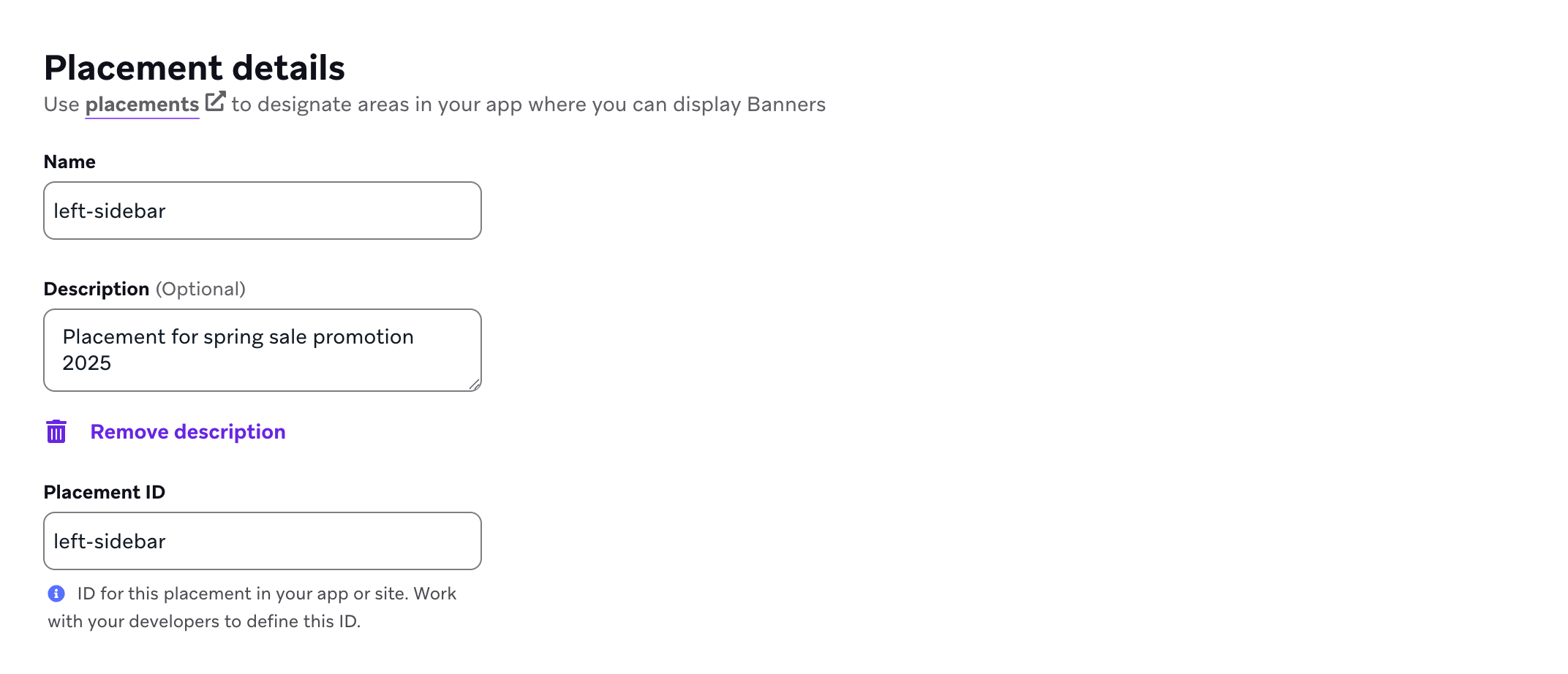

웹 배치의 경우, 배치에 웹 타겟팅을 선택적으로 구성할 수 있습니다. 이렇게 하면 insertBanner()를 직접 호출하는 대신 Braze 웹 SDK가 페이지의 특정 위치에 배너를 자동으로 삽입합니다. 자세한 내용은 웹 타겟팅: 배너 자동 삽입을 참조하세요.
2단계: 앱에서 배치 새로 고침
배치를 새로 고치려면 사용 중인 SDK에서 requestBannersRefresh()를 호출하세요.
requestBannersRefresh()는 기존 배너 캐시에 병합됩니다. 전달한 배치 ID만 추가, 업데이트 또는 제거됩니다.
- 서버가 요청한 배치에 대한 배너를 반환하면 해당 배치의 캐시된 배너가 교체됩니다.
- 서버가 요청한 배치에 대한 배너를 반환하지 않으면 해당 배치는 캐시에서 삭제됩니다.
- 요청하지 않은 배치의 캐시된 배너는 만료될 때까지 캐시에 남아 있습니다.
새로 고침당 요청할 수 있는 배치 수는 배치 요청 정보를 참조하세요. 시간에 따라 서로 다른 배치 세트(예: 현재 화면의 배치)를 새로 고치면서 다른 배치의 배너는 캐시에 유지할 수 있습니다.
배너 새로 고침 동작에는 두 가지 경로가 있습니다.
- 명시적 새로 고침: 활성 세션 중 언제든지 새로 고침 메서드를 호출할 수 있습니다.
- 새 세션 시 자동 새로 고침: 명시적 새로 고침 요청을 한 번 이상 하면, 새 Braze 세션이 시작될 때(예:
changeUser()이후 또는 세션 타임아웃 이후) SDK가 가장 최근에 요청한 배치 ID를 다시 요청할 수 있습니다.
배너 이벤트 구독의 역할은 플랫폼에 따라 다릅니다.
- iOS 및 Android: Android의
subscribeToBannersEvents()(또는 Swift의subscribeToEvents())는 이벤트 핸들러를 등록합니다. 세션 시작 시 자동 새로 고침은 구독 활성화 여부와 관계없이 동작합니다. - 웹: 세션 시작 시 자동 새로 고침은
subscribeToBannersEvents()(또는 지원 중단된subscribeToBannersUpdates())가 등록되어 있는지에 따라 달라집니다. 활성 구독이 없으면 SDK는 새 세션에서 새로 고침을 자동으로 반복하지 않습니다.
모든 경우에 SDK가 어떤 배치 ID를 계속 업데이트할지 알 수 있도록 앱 수명 주기마다 명시적 새로 고침 요청을 한 번 이상 해야 합니다. 이 초기 호출이 없으면 첫 실행 시 배너를 자동으로 가져오지 않으며, 추적 중인 배치 ID는 앱을 다시 시작하면 초기화됩니다.
세션 시작 시 자동 새로 고침은 사용량 제한조치 토큰을 소비하지 않습니다.

배너 다운로드나 표시가 지연되지 않도록 가능한 한 빨리 배치를 새로 고치세요.
import * as braze from "@braze/web-sdk";
braze.requestBannersRefresh(["global_banner", "navigation_square_banner"]);
AppDelegate.braze?.banners.requestBannersRefresh(placementIds: ["global_banner", "navigation_square_banner"])
ArrayList<String> placementIds = new ArrayList<>();
placementIds.add("global_banner");
placementIds.add("navigation_square_banner");
Braze.getInstance(context).requestBannersRefresh(placementIds);
Braze.getInstance(context).requestBannersRefresh(listOf("global_banner", "navigation_square_banner"))
Braze.requestBannersRefresh(["global_banner", "navigation_square_banner"]);
This feature is not currently supported on Unity.
This feature is not currently supported on Cordova.
braze.requestBannersRefresh(["global_banner", "navigation_square_banner"]);
This feature is not currently supported on Roku.
3단계: 업데이트 수신 대기
이 가이드의 SDK 메서드를 사용해 배너를 삽입하면 모든 분석 이벤트(예: 노출 횟수 및 클릭)가 자동으로 처리되며, 노출 횟수는 배너가 화면에 보일 때만 기록됩니다.
subscribeToBannersEvents를 사용해 배너 이벤트를 수신 대기한 다음, requestBannersRefresh를 호출해 배치를 가져오세요. SDK는 이벤트 객체와 함께 핸들러를 호출합니다. event.type에 따라 분기하여 각 이벤트 유형을 처리하세요. 이벤트 값에 대한 자세한 내용은 이벤트 구독을 참조하세요.
웹 Braze SDK와 함께 바닐라 JavaScript를 사용하는 경우, requestBannersRefresh를 호출하기 전에 핸들러를 등록하세요.
import * as braze from "@braze/web-sdk";
const placementIds = ["global_banner", "navigation_square_banner"];
// - Available in version 7.0.0+
const subscriptionId = braze.subscribeToBannersEvents((event) => {
switch (event.type) {
case braze.ChannelEventType.CACHE_REPLAY:
// Sent once, right away, with the Banners that are already cached.
// Render them now instead of waiting for the network.
console.log("Cached Banners:", Object.keys(event.cacheSnapshot.banners));
break;
case braze.ChannelEventType.CACHE_LOAD:
// The cache changed without a refresh, such as after changeUser().
// The snapshot can be empty, so clear Banners from the previous user.
console.log("Cache reloaded:", Object.keys(event.cacheSnapshot.banners));
break;
case braze.ChannelEventType.DATA_UPDATED:
// A refresh finished, even if nothing changed, or a Banner was dismissed.
console.log("Banners were updated:", event.reason);
break;
case braze.ChannelEventType.ERROR:
switch (event.retryState) {
case braze.RetryState.SDK_WILL_RETRY:
// The SDK is retrying. Keep the current Banners and wait.
break;
case braze.RetryState.INTEGRATOR_MAY_RETRY: {
// The SDK stopped retrying. Try again later, and limit how often you retry.
const delayMs = event.rateLimitedUntil
? Math.max(event.rateLimitedUntil.getTime() - Date.now(), 0)
: 30000;
setTimeout(() => braze.requestBannersRefresh(placementIds), delayMs);
break;
}
case braze.RetryState.DO_NOT_RETRY:
// The failure is final. For example, Banners are disabled for this workspace.
if (event.reason === braze.ChannelErrorReason.FEATURE_DISABLED) {
// Hide the Banner containers.
}
break;
}
break;
}
});
const deprecatedSubscriptionId = braze.subscribeToBannersUpdates((banners) => {
console.log("Banners were updated");
});
// Always refresh after your subscriber function has been registered
braze.requestBannersRefresh(placementIds);
// Remove the subscription when you no longer need it
// braze.removeSubscription(subscriptionId);
웹 Braze SDK와 함께 React를 사용하는 경우, useEffect 훅 안에서 subscribeToBannersEvents를 설정하고 리스너를 등록한 후 requestBannersRefresh를 호출하세요.
import * as braze from "@braze/web-sdk";
useEffect(() => {
const placementIds = ["global_banner", "navigation_square_banner"];
// - Available in version 7.0.0+
const subscriptionId = braze.subscribeToBannersEvents((event) => {
switch (event.type) {
case braze.ChannelEventType.CACHE_REPLAY:
case braze.ChannelEventType.CACHE_LOAD:
// Cached Banners, sent right away on subscribe or after the cache reloads
console.log("Cached Banners:", Object.keys(event.cacheSnapshot.banners));
break;
case braze.ChannelEventType.DATA_UPDATED:
// A refresh finished, even if nothing changed, or a Banner was dismissed
console.log("Banners were updated:", event.reason);
break;
case braze.ChannelEventType.ERROR:
if (event.retryState === braze.RetryState.INTEGRATOR_MAY_RETRY) {
// The SDK stopped retrying. Try again later, and limit how often you retry.
const delayMs = event.rateLimitedUntil
? Math.max(event.rateLimitedUntil.getTime() - Date.now(), 0)
: 30000;
setTimeout(() => braze.requestBannersRefresh(placementIds), delayMs);
}
break;
}
});
const deprecatedSubscriptionId = braze.subscribeToBannersUpdates((banners) => {
console.log("Banners were updated");
});
// Always refresh after your subscriber function has been registered
braze.requestBannersRefresh(placementIds);
// Cleanup listeners
return () => {
braze.removeSubscription(subscriptionId);
braze.removeSubscription(deprecatedSubscriptionId);
};
}, []);
각 이벤트가 발생하는 시점과 각 업데이트 사유, 재시도 상태, 분석 작업, 오류 사유의 의미는 이벤트 구독을 참조하세요.
event.cacheSnapshot.banners는 각 배치 ID를 해당 Banner에 매핑하는 객체입니다. 가장 최근 requestBannersRefresh 호출의 배치 ID뿐만 아니라 이전 새로 고침의 배치도 포함될 수 있습니다. 특정 배치만 필요하다면 스냅샷에서 해당 배치 ID만 읽고 나머지는 건너뛰세요.
웹 SDK 7.0.0 이상에서는 subscribeToBannersEvents를 사용하세요. subscribeToBannersUpdates는 이전 방식으로, 7.0.0부터 지원 중단되었습니다. 이전 방식은 현재 배너만 전달하므로 배너가 변경된 이유나 새로 고침이 실패한 시점을 알 수 없습니다.
배너 업데이트 리스너는 SDK의 메모리 내 배너 상태를 반영합니다. 하나의 업데이트에는 가장 최근 requestBannersRefresh 호출의 배치 ID뿐만 아니라 이미 캐시된 배치(예: 이전 새로 고침, 다른 화면 또는 SDK의 자동 작업에서 가져온 배치)가 포함될 수 있습니다. 특정 배치만 필요하다면 리스너에서 각 배너의 배치 ID를 확인하고 나머지는 건너뛰세요. 리스너를 등록한 후에는 Braze에서 동기화하려는 배치에 대해 requestBannersRefresh를 호출하세요.
// - Available in version 19.0.0+
let placementIds = ["global_banner", "navigation_square_banner"]
let cancellable = brazeClient.braze()?.banners.subscribeToEvents { event in
switch event {
case .cacheReplay(let cacheSnapshot), .cacheLoad(let cacheSnapshot):
cacheSnapshot.banners.forEach { placementId, banner in
print("Received banner: \(banner) with placement ID: \(placementId)")
}
case .dataUpdated(let cacheSnapshot, let reason):
cacheSnapshot.banners.forEach { placementId, banner in
print("Received banner: \(banner) with placement ID: \(placementId)")
}
default:
break
}
}
// Always refresh after your subscriber is registered
brazeClient.braze()?.banners.requestBannersRefresh(placementIds: placementIds)
let placementIds = ["global_banner", "navigation_square_banner"]
let cancellable = brazeClient.braze()?.banners.subscribeToUpdates { banners in
banners.forEach { placementId, banner in
print("Received banner: \(banner) with placement ID: \(placementId)")
}
}
// Always refresh after your subscriber is registered
brazeClient.braze()?.banners.requestBannersRefresh(placementIds: placementIds)
Swift SDK 19.0.0 이상에서는 subscribeToEvents(_:)를 사용하세요. subscribeToUpdates(_:)는 이전 방식으로, 19.0.0부터 지원 중단되었습니다.
각 이벤트가 발생하는 시점과 각 업데이트 사유, 재시도 상태, 분석 작업, 오류 사유의 의미는 이벤트 구독을 참조하세요.
배너 이벤트 핸들러는 SDK의 메모리 내 배너 상태를 반영합니다. 하나의 이벤트에는 가장 최근 requestBannersRefresh 호출의 배치 ID뿐만 아니라 이미 캐시된 배치(예: 이전 새로 고침, 다른 화면 또는 SDK의 자동 작업에서 가져온 배치)가 포함될 수 있습니다. 특정 배치만 필요하다면 핸들러에서 각 배너의 배치 ID를 확인하고 나머지는 건너뛰세요. 구독자를 등록한 후에는 Braze에서 동기화하려는 배치에 대해 requestBannersRefresh를 호출하세요.
ArrayList<String> placementIds = new ArrayList<>();
placementIds.add("global_banner");
placementIds.add("navigation_square_banner");
// - Available in version 44.0.0+
Braze.getInstance(context).subscribeToBannersEvents(event -> {
if (event instanceof BannersEvent.CacheReplay) {
logBanners(((BannersEvent.CacheReplay) event).getCacheSnapshot());
} else if (event instanceof BannersEvent.CacheLoad) {
logBanners(((BannersEvent.CacheLoad) event).getCacheSnapshot());
} else if (event instanceof BannersEvent.DataUpdated) {
logBanners(((BannersEvent.DataUpdated) event).getCacheSnapshot());
}
});
// Always refresh after your subscriber is registered
Braze.getInstance(context).requestBannersRefresh(placementIds);
Braze.getInstance(context).subscribeToBannersUpdates(event -> {
for (Banner banner : event.getBanners()) {
Log.d(TAG, "Received banner: " + banner.getPlacementId());
}
});
// Always refresh after your subscriber is registered
Braze.getInstance(context).requestBannersRefresh(placementIds);
private void logBanners(BannersCacheSnapshot cacheSnapshot) {
for (Banner banner : cacheSnapshot.getBanners().values()) {
Log.d(TAG, "Received banner: " + banner.getPlacementId());
}
}
val placementIds = listOf("global_banner", "navigation_square_banner")
// - Available in version 44.0.0+
Braze.getInstance(context).subscribeToBannersEvents { event ->
when (event) {
is BannersEvent.CacheReplay -> logBanners(event.cacheSnapshot)
is BannersEvent.CacheLoad -> logBanners(event.cacheSnapshot)
is BannersEvent.DataUpdated -> logBanners(event.cacheSnapshot)
else -> {}
}
}
// Always refresh after your subscriber is registered
Braze.getInstance(context).requestBannersRefresh(placementIds)
Braze.getInstance(context).subscribeToBannersUpdates { event ->
event.banners.forEach { banner ->
Log.d(TAG, "Received banner: ${banner.placementId}")
}
}
// Always refresh after your subscriber is registered
Braze.getInstance(context).requestBannersRefresh(placementIds)
private fun logBanners(cacheSnapshot: BannersCacheSnapshot) {
cacheSnapshot.banners.values.forEach { banner ->
Log.d(TAG, "Received banner: ${banner.placementId}")
}
}
이벤트는 백그라운드 스레드에서 전달됩니다. 뷰를 업데이트하기 전에 메인 스레드로 전환하세요.
Android SDK 44.0.0 이상에서는 subscribeToBannersEvents를 사용하세요. subscribeToBannersUpdates는 이전 방식으로, 44.0.0부터 지원 중단되었습니다.
각 이벤트가 발생하는 시점과 각 업데이트 사유, 재시도 상태, 분석 작업, 오류 사유의 의미는 이벤트 구독을 참조하세요.
const bannerCardsSubscription = Braze.addListener(
Braze.Events.BANNER_CARDS_UPDATED,
(data) => {
const banners = data.banners;
console.log(
`Received ${banners.length} Banner Cards with placement IDs:`,
banners.map((banner) => banner.placementId)
);
}
);
This feature is not currently supported on Unity.
This feature is not currently supported on Cordova.
StreamSubscription bannerStreamSubscription = braze.subscribeToBanners((List<BrazeBanner> banners) {
for (final banner in banners) {
print("Received banner: " + banner.toString());
}
});
This feature is not currently supported on Roku.
4단계: 배치 ID를 사용해 삽입
배너를 위한 컨테이너 요소를 만드세요. 반드시 너비와 높이를 설정해야 합니다.
<div id="global-banner-container" style="width: 100%; height: 450px;"></div>
웹 Braze SDK와 함께 바닐라 JavaScript를 사용하는 경우, insertBanner 메서드를 호출해 컨테이너 요소의 내부 HTML을 교체하세요.
import * as braze from "@braze/web-sdk";
braze.initialize("sdk-api-key", {
baseUrl: "sdk-base-url",
allowUserSuppliedJavascript: true, // banners require you to opt-in to user-supplied javascript
});
// - Available in version 7.0.0+
braze.subscribeToBannersEvents((event) => {
const container = document.getElementById("global-banner-container");
switch (event.type) {
case braze.ChannelEventType.CACHE_REPLAY:
case braze.ChannelEventType.CACHE_LOAD:
case braze.ChannelEventType.DATA_UPDATED: {
// get this placement's banner. If it's missing the user did not qualify for one.
const globalBanner = event.cacheSnapshot.banners["global_banner"];
if (!globalBanner) {
container.style.display = "none";
return;
}
// Insert the banner which replaces the innerHTML of that container
braze.insertBanner(globalBanner, container);
// Special handling if the user is part of a Control Variant
container.style.display = globalBanner.isControl ? "none" : "";
break;
}
case braze.ChannelEventType.ERROR:
if (event.reason === braze.ChannelErrorReason.FEATURE_DISABLED) {
// Banners are disabled, so hide the container
container.style.display = "none";
}
break;
}
});
braze.subscribeToBannersUpdates((banners) => {
// get this placement's banner. If it's `null` the user did not qualify for one.
const globalBanner = braze.getBanner("global_banner");
if (!globalBanner) {
return;
}
const container = document.getElementById("global-banner-container");
// Insert the banner which replaces the innerHTML of that container
braze.insertBanner(globalBanner, container);
// Special handling if the user is part of a Control Variant
if (globalBanner.isControl) {
// hide or collapse the container
container.style.display = "none";
}
});
braze.requestBannersRefresh(["global_banner", "navigation_square_banner"]);
웹 SDK 7.0.0 이상에서는 subscribeToBannersEvents를 사용하세요. subscribeToBannersUpdates는 이전 방식으로, 7.0.0부터 지원 중단되었습니다.
웹 Braze SDK와 함께 React를 사용하는 경우, ref와 함께 insertBanner 메서드를 호출해 컨테이너 요소의 내부 HTML을 교체하세요.
import { useRef } from 'react';
import * as braze from "@braze/web-sdk";
export default function App() {
const bannerRef = useRef<HTMLDivElement>(null);
useEffect(() => {
const globalBanner = braze.getBanner("global_banner");
if (!globalBanner || globalBanner.isControl) {
// hide the container
} else {
// insert the banner to the container node
braze.insertBanner(globalBanner, bannerRef.current);
}
}, []);
return <div ref={bannerRef}></div>
}
노출 횟수를 추적하려면 isControl인 경우에도 반드시 insertBanner를 호출하세요. 그런 다음 컨테이너를 숨기거나 접을 수 있습니다.
새로 고침 후 SDK는 해당 배치의 캐시된 콘텐츠가 변경된 경우(추가, 제거 또는 업데이트)에만 BannerUIView 또는 BannerView를 업데이트합니다. 변경되지 않은 표시 중인 배너는 그대로 유지됩니다. changeUser()를 호출하면 등록된 모든 배너 뷰가 업데이트됩니다.
// To get access to the Banner model object:
let globalBanner: Braze.Banner?
AppDelegate.braze?.banners.getBanner(for: "global_banner", { banner in
self.globalBanner = banner
})
// UIKit implementation:
// If you simply want the Banner view, initialize a `UIView` with the placement ID:
if let braze = AppDelegate.braze {
let bannerUIView = BrazeBannerUI.BannerUIView(
placementId: "global_banner",
braze: braze,
// iOS does not perform automatic resizing or visibility changes.
// Use the `processContentUpdates` parameter to adjust the size and visibility of your Banner according to your use case.
processContentUpdates: { result in
switch result {
case .success(let updates):
if let height = updates.height {
// Adjust the visibility and/or height.
}
case .failure(let error):
// Handle the error.
}
}
)
}
// SwiftUI implementation:
// Similarly, if you want a Banner view in SwiftUI, use the corresponding `BannerView` initializer:
if let braze = AppDelegate.braze {
let bannerView = BrazeBannerUI.BannerView(
placementId: "global_banner",
braze: braze,
// iOS does not perform automatic resizing or visibility changes.
// Use the `processContentUpdates` parameter to adjust the size and visibility of your Banner according to your use case.
processContentUpdates: { result in
switch result {
case .success(let updates):
if let height = updates.height {
// Adjust the visibility and/or height according to your parent controller.
}
case .failure(let error):
// Handle the error.
}
}
)
}
새로 고침 후 SDK는 해당 배치의 캐시된 콘텐츠가 변경된 경우(추가, 제거 또는 업데이트)에만 BannerView를 업데이트합니다. 변경되지 않은 표시 중인 배너는 그대로 유지됩니다. changeUser()를 호출하면 여전히 등록된 모든 BannerView가 업데이트됩니다.
Java 코드에서 배너를 가져오려면 다음을 사용하세요.
Banner globalBanner = Braze.getInstance(context).getBanner("global_banner");
다음 XML을 포함하여 Android 뷰 레이아웃에서 배너를 만들 수 있습니다.
<com.braze.ui.banners.BannerView
android:id="@+id/global_banner_id"
android:layout_width="match_parent"
android:layout_height="wrap_content"
app:placementId="global_banner" />
Android 뷰를 사용하는 경우 다음 XML을 사용하세요.
<com.braze.ui.banners.BannerView
android:id="@+id/global_banner_id"
android:layout_width="match_parent"
android:layout_height="wrap_content"
app:placementId="global_banner" />
Jetpack Compose를 사용하려면 앱 모듈에 com.braze:android-sdk-jetpack-compose 아티팩트를 추가하세요. 다른 Braze Android SDK 종속성과 같은 버전을 사용하세요. 이 모듈은 android-sdk-ui와 별개이며, com.braze.jetpackcompose.banners 아래에 Banner 컴포저블을 제공합니다.
일부 Compose UI 라이브러리는 자체 Banner 컴포저블을 정의합니다. Braze의 API를 호출하도록 com.braze.jetpackcompose.banners.Banner를 명시적으로 가져오세요.
import com.braze.jetpackcompose.banners.Banner
@Composable
fun myBannerSlot() {
Banner(placementId = "global_banner")
}
배너 크기가 변경될 때 렌더링된 높이를 dp 단위로 받으려면 선택적으로 heightCallback을 전달하세요. 참고 자료는 Banner의 KDoc을 확인하세요.
Jetpack Compose 모듈을 추가하지 않는 경우, BannerView를 AndroidView로 감싸세요.
import android.view.ViewGroup
import androidx.compose.runtime.Composable
import androidx.compose.ui.viewinterop.AndroidView
import com.braze.ui.banners.BannerView
@Composable
fun myBannerSlot() {
AndroidView(
factory = { context ->
BannerView(context, "global_banner").apply {
layoutParams = ViewGroup.LayoutParams(
ViewGroup.LayoutParams.MATCH_PARENT,
ViewGroup.LayoutParams.WRAP_CONTENT
)
}
},
update = { it.placementId = "global_banner" }
)
}
Kotlin에서 배너를 가져오려면 다음을 사용하세요.
val banner = Braze.getInstance(context).getBanner("global_banner")
React Native의 새 아키텍처를 사용하는 경우, AppDelegate.mm에서 BrazeBannerView를 Fabric 컴포넌트로 등록해야 합니다.
#ifdef RCT_NEW_ARCH_ENABLED
/// Register the `BrazeBannerView` for use as a Fabric component.
- (NSDictionary<NSString *,Class<RCTComponentViewProtocol>> *)thirdPartyFabricComponents {
NSMutableDictionary * dictionary = [super thirdPartyFabricComponents].mutableCopy;
dictionary[@"BrazeBannerView"] = [BrazeBannerView class];
return dictionary;
}
#endif
가장 간단하게 통합하려면 다음 JavaScript XML(JSX) 스니펫을 뷰 계층 구조에 추가하고 배치 ID만 제공하세요.
<Braze.BrazeBannerView
placementId='global_banner'
/>
React Native에서 배너의 데이터 모델을 가져오거나 사용자 캐시에 해당 배치가 있는지 확인하려면 다음을 사용하세요.
const banner = await Braze.getBanner("global_banner");
This feature is not currently supported on Unity.
This feature is not currently supported on Cordova.
가장 간단하게 통합하려면 다음 위젯을 뷰 계층 구조에 추가하고 배치 ID만 제공하세요.
BrazeBannerView(
placementId: "global_banner",
),
To get the Banner's data model in Flutter, use:
getBanner 메서드를 사용해 사용자 캐시에 해당 배치가 있는지 확인할 수 있습니다.
braze.getBanner("global_banner").then((banner) {
if (banner == null) {
// Handle null cases.
} else {
print(banner.toString());
}
});
This feature is not currently supported on Roku.
5단계: 테스트 배너 보내기(선택 사항)
배너 Campaign을 시작하기 전에 테스트 배너를 보내 통합을 확인할 수 있습니다. 테스트 배너는 별도의 메모리 내 캐시에 저장되며 앱을 다시 시작하면 유지되지 않습니다. 추가 설정은 필요하지 않지만, 테스트를 표시하려면 테스트 기기가 포그라운드 푸시 알림을 받을 수 있어야 합니다.
테스트 배너는 다른 배너와 동일하지만, 다음 앱 세션에서 제거된다는 점이 다릅니다.
노출 횟수 기록
SDK 메서드를 사용하여 배너를 삽입하면 Braze가 화면에 표시된 배너의 노출 횟수를 자동으로 기록하므로—노출 횟수를 수동으로 추적할 필요가 없습니다.
클릭 로깅
배너 클릭을 로깅하는 방법은 배너가 렌더링되는 방식과 클릭 핸들러의 위치에 따라 달라집니다.
표준 배너 콘텐츠(자동)
기본 제공 SDK 메서드로 배너를 삽입하고 배너에 표준 편집기 구성 요소(이미지, 버튼, 텍스트)를 사용하는 경우 클릭이 자동으로 추적됩니다. SDK가 이러한 요소에 클릭 리스너를 연결하므로 코드를 추가할 필요가 없습니다.
커스텀 코드 블록
Braze 대시보드에서 배너에 커스텀 코드 편집기 블록을 사용하는 경우, 해당 커스텀 HTML 내부의 클릭은 brazeBridge.logClick()으로 로깅해야 합니다. SDK는 커스텀 코드 내부 요소에 리스너를 자동으로 연결할 수 없으므로, SDK 메서드로 배너를 렌더링하는 경우에도 마찬가지입니다.
<button onclick="brazeBridge.logClick()">
Click me
</button>
전체 참조는 배너용 커스텀 코드 및 JavaScript 브리지를 참조하세요. brazeBridge는 배너 내부 HTML과 상위 Braze SDK 사이의 커뮤니케이션 계층을 제공합니다.
커스텀 UI 구현(헤드리스)
배너 HTML을 렌더링하지 않고 배너의 커스텀 속성정보를 사용해 완전한 커스텀 UI를 구축하는 경우, 앱 코드에서 클릭과 노출 횟수를 직접 로깅해야 합니다. SDK가 배너를 렌더링하지 않으므로 커스텀 UI 요소와의 상호작용을 자동으로 추적할 방법이 없기 때문입니다.
메서드 시그니처 및 자세한 내용은 Braze SDK 참조 설명서를 참조하세요.
노출 횟수 로깅
커스텀 UI에서 배너가 “조회된” 것으로 판단할 때 플랫폼의 배너 노출 메서드를 호출하세요. 중복 이벤트를 방지하려면 노출로 간주하는 기준에 대한 로직을 견고하게 구축해야 합니다. 예를 들어 배너가 뷰포트(또는 이에 상응하는 영역)에 진입할 때만 로깅하고, 같은 배너가 다시 스크롤되어 화면에 들어오거나 새로운 조회 이벤트 없이 컴포넌트가 다시 렌더링될 때는 다시 로깅하지 마세요.
import * as braze from "@braze/web-sdk";
// Log impression when your custom UI considers the banner viewed (for example, once when it enters viewport)
const banner = braze.getBanner("placement_id_homepage_top");
if (banner) {
braze.logBannerImpressions([banner]);
}
// Log impression when your custom UI considers the banner viewed (for example, once when it enters viewport)
Braze.getInstance(context).logBannerImpression("placement_id_homepage_top")
// Log impression when your custom UI considers the banner viewed (for example, once when it enters viewport)
Braze.getInstance(context).logBannerImpression("placement_id_homepage_top");
// Retrieve a banner and log an impression on it (for example, once when it enters viewport)
braze.banners.getBanner(for: "placement_id_homepage_top") { banner in
banner?.context.logImpression()
}
// Log impression when your custom UI considers the banner viewed (for example, once when it enters viewport)
Braze.logBannerImpression("placement_id_homepage_top");
최신 메서드 시그니처는 React Native SDK 리포지토리를 참조하세요.
// Log impression when your custom UI considers the banner viewed (for example, once when it enters viewport)
braze.logBannerImpression("placement_id_homepage_top");
클릭 로깅
사용자가 커스텀 배너(또는 특정 버튼)를 탭하면 플랫폼의 배너 클릭 메서드를 호출하세요. 특정 버튼에서 클릭이 발생한 경우 선택 사항인 buttonId를 전달하면 분석에서 클릭을 정확하게 어트리뷰션할 수 있습니다.
import * as braze from "@braze/web-sdk";
// Log click
braze.logBannerClick("placement_id_homepage_top", buttonId); // buttonID is optional
// Log click
Braze.getInstance(context).logBannerClick("placement_id_homepage_top", buttonId) // buttonID parameter can be null
// Log click
Braze.getInstance(context).logBannerClick("placement_id_homepage_top", buttonId); // buttonID parameter can be null
// Retrieve a banner and log a click on it
braze.banners.getBanner(for: "placement_id_homepage_top") { banner in
banner?.context.logClick(buttonId: buttonId) // buttonID is optional
}
// Log click
Braze.logBannerClick("placement_id_homepage_top", buttonId); // buttonID is optional
최신 메서드 시그니처는 React Native SDK 리포지토리를 참조하세요.
// Log click
braze.logBannerClicked("placement_id_homepage_top", buttonId); // buttonID parameter can be null
해제 기록
배너 해제는 사용자가 직접 배너를 닫을 때 해당 배너를 배치에서 프로그래밍 방식으로 제거합니다. 해제된 배너는 해당 사용자에게 더 이상 표시되지 않습니다. 다음에 배치 목록을 새로 고칠 때 사용자가 자격을 갖추고 있다면 새 배너가 반환됩니다.
필수 조건
배너 해제를 기록하는 데 필요한 최소 SDK 버전은 다음과 같습니다.
통합
표준 배너 통합(드래그 앤 드롭 편집기)
배너가 드래그 앤 드롭 편집기를 사용하고 해제 버튼 컴포넌트를 포함하는 경우 추가 코드가 필요하지 않습니다. 사용자가 해제 버튼을 클릭하면 메시지가 숨겨지고 해제가 트리거된 다음, 분석을 위한 해제 이벤트가 기록됩니다.
커스텀 코드 블록
배너가 커스텀 코드 편집기 블록을 사용하는 경우, brazeBridge.closeMessage()를 사용해 배너의 HTML 내에서 직접 해제를 트리거할 수 있습니다.
<button onclick="brazeBridge.closeMessage()">
Dismiss
</button>
프로그래밍 방식으로 배너 해제
드래그 앤 드롭 편집기에서 만든 해제 버튼과 함께 표준 BrazeBannerView를 사용하는 경우 추가 코드가 필요하지 않으며, 해제는 자동으로 처리됩니다.
커스텀 UI 통합의 경우, Braze 인스턴스에서 해제 메서드를 직접 호출하여 배너를 프로그래밍 방식으로 해제하고 해제 이벤트를 기록할 수 있습니다. 해제 메서드는 여러 번 호출해도 안전하며, SDK는 같은 배너에 대한 중복 호출을 무시합니다.
프로그래밍 방식으로 배너를 해제하는 데 필요한 최소 SDK 버전은 다음과 같습니다.
Banner 객체를 braze.dismissBanner()에 전달합니다. Banner 객체는 braze.getAllBanners()에서 가져오거나 subscribeToBannersEvents 이벤트의 cacheSnapshot.banners 객체에서 가져올 수 있습니다.
import * as braze from "@braze/web-sdk";
const banners = braze.getAllBanners();
const banner = banners["global_banner"];
if (banner) {
braze.dismissBanner(banner);
}
import * as braze from "@braze/web-sdk";
const banners = braze.getAllBanners();
const banner = banners["global_banner"];
if (banner) {
braze.dismissBanner(banner);
}
Braze.getInstance(context).dismissBanner("your-placement-id");
Braze.getInstance(context).dismissBanner("your-placement-id")
dismissBanner()는 캐시에서 배너를 제거하고 ChannelUpdateReason.CLIENT_ACTION과 함께 BannersEvent.DataUpdated를 게시하여 커스텀 UI가 다시 렌더링할 수 있도록 합니다. BannerView 위젯은 BannerDismissedEvent를 수신하면 숨겨집니다. BannersEvent.DismissEvent는 해당 해제에 대한 분석 수명 주기 이벤트이며, 뷰를 숨기라는 신호가 아닙니다.
가능한 경우 배너의 컨텍스트에서 dismiss()를 사용하세요. 이 메서드는 멱등성을 가지며 onDismiss 콜백을 자동으로 실행합니다. 컨텍스트를 사용할 수 없는 경우 배너에서 직접 dismiss(using:)를 호출하세요. 두 메서드 모두 메인 스레드에서 호출해야 합니다.
// Preferred: dismiss via context.
banner.context?.dismiss()
// Fallback: if context is unavailable.
banner.dismiss(using: braze)
Objective-C에서는 [banner.context dismiss] 및 [banner dismissUsing:braze]로 사용할 수 있습니다.
Braze.dismissBanner("your-placement-id");
braze.dismissBanner("your-placement-id");
배너 해제 시 커스텀 분석 기록
배너가 해제될 때 분석 기록과 같은 커스텀 로직을 실행하려면 SDK의 해제 콜백을 사용하세요. 콜백은 배너의 placementId, stableKey, trackingId가 포함된 이벤트 객체를 받습니다.
특정 배너가 해제될 때 커스텀 로직을 실행하려면 Banner.subscribeToDismissedEvent()를 사용하세요. 배너를 표시하기 전에 이벤트를 구독하세요.
Banner.subscribeToDismissedEvent()를 사용하려면 웹 SDK 6.9.0 이상이 필요합니다. 이전 버전에서는 braze.subscribeToBannersUpdates()를 사용하고, 업데이트된 배너 맵에 해당 배너가 더 이상 없는지 확인하여 해제를 감지하세요. 웹 SDK 7.0.0 이상에서는 braze.subscribeToBannersEvents()의 DISMISS 이벤트를 수신할 수도 있습니다.
import * as braze from "@braze/web-sdk";
// - Available in version 7.0.0+
braze.subscribeToBannersEvents((event) => {
if (
event.type !== braze.ChannelEventType.CACHE_REPLAY &&
event.type !== braze.ChannelEventType.CACHE_LOAD &&
event.type !== braze.ChannelEventType.DATA_UPDATED
) {
return;
}
const banner = event.cacheSnapshot.banners["global_banner"];
if (banner) {
banner.subscribeToDismissedEvent(() => {
// Run any custom logic here, such as logging custom analytics
console.log("Banner was dismissed");
});
}
});
braze.subscribeToBannersUpdates((banners) => {
const banner = banners["global_banner"];
if (banner) {
banner.subscribeToDismissedEvent(() => {
// Run any custom logic here, such as logging custom analytics
console.log("Banner was dismissed");
});
}
});
braze.requestBannersRefresh(["global_banner"]);
웹 SDK 7.0.0 이상에서는 subscribeToBannersEvents를 사용하세요. subscribeToBannersUpdates는 이전 패턴이며 7.0.0부터 더 이상 사용되지 않습니다.
import { useEffect } from "react";
import * as braze from "@braze/web-sdk";
useEffect(() => {
// - Available in version 7.0.0+
const subscriptionId = braze.subscribeToBannersEvents((event) => {
if (
event.type !== braze.ChannelEventType.CACHE_REPLAY &&
event.type !== braze.ChannelEventType.CACHE_LOAD &&
event.type !== braze.ChannelEventType.DATA_UPDATED
) {
return;
}
const banner = event.cacheSnapshot.banners["global_banner"];
if (banner) {
banner.subscribeToDismissedEvent(() => {
// Run any custom logic here, such as logging custom analytics
console.log("Banner was dismissed");
});
}
});
const deprecatedSubscriptionId = braze.subscribeToBannersUpdates((banners) => {
const banner = banners["global_banner"];
if (banner) {
banner.subscribeToDismissedEvent(() => {
// Run any custom logic here, such as logging custom analytics
console.log("Banner was dismissed");
});
}
});
braze.requestBannersRefresh(["global_banner"]);
return () => {
braze.removeSubscription(subscriptionId);
braze.removeSubscription(deprecatedSubscriptionId);
};
}, []);
웹 SDK 7.0.0 이상에서는 subscribeToBannersEvents를 사용하세요. subscribeToBannersUpdates는 이전 패턴이며 7.0.0부터 더 이상 사용되지 않습니다.
BannerView에서 선택 사항인 onDismissCallback 속성을 설정하세요.
import android.util.Log;
import com.braze.ui.banners.BannerView;
import kotlin.Unit;
// After obtaining your BannerView instance (for example from XML via findViewById, or `new BannerView(context, "global_banner")`)
bannerView.setOnDismissCallback((snapshot) -> {
Log.d(TAG, "placementId: " + snapshot.getPlacementId()
+ ", stableKey: " + snapshot.getStableKey()
+ ", trackingId: " + snapshot.getTrackingId());
// Run any custom logic here, such as logging custom analytics
return Unit.INSTANCE;
});
import android.util.Log
import com.braze.ui.banners.BannerView
// After obtaining your BannerView instance (for example via findViewById or `BannerView(context, "global_banner")`)
bannerView.onDismissCallback = { snapshot ->
Log.d(TAG, "placementId: ${snapshot.placementId}, stableKey: ${snapshot.stableKey}, trackingId: ${snapshot.trackingId}")
// Run any custom logic here, such as logging custom analytics
}
// After initializing your banner view instance using UIKit or SwiftUI
bannerView.onDismiss = { event in
print("Banner dismissed — placementId: \(event.placementId ?? "unknown")")
print(" stableKey: \(event.stableKey ?? "unknown")")
print(" trackingId: \(event.trackingId ?? "unknown")")
// Run any custom logic here, such as logging custom analytics
}
배너가 해제될 때 커스텀 로직을 실행하려면 Braze.BrazeBannerView에서 onDismiss prop을 설정하세요.
import Braze from "@braze/react-native-sdk";
<Braze.BrazeBannerView
placementId="global_banner"
onDismiss={(event) => {
console.log("placementId:", event.placementId, "stableKey:", event.stableKey, "trackingId:", event.trackingId);
// Run any custom logic here, such as logging custom analytics
}}
/>
배너가 해제될 때 커스텀 로직을 실행하려면 BrazeBannerView에서 onDismiss 매개변수를 설정하세요.
BrazeBannerView(
placementId: 'global_banner',
onDismiss: (BrazeBannerDismissEvent event) {
print('placementId: ${event.placementId}, stableKey: ${event.stableKey}, trackingId: ${event.trackingId}');
// Run any custom logic here, such as logging custom analytics
},
)
대기 중인 해제 저장 한도
해제 이벤트는 다음 requestBannersRefresh 호출 시 Braze 서버와 동기화될 때까지 대기 중인 항목으로 로컬에 저장됩니다.

동기화에 성공하지 못한 상태에서 많은 수의 해제가 누적되는 드문 경우, 오래된 대기 중인 해제가 삭제될 수 있습니다. 이 경우 이전에 해제된 배너가 다음 동기화가 성공적으로 완료될 때까지 다시 표시될 수 있습니다. 이러한 위험을 최소화하려면 앱의 네트워크 연결이 복구될 때마다 requestBannersRefresh를 호출하세요.
크기 및 사이즈 조정
배너 크기 및 사이즈 조정에 대해 알아야 할 사항은 다음과 같습니다.
- 작성기에서 다양한 크기로 배너를 미리 볼 수 있지만, 해당 정보는 저장되거나 SDK로 전송되지 않습니다.
- HTML은 렌더링되는 컨테이너의 전체 너비를 차지합니다.
- 고정된 크기의 요소를 만들고 작성기에서 해당 크기를 테스트하는 것을 권장합니다.
커스텀 속성
배너 Campaign의 커스텀 속성을 사용하여 SDK를 통해 키-값 데이터를 검색하고 앱의 동작이나 외관을 수정할 수 있습니다. 예를 들어 다음과 같은 작업을 수행할 수 있습니다:
- 서드파티 분석 또는 통합을 위한 메타데이터를 전송합니다.
timestamp또는 JSON 객체와 같은 메타데이터를 사용하여 조건 로직을 트리거합니다.ratio또는format과 같은 포함된 메타데이터를 기반으로 Banner의 동작을 제어합니다.
필수 조건
배너 Campaign에 커스텀 속성을 추가해야 합니다. 또한 커스텀 속성에 접근하기 위해 필요한 최소 SDK 버전은 다음과 같습니다:
커스텀 속성에 접근하기
배너의 커스텀 속성에 접근하려면 대시보드에서 정의된 속성 유형에 따라 다음 메서드 중 하나를 사용하세요. 키가 해당 유형의 속성과 일치하지 않거나 존재하지 않으면 메서드는 null을 반환합니다.
// Returns the Banner instance
const banner = braze.getBanner("placement_id_homepage_top");
// banner may be undefined or null
if (banner) {
// Returns the string property
const stringProperty = banner.getStringProperty("color");
// Returns the boolean property
const booleanProperty = banner.getBooleanProperty("expanded");
// Returns the number property
const numberProperty = banner.getNumberProperty("height");
// Returns the timestamp property (as a number)
const timestampProperty = banner.getTimestampProperty("account_start");
// Returns the image URL property as a string of the URL
const imageProperty = banner.getImageProperty("homepage_icon");
// Returns the JSON object property
const jsonObjectProperty = banner.getJsonProperty("footer_settings");
}
// Passes the specified banner to the completion handler
AppDelegate.braze?.banners.getBanner(for: "placement_id_homepage_top") { banner in
// Returns the string property
let stringProperty: String? = banner.stringProperty(key: "color")
// Returns the boolean property
let booleanProperty: Bool? = banner.boolProperty(key: "expanded")
// Returns the number property as a double
let numberProperty: Double? = banner.numberProperty(key: "height")
// Returns the Unix UTC millisecond timestamp property as an integer
let timestampProperty: Int? = banner.timestampProperty(key: "account_start")
// Returns the image property as a String of the image URL
let imageProperty: String? = banner.imageProperty(key: "homepage_icon")
// Returns the JSON object property as a [String: Any] dictionary
let jsonObjectProperty: [String: Any]? = banner.jsonObjectProperty(key: "footer_settings")
}
// Returns the Banner instance
Banner banner = Braze.getInstance(context).getBanner("placement_id_homepage_top");
// banner may be undefined or null
if (banner != null) {
// Returns the string property
String stringProperty = banner.getStringProperty("color");
// Returns the boolean property
Boolean booleanProperty = banner.getBooleanProperty("expanded");
// Returns the number property
Number numberProperty = banner.getNumberProperty("height");
// Returns the timestamp property (as a Long)
Long timestampProperty = banner.getTimestampProperty("account_start");
// Returns the image URL property as a String of the URL
String imageProperty = banner.getImageProperty("homepage_icon");
// Returns the JSON object property as a JSONObject
JSONObject jsonObjectProperty = banner.getJSONProperty("footer_settings");
}
// Returns the Banner instance
val banner: Banner = Braze.getInstance(context).getBanner("placement_id_homepage_top") ?: return
// Returns the string property
val stringProperty: String? = banner.getStringProperty("color")
// Returns the boolean property
val booleanProperty: Boolean? = banner.getBooleanProperty("expanded")
// Returns the number property
val numberProperty: Number? = banner.getNumberProperty("height")
// Returns the timestamp property (as a Long)
val timestampProperty: Long? = banner.getTimestampProperty("account_start")
// Returns the image URL property as a String of the URL
val imageProperty: String? = banner.getImageProperty("homepage_icon")
// Returns the JSON object property as a JSONObject
val jsonObjectProperty: JSONObject? = banner.getJSONProperty("footer_settings")
// Get the Banner instance
const banner = await Braze.getBanner('placement_id_homepage_top');
if (!banner) return;
// Get the string property
const stringProperty = banner.getStringProperty('color');
// Get the boolean property
const booleanProperty = banner.getBooleanProperty('expanded');
// Get the number property
const numberProperty = banner.getNumberProperty('height');
// Get the timestamp property (as a number)
const timestampProperty = banner.getTimestampProperty('account_start');
// Get the image URL property as a string
const imageProperty = banner.getImageProperty('homepage_icon');
// Get the JSON object property
const jsonObjectProperty = banner.getJSONProperty('footer_settings');
// Fetch the banner asynchronously
_braze.getBanner(placementId).then(('placement_id_homepage_top') {
// Get the string property
final String? stringProperty = banner?.getStringProperty('color');
// Get the boolean property
final bool? booleanProperty = banner?.getBooleanProperty('expanded');
// Get the number property
final num? numberProperty = banner?.getNumberProperty('height');
// Get the timestamp property
final int? timestampProperty = banner?.getTimestampProperty('account_start');
// Get the image URL property
final String? imageProperty = banner?.getImageProperty('homepage_icon');
// Get the JSON object property
final Map<String, dynamic>? jsonObjectProperty = banner?.getJSONProperty('footer_settings');
// Use these properties as needed in your UI or logic
});