AppboyKit(Objective-C SDKとも呼ばれます)はもはやサポートされておらず、Swift SDK. 新しい機能、バグ修正、セキュリティー更新s、またはテクニカルサポートを受けません。ただし、メッセージングと分析は通常どおり機能し続けます。詳しくは、新しいBrazeの概要SDK]を参照してください。
コンテンツカードのフィードをカスタマイズする
ABKContentCardsTableViewController を拡張してすべての UI 要素とコンテンツカードの動作をカスタマイズすることで、独自のコンテンツカードインターフェイスを作成できます。コンテンツカードセルをサブクラス化してからプログラムで使用することも、新しいクラスを登録するカスタムストーリーボードを導入することによって使用することもできます。完全な例については、コンテンツカードのサンプルアプリをご確認ください。
また、サブクラス化戦略を使用すべきか、完全にカスタムのビューコントローラーを使用して、データ更新を配信登録すべきかを検討することも重要です。たとえば、ABKContentCardsTableViewController をサブクラス化する場合は、populateContentCards メソッドを使用してカードのフィルター処理と順序付けを行うことができます (推奨)。ただし、ビューコントローラーを完全にカスタマイズすると、カルーセルでの表示やインタラクティブ要素の追加など、カードの動作をより詳細に制御できるようになりますが、順序付けとフィルター処理のロジックを実装するためにオブザーバーに頼らなければならなくなります。また、インプレッション数、却下イベント数、クリック数を適切に記録するには、それぞれの分析メソッドを実装する必要もあります。
UI をカスタマイズする
次のコードスニペットは、SDK が提供するメソッドを使用して、UI のニーズに合わせてコンテンツカードのスタイル設定と変更を行う方法を示しています。これらの方法によって、カスタムフォント、カスタマイズされたカラーコンポーネント、カスタマイズされたテキストなど、コンテンツカード UI のあらゆる側面をカスタマイズすることができます。
コンテンツカードの UI をカスタマイズする方法は 2 通りあります。
- ダイナミックメソッド: カードごとの更新 カード UI
- スタティックメソッド: すべてのカードでUI を更新します
動的 UI
コンテンツカーの applyCard メソッドはカードオブジェクトを参照し、UI の更新に使用されるキーと値のペアを渡すことができます。
1
2
3
4
5
6
7
8
9
10
11
12
13
14
- (void)applyCard:(ABKCaptionedImageContentCard *)captionedImageCard {
  [super applyCard:captionedImageCard];

  if ([card.extras objectForKey:ContentCardKeyBackgroundColorValue]) {
    NSString *backgroundColor = [card.extras objectForKey:ContentCardKeyBackgroundColor];
    if ([backgroundColor colorValue]) {
      self.rootView.backgroundColor = [backgroundColor colorValue];
    } else {
      self.rootView.backgroundColor = [UIColor lightGray];
    }
  } else {
    self.rootView.backgroundColor = [UIColor lightGray];
  }
}
1
2
3
4
5
6
7
8
9
10
override func apply(_ captionedImageCard: ABKCaptionedImageContentCard!) {
  super.apply(captionedImageCard)

  if let backgroundColor = card.extras?[ContentCardKey.backgroundColor.rawValue] as? String,
     let backgroundColorValue = backgroundColor.colorValue() {
    rootView.backgroundColor = backgroundColorValue
  } else {
    rootView.backgroundColor = .lightGray
  }
}
静的 UI
setUpUI メソッドは、すべてのカードで静的コンテンツカードコンポーネントに値を代入できます。
1
2
3
4
5
6
7
8
9
10
11
#import "CustomClassicContentCardCell.h"

@implementation CustomClassicContentCardCell

- (void)setUpUI {
  [super setUpUI];
  self.rootView.backgroundColor = [UIColor lightGrayColor];
  self.rootView.layer.borderColor = [UIColor purpleColor].CGColor;
  self.unviewedLineView.backgroundColor = [UIColor redColor];
  self.titleLabel.font = [UIFont italicSystemFontOfSize:20];
}
1
2
3
4
5
6
7
8
override func setUpUI() {
  super.setUpUI()

  rootView.backgroundColor = .lightGray
  rootView.layer.borderColor = UIColor.purple.cgColor
  unviewedLineViewColor = .red
  titleLabel.font = .italicSystemFont(ofSize: 20)
}
カスタムインターフェイスを提供する
カスタムインターフェイスを提供するには、必要なカードタイプごとにカスタムクラスを登録します。
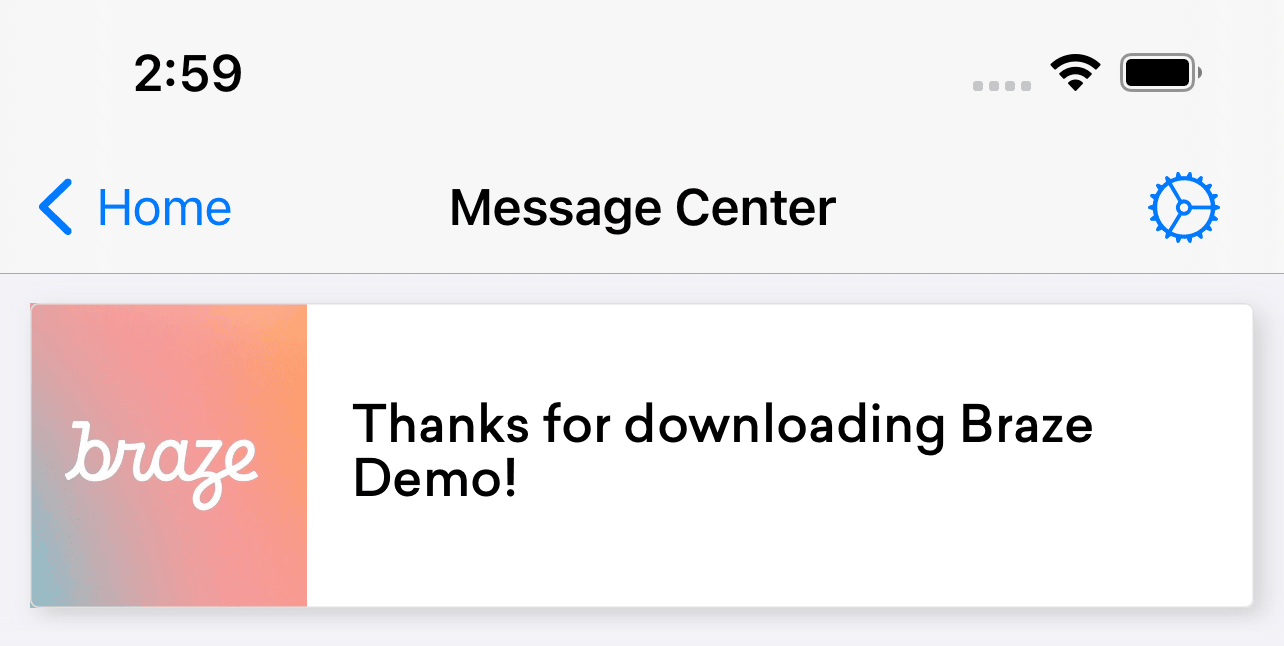
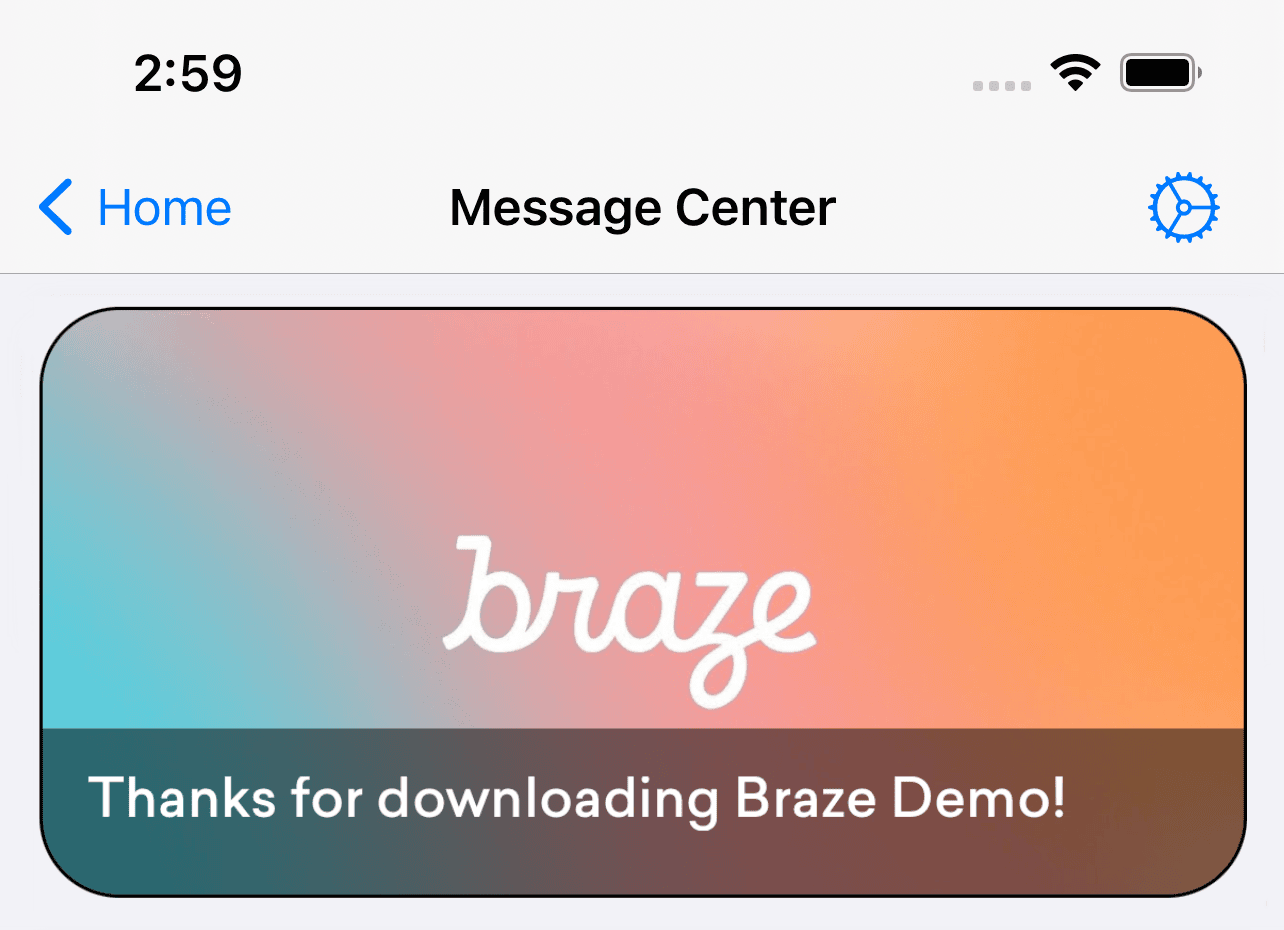
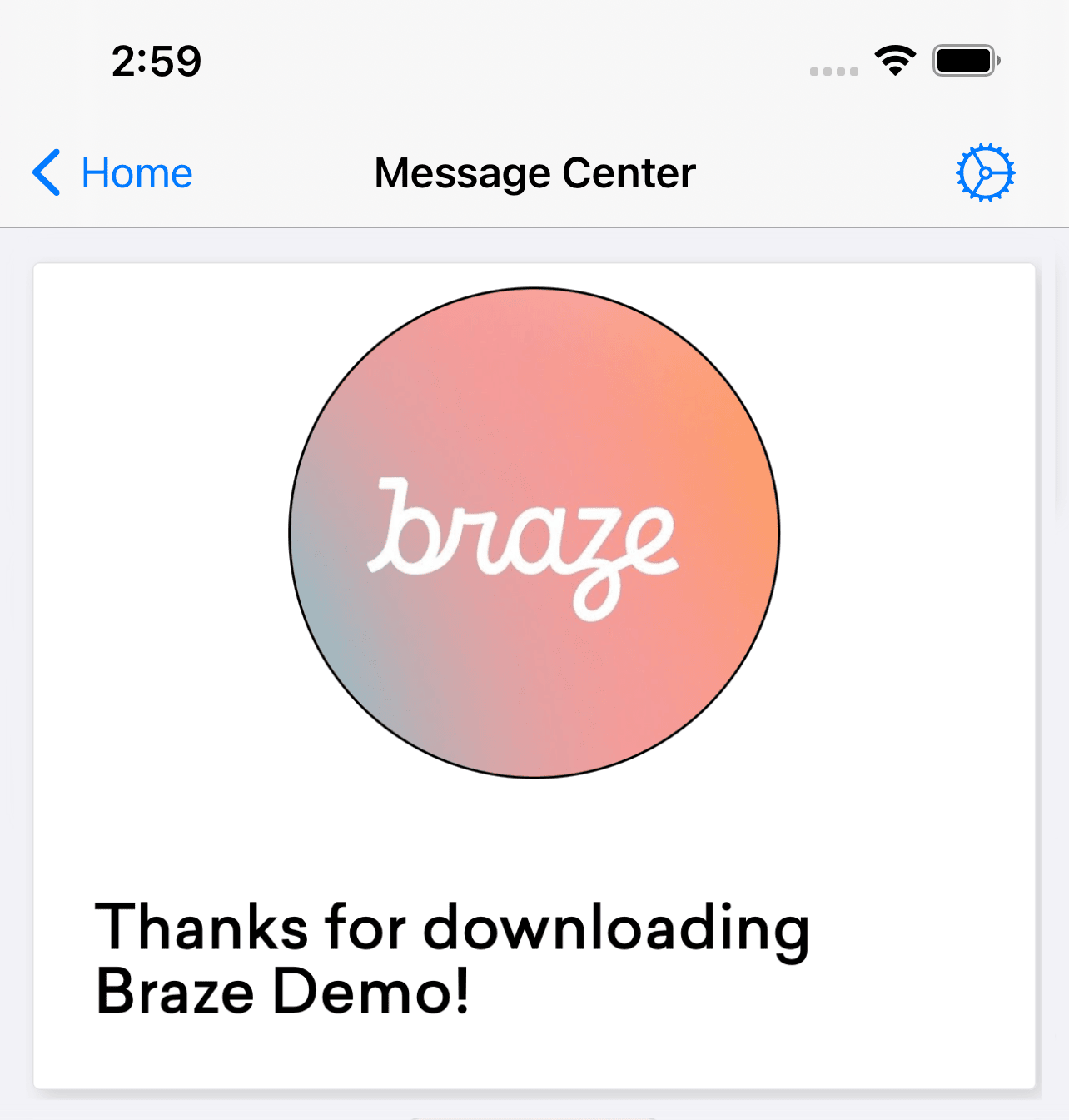
Braze には、3 つのコンテンツカードテンプレート (バナー、キャプション付き画像、クラシック) が用意されています。または、独自のカスタムインターフェイスを提供する場合は、次のコードスニペットを参照してください。
1
2
3
4
5
6
7
- (void)registerTableViewCellClasses {
  [super registerTableViewCellClasses];

  // Replace the default class registrations with custom classes for these two types of cards
  [self.tableView registerClass:[CustomCaptionedImageContentCardCell class] forCellReuseIdentifier:@"ABKCaptionedImageContentCardCell"];
  [self.tableView registerClass:[CustomClassicContentCardCell class] forCellReuseIdentifier:@"ABKClassicCardCell"];
}
1
2
3
4
5
6
7
8
9
override func registerTableViewCellClasses() {
  super.registerTableViewCellClasses()

  // Replace the default class registrations with custom classes
  tableView.register(CustomCaptionedImageContentCardCell.self, forCellReuseIdentifier: "ABKCaptionedImageContentCardCell")
  tableView.register(CustomBannerContentCardCell.self, forCellReuseIdentifier: "ABKBannerContentCardCell")
  tableView.register(CustomClassicImageContentCardCell.self, forCellReuseIdentifier: "ABKClassicImageCardCell")
  tableView.register(CustomClassicContentCardCell.self, forCellReuseIdentifier: "ABKClassicCardCell")
}
値が挿入されたコンテンツカードをオーバーライドする
コンテンツカードをプログラムで変更するには、populateContentCards メソッドを使用します。
1
2
3
4
5
6
7
8
9
10
- (void)populateContentCards {
  NSMutableArray<ABKContentCard *> *cards = [NSMutableArray arrayWithArray:[Appboy.sharedInstance.contentCardsController getContentCards]];
  for (ABKContentCard *card in cards) {
    // Replaces the card description for all Classic Content Cards
    if ([card isKindOfClass:[ABKClassicContentCard class]]) {
      ((ABKClassicContentCard *)card).cardDescription = @"Custom Feed Override title [classic cards only]!";
    }
  }
  super.cards = cards;
}
1
2
3
4
5
6
7
8
9
10
override func populateContentCards() {
  guard let cards = Appboy.sharedInstance()?.contentCardsController.contentCards else { return }
  for card in cards {
    // Replaces the card description for all Classic Content Cards
    if let classicCard = card as? ABKClassicContentCard {
      classicCard.cardDescription = "Custom Feed Override title [classic cards only]!"
    }
  }
  super.cards = (cards as NSArray).mutableCopy() as? NSMutableArray
}
 GitHub でこのページを編集