コンテンツカードを作成する
この記事では、カスタムコンテンツカードを実装するときに使用する基本的なアプローチと、3 つの一般的なユースケースについて説明します。コンテンツカードのカスタマイズガイドの他の記事をすでに読んで、デフォルトでできることとカスタムコードが必要なことを理解していることを前提としています。特に、カスタムコンテンツカードの分析を記録する方法を理解しておくと役立ちます。
バナースタイルのメッセージにコンテンツカードを使用する?Banners-インライン、永続的なアプリ、ウェブメッセージに最適です。
カードを作成する
ステップ 1:カスタム UI を作成する
まず、カードのレンダリングに使用するカスタム HTML コンポーネントを作成します。
まず、独自のカスタムフラグメントを作成します。デフォルトの ContentCardsFragment は、デフォルトのコンテンツカードタイプのみに対応するよう設計されていますが、良い出発点になります。
まず、独自のカスタムビューコントローラーコンポーネントを作成します。デフォルトの BrazeContentCardUI.ViewController は、デフォルトのコンテンツカードタイプのみに対応するよう設計されていますが、良い出発点になります。
ステップ 2:カードの更新を購読する
カードが更新されたときにデータ更新を受け取るためのコールバック関数を登録します。コンテンツカードオブジェクトを解析し、title、cardDescription、imageUrl などのペイロードデータを抽出して、結果のモデルデータを使用してカスタム UI を表示できます。
コンテンツカードのデータモデルを取得するには、コンテンツカードの更新を購読します。特に以下のプロパティに注意してください。
id: コンテンツカードの ID 文字列を表します。カスタムコンテンツカードから分析を記録するために使用される一意の識別子です。extras: Braze ダッシュボードからのすべてのキーと値のペアを含みます。
id と extras 以外のすべてのプロパティは、カスタムコンテンツカードでは解析がオプションです。データモデルの詳細については、各プラットフォームの統合記事を参照してください: Android、iOS、Web。
1
2
3
4
5
6
7
8
9
10
11
12
13
14
15
16
17
18
19
import * as braze from "@braze/web-sdk";

braze.subscribeToContentCardsUpdates((updates) => {
  const cards = updates.cards;
// For example:
  cards.forEach(card => {
    if (card.isControl) {
      // Do not display the control card, but remember to call `logContentCardImpressions([card])`
    }
    else if (card instanceof braze.ClassicCard || card instanceof braze.CaptionedImage) {
      // Use `card.title`, `card.imageUrl`, etc.
    }
    else if (card instanceof braze.ImageOnly) {
      // Use `card.imageUrl`, etc.
    }
  })
});

braze.openSession();
コンテンツカードは、openSession() の前に subscribeToContentCardsUpdates() が呼び出された場合にのみ、セッション開始時に更新されます。いつでもフィードを手動で更新することもできます。
ステップ 2a:プライベートサブスクライバー変数を作成する
カードの更新を購読するには、まずカスタムクラスでサブスクライバーを保持するプライベート変数を宣言します。
1
2
// subscriber variable
private IEventSubscriber<ContentCardsUpdatedEvent> mContentCardsUpdatedSubscriber;
ステップ 2b:更新を購読する
以下のコードを追加して、Braze からのコンテンツカードの更新を購読します。通常、カスタムコンテンツカードアクティビティの Activity.onCreate() 内に配置します。
1
2
3
4
5
6
7
8
9
10
11
12
13
// Remove the previous subscriber before rebuilding a new one with our new activity.
Braze.getInstance(context).removeSingleSubscription(mContentCardsUpdatedSubscriber, ContentCardsUpdatedEvent.class);
mContentCardsUpdatedSubscriber = new IEventSubscriber<ContentCardsUpdatedEvent>() {
    @Override
    public void trigger(ContentCardsUpdatedEvent event) {
        // List of all Content Cards
        List<Card> allCards = event.getAllCards();

        // Your logic below
    }
};
Braze.getInstance(context).subscribeToContentCardsUpdates(mContentCardsUpdatedSubscriber);
Braze.getInstance(context).requestContentCardsRefresh();
ステップ 2c:購読を解除する
カスタムアクティビティが画面外に移動したときに購読を解除します。以下のコードをアクティビティの onDestroy() ライフサイクルメソッドに追加します。
1
Braze.getInstance(context).removeSingleSubscription(mContentCardsUpdatedSubscriber, ContentCardsUpdatedEvent.class);
ステップ 2a:プライベートサブスクライバー変数を作成する
カードの更新を購読するには、まずカスタムクラスでサブスクライバーを保持するプライベート変数を宣言します。
1
private var contentCardsUpdatedSubscriber: IEventSubscriber<ContentCardsUpdatedEvent>? = null
ステップ 2b:更新を購読する
以下のコードを追加して、Braze からのコンテンツカードの更新を購読します。通常、カスタムコンテンツカードアクティビティの Activity.onCreate() 内に配置します。
1
2
3
4
5
6
7
8
9
10
// Remove the previous subscriber before rebuilding a new one with our new activity.
Braze.getInstance(context).subscribeToContentCardsUpdates(contentCardsUpdatedSubscriber)
Braze.getInstance(context).requestContentCardsRefresh()
  // List of all Content Cards
  val allCards = event.allCards

  // Your logic below
}
Braze.getInstance(context).subscribeToContentCardsUpdates(mContentCardsUpdatedSubscriber)
Braze.getInstance(context).requestContentCardsRefresh(true)
ステップ 2c:購読を解除する
カスタムアクティビティが画面外に移動したときに購読を解除します。以下のコードをアクティビティの onDestroy() ライフサイクルメソッドに追加します。
1
Braze.getInstance(context).removeSingleSubscription(contentCardsUpdatedSubscriber, ContentCardsUpdatedEvent::class.java)
コンテンツカードのデータモデルにアクセスするには、braze インスタンスで contentCards.cards を呼び出します。
1
let cards: [Braze.ContentCard] = AppDelegate.braze?.contentCards.cards
さらに、コンテンツカードの変更を監視するサブスクリプションを維持できます。以下の 2 つの方法があります。
- キャンセル可能オブジェクトを維持する方法
AsyncStreamを維持する方法
キャンセル可能オブジェクト
1
2
3
4
5
6
// This subscription is maintained through a Braze cancellable, which will observe for changes until the subscription is cancelled.
// You must keep a strong reference to the cancellable to keep the subscription active.
// The subscription is canceled either when the cancellable is deinitialized or when you call its `.cancel()` method.
let cancellable = AppDelegate.braze?.contentCards.subscribeToUpdates { [weak self] contentCards in
  // Implement your completion handler to respond to updates in `contentCards`.
}
AsyncStream
1
let stream: AsyncStream<[Braze.ContentCard]> = AppDelegate.braze?.contentCards.cardsStream
1
NSArray<BRZContentCardRaw *> *contentCards = AppDelegate.braze.contentCards.cards;
さらに、コンテンツカードのサブスクリプションを維持したい場合は、subscribeToUpdates を呼び出すことができます。
1
2
3
4
// This subscription is maintained through Braze cancellable, which will continue to observe for changes until the subscription is cancelled.
BRZCancellable *cancellable = [self.braze.contentCards subscribeToUpdates:^(NSArray<BRZContentCardRaw *> *contentCards) {
  // Implement your completion handler to respond to updates in `contentCards`.
}];
ステップ 3:分析を実装する
コンテンツカードのインプレッション、クリック、却下は、カスタムビューでは自動的に記録されません。すべての指標が Braze ダッシュボードの分析に適切に記録されるように、それぞれのメソッドを実装する必要があります。
ステップ 4:カードをテストする(オプション)
コンテンツカードをテストするには:
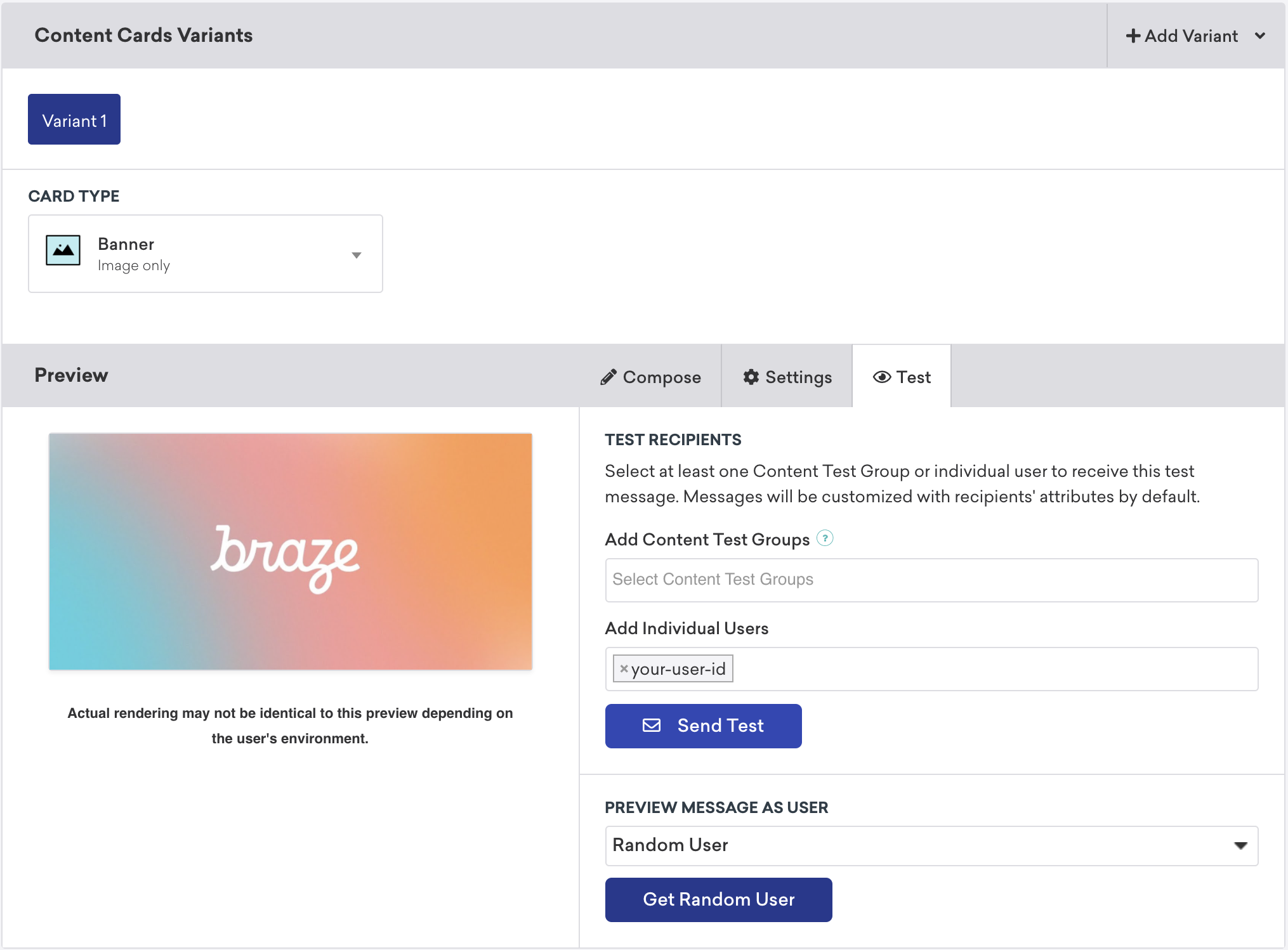
changeUser()メソッドを呼び出して、アプリケーションでアクティブユーザーを設定します。- Braze でキャンペーンに移動し、新しいコンテンツカードキャンペーンを作成します。
- キャンペーンでテストを選択し、テストユーザーの
user-idを入力します。準備ができたら、テストを送信を選択します。すぐにデバイスでコンテンツカードを起動できます。
コンテンツカードの配置
コンテンツカードはさまざまな方法で使用できます。3 つの一般的な実装は、メッセージセンター、ダイナミックな画像広告、または画像カルーセルとして使用することです。これらの配置ごとに、キーと値のペア(データモデルの extras プロパティ)をコンテンツカードに割り当て、その値に基づいて、ランタイム時にカードの動作、外観、または機能をダイナミックに調整します。
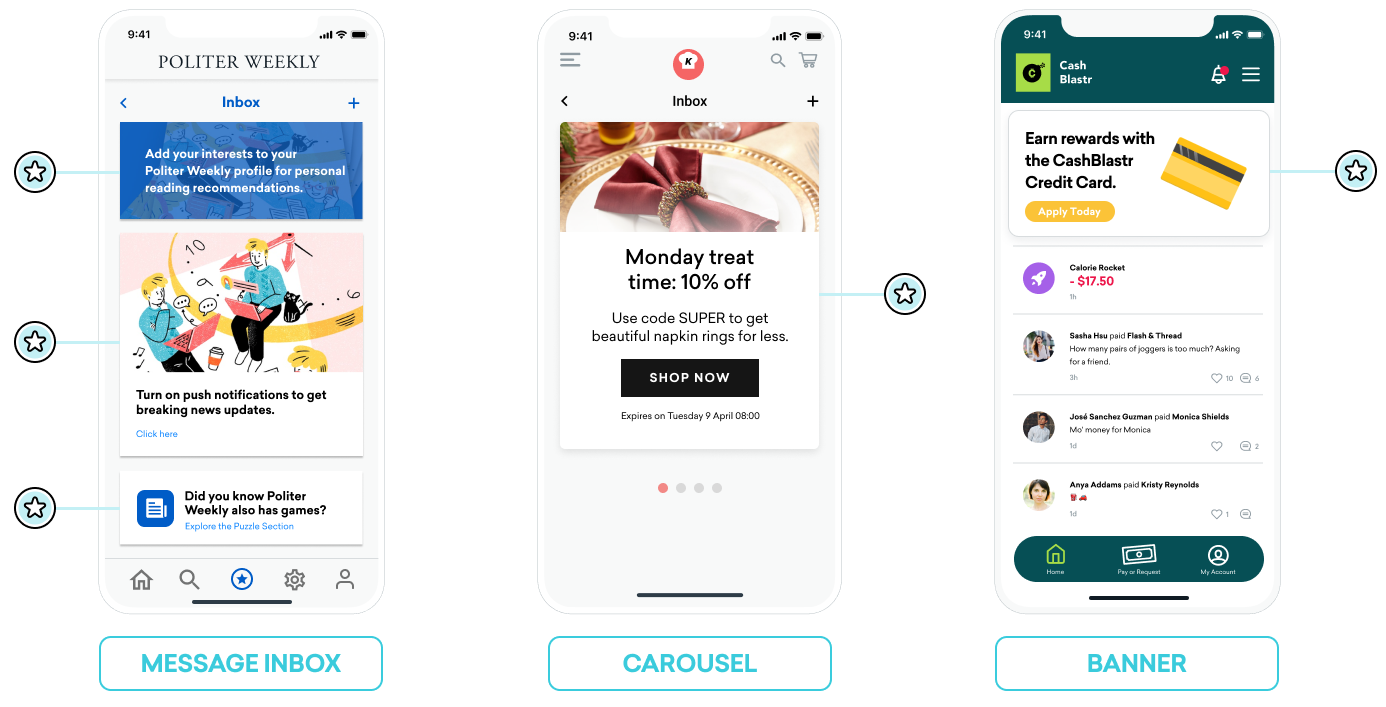
メッセージ受信トレイ
コンテンツカードを使用してメッセージセンターをシミュレーションできます。この形式では、各メッセージはクリック時のイベントを動作させるキーと値のペアを含む独自のカードです。これらのキーと値のペアは、ユーザーが受信トレイのメッセージをクリックしたときに、アプリケーションが遷移先を決定する際に参照する重要な識別子です。キーと値のペアの値は任意です。
例
たとえば、ユーザーにおすすめの有効化を促すコールトゥアクションと、新しいサブスクライバー Segment に付与されるクーポンコードという 2 つのメッセージカードを作成できます。
body、title、buttonText などのキーは、マーケターが設定できるシンプルな文字列値を持つ場合があります。terms のようなキーは、法務部門が承認したフレーズの小さなコレクションを提供する値を持つ場合があります。style や class_type などのキーには、アプリやサイトでのカードのレンダリング方法を決定するために設定できる文字列値があります。
おすすめカードのキーと値のペア:
| キー | 値 |
|---|---|
body |
Politer Weekly のプロファイルに興味のある内容を追加して、パーソナルなおすすめを受け取りましょう。 |
style |
info |
class_type |
notification_center |
card_priority |
1 |
新しいサブスクライバークーポンのキーと値のペア:
| キー | 値 |
|---|---|
title |
無制限のゲームに登録する |
body |
夏の終わりスペシャル - Politer ゲームが10%オフ |
buttonText |
今すぐ購読する |
style |
promo |
class_type |
notification_center |
card_priority |
2 |
terms |
new_subscribers_only |
Android の追加情報
Android と FireOS SDK では、メッセージセンターのロジックは Braze のキーと値のペアが提供する class_type 値によって駆動されます。createContentCardable メソッドを使用すると、これらのクラスタイプをフィルタリングして識別できます。
クリック時の動作に class_type を使用する
コンテンツカードのデータをカスタムクラスにインフレートするときに、データの ContentCardClass プロパティを使用して、データの格納に使用する具象サブクラスを決定します。
1
2
3
4
5
6
7
8
9
10
11
 private fun createContentCardable(metadata: Map<String, Any>, type: ContentCardClass?): ContentCardable?{
        return when(type){
            ContentCardClass.AD -> Ad(metadata)
            ContentCardClass.MESSAGE_WEB_VIEW -> WebViewMessage(metadata)
            ContentCardClass.NOTIFICATION_CENTER -> FullPageMessage(metadata)
            ContentCardClass.ITEM_GROUP -> Group(metadata)
            ContentCardClass.ITEM_TILE -> Tile(metadata)
            ContentCardClass.COUPON -> Coupon(metadata)
            else -> null
        }
    }
次に、メッセージリストに対するユーザーの操作を処理するときに、メッセージのタイプを使用して、ユーザーに表示するビューを決定できます。
1
2
3
4
5
6
7
8
9
10
11
12
13
14
15
16
17
18
19
20
21
22
23
24
25
override fun onCreate(savedInstanceState: Bundle?) {
        super.onCreate(savedInstanceState)
        //...
        listView.onItemClickListener = AdapterView.OnItemClickListener { parent, view, position, id ->
           when (val card = dataProvider[position]){
                is WebViewMessage -> {
                    val intent = Intent(this, WebViewActivity::class.java)
                    val bundle = Bundle()
                    bundle.putString(WebViewActivity.INTENT_PAYLOAD, card.contentString)
                    intent.putExtras(bundle)
                    startActivity(intent)
                }
                is FullPageMessage -> {
                    val intent = Intent(this, FullPageContentCard::class.java)
                    val bundle = Bundle()
                    bundle.putString(FullPageContentCard.CONTENT_CARD_IMAGE, card.icon)
                    bundle.putString(FullPageContentCard.CONTENT_CARD_TITLE, card.messageTitle)
                    bundle.putString(FullPageContentCard.CONTENT_CARD_DESCRIPTION, card.cardDescription)
                    intent.putExtras(bundle)
                    startActivity(intent)
                }
            }

        }
    }
クリック時の動作に class_type を使用する
コンテンツカードのデータをカスタムクラスにインフレートするときに、データの ContentCardClass プロパティを使用して、データの格納に使用する具象サブクラスを決定します。
1
2
3
4
5
6
7
8
9
10
11
12
13
14
15
16
17
18
19
20
21
22
23
24
25
26
private ContentCardable createContentCardable(Map<String, ?> metadata,  ContentCardClass type){
    switch(type){
        case ContentCardClass.AD:{
            return new Ad(metadata);
        }
        case ContentCardClass.MESSAGE_WEB_VIEW:{
            return new WebViewMessage(metadata);
        }
        case ContentCardClass.NOTIFICATION_CENTER:{
            return new FullPageMessage(metadata);
        }
        case ContentCardClass.ITEM_GROUP:{
            return new Group(metadata);
        }
        case ContentCardClass.ITEM_TILE:{
            return new Tile(metadata);
        }
        case ContentCardClass.COUPON:{
            return new Coupon(metadata);
        }
        default:{
            return null;
        }
    }
}
次に、メッセージリストに対するユーザーの操作を処理するときに、メッセージのタイプを使用して、ユーザーに表示するビューを決定できます。
1
2
3
4
5
6
7
8
9
10
11
12
13
14
15
16
17
18
19
20
21
22
23
24
25
26
27
28
@Override
protected void onCreate(Bundle savedInstanceState) {
        super.onCreate(savedInstanceState)
        //...
        listView.setOnItemClickListener(new AdapterView.OnItemClickListener() {
            @Override
            public void onItemClick(AdapterView<?> parent, View view, int position, long id){
               ContentCardable card = dataProvider.get(position);
               if (card instanceof WebViewMessage){
                    Bundle intent = new Intent(this, WebViewActivity.class);
                    Bundle bundle = new Bundle();
                    bundle.putString(WebViewActivity.INTENT_PAYLOAD, card.getContentString());
                    intent.putExtras(bundle);
                    startActivity(intent);
                }
                else if (card instanceof FullPageMessage){
                    Intent intent = new Intent(this, FullPageContentCard.class);
                    Bundle bundle = Bundle();
                    bundle.putString(FullPageContentCard.CONTENT_CARD_IMAGE, card.getIcon());
                    bundle.putString(FullPageContentCard.CONTENT_CARD_TITLE, card.getMessageTitle());
                    bundle.putString(FullPageContentCard.CONTENT_CARD_DESCRIPTION, card.getCardDescription());
                    intent.putExtras(bundle)
                    startActivity(intent)
                }
            }

        });
    }
カルーセル
フルカスタムのカルーセルフィードにコンテンツカードを設定して、ユーザーがスワイプして追加の注目カードを表示できるようにすることができます。デフォルトでは、コンテンツカードは作成日順(最新のものが先頭)でソートされ、ユーザーには対象となるすべてのカードが表示されます。
コンテンツカードカルーセルを実装するには:
- コンテンツカードの変更を監視し、コンテンツカードの到着を処理するカスタムロジックを作成します。
- カスタムのクライアント側ロジックを作成して、カルーセルに一度に表示するカードの数を指定します。たとえば、配列から最初の 5 つのコンテンツカードオブジェクトを選択したり、キーと値のペアを導入して条件付きロジックを構築したりできます。
カルーセルをセカンダリコンテンツカードフィードとして実装する場合は、キーと値のペアを使用してカードを正しいフィードにソートしてください。
画像のみ
コンテンツカードは「カード」のように見せる必要はありません。たとえば、コンテンツカードは、ホームページや指定されたページの上部に永続的に表示されるダイナミックな画像として表示できます。
これを実現するには、マーケターが画像のみタイプのコンテンツカードでキャンペーンまたはキャンバスステップを作成します。次に、コンテンツカードを補足コンテンツとして使用するのに適したキーと値のペアを設定します。
 GitHub でこのページを編集