Google Tag Manager with the Braze SDK
Learn how to use Google Tag Manager (GTM) with the Braze SDK, so you can remotely control Braze event tracking and user attribute updates without requiring code changes or new app releases.
About Google Tag Manager for Web
Google Tag Manager (GTM) lets you remotely add, remove, and edit tags on your website without requiring a production code release or engineering resources. Braze offers the following templates for the Web SDK:
| Tag Type | Use Case |
|---|---|
| Initialization tag | This tag lets you integrate the Web Braze SDK without needing to modify your site’s code. |
| Action tag | This tag lets you create Content Cards, set user attributes, log eCommerce events, and manage data collection. |
Tag sequencing for Braze action tags
The Braze Initialization tag must fire before any tags that call Braze SDK methods (such as braze.getUser(), braze.logCustomEvent(), or braze.logPurchase()). If these methods fire before the SDK is initialized, you may encounter errors like Uncaught TypeError: Cannot read properties of undefined (reading 'getUser').
To configure tag sequencing in Google Tag Manager:
- Open the tag that calls Braze SDK methods (such as a Custom HTML tag or Braze action tag).
- Go to Advanced Settings > Tag Sequencing.
- Select A tag that fires before [this tag] is fired.
- Choose your Braze Initialization tag.
This ensures the SDK is fully loaded before any other tags attempt to call Braze methods.
For more detail, see Verify tag sequencing for custom events.
Log purchases with GTM
In Braze action tags and Custom HTML tags, call braze.logPurchase() to record revenue. The legacy appboy.logPurchase() namespace is not supported in current Web SDK integrations.
Log eCommerce events with GTM
Use the Log eCommerce Event (New) tag type in the Braze Actions tag to send eCommerce recommended events to Braze from your GTM data layer. The tag calls braze.logEcommerceEvent() and requires Web SDK 6.8.0 or later. Make sure your Braze Initialization tag loads a compatible SDK version.
The tag supports the following events:
| Tag event type | Braze event |
|---|---|
| Product Viewed | ecommerce.product_viewed |
| Cart Updated | ecommerce.cart_updated |
| Checkout started | ecommerce.checkout_started |
| Order placed | ecommerce.order_placed |
To log ecommerce.order_cancelled or ecommerce.order_refunded, use a Custom HTML tag that calls braze.logCustomEvent(). For examples, see Log eCommerce events.

The Log Purchase (Legacy) and E-Commerce Purchase (Legacy) tag types continue to work. Use Log eCommerce Event (New) for new integrations.
Step 1: Push the event to the data layer
In your site’s code, push the event and its ecommerce object to the data layer. By default, the tag reads the standard GA4 eCommerce data layer format. For example, to log an order:
dataLayer.push({
event: "purchase",
ecommerce: {
transaction_id: "T_12345",
value: 29.97,
currency: "USD",
items: [
{
item_id: "SKU_12345",
item_name: "Stan and Friends Tee",
item_variant: "green",
price: 9.99,
quantity: 3
}
]
}
});
Braze requires IDs such as item_id and transaction_id to be strings. Push them as strings, even if your IDs are numeric.
Step 2: Create a trigger in GTM
- In your GTM container, go to Triggers and create a new trigger.
- Set the Trigger Type to Custom Event.
- Set the Event Name to the event you pushed to the data layer (for example,
purchase).
Step 3: Create the Braze Actions tag
- In GTM, go to Tags and create a new tag with the Braze Actions Tag type.
- Set Tag Type to Log eCommerce Event (New).
- Select an eCommerce Event Type.
- Enter the fields for that event type, as described in the following table.
- (Optional) Add metadata.
- Under Triggering, select the trigger you created in step 2.
- Configure tag sequencing so the Braze Initialization tag fires first.
- Save and publish your container.
| eCommerce Event Type | Tag fields | Required data layer values |
|---|---|---|
| Product Viewed | None. | ecommerce.items and ecommerce.currency. The first item is the viewed product. |
| Cart Updated | Cart ID is required. Cart Update Action is Replace, Add, or Remove, and defaults to Replace. | ecommerce.items and ecommerce.currency. ecommerce.value is required when the action is Replace. |
| Checkout started | Checkout ID is required. Cart ID is optional. | ecommerce.items, ecommerce.currency, and ecommerce.value. |
| Order placed | Cart ID is optional. | ecommerce.items, ecommerce.currency, ecommerce.value, and ecommerce.transaction_id. |
If ecommerce.currency is not set, the tag uses the currency field of the first item. The tag sets the event source to google_tag_manager_web.
Data layer mapping
When Automatically parse e-commerce event from the data layer is selected (the default), the tag maps data layer values to the Braze event properties as follows:
| Braze property | Data layer value |
|---|---|
currency |
ecommerce.currency |
total_value |
ecommerce.value |
order_id |
ecommerce.transaction_id |
products[].product_id |
ecommerce.items[].item_id |
products[].product_name |
ecommerce.items[].item_name |
products[].variant_id |
ecommerce.items[].item_variant. Defaults to item_id. |
products[].price |
ecommerce.items[].price |
products[].quantity |
ecommerce.items[].quantity. Defaults to 1. |
products[].image_url |
ecommerce.items[].image_url |
products[].product_url |
ecommerce.items[].product_url |
Enter event values manually
If your site uses a custom eCommerce data layer format, clear Automatically parse e-commerce event from the data layer. Then enter the event values in the tag. You can use GTM variables in any of these fields.
| Field | Description |
|---|---|
| Currency | Required. An ISO 4217 currency code, such as USD. |
| Total Value | Required for Cart Updated with the Replace action, Checkout started, and Order placed. |
| Order ID | Required for Order placed. |
| Products | Required. Add a row for each product. Product ID, Product Name, and Price are required. Variant ID defaults to the product ID, and Quantity defaults to 1. Image URL, Product URL, and Product Metadata (JSON) are optional. For Product Viewed, the tag uses the first row. |
eCommerce event metadata
Add metadata to send additional key-value pairs with the event. Braze sends event metadata in the metadata object of the event, and product metadata in the metadata object of each product.
Event metadata
Use the eCommerce Event Metadata table to add event-level metadata. This table is available whether or not automatic parsing is turned on. For each row, enter a Metadata property key and a Metadata property value. You can use a GTM variable as the value. The tag skips rows that have an empty key or an empty value.
Some event types support recognized metadata keys. For example, use checkout_url for Checkout started and order_status_url for Order placed. For the full list, see Event schemas.
Product metadata
Use the Product Metadata (JSON) column of the Products table to add metadata to an individual product. Enter a JSON object, such as {"color": "green", "size": "M"}. Product metadata has the following limitations:
- Product metadata is only available when you clear Automatically parse e-commerce event from the data layer.
- The tag sends product metadata for Cart Updated, Checkout started, and Order placed events. It does not send product metadata for Product Viewed, because that event has no products array. Use the eCommerce Event Metadata table for Product Viewed instead.
- If the JSON is not a valid object, the tag ignores it.
Verify eCommerce events
The Braze Web SDK validates every eCommerce event. If a value is invalid, the SDK doesn’t log the event and writes an error to the browser console. GTM still shows the tag as fired. To troubleshoot a missing event:
- Select Enable GTM Tag Debugging in the tag. The tag then logs a message to the browser console when it can’t read a data layer value, finds no products, or ignores invalid product metadata.
- Open your browser’s developer console and look for errors from the Braze Web SDK.
- Check the required fields for your event type. Confirm that IDs are strings, that
priceandtotal_valueare valid numbers, and thatquantityis a whole number.
For event schemas and ingestion validation, see Log eCommerce events and Event validation and troubleshooting.
Logging custom events with GTM
You can log custom events using a Custom HTML tag in GTM. This approach uses the GTM data layer to pass event data from your site to a GTM tag that calls the Braze Web SDK.
Step 1: Push the event to the data layer
In your site’s code, push an event to the data layer wherever you want to trigger the custom event. For example, to log a custom event when a button is clicked:
<button onclick="dataLayer.push({'event': 'my_custom_event'});">Track Event</button>
Step 2: Create a trigger in GTM
- In your GTM container, go to Triggers and create a new trigger.
- Set the Trigger Type to Custom Event.
- Set the Event Name to the same value you pushed to the data layer (for example,
my_custom_event). - Choose when the trigger should fire (for example, All Custom Events).
Step 3: Create a Custom HTML tag
- In GTM, go to Tags and create a new tag.
- Set the Tag Type to Custom HTML.
-
In the HTML field, add the following:
<script> window.braze.logCustomEvent("my_custom_event"); </script>
- Under Triggering, select the trigger you created in step 2.
- Save and publish your container.
To include event properties, pass them as the second argument:
<script>
window.braze.logCustomEvent("my_custom_event", {"property_key": "property_value"});
</script>
Strict CSP (nonce-based) environments
The Braze Initialization tag does not currently support passing contentSecurityNonce to braze.initialize(). If your site enforces a strict nonce-based CSP, use a Custom HTML tag instead of the Braze Initialization tag.
- Pause or remove the Braze Initialization tag from your GTM container if you have already set it up.
-
Push your server-generated nonce to
dataLayerbefore the GTM snippet in your site HTML:<script nonce="SERVER_GENERATED_NONCE"> dataLayer = window.dataLayer || []; dataLayer.push({ cspNonce: 'SERVER_GENERATED_NONCE' }); </script>
- In GTM, create a Data Layer Variable mapped to
cspNonce(for example,DLV - cspNonce). -
Create a Custom HTML tag with the trigger set to Initialization - All Pages:
Customize the following template for your environment.
<script nonce="{{DLV - cspNonce}}"> var s = document.createElement('script'); s.src = 'https://js.appboycdn.com/web-sdk/YOUR_SDK_VERSION/braze.min.js'; s.setAttribute('nonce', '{{DLV - cspNonce}}'); s.onload = function() { braze.initialize('YOUR_API_KEY', { baseUrl: 'YOUR_SDK_ENDPOINT', contentSecurityNonce: '{{DLV - cspNonce}}' }); braze.openSession(); }; document.head.appendChild(s); </script>
- For the Braze Actions tag or any Custom HTML tags that call Braze methods, configure tag sequencing to fire after this Custom HTML tag.
Google’s EU User Consent Policy

Google is updating its EU User Consent Policy in response to changes to the Digital Markets Act (DMA), which is in effect as of March 6, 2024. This new change requires advertisers to disclose certain information to their EEA and UK end users, as well as obtain necessary consents from them. Review the following documentation to learn more.
As part of Google’s EU User Consent Policy, the following boolean custom attributes need to be logged to user profiles:
$google_ad_user_data$google_ad_personalization
If setting these via the GTM integration, custom attributes require creating a custom HTML tag. The following is an example of how to log these values as boolean data types (not as strings):
<script>
window.braze.getUser().setCustomUserAttribute("$google_ad_personalization", true);
</script>
For more information, refer to Audience Sync to Google.
Prerequisites
Before you can use this feature, you’ll need to integrate the Android Braze SDK.
Using Google Tag Manager for Android
In the following example, a music streaming app wants to log different events as users listen to songs. Using Google Tag Manager for Android, they can control which of the Braze third-party vendors receive this event, and create tags specific to Braze.
Step 1: Create a trigger for custom events
Custom events are logged with actionType set to logEvent. The Braze custom tag provider in this example is expecting the custom event name to be set using eventName.
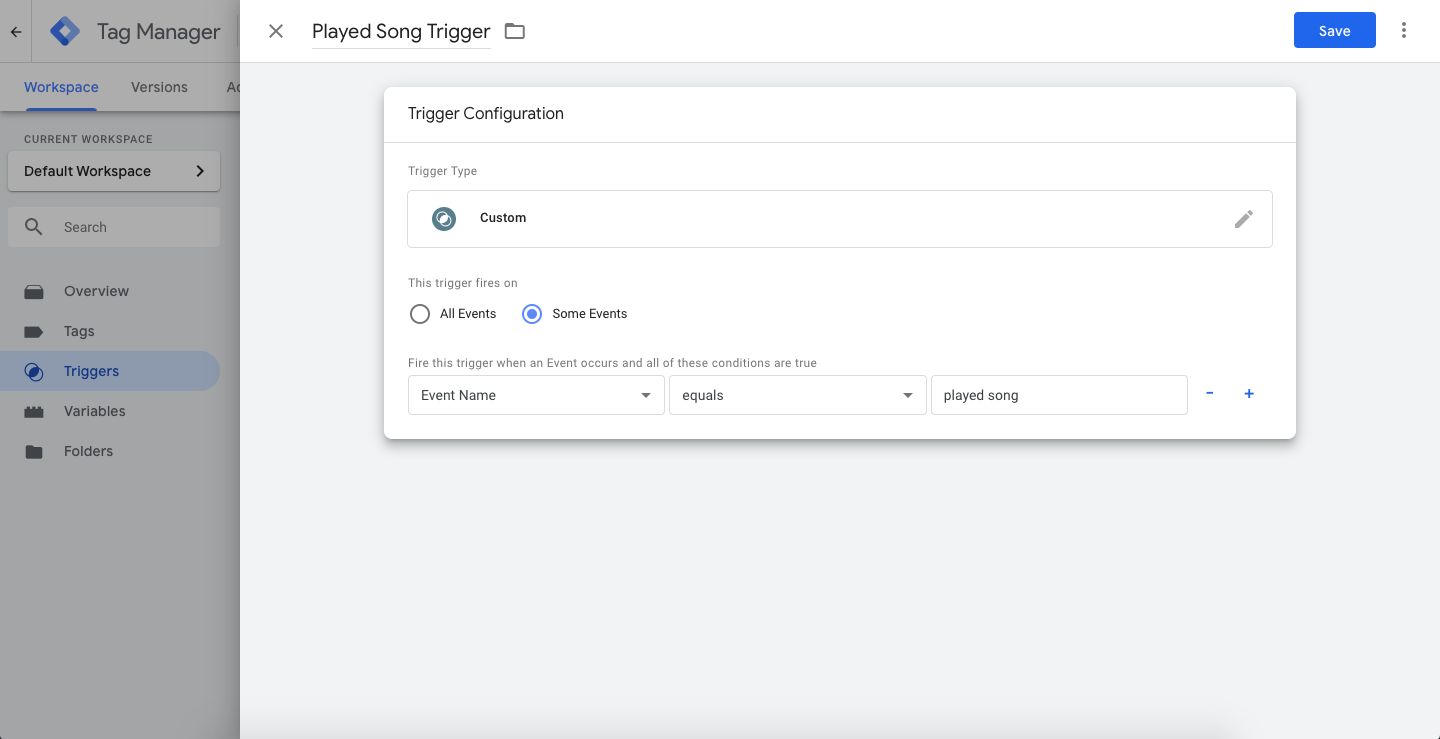
To get started, create a trigger that looks for an “Event Name” that equals played song
Next, create a new tag (also known as a “Function Call”) and enter the class path of your custom tag provider described later in this article. This tag will be triggered when you log the played song event.
In the tag’s custom parameters (also known as the key-value pairs), set eventName to played song. This will be the custom event name logged to Braze.
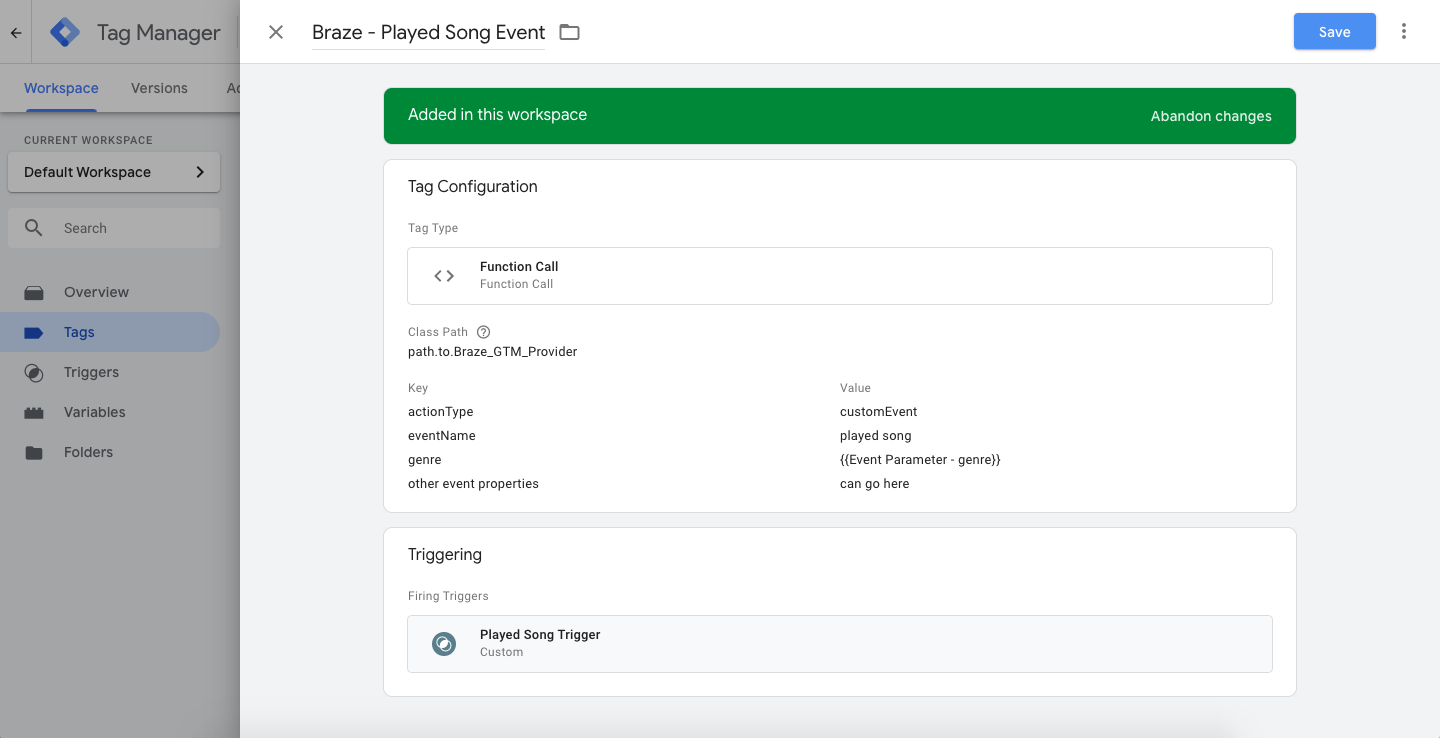
When sending a custom event, be sure to set actionType to logEvent, and set a value for eventName so Braze receives the correct event name and action to take.
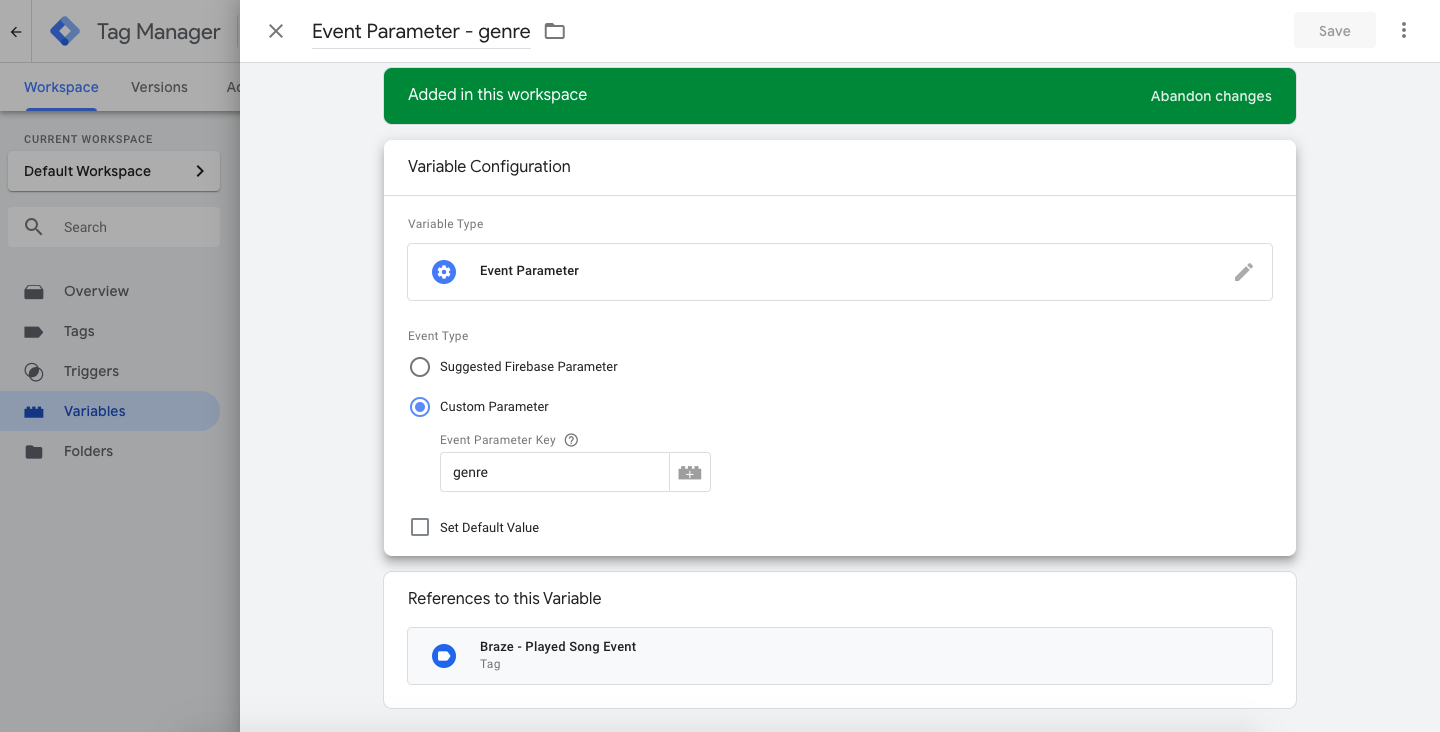
You can also include additional key-value pair arguments to the tag, which will be sent as custom event properties to Braze. eventName and actionType will not be ignored for custom event properties. In the following example tag, genre is passed and defined using a tag variable in Google Tag Manager, which is sourced from the custom event logged in the app.
Because Google Tag Manager for Android uses Firebase as the data layer, the genre event property is sent to Google Tag Manager as a “Firebase - Event Parameter” variable.
When a user plays a song in the app, an event will be logged through Firebase and Google Tag Manager using the Firebase analytics event name that matches the tag’s trigger name, played song:
Bundle params = new Bundle();
params.putString("genre", "pop");
params.putInt("number of times listened", 42);
mFirebaseAnalytics.logEvent("played song", params);
val params = Bundle()
params.putString("genre", "pop")
params.putInt("number of times listened", 42);
mFirebaseAnalytics.logEvent("played song", params)
Step 2: Log custom attributes
Custom attributes are set via an actionType set to customAttribute. The Braze custom tag provider is expecting the custom attribute key-value to be set via customAttributeKey and customAttributeValue:
Bundle params = new Bundle();
params.putString("customAttributeKey", "favorite song");
params.putString("customAttributeValue", "Private Eyes");
mFirebaseAnalytics.logEvent("customAttribute", params);
val params = Bundle()
params.putString("customAttributeKey", "favorite song")
params.putString("customAttributeValue", "Private Eyes")
mFirebaseAnalytics.logEvent("customAttribute", params)
Step 3: Call changeUser()
Calls to changeUser() are made via an actionType set to changeUser. The Braze custom tag provider is expecting the Braze user ID to be set via an externalUserId key-value pair within your tag:
Bundle params = new Bundle();
params.putString("externalUserId", userId);
mFirebaseAnalytics.logEvent("changeUser", params);
val params = Bundle()
params.putString("externalUserId", userId)
mFirebaseAnalytics.logEvent("changeUser", params)
Step 4: Add a custom tag provider
With the tags and triggers set up, you will also need to implement Google Tag Manager in your Android app which can be found in Google’s documentation.
After the Google Tag Manager is installed in your app, add a custom tag provider to call Braze SDK methods based on the tags you’ve configured within Google Tag Manager.
Be sure to note the “Class Path” to the file - this is what you’ll enter when setting up a Tag in the Google Tag Manager console.
This example highlights one of many ways you can structure your custom tag provider. Specifically, it shows how to determine which Braze SDK method to call based on the actionType key-value pair sent from the GTM Tag.
The actionType shown in this example are logEvent, customAttribute, and changeUser, but you may prefer to change how your tag provider handles data from Google Tag Manager.
public class BrazeGtmTagProvider implements CustomTagProvider {
private static final String TAG = BrazeLogger.getBrazeLogTag(BrazeGtmTagProvider.class);
private static final String ACTION_TYPE_KEY = "actionType";
// Custom Events
private static final String LOG_EVENT_ACTION_TYPE = "logEvent";
private static final String EVENT_NAME_VARIABLE = "eventName";
// Custom Attributes
private static final String CUSTOM_ATTRIBUTE_ACTION_TYPE = "customAttribute";
private static final String CUSTOM_ATTRIBUTE_KEY = "customAttributeKey";
private static final String CUSTOM_ATTRIBUTE_VALUE_KEY = "customAttributeValue";
// Change User
private static final String CHANGE_USER_ACTION_TYPE = "changeUser";
private static final String CHANGE_USER_ID_VARIABLE = "externalUserId";
private static Context sApplicationContext;
/**
* Must be set before calling any of the following methods
* so that the proper application context is available when needed.
*
* Recommended to be called in your {@link Application#onCreate()}.
*/
public static void setApplicationContext(Context applicationContext) {
if (applicationContext != null) {
sApplicationContext = applicationContext.getApplicationContext();
}
}
@Override
public void execute(Map<String, Object> map) {
BrazeLogger.i(TAG, "Got google tag manager parameters map: " + map);
if (sApplicationContext == null) {
BrazeLogger.w(TAG, "No application context provided to this tag provider.");
return;
}
if (!map.containsKey(ACTION_TYPE_KEY)) {
BrazeLogger.w(TAG, "Map does not contain the Braze action type key: " + ACTION_TYPE_KEY);
return;
}
String actionType = String.valueOf(map.remove(ACTION_TYPE_KEY));
switch (actionType) {
case LOG_EVENT_ACTION_TYPE:
logEvent(map);
break;
case CUSTOM_ATTRIBUTE_ACTION_TYPE:
setCustomAttribute(map);
break;
case CHANGE_USER_ACTION_TYPE:
changeUser(map);
break;
default:
BrazeLogger.w(TAG, "Got unknown action type: " + actionType);
break;
}
}
private void logEvent(Map<String, Object> tagParameterMap) {
String eventName = String.valueOf(tagParameterMap.remove(EVENT_NAME_VARIABLE));
Braze.getInstance(sApplicationContext).logCustomEvent(eventName, parseMapIntoProperties(tagParameterMap));
}
private BrazeProperties parseMapIntoProperties(Map<String, Object> map) {
BrazeProperties brazeProperties = new BrazeProperties();
for (Map.Entry<String, Object> entry : map.entrySet()) {
final Object value = entry.getValue();
final String key = entry.getKey();
if (value instanceof Boolean) {
brazeProperties.addProperty(key, (Boolean) value);
} else if (value instanceof Integer) {
brazeProperties.addProperty(key, (Integer) value);
} else if (value instanceof Date) {
brazeProperties.addProperty(key, (Date) value);
} else if (value instanceof Long) {
brazeProperties.addProperty(key, (Long) value);
} else if (value instanceof String) {
brazeProperties.addProperty(key, (String) value);
} else if (value instanceof Double) {
brazeProperties.addProperty(key, (Double) value);
} else {
BrazeLogger.w(TAG, "Failed to parse value into an BrazeProperties "
+ "accepted type. Key: '" + key + "' Value: '" + value + "'");
}
}
return brazeProperties;
}
private void setCustomAttribute(Map<String, Object> tagParameterMap) {
String key = String.valueOf(tagParameterMap.get(CUSTOM_ATTRIBUTE_KEY));
Object value = tagParameterMap.get(CUSTOM_ATTRIBUTE_VALUE_KEY);
Braze.getInstance(sApplicationContext).getCurrentUser(new IValueCallback<BrazeUser>() {
@Override
public void onSuccess(BrazeUser brazeUser) {
if (value instanceof Boolean) {
brazeUser.setCustomUserAttribute(key, (Boolean) value);
} else if (value instanceof Integer) {
brazeUser.setCustomUserAttribute(key, (Integer) value);
} else if (value instanceof Long) {
brazeUser.setCustomUserAttribute(key, (Long) value);
} else if (value instanceof String) {
brazeUser.setCustomUserAttribute(key, (String) value);
} else if (value instanceof Double) {
brazeUser.setCustomUserAttribute(key, (Double) value);
} else if (value instanceof Float) {
brazeUser.setCustomUserAttribute(key, (Float) value);
} else {
BrazeLogger.w(TAG, "Failed to parse value into a custom "
+ "attribute accepted type. Key: '" + key + "' Value: '" + value + "'");
}
}
});
}
private void changeUser(Map<String, Object> tagParameterMap) {
String userId = String.valueOf(tagParameterMap.get(CHANGE_USER_ID_VARIABLE));
Braze.getInstance(sApplicationContext).changeUser(userId);
}
}
class BrazeGtmTagProvider : CustomTagProvider {
override fun execute(map: MutableMap<String, Any>) {
BrazeLogger.i(TAG, "Got google tag manager parameters map: $map")
if (sApplicationContext == null) {
BrazeLogger.w(TAG, "No application context provided to this tag provider.")
return
}
if (!map.containsKey(ACTION_TYPE_KEY)) {
BrazeLogger.w(TAG, "Map does not contain the Braze action type key: $ACTION_TYPE_KEY")
return
}
val actionType = map.remove(ACTION_TYPE_KEY).toString()
when (actionType) {
LOG_EVENT_ACTION_TYPE -> logEvent(map)
CUSTOM_ATTRIBUTE_ACTION_TYPE -> setCustomAttribute(map)
CHANGE_USER_ACTION_TYPE -> changeUser(map)
else -> BrazeLogger.w(TAG, "Got unknown action type: $actionType")
}
}
private fun logEvent(tagParameterMap: MutableMap<String, Any>) {
val eventName = tagParameterMap.remove(EVENT_NAME_VARIABLE).toString()
Braze.getInstance(sApplicationContext).logCustomEvent(eventName, parseMapIntoProperties(tagParameterMap))
}
private fun parseMapIntoProperties(map: Map<String, Any>): BrazeProperties {
val brazeProperties = BrazeProperties()
map.forEach { param ->
val key = param.key
val value = param.value
when (value) {
is Boolean -> brazeProperties.addProperty(key, value)
is Int -> brazeProperties.addProperty(key, value)
is Date -> brazeProperties.addProperty(key, value)
is Long -> brazeProperties.addProperty(key, value)
is String -> brazeProperties.addProperty(key, value)
is Double -> brazeProperties.addProperty(key, value)
else -> BrazeLogger.w(TAG, "Failed to parse value into an BrazeProperties "
+ "accepted type. Key: '" + key + "' Value: '" + value + "'")
}
}
return brazeProperties
}
private fun setCustomAttribute(tagParameterMap: Map<String, Any>) {
val key = tagParameterMap[CUSTOM_ATTRIBUTE_KEY].toString()
val value = tagParameterMap[CUSTOM_ATTRIBUTE_VALUE_KEY]
Braze.getInstance(sApplicationContext).getCurrentUser { brazeUser ->
when (value) {
is Boolean -> brazeUser.setCustomUserAttribute(key, value)
is Int -> brazeUser.setCustomUserAttribute(key, value)
is Long -> brazeUser.setCustomUserAttribute(key, value)
is String -> brazeUser.setCustomUserAttribute(key, value)
is Double -> brazeUser.setCustomUserAttribute(key, value)
is Float -> brazeUser.setCustomUserAttribute(key, value)
else -> BrazeLogger.w(
TAG, "Failed to parse value into a custom "
+ "attribute accepted type. Key: '" + key + "' Value: '" + value + "'"
)
}
}
}
private fun changeUser(tagParameterMap: Map<String, Any>) {
val userId = tagParameterMap[CHANGE_USER_ID_VARIABLE].toString()
Braze.getInstance(sApplicationContext).changeUser(userId)
}
companion object {
private val TAG = BrazeLogger.getBrazeLogTag(BrazeGtmTagProvider::class.java)
private val ACTION_TYPE_KEY = "actionType"
// Custom Events
private val LOG_EVENT_ACTION_TYPE = "logEvent"
private val EVENT_NAME_VARIABLE = "eventName"
// Custom Attributes
private val CUSTOM_ATTRIBUTE_ACTION_TYPE = "customAttribute"
private val CUSTOM_ATTRIBUTE_KEY = "customAttributeKey"
private val CUSTOM_ATTRIBUTE_VALUE_KEY = "customAttributeValue"
// Change User
private val CHANGE_USER_ACTION_TYPE = "changeUser"
private val CHANGE_USER_ID_VARIABLE = "externalUserId"
private var sApplicationContext: Context? = null
/**
* Must be set before calling any of the following methods so
* that the proper application context is available when needed.
*
* Recommended to be called in your [Application.onCreate].
*/
fun setApplicationContext(applicationContext: Context?) {
if (applicationContext != null) {
sApplicationContext = applicationContext.applicationContext
}
}
}
}
In your Application.onCreate() be sure to add the following initialization for the previous snippet:
BrazeGtmTagProvider.setApplicationContext(this.getApplicationContext());
BrazeGtmTagProvider.setApplicationContext(this.applicationContext)
Prerequisites
Before you can use this feature, you’ll need to integrate the Swift Braze SDK.
Using Google Tag Manager for Swift
In the following example, a music streaming app wants to log different events as users listen to songs. Using Google Tag Manager for iOS, they can control which of the Braze third-party vendors receive this event and create tags specific to Braze.
Step 1: Create a trigger for custom events
Custom events are logged with actionType set to logEvent. In this example, the Braze custom tag provider is expecting the custom event name to be set using eventName.
First, create a trigger that looks for an eventName that equals played song.
Next, create a new Tag (also known as a “Function Call”) and enter the class path of your custom tag provider described later in this article. This tag will be triggered when you log the played song event. Because eventName is set to played song it will be used as custom event name that’s logged to Braze.
When sending a custom event, set actionType to logEvent, and set a value for eventName so Braze receives the correct event name and action to take.
You can also include additional key-value pair arguments to the tag, which will be sent as custom event properties to Braze. eventName and actionType will not be ignored for custom event properties. In the following example tag, pass in genre, which was defined using a tag variable in Google Tag Manager and sourced from the custom event logged in the app.
The genre event property is sent to Google Tag Manager as a “Firebase - Event Parameter” variable since Google Tag Manager for iOS uses Firebase as the data layer.
When a user plays a song in the app, log an event through Firebase and Google Tag Manager using the Firebase analytics event name that matches the tag’s trigger name, played song:
let parameters: [String: Any] = ["genre": "pop",
"number of times listened": 42]
Analytics.logEvent("played song", parameters: parameters)
NSDictionary *parameters = @{@"genre" : @"pop",
@"number of times listened" : @42};
[FIRAnalytics logEventWithName:@"played song" parameters:parameters];
Step 2: Log custom attributes
Custom attributes are set via an actionType set to customAttribute. The Braze custom tag provider is expecting the custom attribute key-value to be set via customAttributeKey and customAttributeValue:
let parameters: [String: Any] = ["customAttributeKey": "favoriteSong",
"customAttributeValue": "Private Eyes"]
FIRAnalytics.logEvent(withName:"customAttribute", parameters: parameters)
NSDictionary *parameters = @{@"customAttributeKey" : @"favoriteSong",
@"customAttributeValue" : @"Private Eyes"};
[FIRAnalytics logEventWithName:@"customAttribute" parameters:parameters];
Step 3: Call changeUser()
Calls to changeUser() are made via an actionType set to changeUser. The Braze custom tag provider is expecting the Braze user ID to be set via an externalUserId key-value pair within your tag:
let parameters: [String: Any] = ["externalUserId": "favorite userId"]
Analytics.logEvent(withName:"changeUser", parameters: parameters)
NSDictionary *parameters = @{@"externalUserId" : userId};
[FIRAnalytics logEventWithName:@"changeUser" parameters:parameters];
Step 4: Add a custom tag provider
With the tags and triggers set up, you will also need to implement Google Tag Manager in your iOS app which can be found in Google’s documentation.
After Google Tag Manager is installed in your app, add a custom tag provider to call Braze SDK methods based on the tags you’ve configured within Google Tag Manager.
Be sure to note the “Class Path” to the file - this is what you’ll enter when setting up a tag in the Google Tag Manager console.
This example highlights one of many ways you can structure your custom tag provider. Specifically, it shows how to determine which Braze SDK method to call based on the actionType key-value pair sent from the GTM Tag. This example assumes you’ve assigned the Braze instance as a variable in the AppDelegate.
The actionType supported in this example are logEvent, customAttribute, and changeUser, but you may prefer to change how your tag provider handles data from Google Tag Manager.
Add the following code to your BrazeGTMTagManager.swift file.
import FirebaseAnalytics
import GoogleTagManager
import BrazeKit
let ActionTypeKey: String = "actionType"
// Custom Events
let LogEventAction: String = "logEvent"
let LogEventName: String = "eventName"
// Custom Attributes
let CustomAttributeAction: String = "customAttribute"
let CustomAttributeKey: String = "customAttributeKey"
let CustomAttributeValueKey: String = "customAttributeValue"
// Change User
let ChangeUserAction: String = "changeUser"
let ChangeUserExternalUserId: String = "externalUserId"
@objc(BrazeGTMTagManager)
final class BrazeGTMTagManager : NSObject, TAGCustomFunction {
@objc func execute(withParameters parameters: [AnyHashable : Any]!) -> NSObject! {
var parameters: [String : Any] = parameters as! [String : Any]
guard let actionType: String = parameters[ActionTypeKey] as? String else {
print("There is no Braze action type key in this call. Doing nothing.")
return nil
}
parameters.removeValue(forKey: ActionTypeKey)
if actionType == LogEventAction {
logEvent(parameters: parameters)
} else if actionType == CustomAttributeAction {
logCustomAttribute(parameters: parameters)
} else if actionType == ChangeUserAction {
changeUser(parameters: parameters)
}
return nil
}
func logEvent(parameters: [String : Any]) {
var parameters: [String : Any] = parameters
guard let eventName: String = parameters[LogEventName] as? String else { return }
parameters.removeValue(forKey: LogEventName)
AppDelegate.braze?.logCustomEvent(name: eventName, properties: parameters)
}
func logCustomAttribute(parameters: [String: Any]) {
guard let customAttributeKey = parameters[CustomAttributeKey] as? String else { return }
let customAttributeValue = parameters[CustomAttributeValueKey]
if let customAttributeValue = customAttributeValue as? String {
AppDelegate.braze?.user.setCustomAttribute(key: customAttributeKey, value: customAttributeValue)
} else if let customAttributeValue = customAttributeValue as? Date {
AppDelegate.braze?.user.setCustomAttribute(key: customAttributeKey, value: customAttributeValue)
} else if let customAttributeValue = customAttributeValue as? Double {
AppDelegate.braze?.user.setCustomAttribute(key: customAttributeKey, value: customAttributeValue)
} else if let customAttributeValue = customAttributeValue as? Bool {
AppDelegate.braze?.user.setCustomAttribute(key: customAttributeKey, value: customAttributeValue)
} else if let customAttributeValue = customAttributeValue as? Int {
AppDelegate.braze?.user.setCustomAttribute(key: customAttributeKey, value: customAttributeValue)
} else if let customAttibuteValue = customAttributeValue as? [String] {
AppDelegate.braze?.user.setCustomAttributeArray(key: customAttributeKey, array: customAttibuteValue)
}
}
func changeUser(parameters: [String: Any]) {
guard let userId = parameters[ChangeUserExternalUserId] as? String else { return }
AppDelegate.braze?.changeUser(userId: userId)
}
}
Add the following code to your BrazeGTMTagManager.h file:
@import Firebase;
@import GoogleTagManager;
@interface BrazeGTMTagManager : NSObject <TAGCustomFunction>
@end
And add the following code to your BrazeGTMTagManager.m file:
#import <Foundation/Foundation.h>
#import "BrazeGTMTagManager.h"
#import "BrazeKit"
#import "AppDelegate.h"
static NSString *const ActionTypeKey = @"actionType";
// Custom Events
static NSString *const LogEventAction = @"logEvent";
static NSString *const LogEventEventName = @"eventName";
// Custom Attributes
static NSString *const CustomAttributeAction = @"customAttribute";
static NSString *const CustomAttributeKey = @"customAttributeKey";
static NSString *const CustomAttributeValueKey = @"customAttributeValue";
// Change User
static NSString *const ChangeUserAction = @"changeUser";
static NSString *const ChangeUserExternalUserId = @"externalUserId";
@implementation BrazeGTMTagManager
- (NSObject *)executeWithParameters:(NSDictionary *)parameters {
NSMutableDictionary *mutableParameters = [parameters mutableCopy];
NSString *actionType = mutableParameters[ActionTypeKey];
if (!actionType) {
NSLog(@"There is no Braze action type key in this call. Doing nothing.", nil);
return nil;
}
[mutableParameters removeObjectForKey:ActionTypeKey];
if ([actionType isEqualToString:LogEventAction]) {
[self logEvent:mutableParameters];
} else if ([actionType isEqualToString:CustomAttributeAction]) {
[self logCustomAttribute:mutableParameters];
} else if ([actionType isEqualToString:ChangeUserAction]) {
[self changeUser:mutableParameters];
} else {
NSLog(@"Invalid action type. Doing nothing.");
}
return nil;
}
- (void)logEvent:(NSMutableDictionary *)parameters {
NSString *eventName = parameters[LogEventEventName];
[parameters removeObjectForKey:LogEventEventName];
[AppDelegate.braze logCustomEvent:eventName
properties:parameters];
}
- (void)logCustomAttribute:(NSMutableDictionary *)parameters {
NSString *customAttributeKey = parameters[CustomAttributeKey];
id customAttributeValue = parameters[CustomAttributeValueKey];
if ([customAttributeValue isKindOfClass:[NSString class]]) {
[AppDelegate.braze logCustomEvent:customAttributeKey
properties:parameters];
} else if ([customAttributeValue isKindOfClass:[NSDate class]]) {
[AppDelegate.braze.user setCustomAttributeWithKey:customAttributeKey
dateValue:customAttributeValue];
} else if ([customAttributeValue isKindOfClass:[NSNumber class]]) {
if (strcmp([customAttributeValue objCType], [@(YES) objCType]) == 0) {
[AppDelegate.braze.user setCustomAttributeWithKey:customAttributeKey
boolValue:[(NSNumber *)customAttributeValue boolValue]];
} else if (strcmp([customAttributeValue objCType], @encode(short)) == 0 ||
strcmp([customAttributeValue objCType], @encode(int)) == 0 ||
strcmp([customAttributeValue objCType], @encode(long)) == 0) {
[AppDelegate.braze.user setCustomAttributeWithKey:customAttributeKey
intValue:[(NSNumber *)customAttributeValue integerValue]];
} else if (strcmp([customAttributeValue objCType], @encode(float)) == 0 ||
strcmp([customAttributeValue objCType], @encode(double)) == 0) {
[AppDelegate.braze.user setCustomAttributeWithKey:customAttributeKey
doubleValue:[(NSNumber *)customAttributeValue doubleValue]];
} else {
NSLog(@"Could not map NSNumber value to Braze custom attribute:%@", customAttributeValue);
}
} else if ([customAttributeValue isKindOfClass:[NSArray class]]) {
[AppDelegate.braze.user setCustomAttributeArrayWithKey:customAttributeKey
array:customAttributeValue];
}
}
- (void)changeUser:(NSMutableDictionary *)parameters {
NSString *userId = parameters[ChangeUserExternalUserId];
[AppDelegate.braze changeUser:userId];
}
@end
Troubleshooting
Web SDK sessions attributed to the wrong user
If GTM fires Braze initialization or event tags before your app identifies the signed-in user, sessions and events may attach to the wrong profile. Initialize the Web SDK, call changeUser() with the signed-in user’s external_id, and then call openSession() before any tags that log events or set attributes. Use GTM tag sequencing or consent triggers so Braze tags run only after your authentication flow completes.
Web SDK console logging with Shopify or script-tag installs
The Shopify app embed loads the Web SDK with console logging turned off. Set logging in your GTM Initialization tag or initialize() options. The Braze dashboard does not include a logging control for these loaders.
If Braze logs appear in the browser console, remove enableLogging: true from the GTM Initialization tag or custom HTML before you publish to production. After initialization, use toggleLogging() or the ?brazeLogging=true URL parameter. For the full Web SDK options, see Verbose logging.
If Braze does not initialize or events do not appear as expected, confirm your GTM container is published, triggers and tag firing order align with your SDK lifecycle and initialization strategy, and that test devices are not blocking Braze endpoints.
For initialization failures, verify the Braze tag or custom tag provider receives the expected actionType and parameters (see the Android, Swift, and Web tabs on this page). For verbose logging while validating GTM-fired events, enable your platform’s SDK debug logging as described in the platform integration guides linked from those tabs.