In-app messages
Learn about in-app messages and how to set them up for the Braze SDK.
Prerequisites
Before you can use this feature, you’ll need to integrate the Web Braze SDK. However, no additional setup is required.
Message types
All in-app messages inherit their prototype from InAppMessage, which defines basic behavior and traits for all in-app messages. The prototypical subclasses are SlideUpMessage, ModalMessage, FullScreenMessage, and HtmlMessage.
Each in-app message type is customizable across content, images, icons, click actions, analytics, display, and delivery.
SlideUp in-app messages are so-named because traditionally on mobile platforms, they “slide up” or “slide down” from the top or bottom of the screen. In the Braze Web SDK, these messages are displayed as more of a Growl or Toast style notification to align with the web’s dominant paradigm. They cover a small portion of the screen and provide an effective and non-intrusive messaging capability.
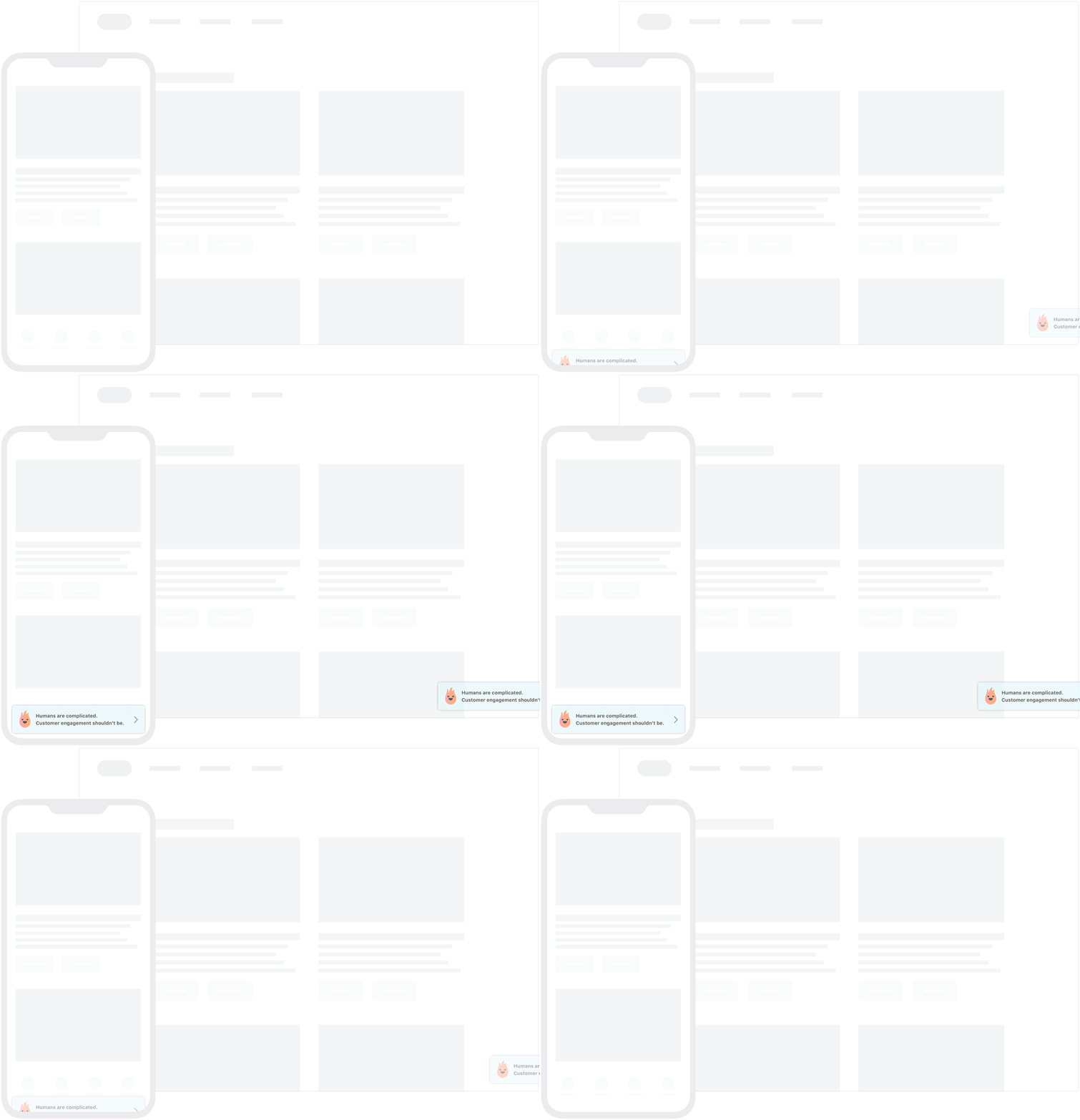
Modal in-app messages appear in the center of the screen and are framed by a translucent panel. Useful for more critical messaging, they can be equipped with up to two click action and analytics-enabled buttons.
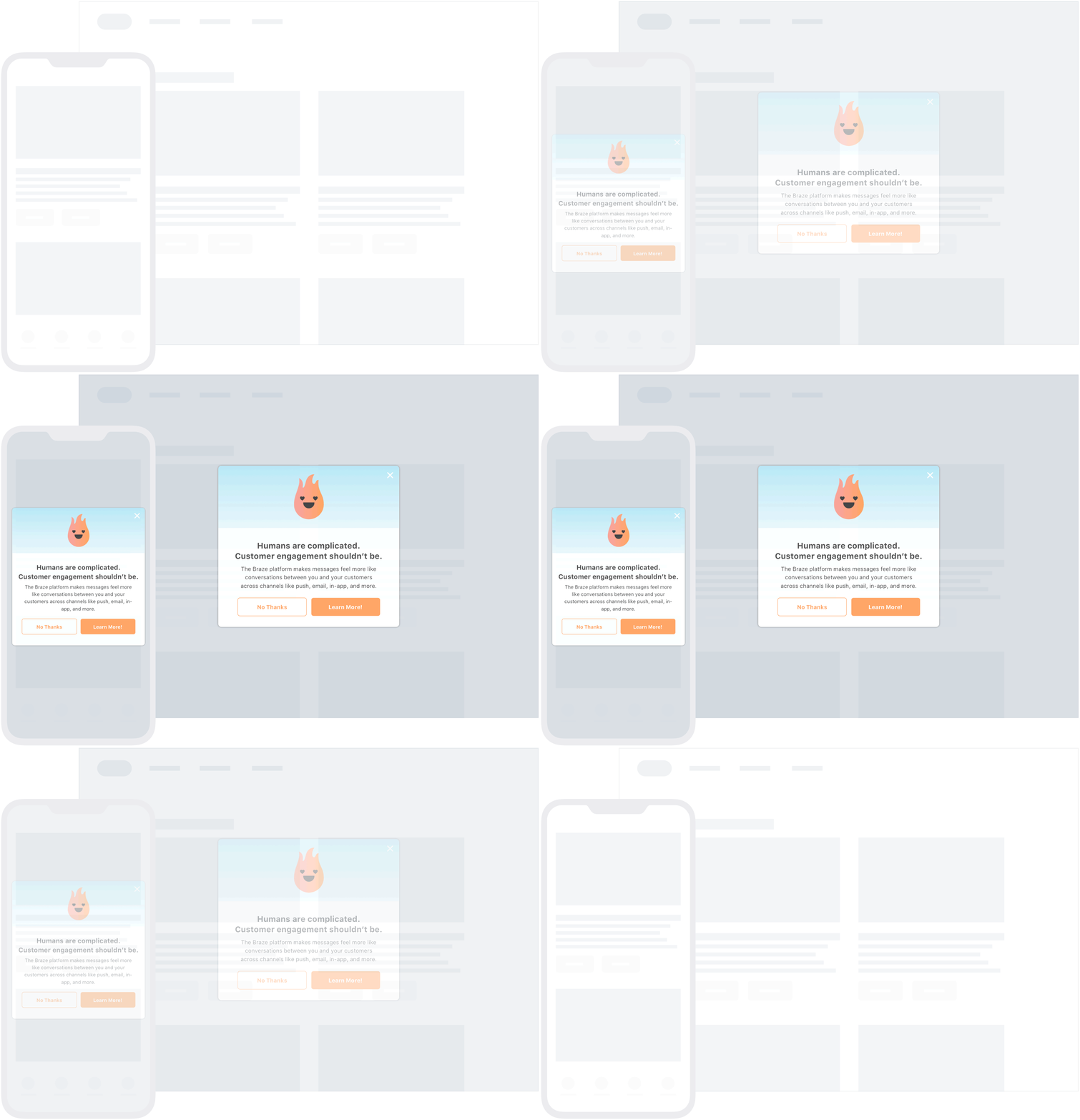
Full in-app messages are useful for maximizing the content and impact of your user communication. On narrow browser windows (for example, the mobile web), full in-app messages take up the entire browser window. On larger browser windows, full in-app messages appear similarly to modal in-app messages. The upper half of a full in-app message contains an image, and the lower half allows up to eight lines of text as well as up to two click action, and analytics-enabled buttons
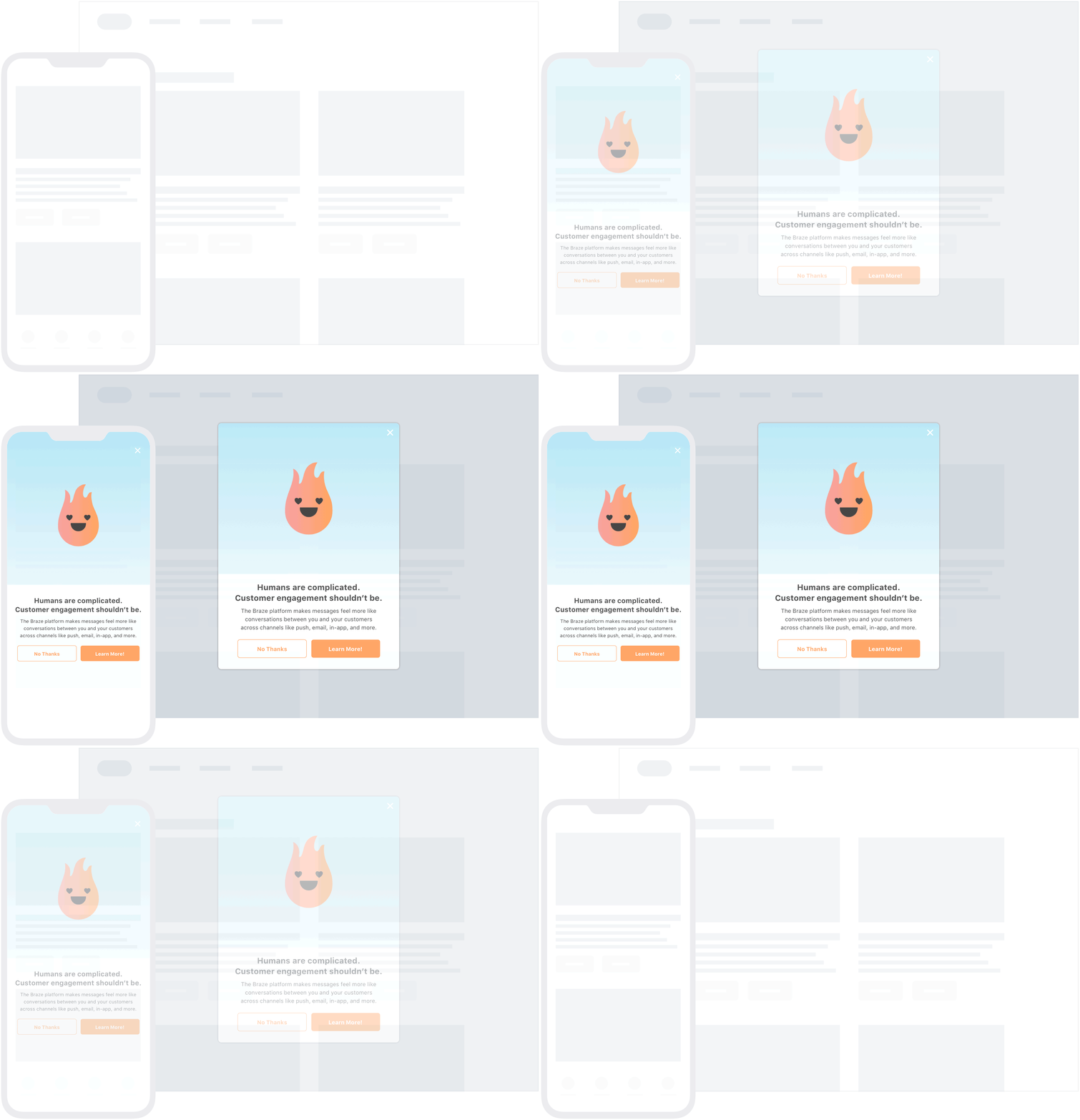
HTML in-app messages are useful for creating fully customized user content. User-defined HTML is displayed in an iFrame and may contain rich content, such as images, fonts, videos, and interactive elements, allowing for full control over message appearance and functionality. These support a JavaScript brazeBridge interface to call methods on the Braze Web SDK from within your HTML, see our best practices for more details.

To enable HTML in-app messages through the Web SDK, you must supply the allowUserSuppliedJavascript initialization option to Braze, for example, braze.initialize('YOUR-API_KEY', {allowUserSuppliedJavascript: true}). This is for security reasons. HTML in-app messages can execute JavaScript, so we require a site maintainer to enable them.
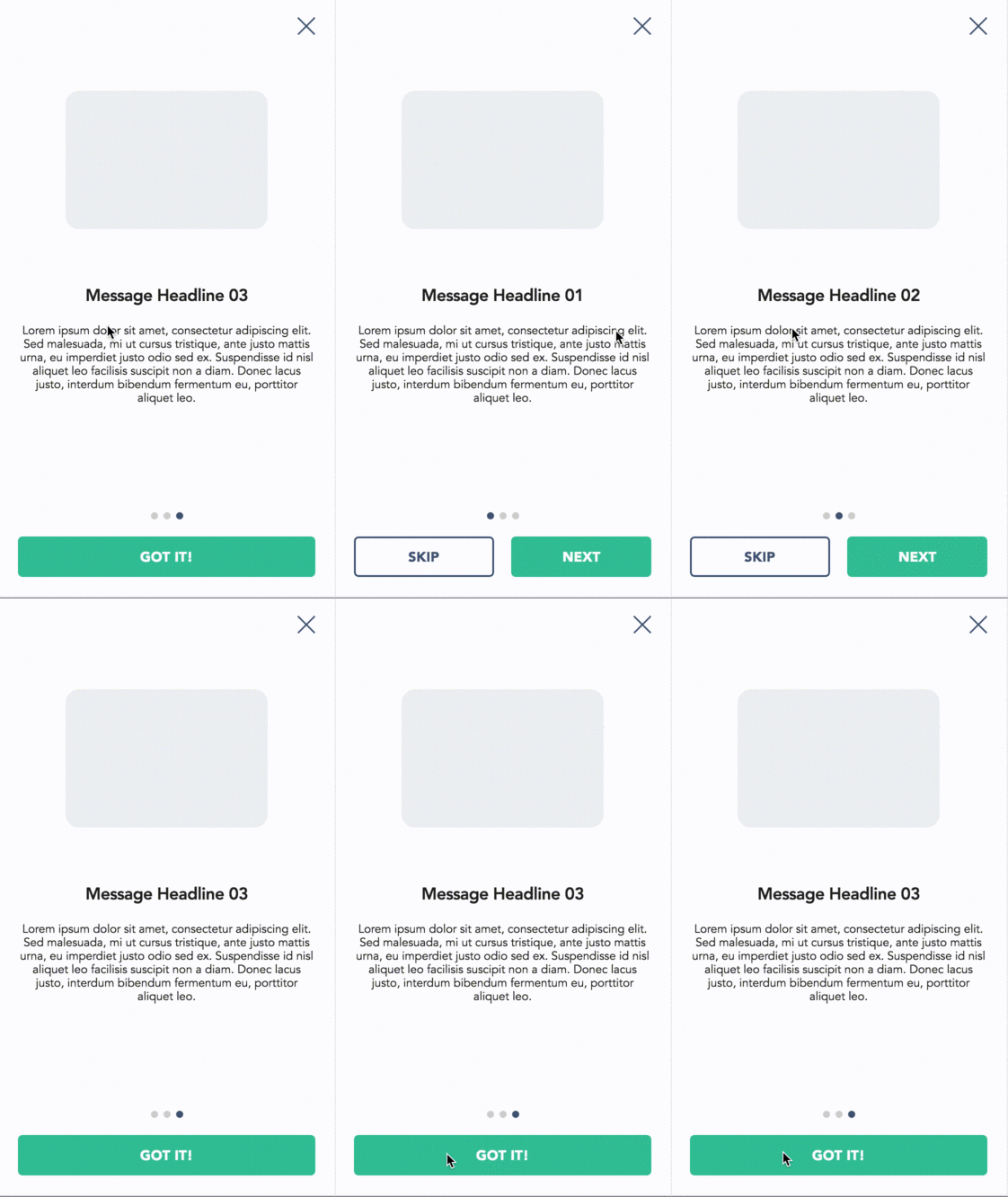
The following example shows a paginated HTML in-app message:
Prerequisites
Before you can use this feature, you’ll need to integrate the Android Braze SDK. You’ll also need to enable in-app messages.
Message types
Braze offers several default in-app message types, each customizable with messages, images, Font Awesome icons, click actions, analytics, color schemes, and more.
Their basic behavior and traits are defined by the IInAppMessage interface, in a subclass called InAppMessageBase. IInAppMessage also includes a subinterface, IInAppMessageImmersive, which lets you add close, click-action, and analytics buttons to your app.
Keep in mind, in-app messages containing buttons will include the clickAction message in the final payload if the click action is added prior to adding the button text.
slideup in-app messages are so-named because they “slide up” or “slide down” from the top or bottom of the screen. They cover a small portion of the screen and provide an effective and non-intrusive messaging capability.
The slideup in-app message object extends InAppMessageBase.
modal in-app messages appear in the center of the screen and are framed by a translucent panel. Useful for more critical messaging, they can be equipped with two click-action and analytics-enabled buttons.
This message type is a subclass of InAppMessageImmersiveBase, an abstract class that implements IInAppMessageImmersive, giving you the option to add custom functionality to your locally generated in-app messages.
full in-app messages are useful for maximizing the content and impact of your user communication. The upper half of a full in-app message contains an image, and the lower half displays text and up to two click action and analytics-enabled buttons.
This message type extends InAppMessageImmersiveBase, giving you the option to add custom functionality to your locally generated in-app messages.
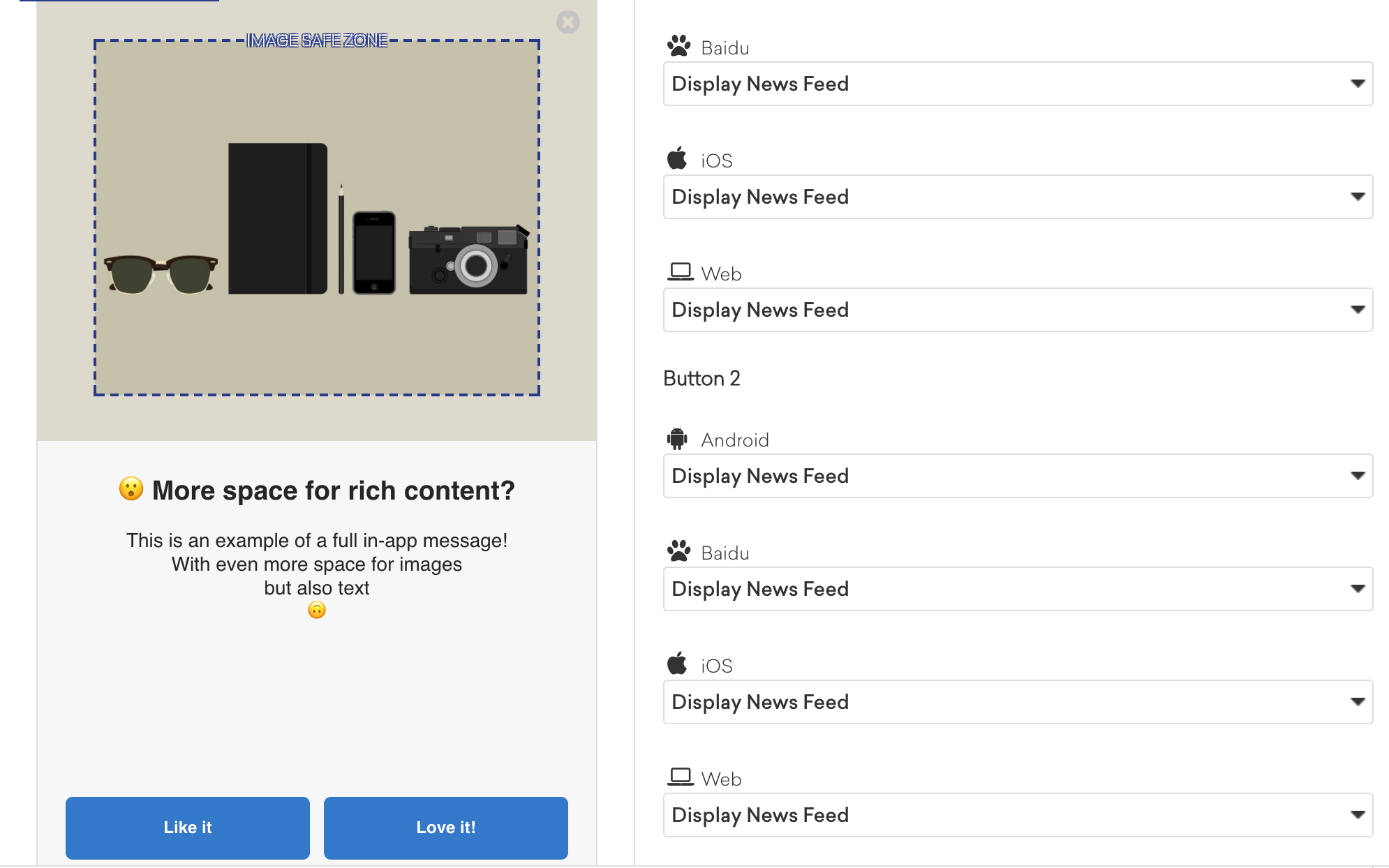
HTML in-app messages are useful for creating fully customized user content. User-defined HTML in-app message content is displayed in a WebView and may optionally contain other rich content, such as images and fonts, allowing for full control over message appearance and functionality.
This message type implements IInAppMessageHtml, which is a subclass of IInAppMessage.

On Android, links configured with target="_blank" in custom HTML in-app messages open in the device’s default web browser.
Android in-app messages support a JavaScript brazeBridge interface to call methods on the Braze Android SDK from within your HTML, see our JavaScript bridge page for more details.
We currently do not support the display of custom HTML in-app messages in an iFrame on the iOS and Android platforms.

You can also define custom in-app message views for your app. For a full walkthrough, see Setting custom factories.
Enabling in-app messages
Step 1: Register BrazeInAppMessageManager
In-app message display is managed by the BrazeInAppMessageManager class. Every activity in your app must be registered with the BrazeInAppMessageManager to allow it to add in-app message views to the view hierarchy. There are two ways to accomplish this:
The activity lifecycle callback integration handles in-app message registration automatically; no extra integration is required. This is the recommended method for handling in-app message registration.

If you’re using activity lifecycle callback for automatic registration, do not complete this step.
In your Application.onCreate(), call ensureSubscribedToInAppMessageEvents():
BrazeInAppMessageManager.getInstance().ensureSubscribedToInAppMessageEvents(context);
BrazeInAppMessageManager.getInstance().ensureSubscribedToInAppMessageEvents(context)
In every activity where in-app messages can be shown, call registerInAppMessageManager() in that activity’s onResume():
@Override
public void onResume() {
super.onResume();
// Registers the BrazeInAppMessageManager for the current Activity. This Activity will now listen for
// in-app messages from Braze.
BrazeInAppMessageManager.getInstance().registerInAppMessageManager(activity);
}
public override fun onResume() {
super.onResume()
// Registers the BrazeInAppMessageManager for the current Activity. This Activity will now listen for
// in-app messages from Braze.
BrazeInAppMessageManager.getInstance().registerInAppMessageManager(this)
}
In every activity where registerInAppMessageManager() was called, call unregisterInAppMessageManager() in that activity’s onPause():
@Override
public void onPause() {
super.onPause();
// Unregisters the BrazeInAppMessageManager for the current Activity.
BrazeInAppMessageManager.getInstance().unregisterInAppMessageManager(activity);
}
public override fun onPause() {
super.onPause()
// Unregisters the BrazeInAppMessageManager.
BrazeInAppMessageManager.getInstance().unregisterInAppMessageManager(this)
}
Step 2: Update the manager’s blocklist (optional)
In your integration, you may require that certain activities in your app should not show in-app messages. The activity lifecycle callback integration provides an easy way to accomplish this.
The following sample code adds two activities to the in-app message registration blocklist, SplashActivity and SettingsActivity:
public class MyApplication extends Application {
@Override
public void onCreate() {
super.onCreate();
Set<Class> inAppMessageBlocklist = new HashSet<>();
inAppMessageBlocklist.add(SplashActivity.class);
inAppMessageBlocklist.add(SettingsActivity.class);
registerActivityLifecycleCallbacks(new BrazeActivityLifecycleCallbackListener(inAppMessageBlocklist));
}
}
class MyApplication : Application() {
override fun onCreate() {
super.onCreate()
val inAppMessageBlocklist = HashSet<Class<*>>()
inAppMessageBlocklist.add(SplashActivity::class.java)
inAppMessageBlocklist.add(SettingsActivity::class.java)
registerActivityLifecycleCallbacks(BrazeActivityLifecycleCallbackListener(inAppMessageBlocklist))
}
}
Prerequisites
Before you can use this feature, you’ll need to integrate the Swift Braze SDK. You’ll also need to enable in-app messages.
Message types
Each in-app message type is highly customizable across content, images, icons, click actions, analytics, display, and delivery. They are enumerated types of Braze.InAppMessage, which defines basic behavior and traits for all in-app messages. For the full list of in-app message properties and usage, see the InAppMessage class.
These are the available in-app message types in Braze and how they will look like for end-users.
Slideup in-app messages are given this name because they “slide up” or “slide down” from the top or bottom of the screen. They cover a small portion of the screen and provide an effective and non-intrusive messaging capability.
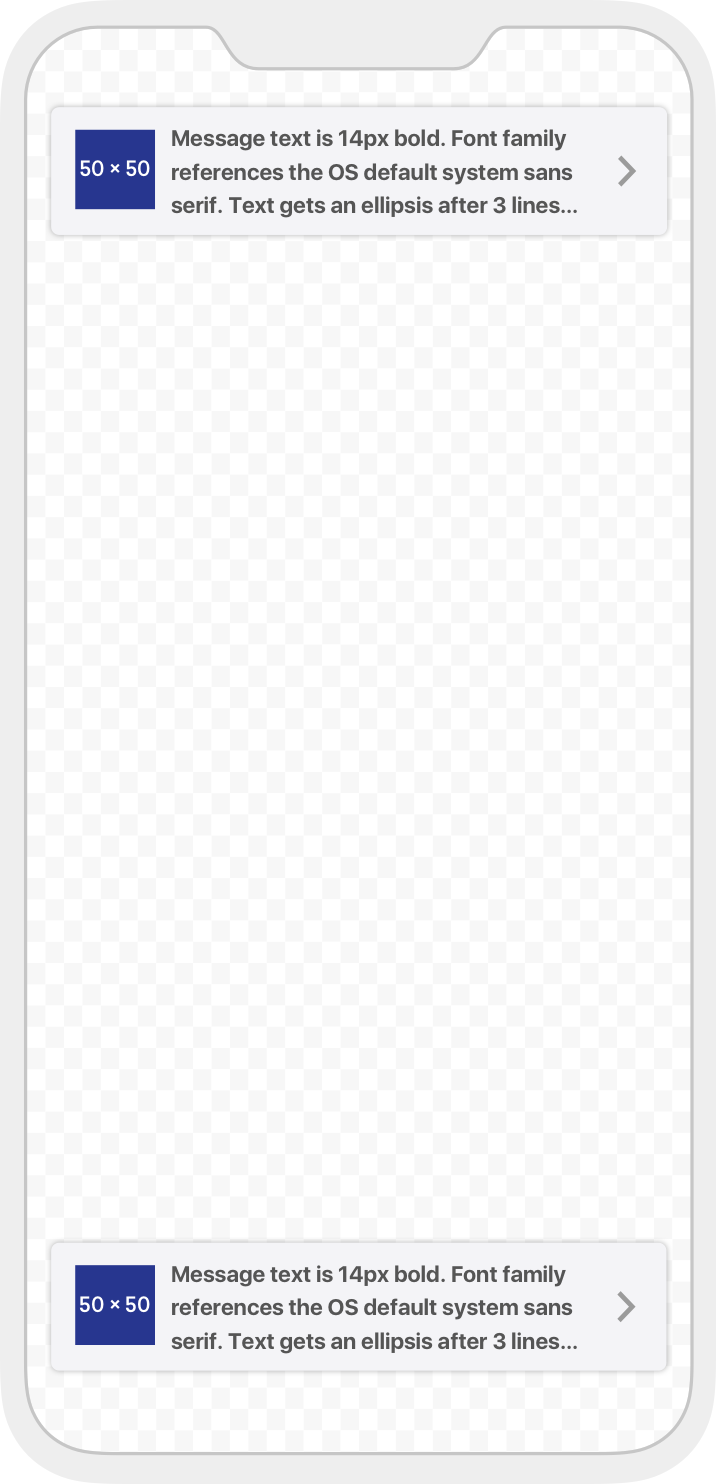
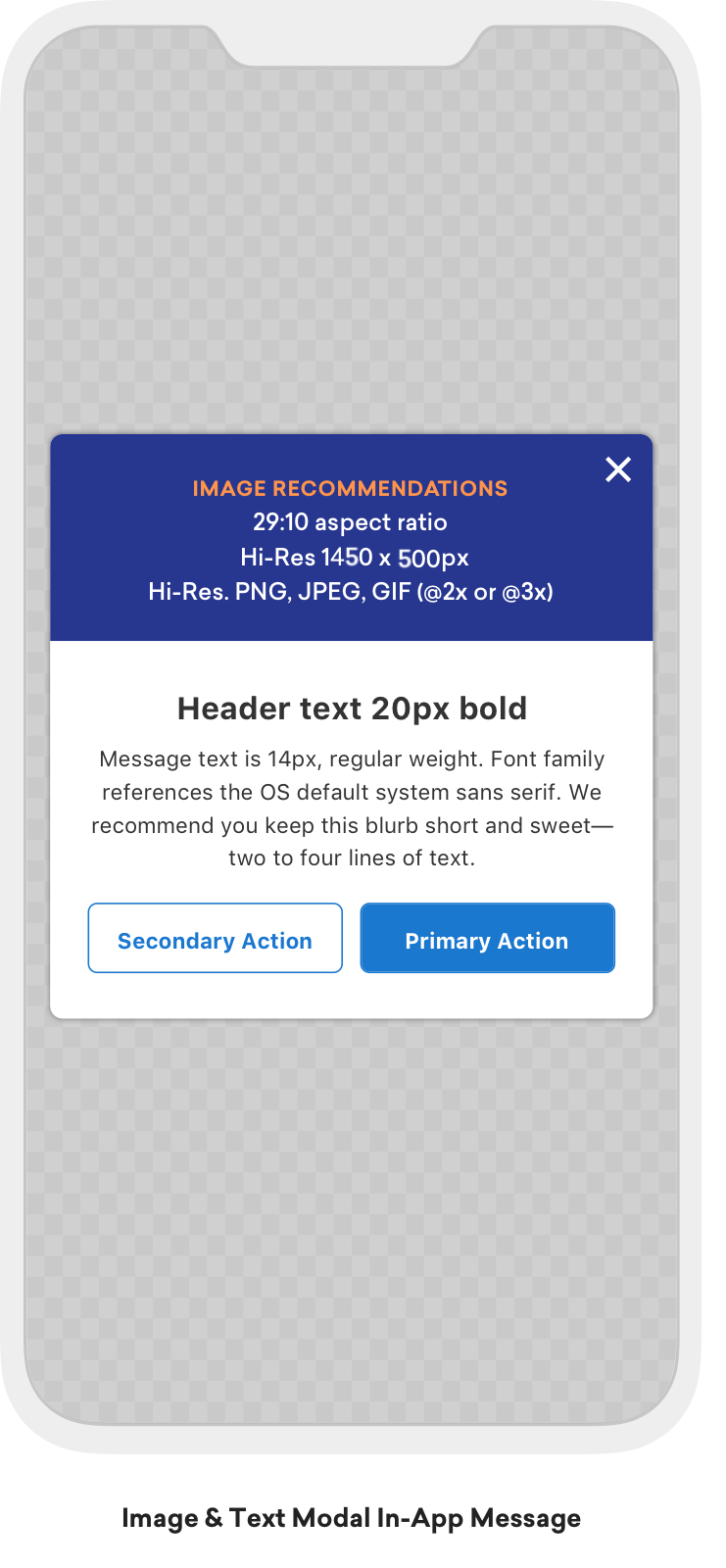
Modal in-app messages appear in the center of the screen and are framed by a translucent panel. Useful for more critical messaging, they can be equipped with up to two analytics-enabled buttons.
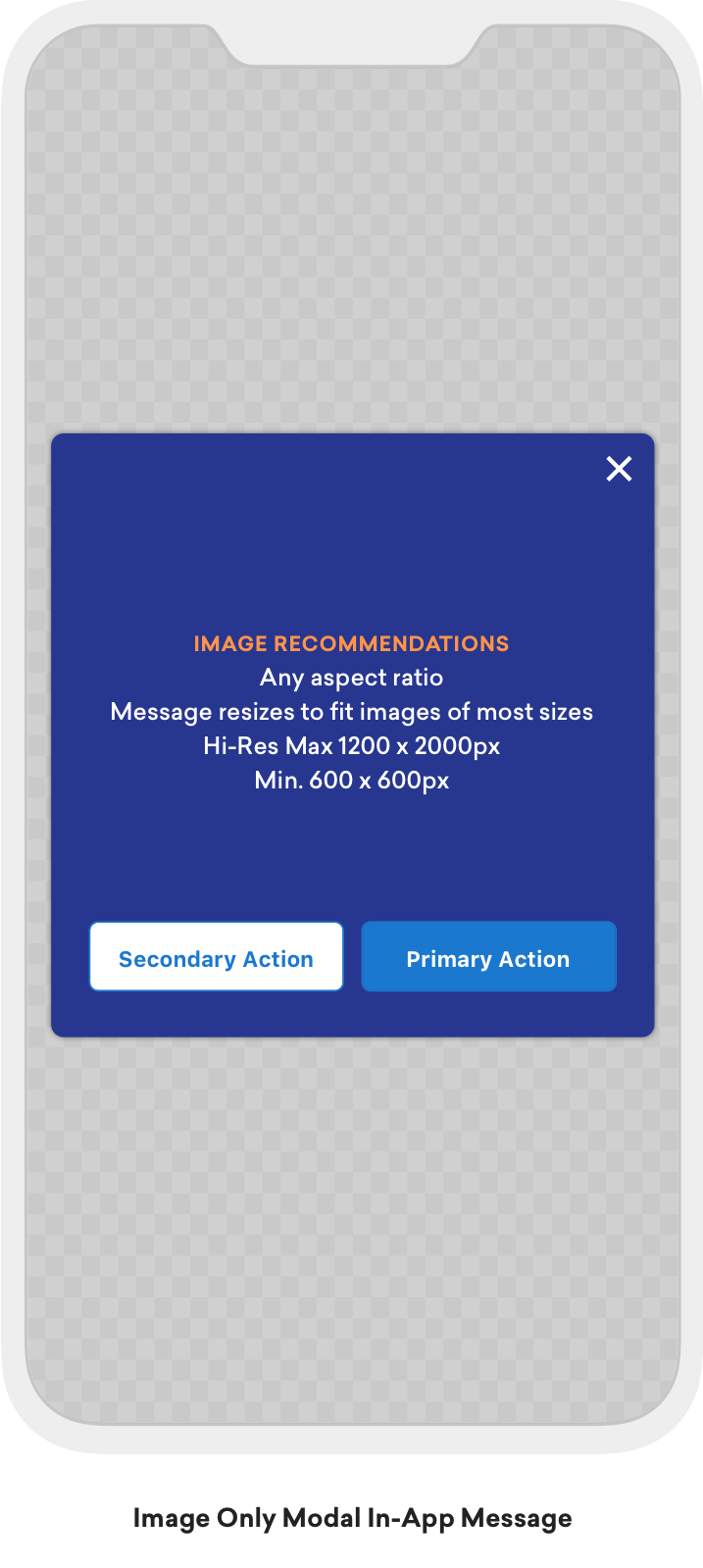
Modal Image in-app messages appear in the center of the screen and are framed by a translucent panel. These messages are similar to the Modal type except without header or message text. Useful for more critical messaging, they can be equipped with up to two analytics-enabled buttons.
Full in-app messages are useful for maximizing the content and impact of your user communication. The upper half of a Full in-app message contains an image, and the lower half displays text and up to two analytics-enabled buttons.
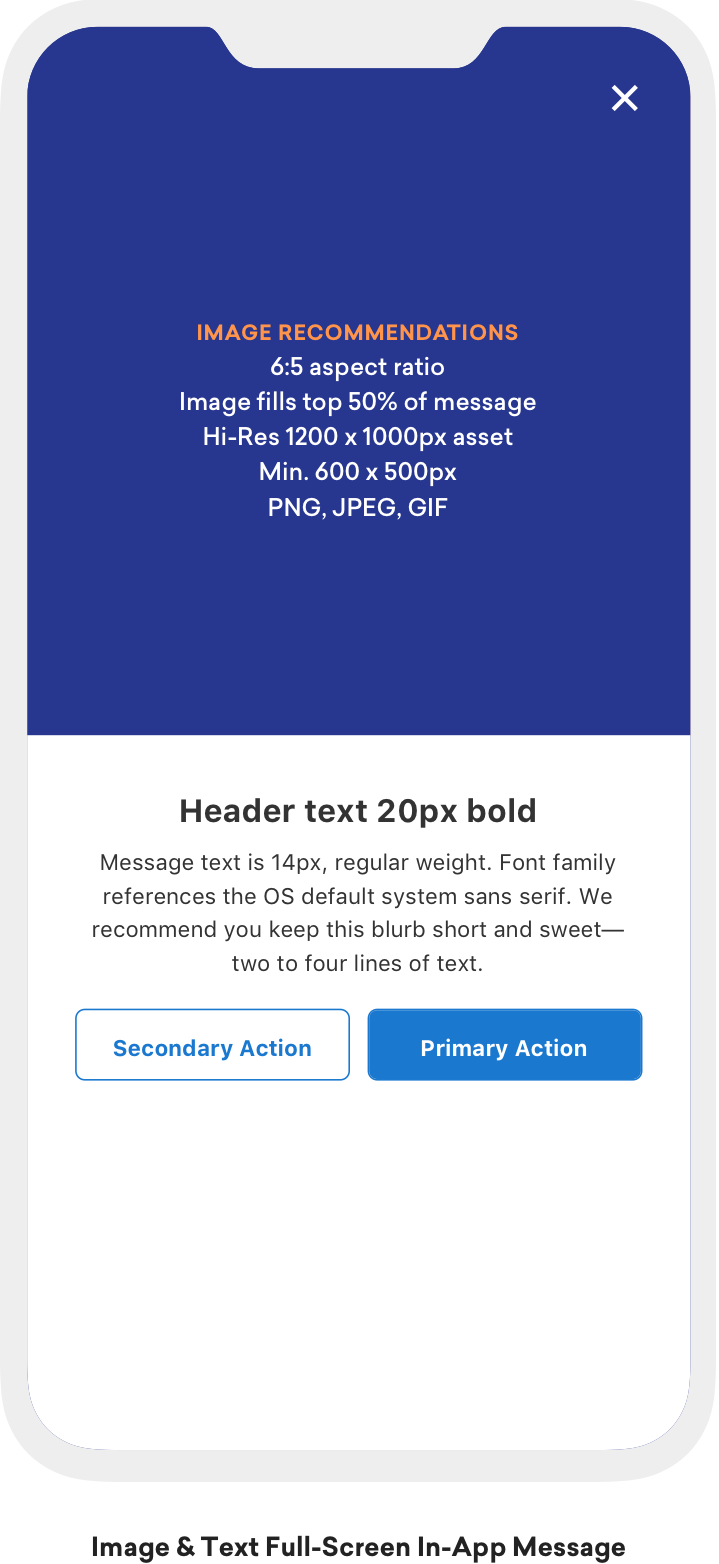
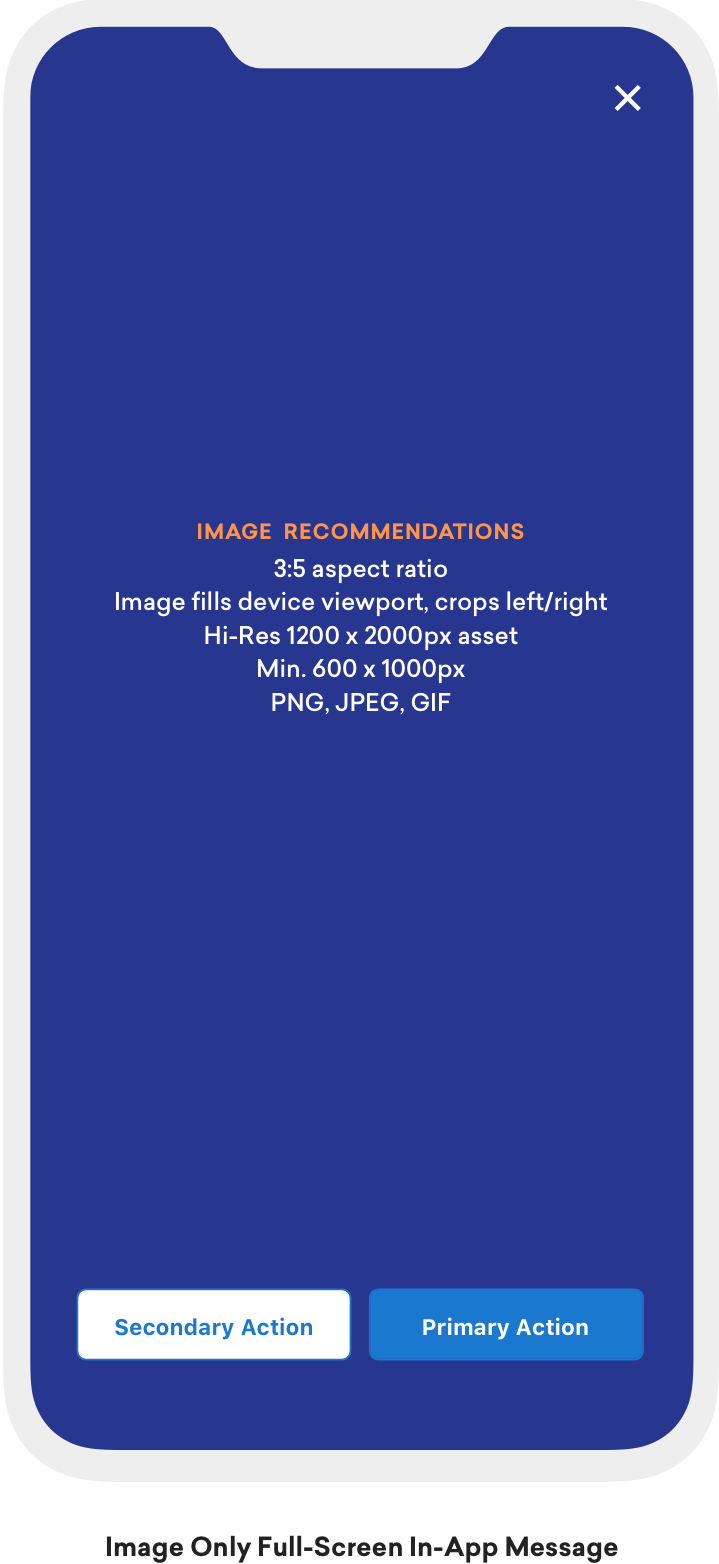
Full Image in-app messages are similar to Full in-app messages except without header or message text. This message type is useful for maximizing the content and impact of your user communication. A Full Image in-app message contains an image spanning the entire screen, with the option to display up to two analytics-enabled buttons.
HTML in-app messages are useful for creating fully customized user content. User-defined HTML Full in-app message content is displayed in a WKWebViewand may optionally contain other rich content, such as images and fonts, allowing for full control over message appearance and functionality.
iOS in-app messages support a JavaScript brazeBridge interface to call methods on the Braze Web SDK from within your HTML, see our best practices for more details.
The following example shows a paginated HTML Full in-app message:
Note that we currently do not support the display of custom HTML in-app messages in an iFrame on the iOS and Android platforms.
Control in-app messages do not contain a UI component and are used primarily for analytics purposes. This type is used to verify receipt of an in-app message sent to a control group.
For details about automatic variant optimization and control groups, see Optimize with BrazeAI™.
Enabling in-app messages
Step 1: Create an implementation of BrazeInAppMessagePresenter
To let Braze display in-app messages, create an implementation of the BrazeInAppMessagePresenter protocol and assign it to the optional inAppMessagePresenter on your Braze instance. You can also use the default Braze UI presenter by instantiating a BrazeInAppMessageUI object.
Note that you will need to import the BrazeUI library to access the BrazeInAppMessageUI class.
AppDelegate.braze?.inAppMessagePresenter = BrazeInAppMessageUI()
AppDelegate.braze.inAppMessagePresenter = [[BrazeInAppMessageUI alloc] init];
Step 2: Handle no matching triggers
Implement BrazeDelegate.(_:noMatchingTriggerForEvent) within the relevant BrazeDelegate class. When Braze fails to find a matching trigger for a particular event, it will call this method automatically.
Prerequisites
Before you can use this feature, you’ll need to integrate the Android Braze SDK.
About TV and OTT support
The Android Braze SDK natively supports displaying in-app messages on OTT devices like Android TV or Fire Stick. However, there’s some key differences between native Android and OTT in-app messages. For OTT devices:
- In-app messages that require touch mode, such as slideup, are disabled on OTT.
- The currently selected or focused item, such as a button or close button, will be highlighted.
- Body clicks on the in-app message itself, such as not on a button, are not supported.
Prerequisites
Before you can use this feature, you’ll need to integrate the Cordova Braze SDK.
Message types
Braze offers several default in-app message types, each customizable with messages, images, Font Awesome icons, click actions, analytics, color schemes, and more.
Their basic behavior and traits are defined by the IInAppMessage interface, in a subclass called InAppMessageBase. IInAppMessage also includes a subinterface, IInAppMessageImmersive, which lets you add close, click-action, and analytics buttons to your app.
Keep in mind, in-app messages containing buttons will include the clickAction message in the final payload if the click action is added prior to adding the button text.
slideup in-app messages are so-named because they “slide up” or “slide down” from the top or bottom of the screen. They cover a small portion of the screen and provide an effective and non-intrusive messaging capability.
The slideup in-app message object extends InAppMessageBase.
modal in-app messages appear in the center of the screen and are framed by a translucent panel. Useful for more critical messaging, they can be equipped with two click-action and analytics-enabled buttons.
This message type is a subclass of InAppMessageImmersiveBase, an abstract class that implements IInAppMessageImmersive, giving you the option to add custom functionality to your locally generated in-app messages.
full in-app messages are useful for maximizing the content and impact of your user communication. The upper half of a full in-app message contains an image, and the lower half displays text and up to two click action and analytics-enabled buttons.
This message type extends InAppMessageImmersiveBase, giving you the option to add custom functionality to your locally generated in-app messages.
HTML in-app messages are useful for creating fully customized user content. User-defined HTML in-app message content is displayed in a WebView and may optionally contain other rich content, such as images and fonts, allowing for full control over message appearance and functionality.
This message type implements IInAppMessageHtml, which is a subclass of IInAppMessage.
On Android, links configured with target="_blank" in custom HTML in-app messages open in the device’s default web browser.
Android in-app messages support a JavaScript brazeBridge interface to call methods on the Braze Android SDK from within your HTML, see our JavaScript bridge page for more details.
We currently do not support the display of custom HTML in-app messages in an iFrame on the iOS and Android platforms.
You can also define custom in-app message views for your app. For a full walkthrough, see Setting custom factories.
Each in-app message type is highly customizable across content, images, icons, click actions, analytics, display, and delivery. They are enumerated types of Braze.InAppMessage, which defines basic behavior and traits for all in-app messages. For the full list of in-app message properties and usage, see the InAppMessage class.
These are the available in-app message types in Braze and how they will look like for end-users.
Slideup in-app messages are given this name because they “slide up” or “slide down” from the top or bottom of the screen. They cover a small portion of the screen and provide an effective and non-intrusive messaging capability.
Modal in-app messages appear in the center of the screen and are framed by a translucent panel. Useful for more critical messaging, they can be equipped with up to two analytics-enabled buttons.
Modal Image in-app messages appear in the center of the screen and are framed by a translucent panel. These messages are similar to the Modal type except without header or message text. Useful for more critical messaging, they can be equipped with up to two analytics-enabled buttons.
Full in-app messages are useful for maximizing the content and impact of your user communication. The upper half of a Full in-app message contains an image, and the lower half displays text and up to two analytics-enabled buttons.
Full Image in-app messages are similar to Full in-app messages except without header or message text. This message type is useful for maximizing the content and impact of your user communication. A Full Image in-app message contains an image spanning the entire screen, with the option to display up to two analytics-enabled buttons.
HTML in-app messages are useful for creating fully customized user content. User-defined HTML Full in-app message content is displayed in a WKWebViewand may optionally contain other rich content, such as images and fonts, allowing for full control over message appearance and functionality.
iOS in-app messages support a JavaScript brazeBridge interface to call methods on the Braze Web SDK from within your HTML, see our best practices for more details.
The following example shows a paginated HTML Full in-app message:
Note that we currently do not support the display of custom HTML in-app messages in an iFrame on the iOS and Android platforms.
Control in-app messages do not contain a UI component and are used primarily for analytics purposes. This type is used to verify receipt of an in-app message sent to a control group.
For details about automatic variant optimization and control groups, see Optimize with BrazeAI™.
Prerequisites
Before you can use this feature, you’ll need to integrate the Flutter Braze SDK.
Message types
Braze offers several default in-app message types, each customizable with messages, images, Font Awesome icons, click actions, analytics, color schemes, and more.
Their basic behavior and traits are defined by the IInAppMessage interface, in a subclass called InAppMessageBase. IInAppMessage also includes a subinterface, IInAppMessageImmersive, which lets you add close, click-action, and analytics buttons to your app.
Keep in mind, in-app messages containing buttons will include the clickAction message in the final payload if the click action is added prior to adding the button text.
slideup in-app messages are so-named because they “slide up” or “slide down” from the top or bottom of the screen. They cover a small portion of the screen and provide an effective and non-intrusive messaging capability.
The slideup in-app message object extends InAppMessageBase.
modal in-app messages appear in the center of the screen and are framed by a translucent panel. Useful for more critical messaging, they can be equipped with two click-action and analytics-enabled buttons.
This message type is a subclass of InAppMessageImmersiveBase, an abstract class that implements IInAppMessageImmersive, giving you the option to add custom functionality to your locally generated in-app messages.
full in-app messages are useful for maximizing the content and impact of your user communication. The upper half of a full in-app message contains an image, and the lower half displays text and up to two click action and analytics-enabled buttons.
This message type extends InAppMessageImmersiveBase, giving you the option to add custom functionality to your locally generated in-app messages.
HTML in-app messages are useful for creating fully customized user content. User-defined HTML in-app message content is displayed in a WebView and may optionally contain other rich content, such as images and fonts, allowing for full control over message appearance and functionality.
This message type implements IInAppMessageHtml, which is a subclass of IInAppMessage.
On Android, links configured with target="_blank" in custom HTML in-app messages open in the device’s default web browser.
Android in-app messages support a JavaScript brazeBridge interface to call methods on the Braze Android SDK from within your HTML, see our JavaScript bridge page for more details.
We currently do not support the display of custom HTML in-app messages in an iFrame on the iOS and Android platforms.
You can also define custom in-app message views for your app. For a full walkthrough, see Setting custom factories.
Each in-app message type is highly customizable across content, images, icons, click actions, analytics, display, and delivery. They are enumerated types of Braze.InAppMessage, which defines basic behavior and traits for all in-app messages. For the full list of in-app message properties and usage, see the InAppMessage class.
These are the available in-app message types in Braze and how they will look like for end-users.
Slideup in-app messages are given this name because they “slide up” or “slide down” from the top or bottom of the screen. They cover a small portion of the screen and provide an effective and non-intrusive messaging capability.
Modal in-app messages appear in the center of the screen and are framed by a translucent panel. Useful for more critical messaging, they can be equipped with up to two analytics-enabled buttons.
Modal Image in-app messages appear in the center of the screen and are framed by a translucent panel. These messages are similar to the Modal type except without header or message text. Useful for more critical messaging, they can be equipped with up to two analytics-enabled buttons.
Full in-app messages are useful for maximizing the content and impact of your user communication. The upper half of a Full in-app message contains an image, and the lower half displays text and up to two analytics-enabled buttons.
Full Image in-app messages are similar to Full in-app messages except without header or message text. This message type is useful for maximizing the content and impact of your user communication. A Full Image in-app message contains an image spanning the entire screen, with the option to display up to two analytics-enabled buttons.
HTML in-app messages are useful for creating fully customized user content. User-defined HTML Full in-app message content is displayed in a WKWebViewand may optionally contain other rich content, such as images and fonts, allowing for full control over message appearance and functionality.
iOS in-app messages support a JavaScript brazeBridge interface to call methods on the Braze Web SDK from within your HTML, see our best practices for more details.
The following example shows a paginated HTML Full in-app message:
Note that we currently do not support the display of custom HTML in-app messages in an iFrame on the iOS and Android platforms.
Control in-app messages do not contain a UI component and are used primarily for analytics purposes. This type is used to verify receipt of an in-app message sent to a control group.
For details about automatic variant optimization and control groups, see Optimize with BrazeAI™.
Enabling in-app messages
The Braze Flutter SDK automatically sets up the default in-app message presenter on both Android and iOS. In-app messages are displayed and forwarded to the Dart layer without additional setup.
Customizing the in-app message presenter on iOS
To override the default in-app message presenter on iOS, use the postInitialization closure in BrazePlugin.configure(_:postInitialization:). Your custom presenter must call BrazePlugin.processInAppMessage(message) to forward in-app message data to the Dart layer.
import BrazeUI
BrazePlugin.configure(
{ configuration in
// Set non-API-key configurations here.
},
postInitialization: { braze in
let customPresenter = CustomInAppMessagePresenter()
braze.inAppMessagePresenter = customPresenter
}
)
In the custom presenter class, call BrazePlugin.processInAppMessage(message) and super.present(message: message) to forward data to Dart and display the default UI.
class CustomInAppMessagePresenter: BrazeInAppMessageUI {
override func present(message: Braze.InAppMessage) {
BrazePlugin.processInAppMessage(message)
super.present(message: message)
}
}
This step is for iOS only. The default implementation for in-app messages is already set up on Android.
To set up the default presenter for in-app messages on iOS, create an implementation of the BrazeInAppMessagePresenter protocol and assign it to the optional inAppMessagePresenter on your Braze instance. You can also use the default Braze UI presenter by instantiating a BrazeInAppMessageUI object.
You must import the BrazeUI library to access the BrazeInAppMessageUI class.
import BrazeUI
override func application(
_ application: UIApplication,
didFinishLaunchingWithOptions launchOptions: [UIApplication.LaunchOptionsKey : Any]? = nil
) -> Bool {
...
let braze = BrazePlugin.initBraze(configuration)
braze.inAppMessagePresenter = BrazeInAppMessageUI()
AppDelegate.braze = braze
return true
}
@import BrazeUI;
- (BOOL)application:(UIApplication *)application
didFinishLaunchingWithOptions:(NSDictionary *)launchOptions {
...
Braze *braze = [BrazePlugin initBraze:configuration];
braze.inAppMessagePresenter = [[BrazeInAppMessageUI alloc] init];
AppDelegate.braze = braze;
[self.window makeKeyAndVisible];
return YES;
}
For more information about accessing in-app message data, refer to Logging in-app message data.
Prerequisites
Before you can use this feature, you’ll need to integrate the React Native Braze SDK.
Message types
Braze offers several default in-app message types, each customizable with messages, images, Font Awesome icons, click actions, analytics, color schemes, and more.
Their basic behavior and traits are defined by the IInAppMessage interface, in a subclass called InAppMessageBase. IInAppMessage also includes a subinterface, IInAppMessageImmersive, which lets you add close, click-action, and analytics buttons to your app.
Keep in mind, in-app messages containing buttons will include the clickAction message in the final payload if the click action is added prior to adding the button text.
slideup in-app messages are so-named because they “slide up” or “slide down” from the top or bottom of the screen. They cover a small portion of the screen and provide an effective and non-intrusive messaging capability.
The slideup in-app message object extends InAppMessageBase.
modal in-app messages appear in the center of the screen and are framed by a translucent panel. Useful for more critical messaging, they can be equipped with two click-action and analytics-enabled buttons.
This message type is a subclass of InAppMessageImmersiveBase, an abstract class that implements IInAppMessageImmersive, giving you the option to add custom functionality to your locally generated in-app messages.
full in-app messages are useful for maximizing the content and impact of your user communication. The upper half of a full in-app message contains an image, and the lower half displays text and up to two click action and analytics-enabled buttons.
This message type extends InAppMessageImmersiveBase, giving you the option to add custom functionality to your locally generated in-app messages.
HTML in-app messages are useful for creating fully customized user content. User-defined HTML in-app message content is displayed in a WebView and may optionally contain other rich content, such as images and fonts, allowing for full control over message appearance and functionality.
This message type implements IInAppMessageHtml, which is a subclass of IInAppMessage.
On Android, links configured with target="_blank" in custom HTML in-app messages open in the device’s default web browser.
Android in-app messages support a JavaScript brazeBridge interface to call methods on the Braze Android SDK from within your HTML, see our JavaScript bridge page for more details.
We currently do not support the display of custom HTML in-app messages in an iFrame on the iOS and Android platforms.
You can also define custom in-app message views for your app. For a full walkthrough, see Setting custom factories.
Each in-app message type is highly customizable across content, images, icons, click actions, analytics, display, and delivery. They are enumerated types of Braze.InAppMessage, which defines basic behavior and traits for all in-app messages. For the full list of in-app message properties and usage, see the InAppMessage class.
These are the available in-app message types in Braze and how they will look like for end-users.
Slideup in-app messages are given this name because they “slide up” or “slide down” from the top or bottom of the screen. They cover a small portion of the screen and provide an effective and non-intrusive messaging capability.
Modal in-app messages appear in the center of the screen and are framed by a translucent panel. Useful for more critical messaging, they can be equipped with up to two analytics-enabled buttons.
Modal Image in-app messages appear in the center of the screen and are framed by a translucent panel. These messages are similar to the Modal type except without header or message text. Useful for more critical messaging, they can be equipped with up to two analytics-enabled buttons.
Full in-app messages are useful for maximizing the content and impact of your user communication. The upper half of a Full in-app message contains an image, and the lower half displays text and up to two analytics-enabled buttons.
Full Image in-app messages are similar to Full in-app messages except without header or message text. This message type is useful for maximizing the content and impact of your user communication. A Full Image in-app message contains an image spanning the entire screen, with the option to display up to two analytics-enabled buttons.
HTML in-app messages are useful for creating fully customized user content. User-defined HTML Full in-app message content is displayed in a WKWebViewand may optionally contain other rich content, such as images and fonts, allowing for full control over message appearance and functionality.
iOS in-app messages support a JavaScript brazeBridge interface to call methods on the Braze Web SDK from within your HTML, see our best practices for more details.
The following example shows a paginated HTML Full in-app message:
Note that we currently do not support the display of custom HTML in-app messages in an iFrame on the iOS and Android platforms.
Control in-app messages do not contain a UI component and are used primarily for analytics purposes. This type is used to verify receipt of an in-app message sent to a control group.
For details about automatic variant optimization and control groups, see Optimize with BrazeAI™.
Data model
The in-app message model is available in the React Native SDK. Braze has four in-app message types that share the same data model: slideup, modal, full and HTML full.
Messages
The in-app message model provides the base for all in-app messages.
| Property | Description |
|---|---|
inAppMessageJsonString |
The message JSON representation. |
message |
The message text. |
header |
The message header. |
uri |
The URI associated with the button click action. |
imageUrl |
The message image URL. |
zippedAssetsUrl |
The zipped assets prepared to display HTML content. |
useWebView |
Indicates whether the button click action should redirect using a web view. |
duration |
The message display duration. |
clickAction |
The button click action type. The types are: URI, and NONE. |
dismissType |
The message close type. The two types are: SWIPE and AUTO_DISMISS. |
messageType |
The in-app message type supported by the SDK. The four types are: SLIDEUP, MODAL, FULL and HTML_FULL. |
extras |
The message extras dictionary. Default value: [:]. |
buttons |
The list of buttons on the in-app message. |
toString() |
The message as a String representation. |
For a full reference of the in-app message model, see the Android and iOS documentation.
Buttons
Buttons can be added to in-app messages to perform actions and log analytics. The button model provides the base for all in-app message buttons.
| Property | Description |
|---|---|
text |
The text on the button. |
uri |
The URI associated with the button click action. |
useWebView |
Indicates whether the button click action should redirect using a web view. |
clickAction |
The type of click action processed when the user clicks on the button. The types are: URI, and NONE. |
id |
The button ID on the message. |
toString() |
The button as a String representation. |
For a full reference of button model, see the Android and iOS documentation.
Prerequisites
Before you can use this feature, you’ll need to integrate the Roku Braze SDK. Additionally, in-app messages will only be sent to Roku devices running the minimum supported SDK version:
Message types
The Roku SDK supports only modal in-app messages.
Choosing a display method
Roku SDK 2.3.0 and later can display in-app messages for you. You can also keep rendering them with your own UI.
| Method | Description |
|---|---|
| Default UI | The SDK displays modal in-app messages and logs impressions and clicks. This is off by default. |
| Custom UI | Your app observes BrazeTask.BrazeInAppMessage, renders the message, and logs impressions and clicks. This is how in-app messages work on earlier SDK versions. |
| Default UI with custom overrides | The SDK displays modal in-app messages, and your Scene renders specific messages with its own UI. |
If you’re upgrading and already use a custom UI, refer to Upgrading to Roku SDK 2.3.0. Your custom UI keeps working as long as you don’t turn on the default UI.
Using the default UI
The default UI requires Roku SDK 2.3.0 or later.
Step 1: Add the default UI files
Add the following files from the sdk_files/components directory of the Braze Roku SDK repository to the components directory of your app:
BrazeDefaultInAppMessage.brsBrazeDefaultInAppMessage.xmlBrazeDefaultInAppMessageStyles.brs
If these files are missing, the SDK logs BrazeDefaultInAppMessage component not found and doesn’t display the message.
Step 2: Turn on the default UI
In main.brs, set automatic_iam_display to true in your Braze configuration:
config[config_fields.AUTOMATIC_IAM_DISPLAY] = true
globalNode.addFields({brazeConfig: config})
Step 3: Initialize Braze from your Scene
Call getBrazeInstance() from your Scene component, for example in init():
sub init()
m.BrazeTask = CreateObject("roSGNode", "BrazeTask")
m.Braze = getBrazeInstance(m.BrazeTask)
end sub
If you call getBrazeInstance() from any other component, the SDK can’t attach the overlay to the Scene, and the message is lost.
You don’t need to observe BrazeTask.BrazeInAppMessage or create any UI for the default messages.
How the default UI works
Supported messages
The default UI displays only MODAL in-app messages. The SDK drops other types and logs an error.
The default UI uses the following fields. It ignores any others.
| Field | How the default UI uses it |
|---|---|
image_url |
Image at the top of the message. |
header |
Header text. |
message |
Body text. |
text_align |
Alignment of the header and body: "START", "CENTER", or "END". |
bg_color |
Message background color. |
frame_color |
Color of the full-screen overlay behind the message. |
header_text_color |
Header text color. |
message_text_color |
Body text color. |
close_button_color |
Color of the × close button. |
buttons |
Up to two buttons. Each button uses its text, bg_color, and text_color. |
Display and dismissal
For each modal message, the SDK does the following:
- Waits
display_delayseconds, if set. - Adds a full-screen
BrazeDefaultInAppMessageoverlay to your Scene and gives it focus. - Logs the impression.
- Clears
BrazeTask.BrazeInAppMessage. - When the message closes, removes the overlay and restores focus.
If dismiss_type is AUTO_DISMISS, the message closes after duration milliseconds and no click is logged. Otherwise, the message stays until the user closes it.
The SDK shows one message at a time and doesn’t queue messages:
- A newer message cancels a message that’s still waiting out its
display_delay. - A newer message replaces the message on screen when it’s displayed, after its own
display_delay. - Dropped messages (not
MODAL, or without amessagevalue) don’t cancel or replace anything.
Remote control
| Key | Result |
|---|---|
| Left and Right | Switch between buttons (up to two). |
| Up and Down | Move to and from the × close button. |
| OK on a button | Logs a button click, closes the message, and calls brazeHandleInAppMessageClick. |
| OK with no buttons | Logs a body click, closes the message, and calls brazeHandleInAppMessageClick. |
| OK on the × close button | Closes the message. No click is logged and brazeHandleInAppMessageClick isn’t called. |
| Back | Closes the message. No click is logged and brazeHandleInAppMessageClick isn’t called. |
| Any other key | Ignored. The overlay captures all key events. |
Focus
If your app calls setFocus while the overlay is displayed, such as when content loads, screens change, or video plays, the overlay takes focus back. When the message closes, focus returns to the last node your app focused.
If your app opens a Scene dialog while the overlay is displayed, the dialog keeps focus until it closes.
Handling clicks and deep links
The SDK never opens URIs. To handle a message’s click_action and uri, implement brazeHandleInAppMessageClick(event) on your Scene and declare it in the Scene’s <interface>. If it isn’t declared, the SDK doesn’t call it.
<component name="MainScene" extends="Scene">
<interface>
<function name="brazeHandleInAppMessageClick" />
</interface>
...
</component>
The event parameter has the following structure:
{
in_app_message: <message AA>,
button: <button AA, or invalid for a body click>,
button_index: <0 or 1, or -1 for a body click>
}
Keep the following in mind:
- The SDK calls this function after it removes the overlay and restores focus, so you can open a new screen from it.
- Buttons with a
click_actionof"NONE"also call this function. Checkclick_actionbefore you act. - The SDK ignores the return value.
- The SDK doesn’t call this function when the user closes the message with the × close button, Back, or
AUTO_DISMISS. - The SDK doesn’t call this function for messages you render with
brazeHandleCustomInAppMessage.
Example: Route a deep link
- In the Braze dashboard, set the on-click behavior of the message or button to a deep link with a URI your app understands, such as
myapp://details/123. The SDK delivers it asclick_action = "URI", with the URI inuri. - In
brazeHandleInAppMessageClick, parse the URI and route to the matching screen:
function brazeHandleInAppMessageClick(event as object) as boolean
target = event.button
if target = invalid then target = event.in_app_message
if target.click_action <> "URI" then return false
if target.uri = invalid then return false
uri = target.uri.ToStr()
prefix = "myapp://details/"
if Left(uri, Len(prefix)) = prefix
' ShowDetailsScreen is a function in your app.
ShowDetailsScreen(Mid(uri, Len(prefix) + 1))
return true
end if
return false
end function
The uri value can arrive as a number, for example if the dashboard value is numeric. Convert it with ToStr() before you parse it.
Rendering specific messages with a custom UI
To render some messages with your own UI and use the default UI for the rest, implement brazeHandleCustomInAppMessage(in_app_message) on your Scene and declare it in the Scene’s <interface>.
The SDK calls this function for each MODAL message after display_delay. Return true if you rendered the message. Return false to display it with the default UI.
<interface>
<function name="brazeHandleCustomInAppMessage" />
<function name="brazeHandleInAppMessageClick" />
</interface>
function brazeHandleCustomInAppMessage(in_app_message as object) as boolean
if in_app_message.extras <> invalid and in_app_message.extras.msgtype = "sidebyside"
' getDeepestFocusedNode is a helper in the sample app's MainScene.brs.
m.oldFocus = getDeepestFocusedNode(m.top.focusedChild)
m.customMsg = CreateObject("roSGNode", "CustomSideBySideInAppMessage")
m.top.appendChild(m.customMsg)
m.customMsg.BrazeTask = m.BrazeTask
m.customMsg.inappmessage = in_app_message
m.customMsg.setFocus(true)
m.customMsg.ObserveField("isClosed", "reclaimFocus")
return true
end if
return false
end function
sub reclaimFocus()
m.top.removeChild(m.customMsg)
m.customMsg = invalid
if m.oldFocus <> invalid then m.oldFocus.setFocus(true)
end sub
For a complete custom component, refer to CustomSideBySideInAppMessage in the torchietv sample app in the Braze Roku SDK repository.
Keep the following in mind:
- The SDK calls this function only when
automatic_iam_displayistrueand the default UI files are in your app. - Only
MODALmessages reach this function. - Your custom UI is responsible for logging impressions, clicks, and button clicks, removing its own node, and restoring focus.
- The SDK clears
BrazeTask.BrazeInAppMessageand appliesdisplay_delayitself, so don’t handle either yourself. - When a newer message arrives, the SDK removes the default overlay before it calls this function. It can’t remove a custom layout you rendered earlier, so remove it in your Scene.
Using a custom UI for all messages
If you leave automatic_iam_display unset, your app handles every in-app message. Your observer, UI, and logging work as they did before Roku SDK 2.3.0, for every message type.
Step 1: Add an observer
To process in-app messages, you can add an observer on BrazeTask.BrazeInAppMessage:
m.BrazeTask.observeField("BrazeInAppMessage", "onInAppMessageReceived")
Step 2: Access triggered messages
Then within your handler, you have access to the highest in-app message that your campaigns have triggered:
sub onInAppMessageReceived()
in_app_message = m.BrazeTask.BrazeInAppMessage
...
end sub
Upgrading to Roku SDK 2.3.0
Roku SDK 2.3.0 adds the default UI. It’s off by default, so upgrading doesn’t change how your in-app messages display. Choose one of the following paths.
Keep your custom UI
- Replace your existing SDK files with the files from the
sdk_filesdirectory of the 2.3.0 release. - Leave
automatic_iam_displayunset.
Your observer, UI, and logging work as before, for every message type. The SDK uses the BrazeDefaultInAppMessage files only when automatic_iam_display is true, so it’s safe to copy them with the rest of sdk_files.
Switch to the default UI
- Replace your existing SDK files with the files from the
sdk_filesdirectory of the 2.3.0 release, and add theBrazeDefaultInAppMessage.brs,BrazeDefaultInAppMessage.xml, andBrazeDefaultInAppMessageStyles.brsfiles tocomponents. Your old sampleBrazeInAppMessagecomponent isn’t changed. You can delete it after you switch. - Turn on the default UI.
- Check that
getBrazeInstance()is called from your Scene. - Remove your existing in-app message handling:
- The observer:
m.BrazeTask.observeField("BrazeInAppMessage", "onInAppMessageReceived")and its handler - Creating and appending your in-app message node
- Calls to
LogInAppMessageImpression,LogInAppMessageClick, andLogInAppMessageButtonClick m.BrazeTask.BrazeInAppMessage = invalid
- The observer:
- Move your click and deep link handling to
brazeHandleInAppMessageClick.
The SDK adds its own observer and doesn’t replace yours. If you keep your observer and logging when you turn on the default UI, messages can display twice, and impressions and clicks are logged twice.
Keep some of your custom layouts
Follow the steps in Switch to the default UI. Then move the rendering code from your old handler into brazeHandleCustomInAppMessage.
Compared to your old handler:
- Keep your impression and click logging.
- Keep removing your own node and restoring focus.
- Remove
m.BrazeTask.BrazeInAppMessage = invalid. The SDK clears it. - Remove your own
display_delayhandling. The SDK applies it. - Only
MODALmessages reach the function. If you render other message types, keep using a custom UI for all messages.
Message fields
These fields are available on in_app_message when you render messages with a custom UI. The default UI applies them for you.
Handling
The following lists the fields you will need to handle your in-app messages:
| Fields | Description |
|---|---|
buttons |
List of buttons (could be an empty list). |
click_action |
"URI" or "NONE". Use this field to indicate whether the in-app message should open to a URI link or close the message when clicked. When there are no buttons, this should happen when the user clicks “OK” when the in-app message is displayed. |
dismiss_type |
"AUTO_DISMISS" or "SWIPE". Use this field to indicate whether your in-app message will auto dismiss or require a swipe to dismiss. |
display_delay |
How long (seconds) to wait until displaying the in-app message. |
duration |
How long (milliseconds) the message should be displayed when dismiss_type is set to "AUTO_DISMISS". |
extras |
Key-value pairs. |
header |
The header text. |
id |
The ID used to log impressions or clicks. |
image_url |
In-app message image URL. |
message |
Message body text. |
uri |
Your URI users will be sent to based on your click_action. This field must be included when click_action is "URI". |
For in-app messages containing buttons, the message click_action will also be included in the final payload if the click action is added prior to adding the button text.
Styling
There are also various styling fields that you could choose to use from the dashboard:
| Fields | Description |
|---|---|
bg_color |
Background color. |
close_button_color |
Close button color. |
frame_color |
The color of the background screen overlay. |
header_text_color |
Header text color. |
message_text_color |
Message text color. |
text_align |
“START”, “CENTER”, or “END”. Your selected text alignment. |
Alternatively, you could implement the in-app message and style it within your Roku application using a standard palette:
Buttons
| Fields | Description |
|---|---|
click_action |
"URI" or "NONE". Use this field to indicate whether the in-app message should open to a URI link or close the message when clicked. |
id |
The ID value of the button itself. |
text |
The text to display on the button. |
uri |
Your URI users will be sent to based on your click_action. This field must be included when click_action is "URI". |
Keep in mind, you’ll need to implement your own custom UI since in-app messaging is supported via headless UI using the Swift SDK—which does not include any default UI or views for tvOS.
Prerequisites
Before you can use this feature, you’ll need to integrate the Swift Braze SDK.
Enabling in-app messages
Step 1: Create a new iOS app
In Braze, select Settings > App Settings, then select Add App. Enter a name for your tvOS app, select iOS—not tvOS—then select Add App.
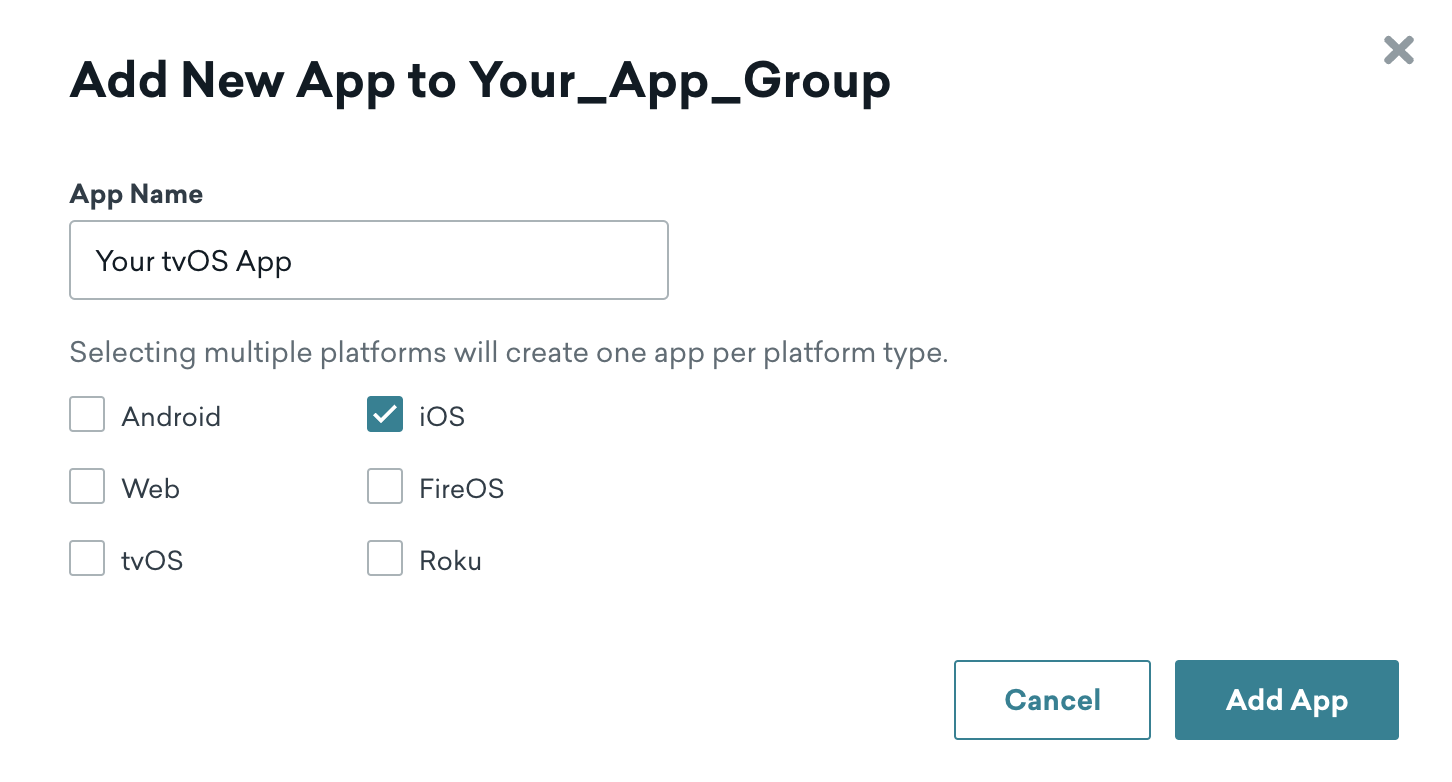
If you select the tvOS checkbox, you will not be able to customize in-app messages for tvOS.
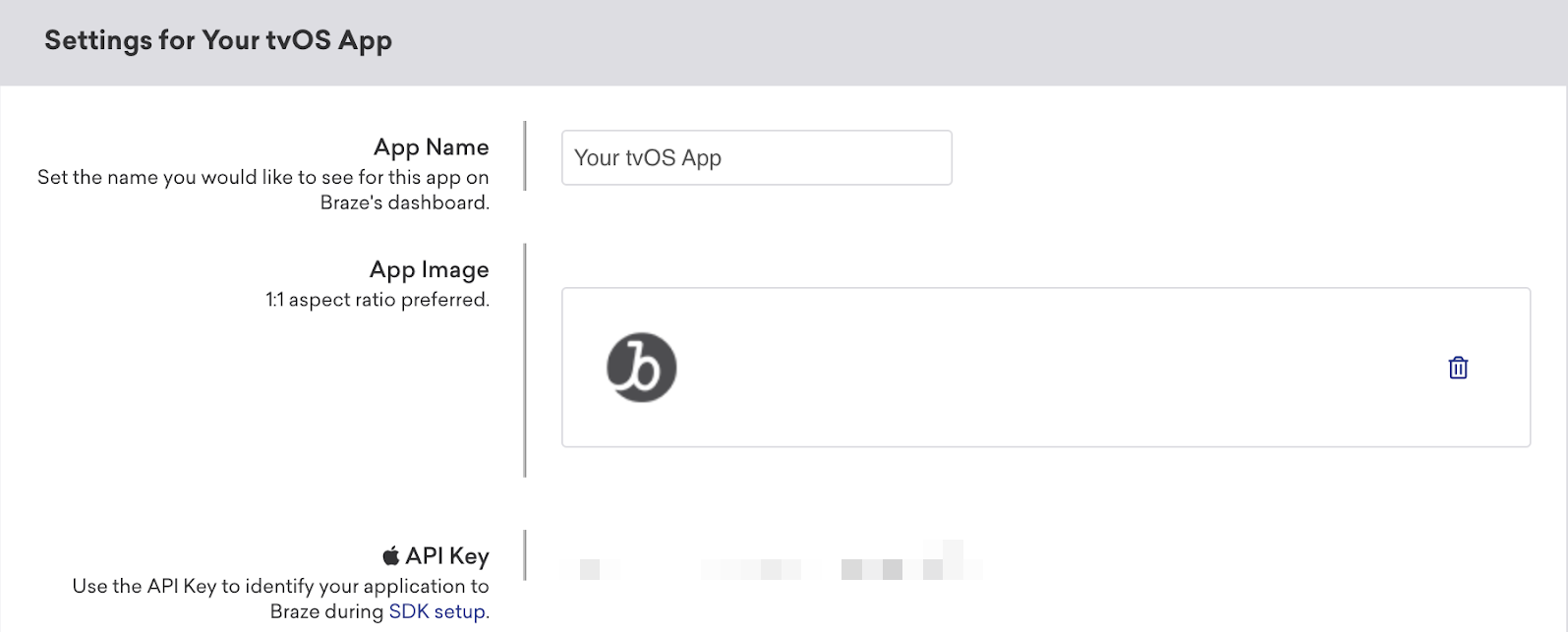
Step 2: Get your app’s API key
In your app settings, select your new tvOS app then take note of your app’s API key. You’ll use this key to configure your app in Xcode.
Step 3: Integrate BrazeKit
Use your app’s API key to integrate the Braze Swift SDK into your tvOS project in Xcode. You only need to integrate BrazeKit from the Braze Swift SDK.
Step 4: Create your custom UI
Because Braze doesn’t provide a default UI for in-app messages on tvOS, you’ll need to customize it yourself. For a full walkthrough, see our step-by-step tutorial: Customizing in-app messages for tvOS. For a sample project, see Braze Swift SDK samples.
Prerequisites
Before you can use this feature, you’ll need to integrate the Unity Braze SDK.
Message types
Braze offers several default in-app message types, each customizable with messages, images, Font Awesome icons, click actions, analytics, color schemes, and more.
Their basic behavior and traits are defined by the IInAppMessage interface, in a subclass called InAppMessageBase. IInAppMessage also includes a subinterface, IInAppMessageImmersive, which lets you add close, click-action, and analytics buttons to your app.
Keep in mind, in-app messages containing buttons will include the clickAction message in the final payload if the click action is added prior to adding the button text.
slideup in-app messages are so-named because they “slide up” or “slide down” from the top or bottom of the screen. They cover a small portion of the screen and provide an effective and non-intrusive messaging capability.
The slideup in-app message object extends InAppMessageBase.
modal in-app messages appear in the center of the screen and are framed by a translucent panel. Useful for more critical messaging, they can be equipped with two click-action and analytics-enabled buttons.
This message type is a subclass of InAppMessageImmersiveBase, an abstract class that implements IInAppMessageImmersive, giving you the option to add custom functionality to your locally generated in-app messages.
full in-app messages are useful for maximizing the content and impact of your user communication. The upper half of a full in-app message contains an image, and the lower half displays text and up to two click action and analytics-enabled buttons.
This message type extends InAppMessageImmersiveBase, giving you the option to add custom functionality to your locally generated in-app messages.
HTML in-app messages are useful for creating fully customized user content. User-defined HTML in-app message content is displayed in a WebView and may optionally contain other rich content, such as images and fonts, allowing for full control over message appearance and functionality.
This message type implements IInAppMessageHtml, which is a subclass of IInAppMessage.
On Android, links configured with target="_blank" in custom HTML in-app messages open in the device’s default web browser.
Android in-app messages support a JavaScript brazeBridge interface to call methods on the Braze Android SDK from within your HTML, see our JavaScript bridge page for more details.
We currently do not support the display of custom HTML in-app messages in an iFrame on the iOS and Android platforms.
You can also define custom in-app message views for your app. For a full walkthrough, see Setting custom factories.
Each in-app message type is highly customizable across content, images, icons, click actions, analytics, display, and delivery. They are enumerated types of Braze.InAppMessage, which defines basic behavior and traits for all in-app messages. For the full list of in-app message properties and usage, see the InAppMessage class.
These are the available in-app message types in Braze and how they will look like for end-users.
Slideup in-app messages are given this name because they “slide up” or “slide down” from the top or bottom of the screen. They cover a small portion of the screen and provide an effective and non-intrusive messaging capability.
Modal in-app messages appear in the center of the screen and are framed by a translucent panel. Useful for more critical messaging, they can be equipped with up to two analytics-enabled buttons.
Modal Image in-app messages appear in the center of the screen and are framed by a translucent panel. These messages are similar to the Modal type except without header or message text. Useful for more critical messaging, they can be equipped with up to two analytics-enabled buttons.
Full in-app messages are useful for maximizing the content and impact of your user communication. The upper half of a Full in-app message contains an image, and the lower half displays text and up to two analytics-enabled buttons.
Full Image in-app messages are similar to Full in-app messages except without header or message text. This message type is useful for maximizing the content and impact of your user communication. A Full Image in-app message contains an image spanning the entire screen, with the option to display up to two analytics-enabled buttons.
HTML in-app messages are useful for creating fully customized user content. User-defined HTML Full in-app message content is displayed in a WKWebViewand may optionally contain other rich content, such as images and fonts, allowing for full control over message appearance and functionality.
iOS in-app messages support a JavaScript brazeBridge interface to call methods on the Braze Web SDK from within your HTML, see our best practices for more details.
The following example shows a paginated HTML Full in-app message:
Note that we currently do not support the display of custom HTML in-app messages in an iFrame on the iOS and Android platforms.
Control in-app messages do not contain a UI component and are used primarily for analytics purposes. This type is used to verify receipt of an in-app message sent to a control group.
For details about automatic variant optimization and control groups, see Optimize with BrazeAI™.
Prerequisites
Before you can use this feature, you’ll need to integrate the .NET MAUI Braze SDK.
Message types
Braze offers several default in-app message types, each customizable with messages, images, Font Awesome icons, click actions, analytics, color schemes, and more.
Their basic behavior and traits are defined by the IInAppMessage interface, in a subclass called InAppMessageBase. IInAppMessage also includes a subinterface, IInAppMessageImmersive, which lets you add close, click-action, and analytics buttons to your app.
Keep in mind, in-app messages containing buttons will include the clickAction message in the final payload if the click action is added prior to adding the button text.
slideup in-app messages are so-named because they “slide up” or “slide down” from the top or bottom of the screen. They cover a small portion of the screen and provide an effective and non-intrusive messaging capability.
The slideup in-app message object extends InAppMessageBase.
modal in-app messages appear in the center of the screen and are framed by a translucent panel. Useful for more critical messaging, they can be equipped with two click-action and analytics-enabled buttons.
This message type is a subclass of InAppMessageImmersiveBase, an abstract class that implements IInAppMessageImmersive, giving you the option to add custom functionality to your locally generated in-app messages.
full in-app messages are useful for maximizing the content and impact of your user communication. The upper half of a full in-app message contains an image, and the lower half displays text and up to two click action and analytics-enabled buttons.
This message type extends InAppMessageImmersiveBase, giving you the option to add custom functionality to your locally generated in-app messages.
HTML in-app messages are useful for creating fully customized user content. User-defined HTML in-app message content is displayed in a WebView and may optionally contain other rich content, such as images and fonts, allowing for full control over message appearance and functionality.
This message type implements IInAppMessageHtml, which is a subclass of IInAppMessage.
On Android, links configured with target="_blank" in custom HTML in-app messages open in the device’s default web browser.
Android in-app messages support a JavaScript brazeBridge interface to call methods on the Braze Android SDK from within your HTML, see our JavaScript bridge page for more details.
We currently do not support the display of custom HTML in-app messages in an iFrame on the iOS and Android platforms.
You can also define custom in-app message views for your app. For a full walkthrough, see Setting custom factories.
Each in-app message type is highly customizable across content, images, icons, click actions, analytics, display, and delivery. They are enumerated types of Braze.InAppMessage, which defines basic behavior and traits for all in-app messages. For the full list of in-app message properties and usage, see the InAppMessage class.
These are the available in-app message types in Braze and how they will look like for end-users.
Slideup in-app messages are given this name because they “slide up” or “slide down” from the top or bottom of the screen. They cover a small portion of the screen and provide an effective and non-intrusive messaging capability.
Modal in-app messages appear in the center of the screen and are framed by a translucent panel. Useful for more critical messaging, they can be equipped with up to two analytics-enabled buttons.
Modal Image in-app messages appear in the center of the screen and are framed by a translucent panel. These messages are similar to the Modal type except without header or message text. Useful for more critical messaging, they can be equipped with up to two analytics-enabled buttons.
Full in-app messages are useful for maximizing the content and impact of your user communication. The upper half of a Full in-app message contains an image, and the lower half displays text and up to two analytics-enabled buttons.
Full Image in-app messages are similar to Full in-app messages except without header or message text. This message type is useful for maximizing the content and impact of your user communication. A Full Image in-app message contains an image spanning the entire screen, with the option to display up to two analytics-enabled buttons.
HTML in-app messages are useful for creating fully customized user content. User-defined HTML Full in-app message content is displayed in a WKWebViewand may optionally contain other rich content, such as images and fonts, allowing for full control over message appearance and functionality.
iOS in-app messages support a JavaScript brazeBridge interface to call methods on the Braze Web SDK from within your HTML, see our best practices for more details.
The following example shows a paginated HTML Full in-app message:
Note that we currently do not support the display of custom HTML in-app messages in an iFrame on the iOS and Android platforms.
Control in-app messages do not contain a UI component and are used primarily for analytics purposes. This type is used to verify receipt of an in-app message sent to a control group.
For details about automatic variant optimization and control groups, see Optimize with BrazeAI™.
Next steps
Ready to dive deeper? Check out these step-by-step tutorials: