Create Content Cards
This article discusses the basic approach you use when implementing custom Content Cards, as well as three common use cases. It assumes you’ve already read the other articles in the Content Card customization guide to understand what can be done by default and what requires custom code. It’s especially helpful to understand how to log analytics for your custom Content Cards.

Using Content Cards for banner-style messages? Try out Banners— perfect for inline, persistent in-app and web messages.
Creating a card
Step 1: Create a custom UI
First, create your custom HTML component that will be used to render the cards.
First, create your own custom fragment. The default ContentCardsFragment is only designed to handle our default Content Card types, but is a good starting point.
First, create your own custom view controller component. The default BrazeContentCardUI.ViewController is only designed to handle our default Content Card types, but is a good starting point.
Step 2: Subscribe to card updates
Register a callback function to subscribe for data updates when cards are refreshed. You can parse the Content Card objects and extract their payload data, such as title, cardDescription, and imageUrl, then use the resulting model data to populate your custom UI.
To obtain the Content Card data models, subscribe to Content Card updates. Pay particular attention to the following properties:
id: Represents the Content Card ID string. This is the unique identifier used to log analytics from custom Content Cards.extras: Encompasses all the key-value pairs from the Braze dashboard.
All properties outside of id and extras are optional to parse for custom Content Cards. For more information on the data model, see each platform’s integration article: Android, iOS, Web.
Use subscribeToContentCardsEvents to receive Content Card events. The SDK calls your handler with an event object. Switch on event.type to handle each kind of event. For more information about the event values, see Event subscriptions.
import * as braze from "@braze/web-sdk";
function renderCards(cards) {
// For example:
cards.forEach(card => {
if (card.isControl) {
// Do not display the control card, but remember to call `logContentCardImpressions([card])`
}
else if (card instanceof braze.ClassicCard || card instanceof braze.CaptionedImage) {
// Use `card.title`, `card.imageUrl`, etc.
}
else if (card instanceof braze.ImageOnly) {
// Use `card.imageUrl`, etc.
}
});
}
// - Available in version 7.0.0+
const subscriptionId = braze.subscribeToContentCardsEvents((event) => {
switch (event.type) {
case braze.ChannelEventType.CACHE_REPLAY:
// Sent once, right away, with the cards that are already cached.
// Render them now instead of waiting for the network.
renderCards(event.cacheSnapshot.contentCards.cards);
break;
case braze.ChannelEventType.CACHE_LOAD:
// The cache changed without a refresh, such as after changeUser().
// The snapshot can be empty, so clear cards from the previous user.
renderCards(event.cacheSnapshot.contentCards.cards);
break;
case braze.ChannelEventType.DATA_UPDATED:
// A refresh finished, even if no cards changed, or a card was dismissed.
renderCards(event.cacheSnapshot.contentCards.cards);
break;
case braze.ChannelEventType.ERROR:
switch (event.retryState) {
case braze.RetryState.SDK_WILL_RETRY:
// The SDK is retrying. Keep the current cards and wait.
break;
case braze.RetryState.INTEGRATOR_MAY_RETRY: {
// The SDK stopped retrying. Try again later, and limit how often you retry.
const delayMs = event.rateLimitedUntil
? Math.max(event.rateLimitedUntil.getTime() - Date.now(), 0)
: 30000;
setTimeout(() => braze.requestContentCardsRefresh(), delayMs);
break;
}
case braze.RetryState.DO_NOT_RETRY:
// The failure is final. For example, Content Cards are disabled for this workspace.
if (event.reason === braze.ChannelErrorReason.FEATURE_DISABLED) {
// Hide your Content Cards UI.
}
break;
}
break;
}
});
const deprecatedSubscriptionId = braze.subscribeToContentCardsUpdates((updates) => {
renderCards(updates.cards);
});
braze.openSession();
// Remove the subscription when you no longer need it
// braze.removeSubscription(subscriptionId);

Content Cards only refresh on session start if you call subscribeToContentCardsEvents() (or the deprecated subscribeToContentCardsUpdates()) before openSession(). You can also manually refresh the feed at any time.
For when each event fires, and what each update reason, retry state, analytics action, and error reason means, see Event subscriptions.
Use subscribeToContentCardsEvents on Web SDK 7.0.0 and later. subscribeToContentCardsUpdates is the earlier pattern, deprecated as of 7.0.0. The earlier pattern only delivers the current cards, so it can’t tell you why the cards changed or when a refresh failed.
Step 2a: Create a private subscriber variable
To subscribe to card updates, first declare a private variable in your custom class to hold your subscriber:
// - Available in version 44.0.0+
private IEventSubscriber<ContentCardsEvent> mContentCardsEventSubscriber;
private IEventSubscriber<ContentCardsUpdatedEvent> mContentCardsUpdatedSubscriber;
Step 2b: Subscribe to events
Add the following code to subscribe with subscribeToContentCardsEvents(), typically inside your custom Content Cards activity’s Activity.onCreate(). Pattern-match the ContentCardsEvent subclasses you need.
// - Available in version 44.0.0+
// Remove the previous subscriber before rebuilding a new one with our new activity.
Braze.getInstance(context).removeSingleSubscription(mContentCardsEventSubscriber, ContentCardsEvent.class);
mContentCardsEventSubscriber = new IEventSubscriber<ContentCardsEvent>() {
@Override
public void trigger(ContentCardsEvent event) {
if (event instanceof ContentCardsEvent.CacheReplay) {
handleCards(((ContentCardsEvent.CacheReplay) event).getCacheSnapshot());
} else if (event instanceof ContentCardsEvent.CacheLoad) {
handleCards(((ContentCardsEvent.CacheLoad) event).getCacheSnapshot());
} else if (event instanceof ContentCardsEvent.DataUpdated) {
handleCards(((ContentCardsEvent.DataUpdated) event).getCacheSnapshot());
}
}
};
Braze.getInstance(context).subscribeToContentCardsEvents(mContentCardsEventSubscriber);
Braze.getInstance(context).requestContentCardsRefresh();
// Remove the previous subscriber before rebuilding a new one with our new activity.
Braze.getInstance(context).removeSingleSubscription(mContentCardsUpdatedSubscriber, ContentCardsUpdatedEvent.class);
mContentCardsUpdatedSubscriber = new IEventSubscriber<ContentCardsUpdatedEvent>() {
@Override
public void trigger(ContentCardsUpdatedEvent event) {
List<Card> allCards = event.getAllCards();
}
};
Braze.getInstance(context).subscribeToContentCardsUpdates(mContentCardsUpdatedSubscriber);
Braze.getInstance(context).requestContentCardsRefresh();
private void handleCards(ContentCardsCacheSnapshot cacheSnapshot) {
List<Card> allCards = cacheSnapshot.getCards();
}
Events arrive on a background thread. Switch to the main thread before updating views.
Step 2c: Unsubscribe
Unsubscribe when your custom activity moves out of view. Add the following code to your activity’s onDestroy() lifecycle method:
// - Available in version 44.0.0+
Braze.getInstance(context).removeSingleSubscription(mContentCardsEventSubscriber, ContentCardsEvent.class);
Braze.getInstance(context).removeSingleSubscription(mContentCardsUpdatedSubscriber, ContentCardsUpdatedEvent.class);
Step 2a: Create a private subscriber variable
To subscribe to card events, first declare a private variable in your custom class to hold your subscriber:
// - Available in version 44.0.0+
private var contentCardsEventSubscriber: IEventSubscriber<ContentCardsEvent>? = null
private var contentCardsUpdatedSubscriber: IEventSubscriber<ContentCardsUpdatedEvent>? = null
Step 2b: Subscribe to events
Add the following code to subscribe with subscribeToContentCardsEvents(), typically inside your custom Content Cards activity’s Activity.onCreate(). Pattern-match the ContentCardsEvent subclasses you need.
// - Available in version 44.0.0+
// Remove the previous subscriber before rebuilding a new one with our new activity.
Braze.getInstance(context).removeSingleSubscription(contentCardsEventSubscriber, ContentCardsEvent::class.java)
contentCardsEventSubscriber = IEventSubscriber { event ->
when (event) {
is ContentCardsEvent.CacheReplay -> handleCards(event.cacheSnapshot)
is ContentCardsEvent.CacheLoad -> handleCards(event.cacheSnapshot)
is ContentCardsEvent.DataUpdated -> handleCards(event.cacheSnapshot)
else -> {}
}
}
Braze.getInstance(context).subscribeToContentCardsEvents(contentCardsEventSubscriber)
Braze.getInstance(context).requestContentCardsRefresh()
// Remove the previous subscriber before rebuilding a new one with our new activity.
Braze.getInstance(context).removeSingleSubscription(contentCardsUpdatedSubscriber, ContentCardsUpdatedEvent::class.java)
contentCardsUpdatedSubscriber = IEventSubscriber { event ->
val allCards = event.allCards
}
Braze.getInstance(context).subscribeToContentCardsUpdates(contentCardsUpdatedSubscriber)
Braze.getInstance(context).requestContentCardsRefresh()
private fun handleCards(cacheSnapshot: ContentCardsCacheSnapshot) {
val allCards = cacheSnapshot.cards
}
Events arrive on a background thread. Switch to the main thread before updating views.
Step 2c: Unsubscribe
Unsubscribe when your custom activity moves out of view. Add the following code to your activity’s onDestroy() lifecycle method:
// - Available in version 44.0.0+
Braze.getInstance(context).removeSingleSubscription(contentCardsEventSubscriber, ContentCardsEvent::class.java)
Braze.getInstance(context).removeSingleSubscription(contentCardsUpdatedSubscriber, ContentCardsUpdatedEvent::class.java)
For when each event fires, and what each update reason, retry state, analytics action, and error reason means, see Event subscriptions.
Use subscribeToContentCardsEvents on Android SDK 44.0.0 and later. subscribeToContentCardsUpdates is the earlier pattern, deprecated as of 44.0.0.
To access the Content Cards data model, call contentCards.cards on your braze instance.
let cards: [Braze.ContentCard] = AppDelegate.braze?.contentCards.cards
Additionally, you can subscribe to Content Cards events to observe cache changes, analytics, and errors. You can do so in one of two ways:
- Maintaining a cancellable; or
- Maintaining an
AsyncStream.
Cancellable
// - Available in version 19.0.0+
// This subscription is maintained through a Braze cancellable, which will observe for events until the subscription is cancelled.
// You must keep a strong reference to the cancellable to keep the subscription active.
// The subscription is canceled either when the cancellable is deinitialized or when you call its `.cancel()` method.
let cancellable = AppDelegate.braze?.contentCards.subscribeToEvents { [weak self] event in
switch event {
case .cacheReplay(let cacheSnapshot):
// Initial cache snapshot, delivered immediately after subscribing
break
case .cacheLoad(let cacheSnapshot):
// Cache loaded at the start of a user session (for example, after `changeUser()`)
break
case .dataUpdated(let cacheSnapshot, let reason):
// Cache changed after the initial replay
break
case .impressionEvent(let card, let action):
break
case .clickEvent(let card, let action):
break
case .dismissEvent(let card, let action):
break
case .error(let reason, let retryState):
break
}
}
let cancellable = AppDelegate.braze?.contentCards.subscribeToUpdates { [weak self] contentCards in
// Implement your completion handler to respond to updates in `contentCards`.
}
AsyncStream
// - Available in version 19.0.0+
Task {
for await event in AppDelegate.braze?.contentCards.eventsStream ?? AsyncStream { _ in } {
// Same switch statement as the cancellable example above.
}
}
let stream: AsyncStream<[Braze.ContentCard]> = AppDelegate.braze?.contentCards.cardsStream
Use subscribeToEvents(_:) or eventsStream on Swift SDK 19.0.0 and later. subscribeToUpdates(_:) and cardsStream are the earlier pattern, deprecated as of 19.0.0.
NSArray<BRZContentCardRaw *> *contentCards = AppDelegate.braze.contentCards.cards;
Additionally, if you want to subscribe to Content Cards events, you can call subscribeToEvents:. Each event type is bridged to its own class (for example, BRZContentCardsDataUpdatedEvent), which you can discriminate with isKindOfClass:. The initial cache replay and subsequent data updates both bridge to BRZContentCardsDataUpdatedEvent; check reason against BRZContentCardsDataUpdatedEvent.cacheReplayReason to tell them apart:
// - Available in version 19.0.0+
// This subscription is maintained through a Braze cancellable, which will continue to observe for events until the subscription is cancelled.
BRZCancellable *cancellable = [self.braze.contentCards subscribeToEvents:^(BRZContentCardsEvent *event) {
if ([event isKindOfClass:[BRZContentCardsDataUpdatedEvent class]]) {
BRZContentCardsDataUpdatedEvent *updated = (BRZContentCardsDataUpdatedEvent *)event;
if (updated.reason == BRZContentCardsDataUpdatedEvent.cacheReplayReason) {
// Initial cache snapshot, delivered immediately after subscribing
} else {
// Cache changed after the initial replay
}
} else if ([event isKindOfClass:[BRZContentCardsCacheLoadEvent class]]) {
// Cache loaded at the start of a user session (for example, after `changeUser()`)
}
}];
BRZCancellable *cancellable = [self.braze.contentCards subscribeToUpdates:^(NSArray<BRZContentCardRaw *> *contentCards) {
// Implement your completion handler to respond to updates in `contentCards`.
}];
Use subscribeToEvents: on Swift SDK 19.0.0 and later. subscribeToUpdates: is the earlier pattern, deprecated as of 19.0.0.
For when each event fires, and what each update reason, retry state, analytics action, and error reason means, see Event subscriptions.
Step 3: Implement analytics
Content Card impressions, clicks, and dismissals are not automatically logged in your custom view. You must implement each respective method to properly log all metrics back to Braze dashboard analytics.
Step 4: Test your card (optional)
To test your Content Card:
- Set an active user in your application by calling the
changeUser()method. - In Braze, go to Campaigns, then create a new Content Card campaign.
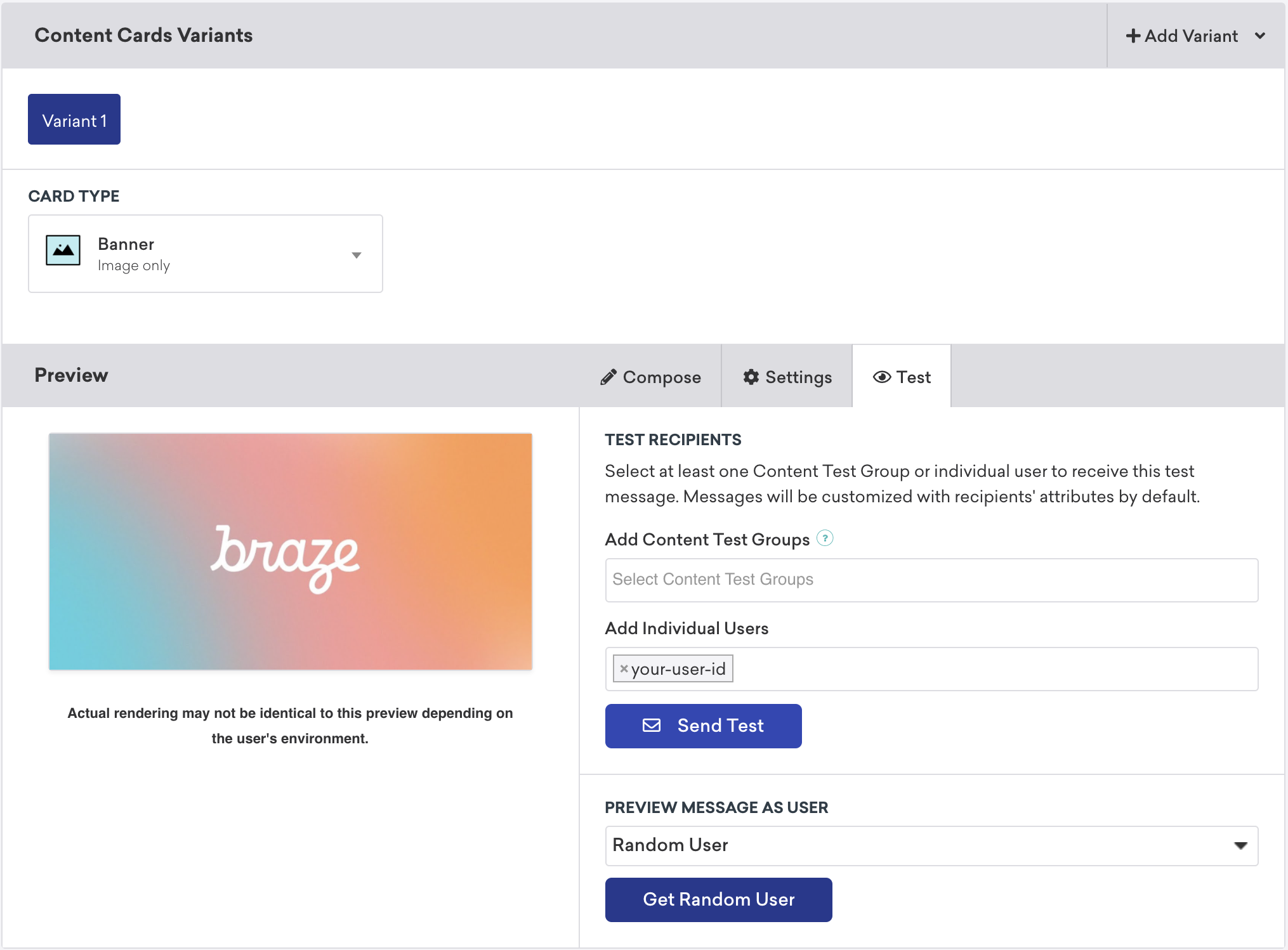
- In your campaign, select Test, then enter the test user’s
user-id. When you’re ready, select Send Test. You’ll be able to launch a Content Card on your device shortly.
Content Card placements
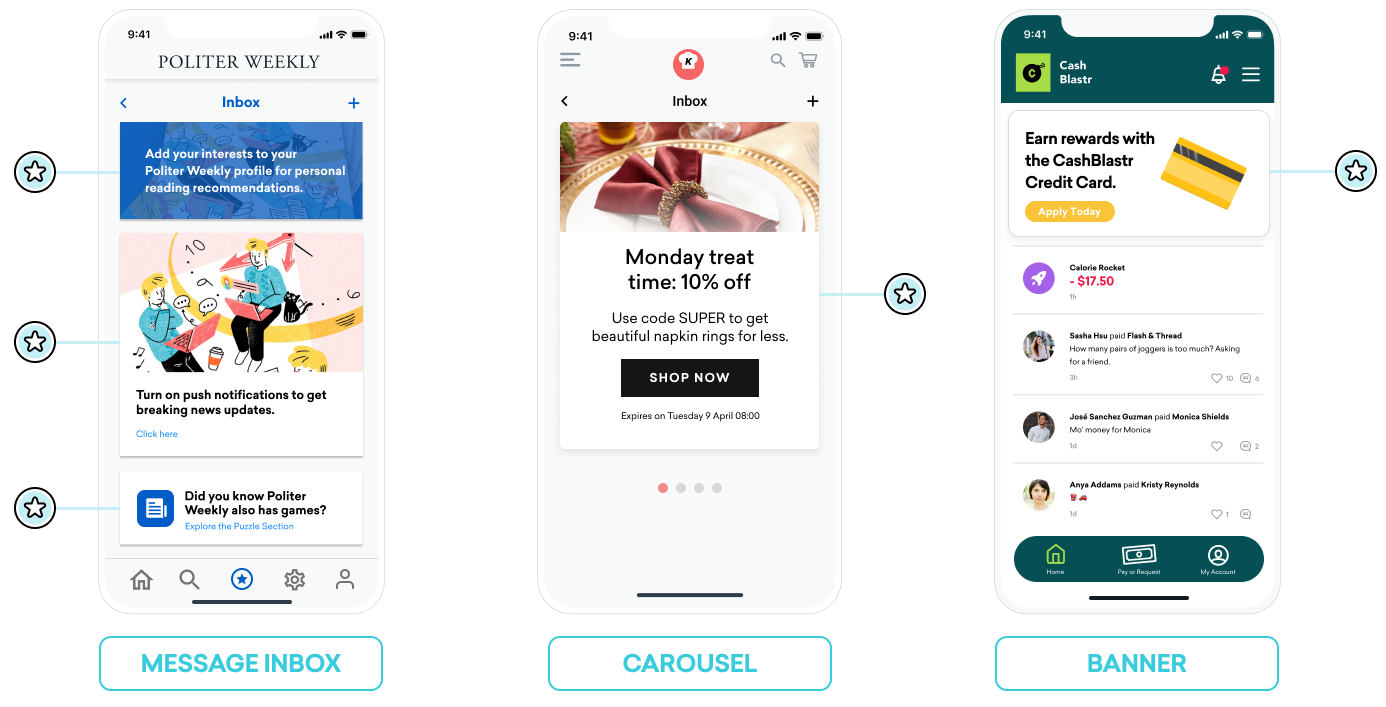
Content Cards can be used in many different ways. Three common implementations are to use them as a message center, a dynamic image ad, or an image carousel. For each of these placements, you will assign key-value pairs (the extras property in the data model) to your Content Cards, and based on the values, dynamically adjust the card’s behavior, appearance, or functionality during runtime.
Message inbox
Content Cards can be used to simulate a message center. In this format, each message is its own card that contains key-value pairs that power on-click events. These key-value pairs are the key identifiers that the application looks at when deciding where to go when the user clicks on an inbox message. The values of the key-value pairs are arbitrary.
Example
For example, you may want to create two message cards: a call-to-action for users to enable reading recommendations and a coupon code given to your new subscriber segment.
Keys like body, title, and buttonText might have simple string values your marketers can set. Keys like terms might have values that provide a small collection of phrases approved by your Legal department. Keys like style and class_type have string values that you can set to determine how your card renders on your app or site.
Key-value pairs for the reading recommendation card:
| Key | Value |
|---|---|
body |
Add your interests to your Politer Weekly profile for personal reading recommendations. |
style |
info |
class_type |
notification_center |
card_priority |
1 |
Key-value pairs for a new subscriber coupon:
| Key | Value |
|---|---|
title |
Subscribe for unlimited games |
body |
End of Summer Special - Enjoy 10% off Politer games |
buttonText |
Subscribe Now |
style |
promo |
class_type |
notification_center |
card_priority |
2 |
terms |
new_subscribers_only |
Additional information for Android
In the Android and FireOS SDK, the message center logic is driven by the class_type value that is provided by the key-value pairs from Braze. Using the createContentCardable method, you can filter and identify these class types.
Using class_type for on-click behavior
When we inflate the Content Card data into our custom classes, we use the ContentCardClass property of the data to determine which concrete subclass should be used to store the data.
private fun createContentCardable(metadata: Map<String, Any>, type: ContentCardClass?): ContentCardable?{
return when(type){
ContentCardClass.AD -> Ad(metadata)
ContentCardClass.MESSAGE_WEB_VIEW -> WebViewMessage(metadata)
ContentCardClass.NOTIFICATION_CENTER -> FullPageMessage(metadata)
ContentCardClass.ITEM_GROUP -> Group(metadata)
ContentCardClass.ITEM_TILE -> Tile(metadata)
ContentCardClass.COUPON -> Coupon(metadata)
else -> null
}
}
Then, when handling the user interaction with the message list, we can use the message’s type to determine which view to display to the user.
override fun onCreate(savedInstanceState: Bundle?) {
super.onCreate(savedInstanceState)
//...
listView.onItemClickListener = AdapterView.OnItemClickListener { parent, view, position, id ->
when (val card = dataProvider[position]){
is WebViewMessage -> {
val intent = Intent(this, WebViewActivity::class.java)
val bundle = Bundle()
bundle.putString(WebViewActivity.INTENT_PAYLOAD, card.contentString)
intent.putExtras(bundle)
startActivity(intent)
}
is FullPageMessage -> {
val intent = Intent(this, FullPageContentCard::class.java)
val bundle = Bundle()
bundle.putString(FullPageContentCard.CONTENT_CARD_IMAGE, card.icon)
bundle.putString(FullPageContentCard.CONTENT_CARD_TITLE, card.messageTitle)
bundle.putString(FullPageContentCard.CONTENT_CARD_DESCRIPTION, card.cardDescription)
intent.putExtras(bundle)
startActivity(intent)
}
}
}
}
Using class_type for on-click behavior
When we inflate the Content Card data into our custom classes, we use the ContentCardClass property of the data to determine which concrete subclass should be used to store the data.
private ContentCardable createContentCardable(Map<String, ?> metadata, ContentCardClass type){
switch(type){
case ContentCardClass.AD:{
return new Ad(metadata);
}
case ContentCardClass.MESSAGE_WEB_VIEW:{
return new WebViewMessage(metadata);
}
case ContentCardClass.NOTIFICATION_CENTER:{
return new FullPageMessage(metadata);
}
case ContentCardClass.ITEM_GROUP:{
return new Group(metadata);
}
case ContentCardClass.ITEM_TILE:{
return new Tile(metadata);
}
case ContentCardClass.COUPON:{
return new Coupon(metadata);
}
default:{
return null;
}
}
}
Then, when handling the user interaction with the message list, we can use the message’s type to determine which view to display to the user.
@Override
protected void onCreate(Bundle savedInstanceState) {
super.onCreate(savedInstanceState)
//...
listView.setOnItemClickListener(new AdapterView.OnItemClickListener() {
@Override
public void onItemClick(AdapterView<?> parent, View view, int position, long id){
ContentCardable card = dataProvider.get(position);
if (card instanceof WebViewMessage){
Bundle intent = new Intent(this, WebViewActivity.class);
Bundle bundle = new Bundle();
bundle.putString(WebViewActivity.INTENT_PAYLOAD, card.getContentString());
intent.putExtras(bundle);
startActivity(intent);
}
else if (card instanceof FullPageMessage){
Intent intent = new Intent(this, FullPageContentCard.class);
Bundle bundle = Bundle();
bundle.putString(FullPageContentCard.CONTENT_CARD_IMAGE, card.getIcon());
bundle.putString(FullPageContentCard.CONTENT_CARD_TITLE, card.getMessageTitle());
bundle.putString(FullPageContentCard.CONTENT_CARD_DESCRIPTION, card.getCardDescription());
intent.putExtras(bundle)
startActivity(intent)
}
}
});
}
Carousel
You can set Content Cards in your fully-custom carousel feed, allowing users to swipe and view additional featured cards. By default, Content Cards are sorted by created date (newest first), and your users will see all the cards they’re eligible for.
To implement a Content Card carousel:
- Create custom logic that observes for changes in your Content Cards and handles Content Card arrival.
- Create custom client-side logic to display a specific number of cards in the carousel any one time. For example, you could select the first five Content Card objects from the array or introduce key-value pairs to build conditional logic around.
If you’re implementing a carousel as a secondary Content Cards feed, be sure to sort cards into the correct feed using key-value pairs.
Image-only
Content Cards don’t have to look like “cards.” For example, Content Cards can appear as a dynamic image that persistently displays on your home page or at the top of designated pages.
To achieve this, your marketers will create a campaign or Canvas step with an Image Only type of Content Card. Then, set key-value pairs that are appropriate for using Content Cards as supplemental content.