Facebook Audience export
The Braze and Facebook integration allows you to manually export your Braze segments to Facebook to create Facebook Custom Audiences. This is a one-time, static audience export and creates only new Facebook Custom Audiences.
Common use cases for exporting Facebook Custom Audiences include:
- Retargeting users at specific points within their lifecycle
- Creating exclusion targeting lists
- Creating Lookalike Audiences to acquire new users more efficiently
The Facebook audience export uses the User Access Token to authorize requests.
If you are using this feature alongside the Audience Sync to Facebook feature, Braze defaults to using the more reliable System User Token that you have already generated to authorize requests.
If you are participating in testing Meta Work Accounts in beta, ensure you disconnect and reconnect your account to the Facebook partner page.
Prerequisites
| Requirement | Description |
|---|---|
| Facebook Business Manager | A centralized tool to manage your brand’s Facebook assets (for example, ad accounts, pages, apps). |
| Facebook ad account | An active Facebook ad account tied to your brand’s business manager that you want to use with Braze custom audiences. Ensure that your Facebook business manager administrator has granted you administrator permissions to the Facebook ad accounts you plan to use with Braze, and that you have accepted your ad account terms and conditions. Otherwise, you cannot access any Facebook ad accounts within Braze. |
| Facebook Custom Audiences Terms | You must accept Facebook’s Custom Audiences Terms for your Facebook ad accounts you plan to use with Braze. |
Integration
Step 1: Connect to Facebook
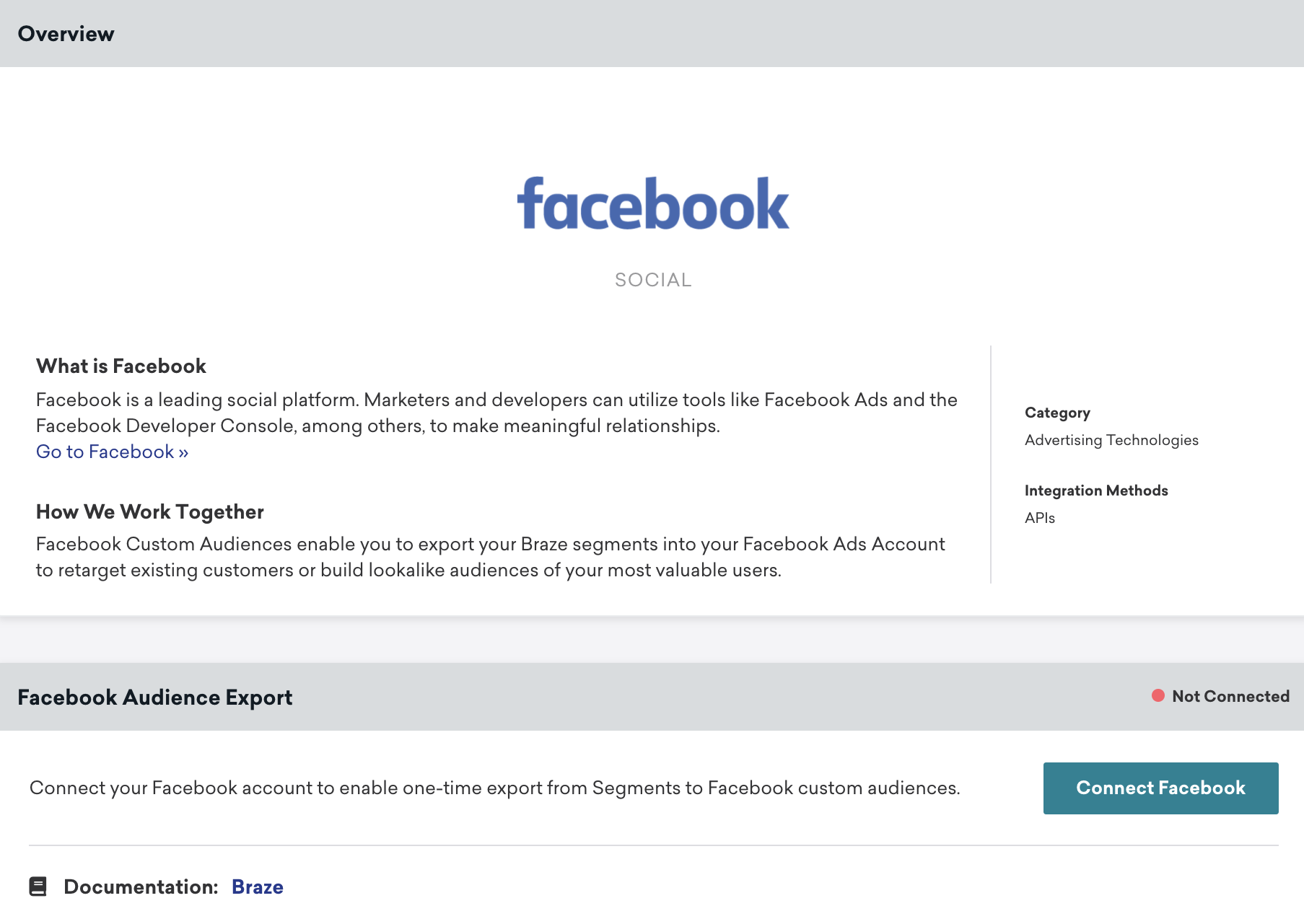
- In the Braze dashboard, go to Partner Integrations > Technology Partners and select Facebook.
- In the Facebook Audience Export module, select Connect Facebook.
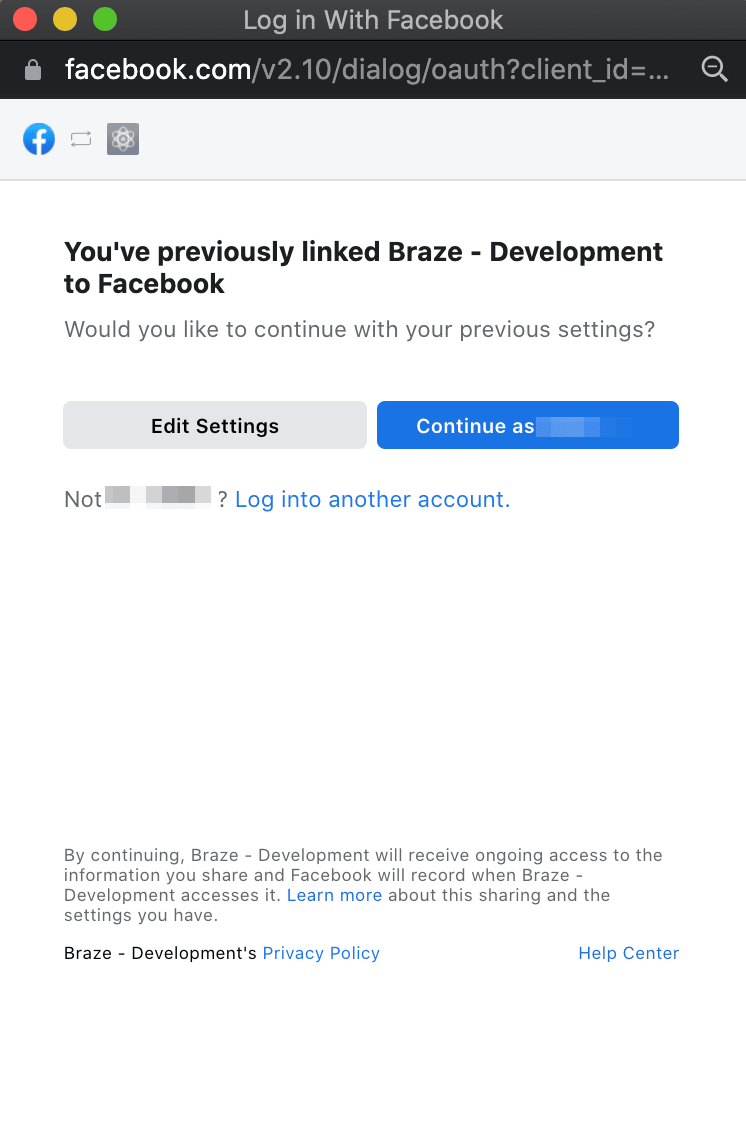
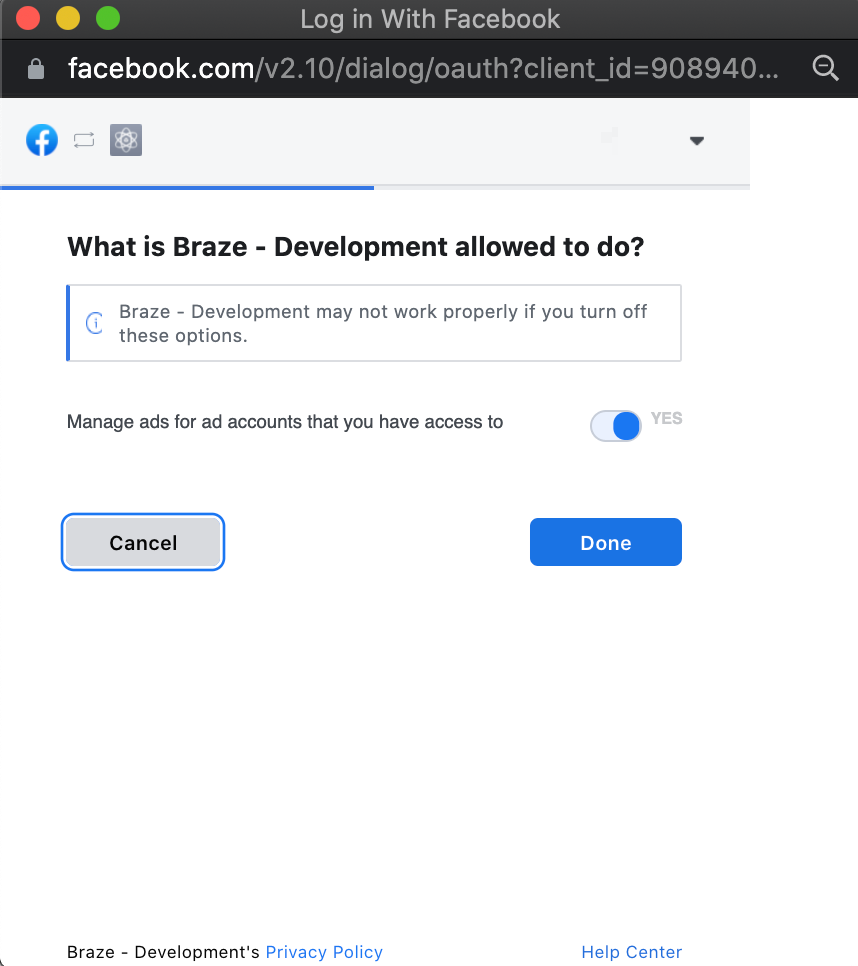
- In the Facebook oAuth dialog window, authorize Braze to create Custom Audiences into your Facebook ad accounts.
- After Braze is linked to your Facebook account, select which ad accounts you want to sync within your Braze workspace.
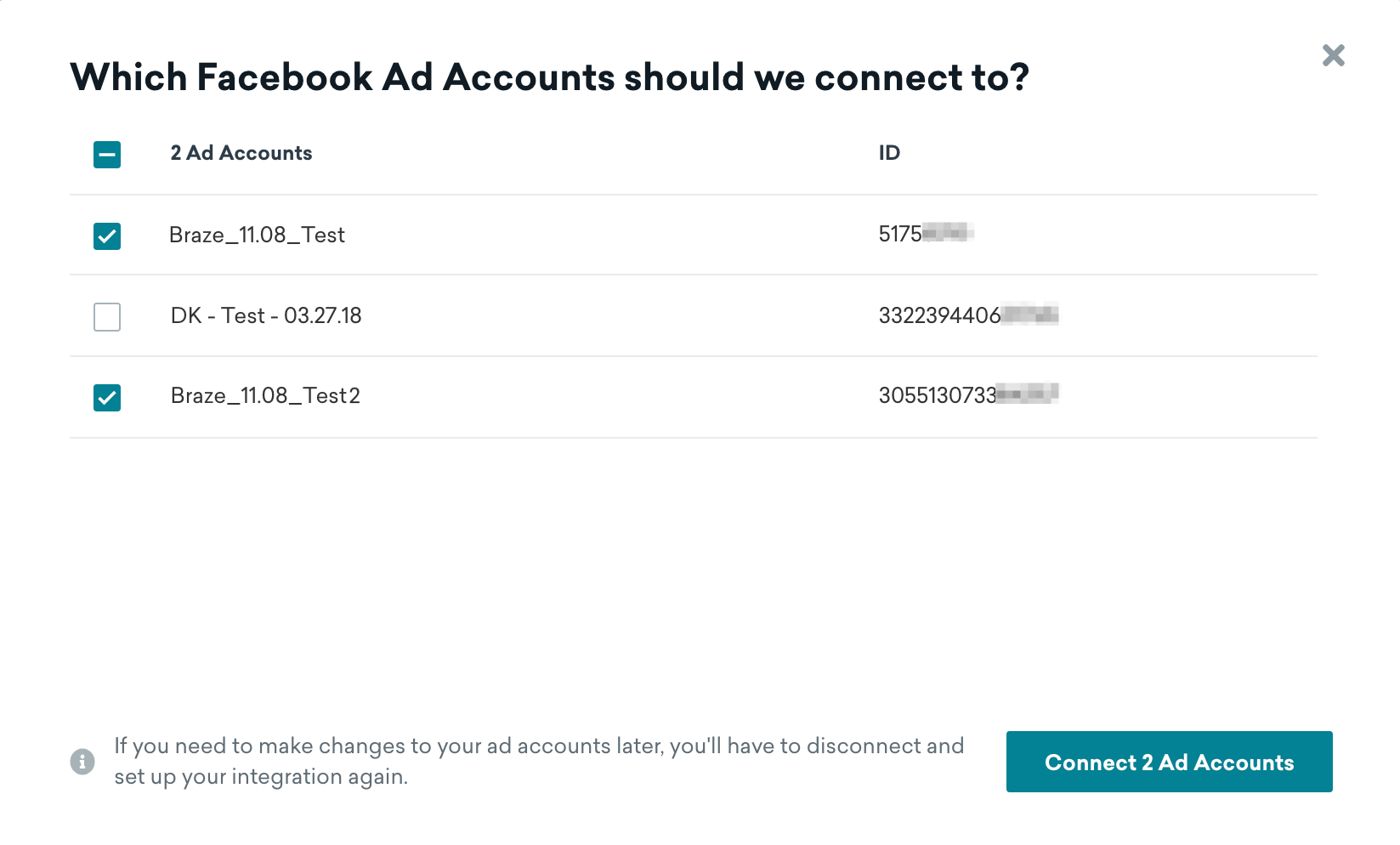
After you connect, you are taken back to the partner page, where you can view which accounts are connected and disconnect existing accounts.
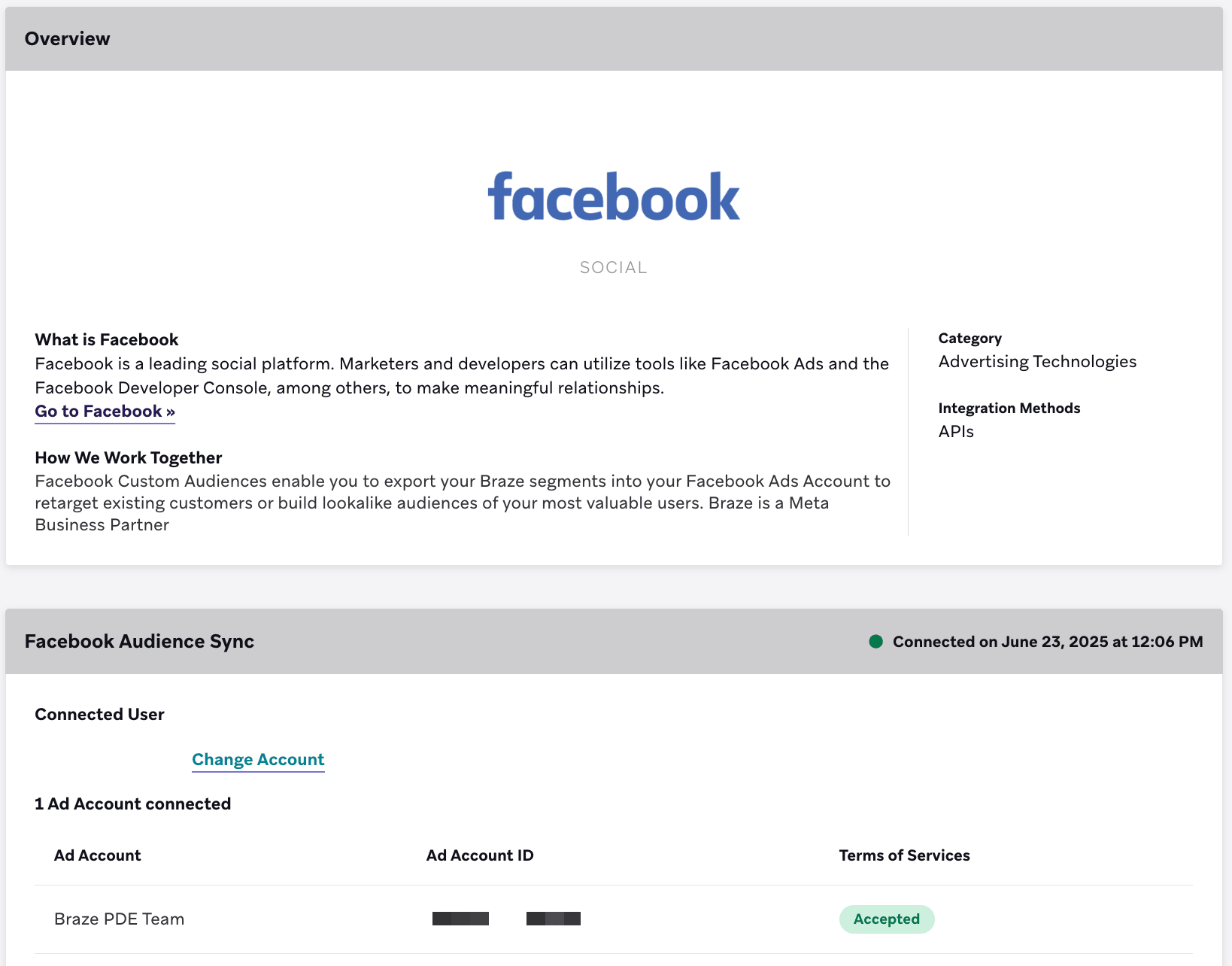
Your Facebook connection is applied at the Braze workspace level. If your Facebook administrator removes you from your Facebook Business Manager or access to the connected Facebook accounts, Braze detects an invalid token. As a result, your active Canvases using Facebook audience steps show errors, and Braze cannot sync users.
For customers that have previously undergone the Facebook app review process for Ads Management and Ads Management Standard Access, your system user token is still valid for the Facebook audience step. You cannot edit or revoke the Facebook system user token through the Facebook partner page. Instead, you can connect your Facebook account to replace your Facebook system user token within your Braze workspace.
The new Facebook oAuth configuration also applies to Facebook exports via segments.
Step 2: Export your users into Facebook
In Braze, Facebook audience export is accessible through the Segments page.
- On the Segments page, select the segment you’d like to export.
- Select User Data, and then select Export as Facebook Audience.
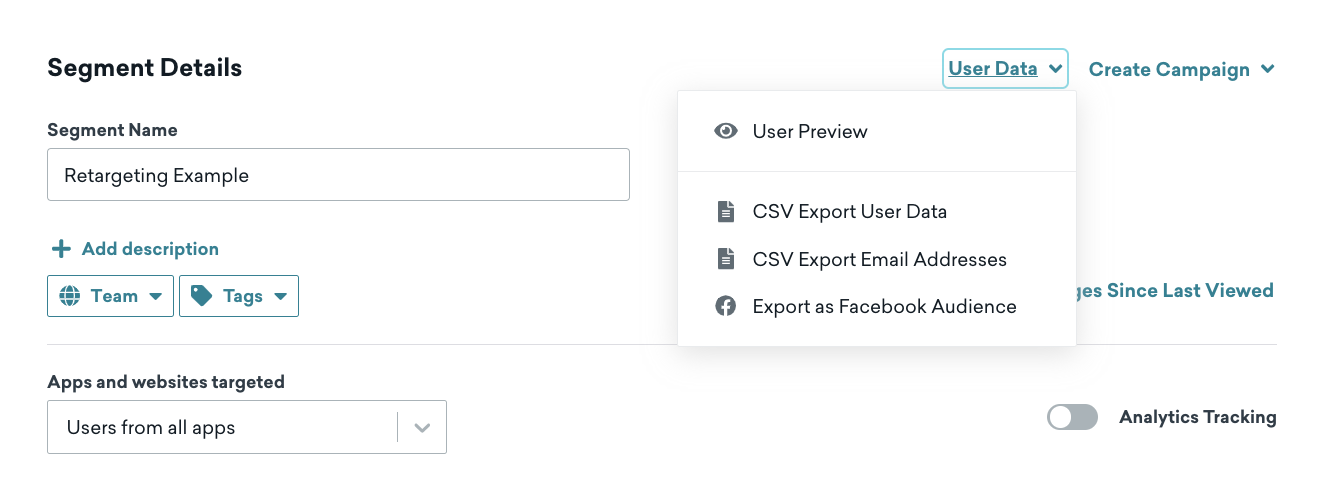
- If you haven’t already activated Facebook within Braze, you are prompted to go to the Facebook Technology Partners page in the dashboard. If you already activated Facebook through Technology Partners > Facebook, you can select your Facebook ad account and the user fields to export.
You can export the following fields:- Device IDFA
- Phone number
You can select only one user field within a single export. If you choose more than one data type, Braze creates a separate custom audience for each.
- After you select the user field, select Export Segment. Like CSV exports, you receive an email when the segment has finished exporting into Facebook.
- View the custom audience on the Facebook Ads Manager.
Due to user privacy reasons, Facebook doesn’t allow you to see:
- The exact users that were successfully added to a Custom Audience. Learn more.
- The size of the Custom Audience. Learn more.
Configuring your audience export
When building Facebook audiences, you may wish to include or exclude certain users based on their preferences, and in order to comply with privacy laws, such as the “Do Not Sell or Share” right under the CCPA. Marketers should implement the relevant filters for users’ eligibility within their Canvas entry criteria. Below we list some options.
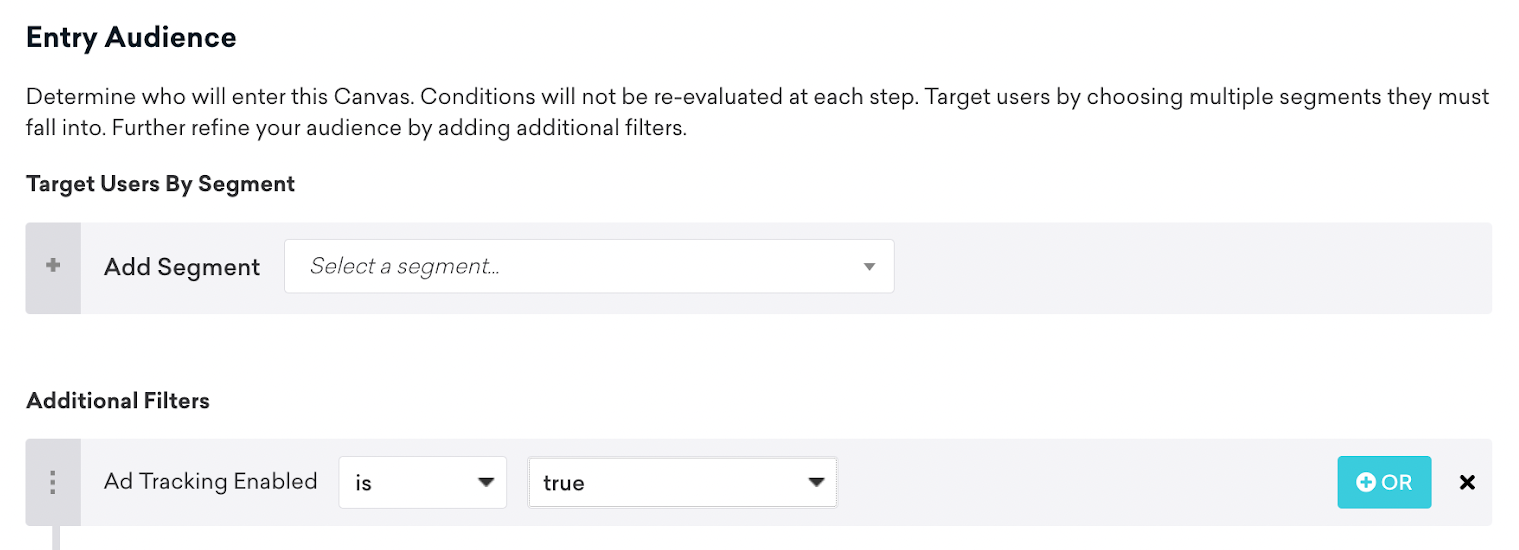
- If you have collected the iOS IDFA through the Braze SDK, you can use the Ads Tracking Enabled filter. Select the value as
trueto send users into Audience Sync destinations only where they have opted in.
- If you are collecting opt ins, opt outs,
Do Not Sell Or Share, or other relevant custom attributes, you should include these within your Canvas entry criteria as a filter:

Lookalike Audiences
Once you’ve successfully exported a segment as a Facebook Audience, you can create additional groups using Facebook Lookalike Audiences. This feature looks at your chosen audience’s demographics, interests, and other attributes and creates a new audience of people with similar attributes.
Troubleshooting
Error Validating Access Token
When using Facebook Export, the Error Validating Access Token error appears if:
- You changed your password, which invalidates your current session
- Facebook logged you out as a security precaution
To resolve this error, follow these steps:
- Log out of Facebook, then log back in.
- In Braze, remove your Facebook credentials and save. Confirm the credentials were removed by trying to export a segment (the export icon should be disabled).
- Re-add and save your Facebook credentials.
- Try to export again.
If the export doesn’t work, do the following:
- Remove your credentials again and save.
- Re-add your credentials and save.
- Disconnect and reconnect the Facebook integration on the Technology Partners page.
Error when exporting a Facebook Audience
If you receive an error when exporting a segment as a Facebook Audience, Facebook’s developer documentation notes the following common causes:
- The access token is from a user who isn’t an admin of the app and ad account: The Facebook user whose credentials are connected to Braze must have the right permissions.
- The ad account you’re exporting to isn’t associated with your app: The Facebook ad account must be linked to your app in Facebook’s settings.
Use the following checks to verify your setup:
- Check that you’re an admin of the app: Go to developers.facebook.com, open My Apps, and select your company’s app. If you don’t see the app, your development team may need to add you. In the app’s dashboard, go to Roles in the left-hand menu to confirm your role (Admin, Developer, Tester, or Analytics User).
- Check that your ad account is associated with your app: In the Facebook App Dashboard, go to Settings > Advanced, scroll to Advertising Accounts, and add the Facebook ad account ID you want to use for Braze audience exports if it isn’t already listed.
- Check that you’re an admin of the ad account: Go to business.facebook.com then select Business Settings from the top-left dropdown. Next, go to Accounts > Ad accounts, and select the ad account. Confirm your access and that you have the permissions needed to create Custom Audiences.
For more details, see Facebook’s Custom Audience API documentation and Facebook’s Business Help Center guide on Custom Audiences.
 Edit this page on GitHub