Shopify product sync
You can sync all products from your Shopify store to a Braze catalog for deeper messaging personalization.
Shopify catalogs will update in near real-time as you make edits and changes to the products in your Shopify store. You can enrich your abandoned cart, order confirmation, and more with the most up-to-date product details and information.
In addition to supporting core Shopify product data, you can sync Shopify collections, product tags, and product metafields to your Braze catalog. These additional fields unlock richer personalization, more precise catalog selections, and more powerful segmentation through Segment Extensions.
Set up your Shopify product sync
If you have already installed your Shopify store, you can still sync your products by following the instructions in this section.
Step 1: Turn on the sync
You can sync your products to a Braze catalog through the Shopify install flow or on the Shopify partner page.
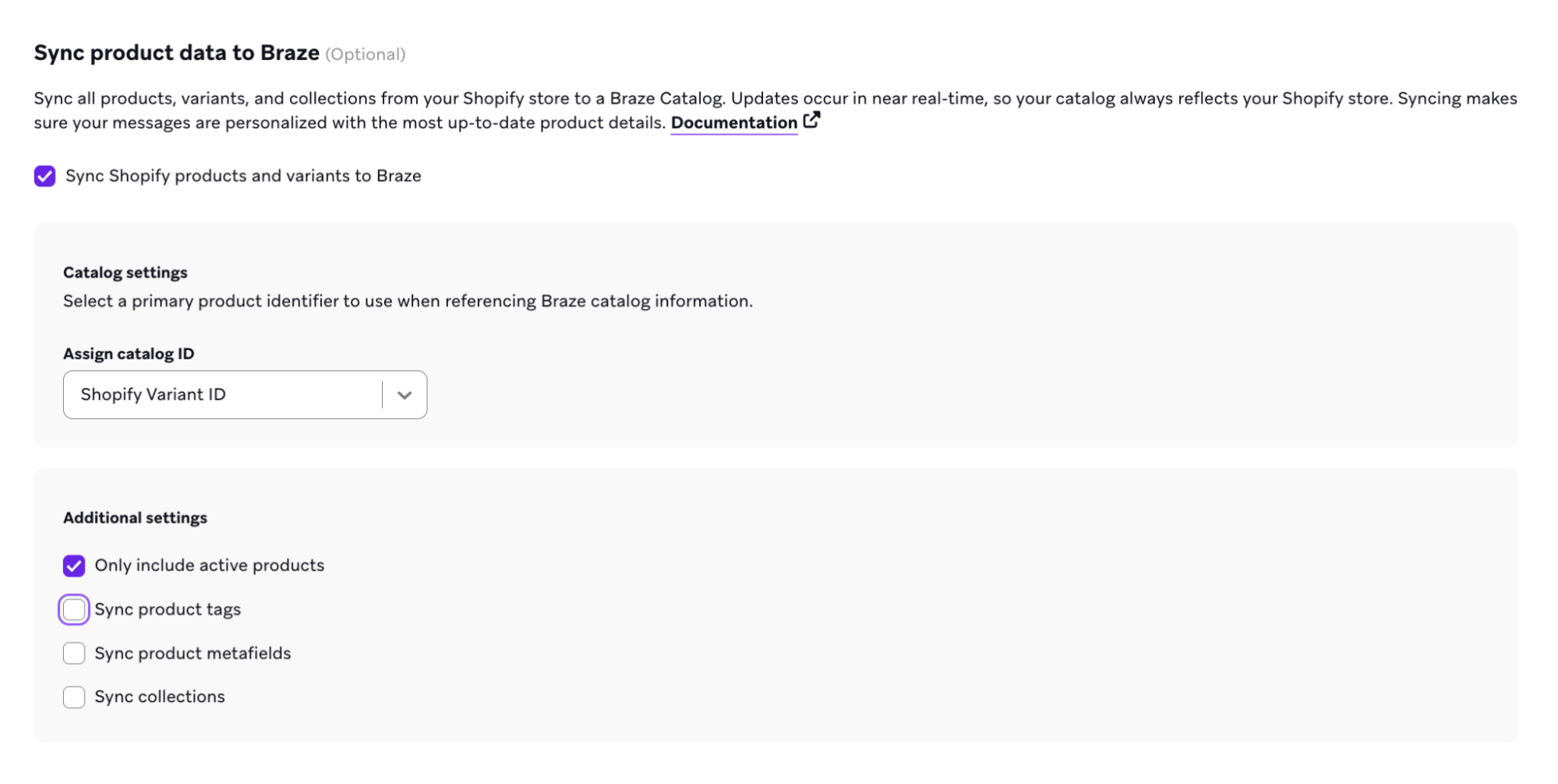
Step 2: Select your product identifier
Select the primary product identifier to use as the Braze catalog ID:
- Shopify Variant ID is a good default when your SKUs are missing, duplicated across variants, or may contain characters such as slashes, periods, spaces, or ampersands. Variant IDs are numeric and always meet these requirements.
- SKU works well when every variant has a unique SKU that follows the same character rules as Shopify Variant ID, and you want messaging or analytics to use retail SKUs as the catalog key.
- You can use free-text SKUs that contain disallowed characters by using Shopify Variant ID instead of SKU.
The value you select becomes the catalog item_id and can only contain letters, numbers, hyphens, and underscores.

If using SKU as your catalog ID, make sure that all your products and variants in your store have a SKU set and they are unique.
- If an item has a missing SKU, Braze can’t sync that product into the catalog.
- If you have more than one product with the same SKU, this can cause unexpected behavior or unintentionally override product information.
Step 3: Configure additional product data (optional)
You can optionally enable syncing for product tags, Shopify Collections, and metafields. Enable or modify these settings after the initial sync from the Shopify partner page.
Add product tags, Shopify Collections, and metafields in Shopify first. If they do not exist in Shopify, they will not appear in Braze.
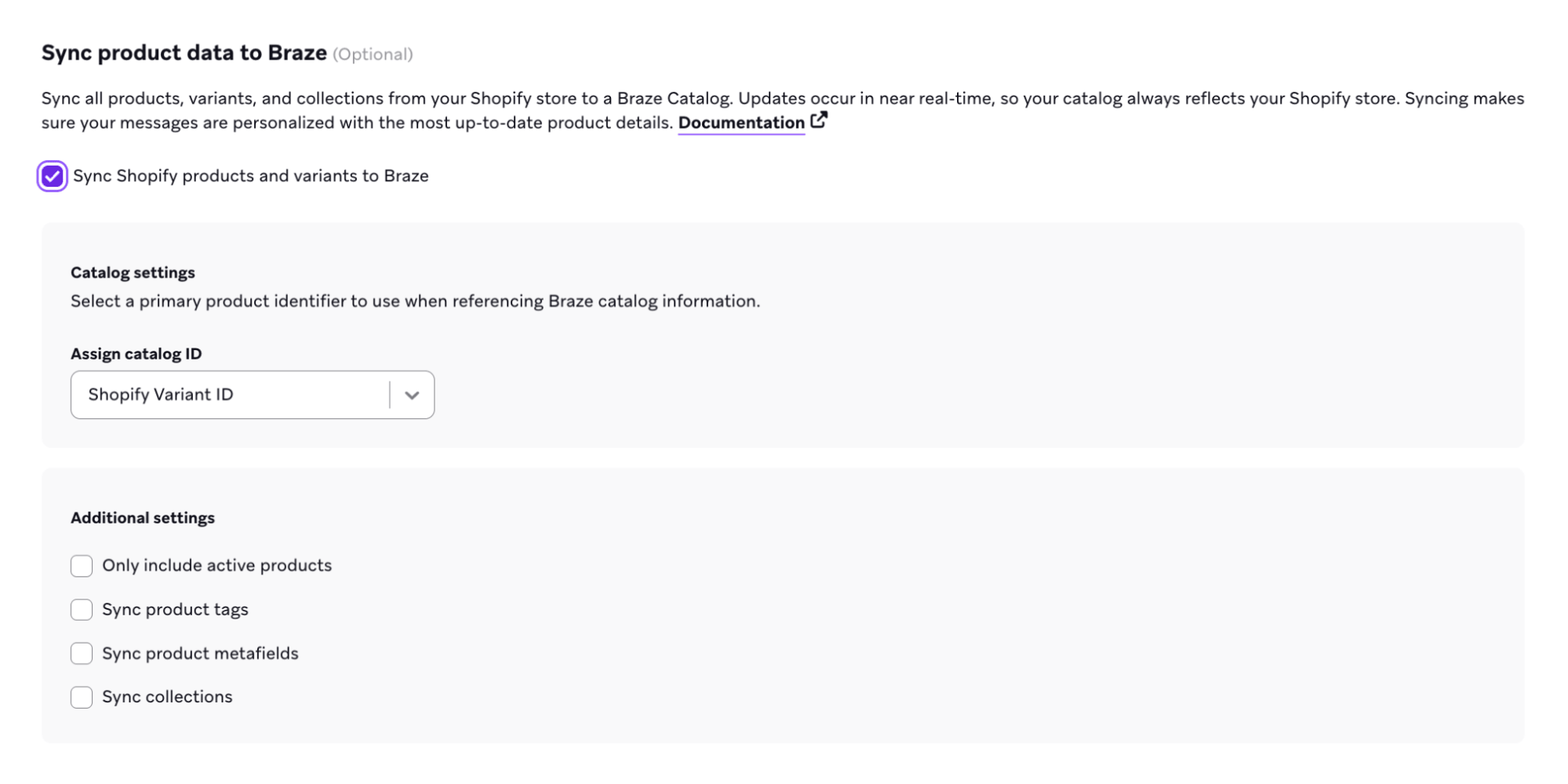
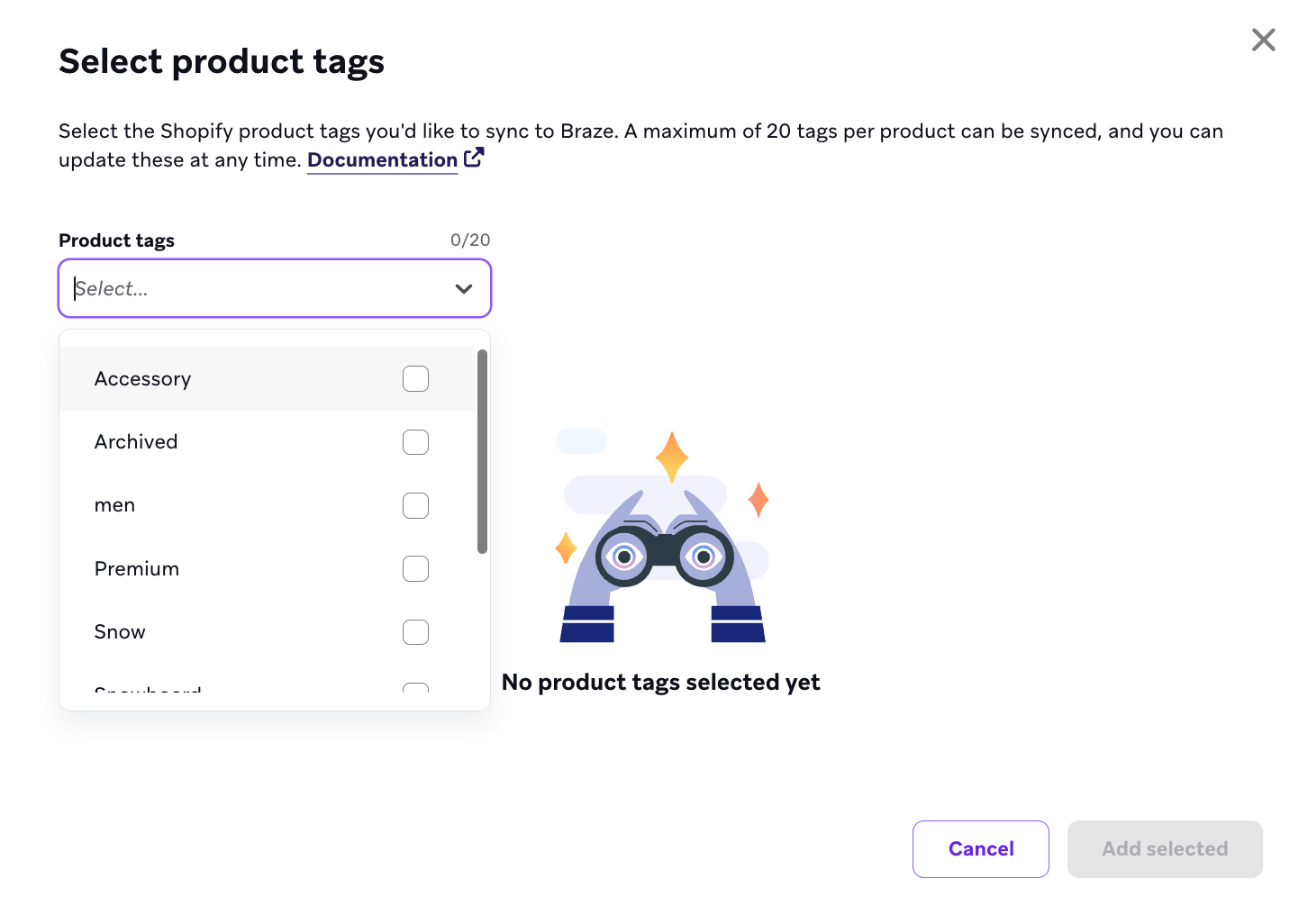
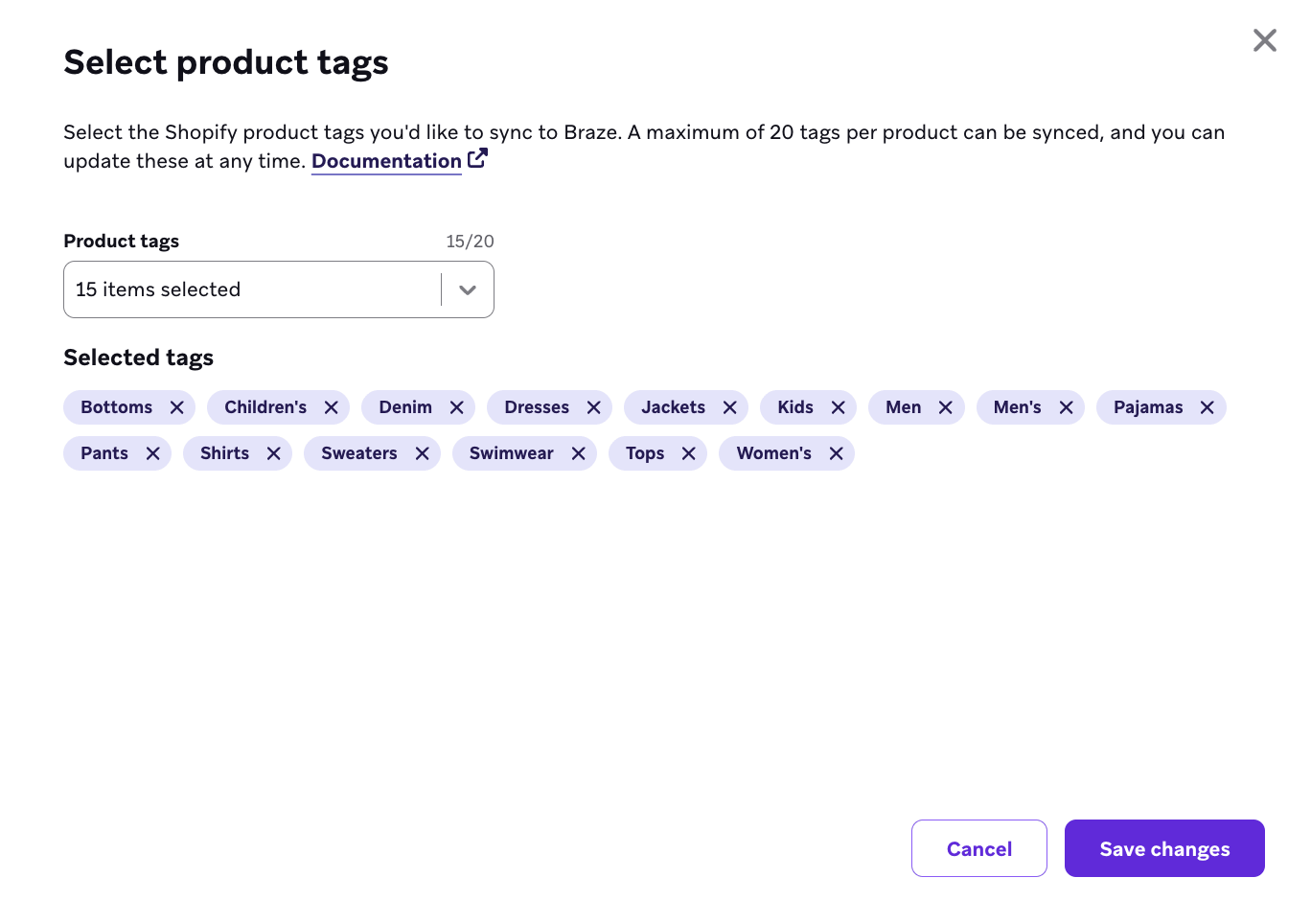
- On the Sync product data to Braze page, select the Sync product tags checkbox to open the Select product tags modal.
- Select up to 20 product tags to sync to your Braze catalog. Only the tags you select will be synced.
- If you have an existing Shopify integration, reauthorize the Braze Shopify app to install new required scopes to sync products. If you’re a new customer, go to the next step.

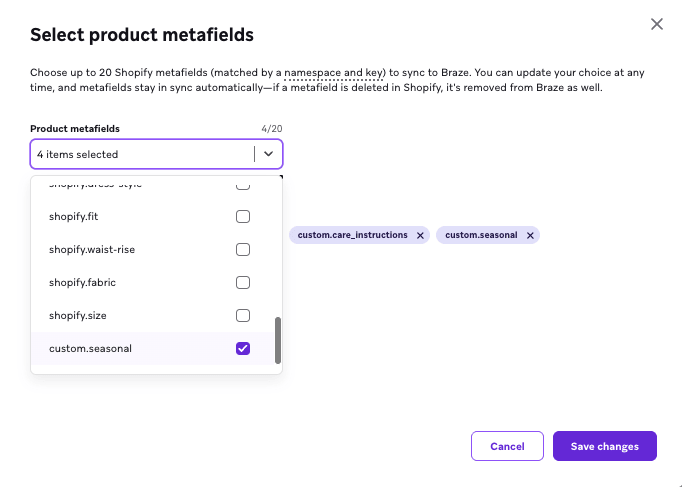
- Select Sync product metafields to open the metafield configuration modal.
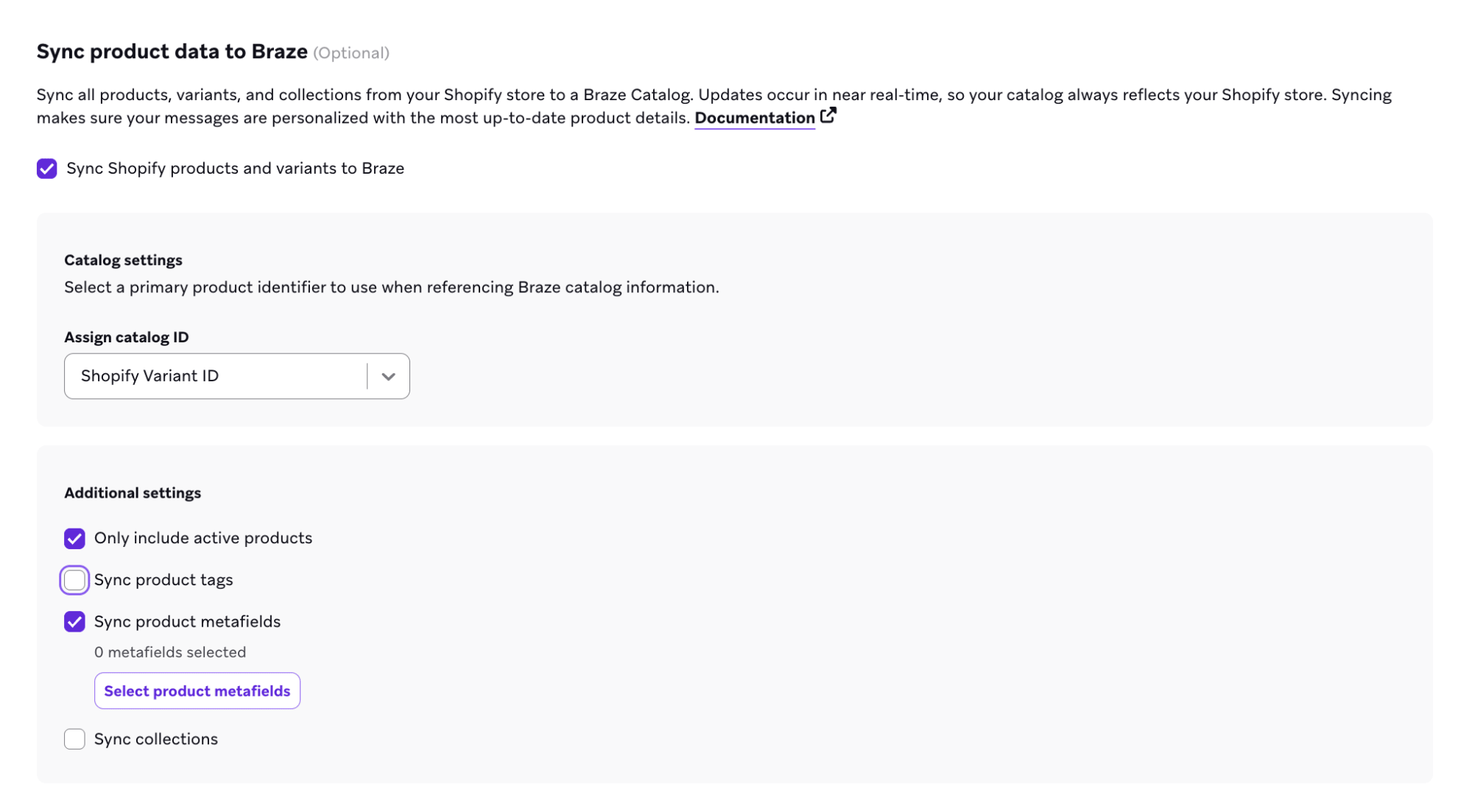
- Select up to 20 of the searchable metafields to sync. Each becomes a separate column in your catalog to use in features like Catalog Selections or Segment Extensions.
- When naming metafields, note that spaces become “_” and all special characters are removed to account for Braze catalog field naming restrictions.
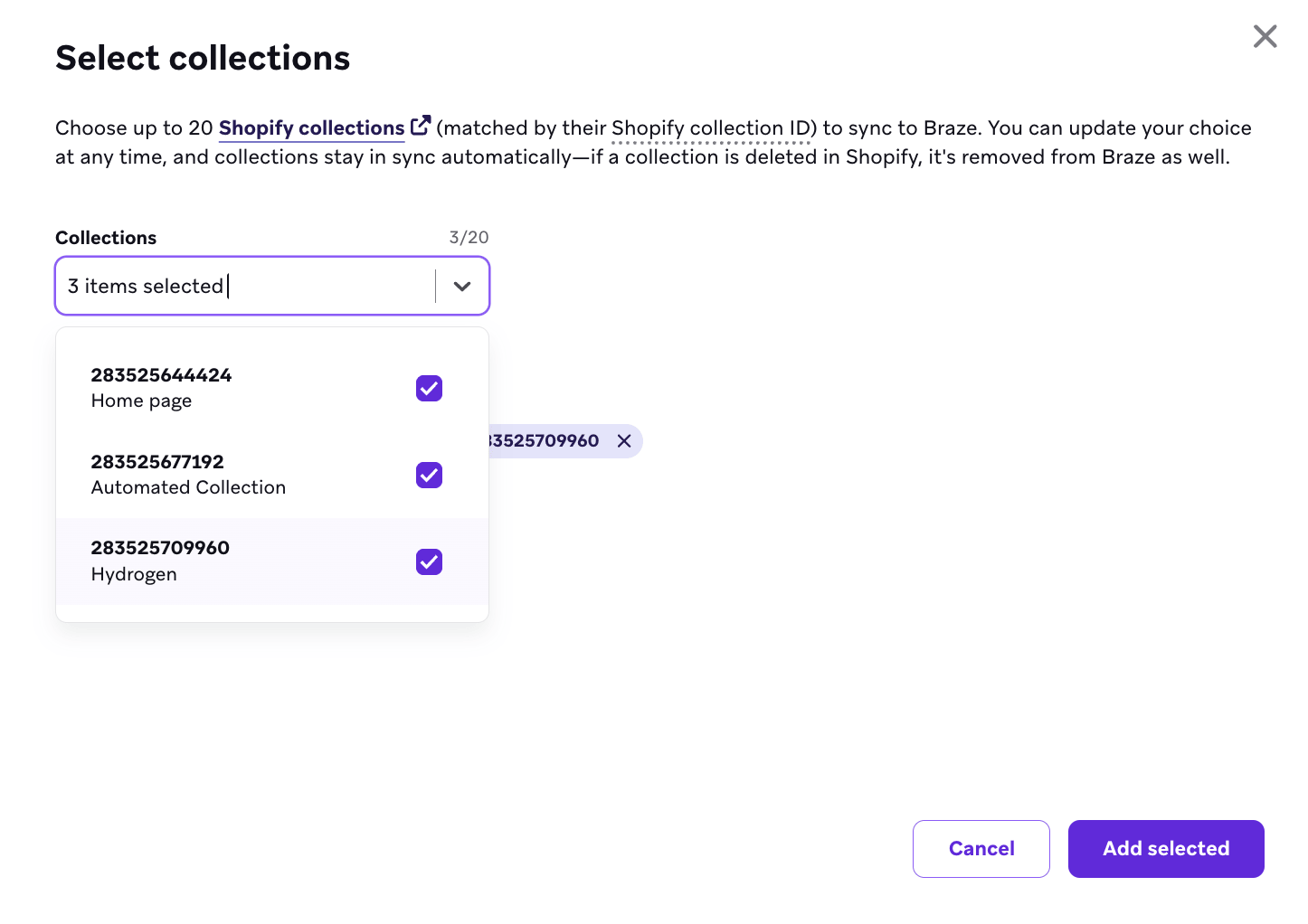
- Select Sync Shopify collections to open the collection setup modal.
- Select up to 20 collections to sync.
- The modal provides a searchable list of up to 5,000 of the most recently created or updated collections from your Shopify store.
- Previously selected collections that are no longer in the top 5,000 will still appear in your selection.
Braze uses the Shopify Collection ID to identify synced collections, which are then used when building Catalog selections and segment filters.

Step 4: Track your sync progress
After saving your configuration, Braze will begin syncing your products and update the status to In Progress on your Shopify partner page. The sync time depends on the number of products and variants in your store.
You can leave the page once the sync is in progress; Braze sends you a dashboard notification when the sync completes. After the completion, the status updates to Active and you can view your products by selecting the catalog name on your Shopify partner page.
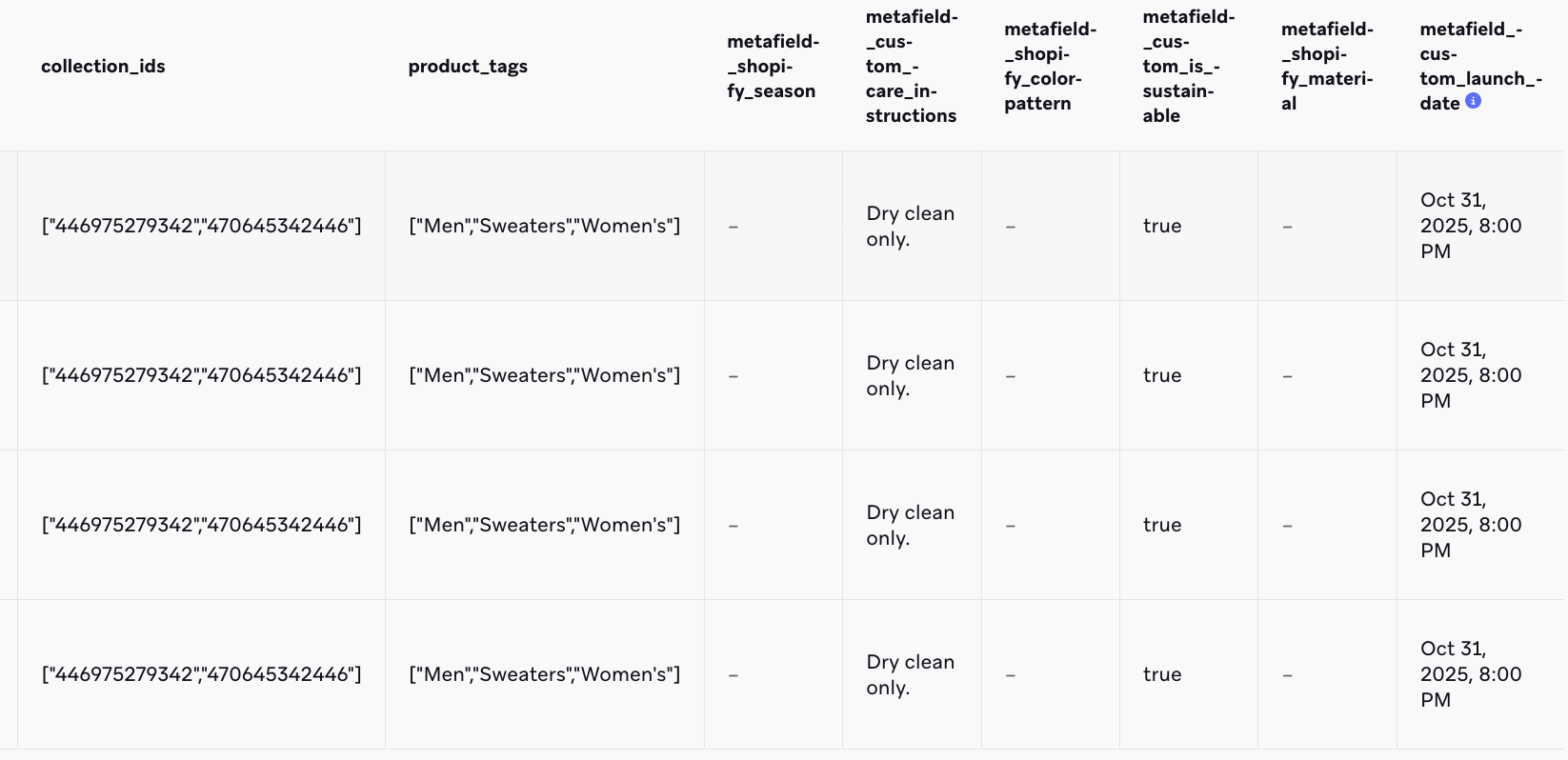
You can also view synced product tags, metafields, and collections within your Shopify catalog as new columns.

If your sync exceeds your catalog storage limit, Braze stops syncing and new product updates are no longer reflected. Contact your customer success manager to upgrade your tier if needed.
Step 5: Manage your configuration
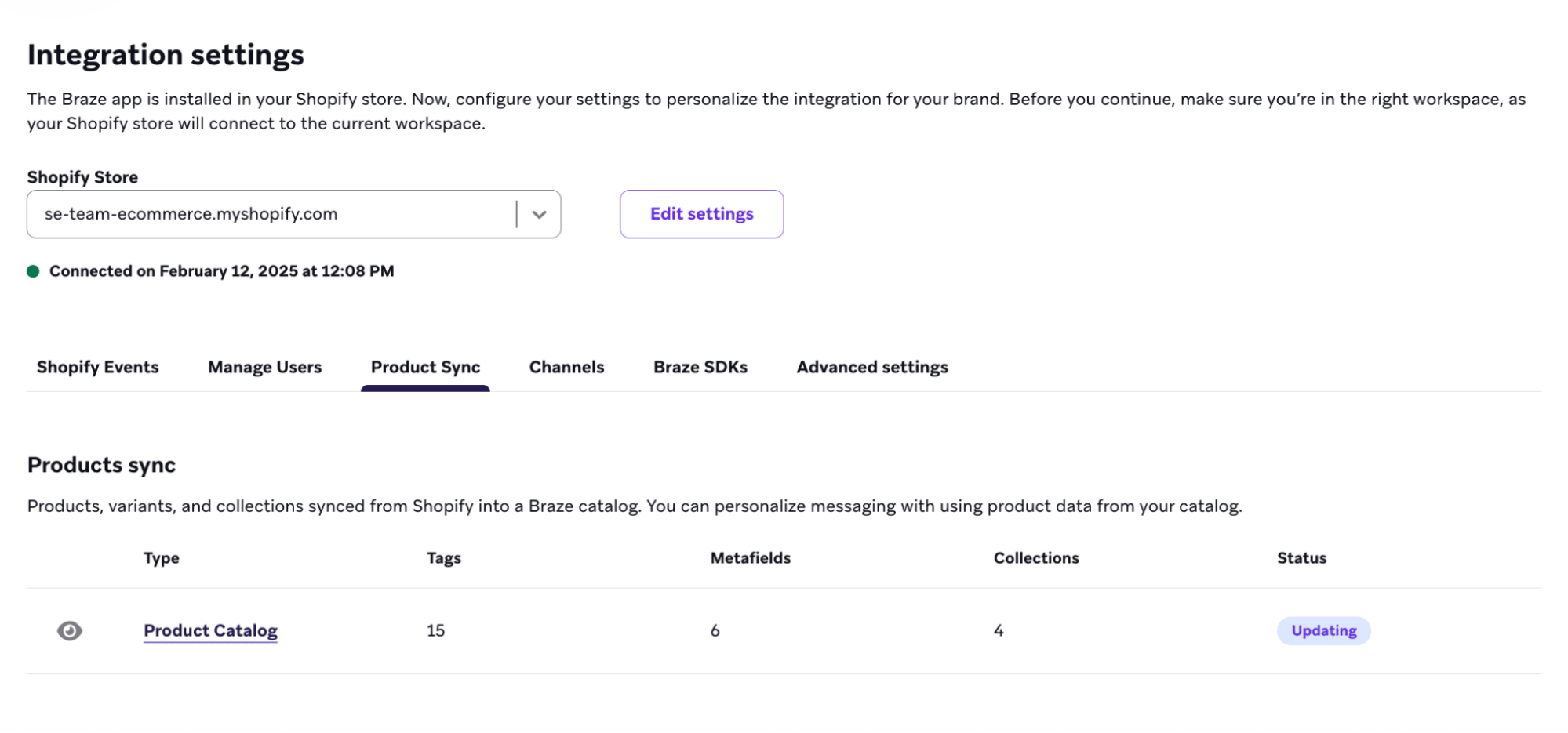
Each sync type has a summary card on the Shopify partner page showing the total count synced, current status, and a link to your catalog. Select the view icon to view your active configuration and edit it.
You can modify your Shopify product sync, including managing your product tags, collections, and product metafields at any time from the Shopify partner page.
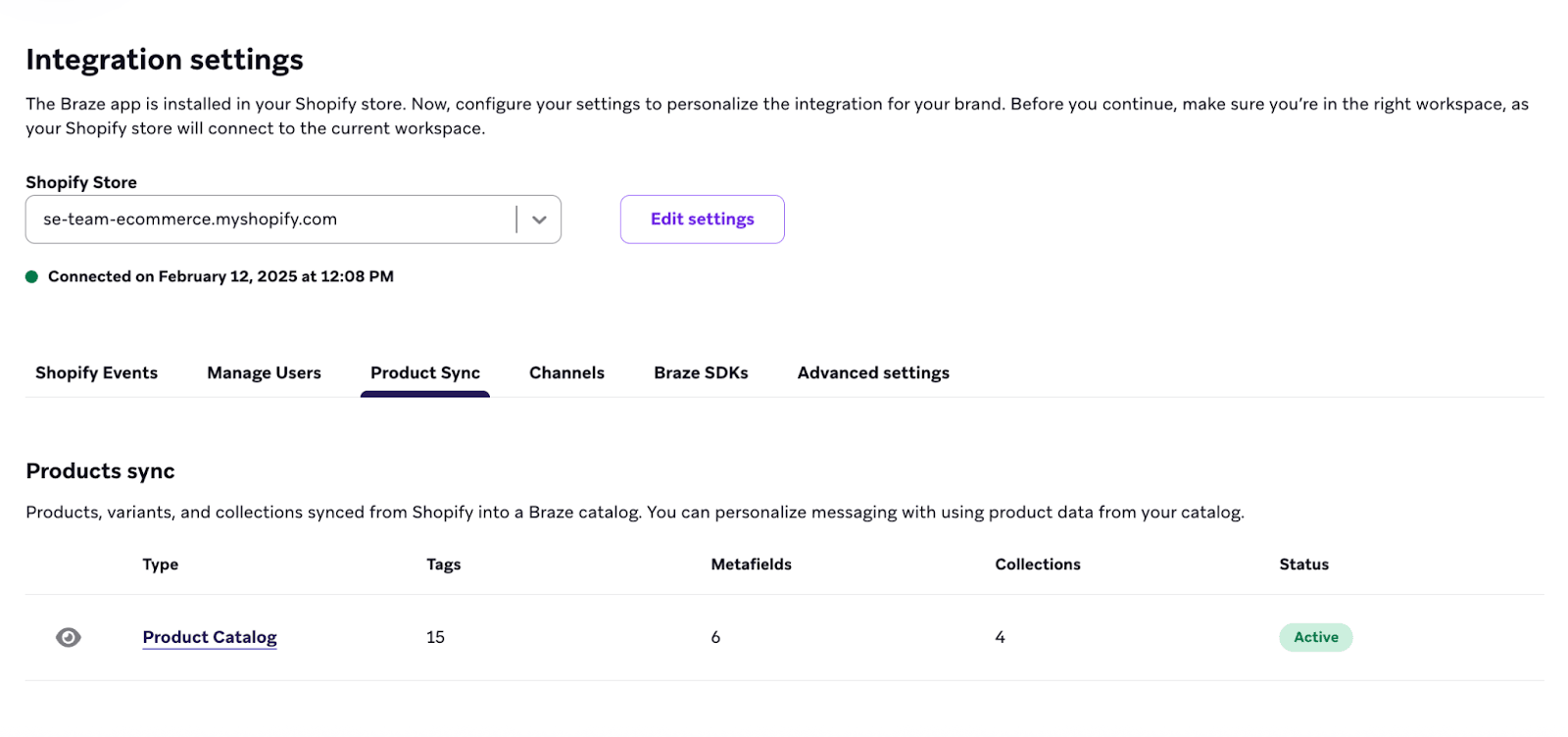
Changing your synced selections may affect active campaigns, Canvases, or catalog selections that reference them. Update active content so they work properly when you apply the changes.
Supported Shopify catalog data
| Field | Data type | Examples |
|---|---|---|
id |
string | 45264808411274 when the catalog product identifier is Shopify Variant ID12345 when the catalog product identifier is SKU (matches the value you selected in Step 2) |
store_name |
string | “your-store” (Shopify store subdomain, without .myshopify.com) |
shopify_product_id |
number | 7939032613002 (stored as a number in your Braze catalog; Shopify APIs may return this ID as a string) |
shopify_variant_id |
number | 45264808411274 (stored as a number in your Braze catalog; Shopify APIs may return this ID as a string) |
product_title |
string | “Classic leather jacket” |
variant_title |
string | “Large / Red”, “Medium”, or “Default Title” for single-variant products |
status |
string | “active”, “draft”, “archived” |
product_image_url |
string | “https://cdn.shopify.com/s/files/1/0641/0970/7402/files/t_shir.jpg?v=1736538760” |
variant_image_url |
string | Same CDN-style URL as the product image when no variant image exists; otherwise a variant-specific image URL |
vendor |
string | “Flash and Thread”, “PantsLabyrinth” |
product_type |
string | “Outerwear”, “T-Shirts” (from the product’s Product type in Shopify) |
product_url |
string | “https://your-store.myshopify.com/products/classic-leather-jacket” |
product_handle |
string | “classic-leather-jacket” |
published_scope |
string | “web”, “global” |
price |
number | 10.00, 24.99Shopify often returns prices as strings (for example "199.00" in the REST Admin API). Braze converts them to numbers for this catalog field. |
compare_at_price |
number | 15.00 when Compare at price is set in Shopify0 when Shopify has no compare-at price. Shopify APIs typically return null for an unset compare-at price; Braze stores 0 in the catalog so the field is always numeric (this is a Braze default, not a value Shopify sends as 0). |
inventory_quantity |
number | 20, 0, or a negative value when overselling is allowed (for example -18) |
options |
string | “Size,Color” Shopify allows up to three option types per product (for example Size, Color, Material). The options value is a comma-separated list of those names. |
option_values |
string | “Medium,Red”, “Large,Red” Each value maps to the same order as options (up to three values). |
sku |
string | “12345”, “SKU-001-RED-L” |
product_tags |
array | ["Summer", "Sale", "New"]Requires product tag syncing. |
collection_ids |
array | [123456789012, 987654321098] (Shopify collection IDs)Requires Shopify collection syncing. |
Metafield columns |
Varies by type | Each synced metafield appears as a separate column named by its key. See Supported metafields in the “Product metafields” tab of step 3 for information. |

Your Shopify catalog is managed by Shopify. To update your catalog, make changes directly in your Shopify store, and they will automatically sync to Braze. To delete your Shopify catalog, go to the Shopify partner page in Braze and deactivate the sync.
Shopify catalog use cases
These use cases show how you can use your synced Shopify catalog data to personalize messages.
Braze syncs up to 250 variants of each Shopify product into your catalog. Variants beyond that limit are not synced. If you need more than 250 variants per product, contact your Braze customer success manager.
Use product tags to personalize messages based on how your products are categorized in Shopify. For example, you can send a promotion featuring all products tagged “Summer Sale” through a catalog selection, or build a segment of users who purchased products tagged “Premium.”
Product tags are stored as an array field on each catalog item. To configure product tag syncing, see Shopify product tags.
Catalog selection
- In Shopify, give relevant products in Shopify the product tag of “Women’s”.
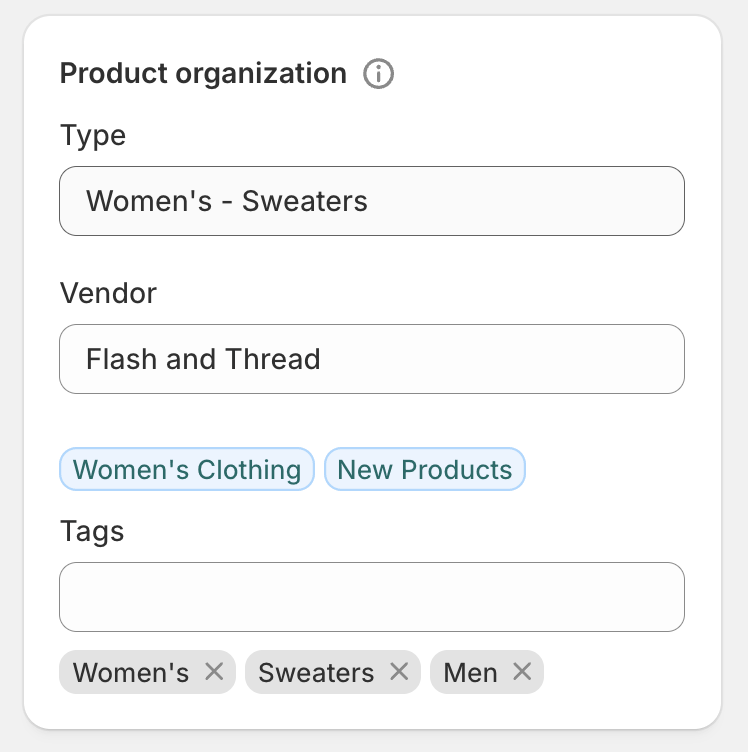
- In Braze, enable tag syncing and select the “Women’s” product tag.
Personalization
When referencing product tags or collections in catalog selections, use only the value itself without the array brackets [] or quotes "" that appear in the catalog data. For example, if a product tag displays as ["Women's"] in your catalog, write Women's in your selection filter.
- Create a catalog selection that filters for products that have the respective product tag, such as “Women’s”. You can only use one unique array field within a single catalog selection, and up to 50 products in your catalog selection.
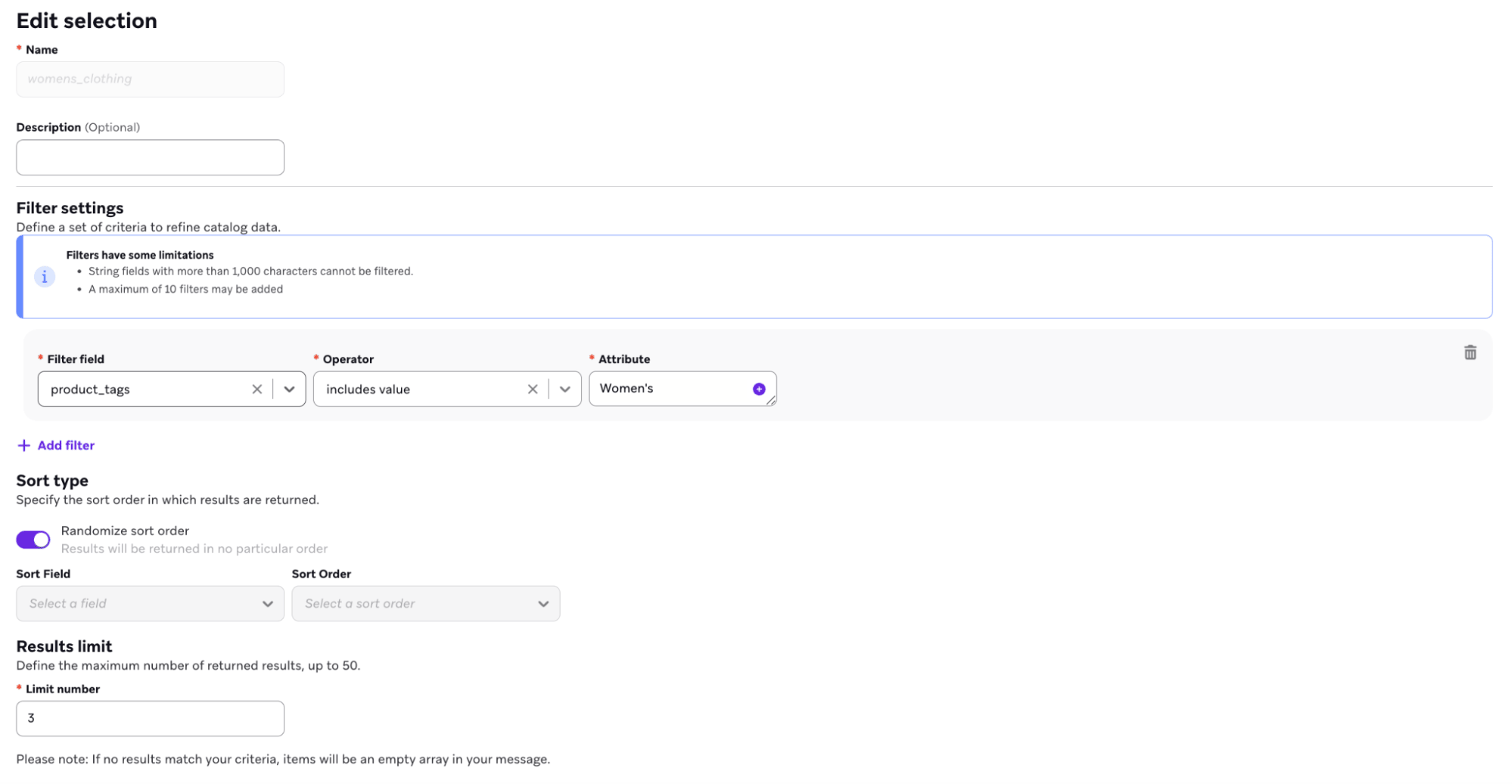
- In the message composer, add the selection where you want to template in the products from the catalog selection that are tagged with “Women’s”. For example, you could use an HTML product block like this:
{% catalog_selection_items se-team-ecommerce_shopify_catalog womens_clothing %}
{% if items[0] == blank %}
{% abort_message('Catalog selection returned no items') %}
{% endif %}
<table role="presentation" width="100%" cellpadding="0" cellspacing="0" style="border-collapse:collapse;">
{% for item in items %}
{% if forloop.index0 < 3 %}
{% assign title = item.product_title | default: '' %}
{% assign image_url = item.variant_image_url | default: '' %}
{% assign price = item.price | default: '' %}
{% assign url = item.product_url | default: '' %}
<tr>
<td width="200" valign="top" style="padding:12px 12px 12px 0;">
{% if image_url == blank %}
<div style="width:200px;height:200px;background:#f2f2f2;line-height:200px;text-align:center;font-family:Arial,sans-serif;font-size:12px;color:#666;">
No image
</div>
{% else %}
{% if url == blank %}
<img src="{{ image_url }}" width="200" height="200" alt="{{ title | escape }}" style="display:block;border:0;outline:none;text-decoration:none;" />
{% else %}
<a href="{{ url }}" style="text-decoration:none;">
<img src="{{ image_url }}" width="200" height="200" alt="{{ title | escape }}" style="display:block;border:0;outline:none;text-decoration:none;" />
</a>
{% endif %}
{% endif %}
</td>
<td valign="top" style="padding:12px 0;font-family:Arial,sans-serif;font-size:14px;line-height:20px;color:#111;">
{% if title != blank %}<div style="font-weight:600;">{{ title | escape }}</div>{% endif %}
{% if price != blank %}<div>Price: ${{ price }}</div>{% endif %}
{% if url != blank %}<div><a href="{{ url }}" style="color:#F84B09;">View product</a></div>{% endif %}
</td>
</tr>
{% endif %}
{% endfor %}
</table>
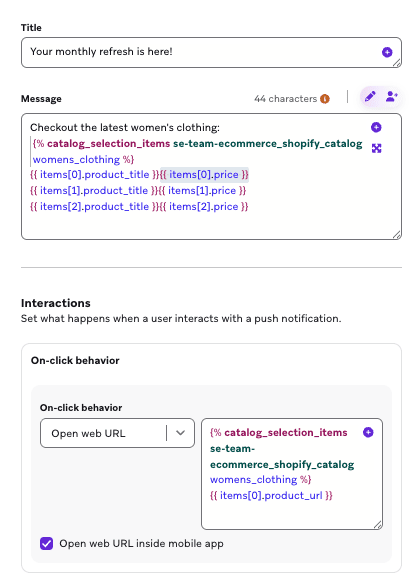
Or, if you want to mention specific products tagged with “Women’s” in a push notification, you can use the Add Personalization tool and specify your catalog items.
Checkout the latest women's clothing:
{% catalog_selection_items se-team-ecommerce_shopify_catalog womens_clothing %}
{{ items[0].product_title}}{{items[0].price}}
{{ items[1].product_title}}{{items[1].price}}
{{ items[2].product_title}}{{items[2].price}}
Catalog segmentation (SQL)
Use Segment Extensions to build segments based on users who interacted with a product tag. For example, to find users who have engaged with catalog items that contain a specific product tag, use this query:
-- Description:
-- This query fetches users who have engaged with catalog items that contain a specific product tag. It joins the catalog
-- to custom events by matching any element in an array within events.properties.products (e.g. any product
-- with variant_id equal to a catalog item), using Snowflake LATERAL FLATTEN to explode the array.
SELECT
DISTINCT(events.user_id)
FROM
USERS_BEHAVIORS_CUSTOMEVENT_SHARED AS events,
LATERAL FLATTEN(input => GET_PATH(TRY_PARSE_JSON(events.properties), 'products'), outer => false) AS event_item
JOIN CATALOGS_ITEMS_SHARED AS items ON (
(
items.field_name = 'id'
AND
items.field_value = GET_PATH(event_item.value, 'variant_id')::STRING
)
OR
items.item_id = GET_PATH(event_item.value, 'variant_id')::STRING
)
WHERE
events.name = 'ecommerce.order_placed'
and events.app_group_id = '<app_group_id>'
AND items.catalog_id = '<catalog_id>'
AND (items.field_name = 'product_tags' AND ARRAY_CONTAINS('<product_tag_value>'::VARIANT, TRY_PARSE_JSON(items.field_value)));
Use product metafields to personalize messages with custom product details beyond Shopify’s standard fields. For example, include care instructions in an order confirmation, display country of origin in a recommendation email, or segment users who purchased a specific material.
Each synced metafield becomes a separate column in your catalog, with data type determined by the metafield type. To set up metafield syncing, see Shopify product metafields.
Catalog selection
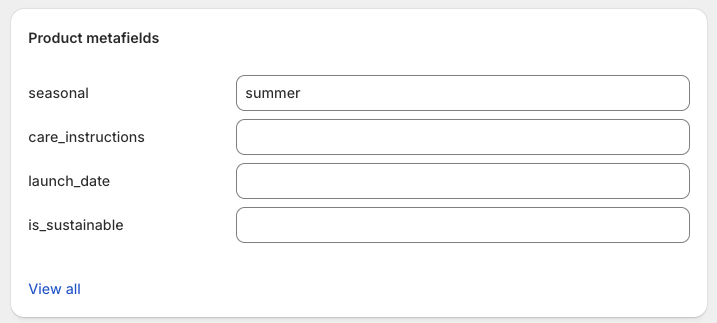
- In Shopify, set the
seasonalproduct metafield on relevant products tosummer(this is a metafield value, not a product tag).
- In Braze, enable metafield syncing and select
custom.seasonal(or the namespace and key that match your Shopify metafield).
Personalization
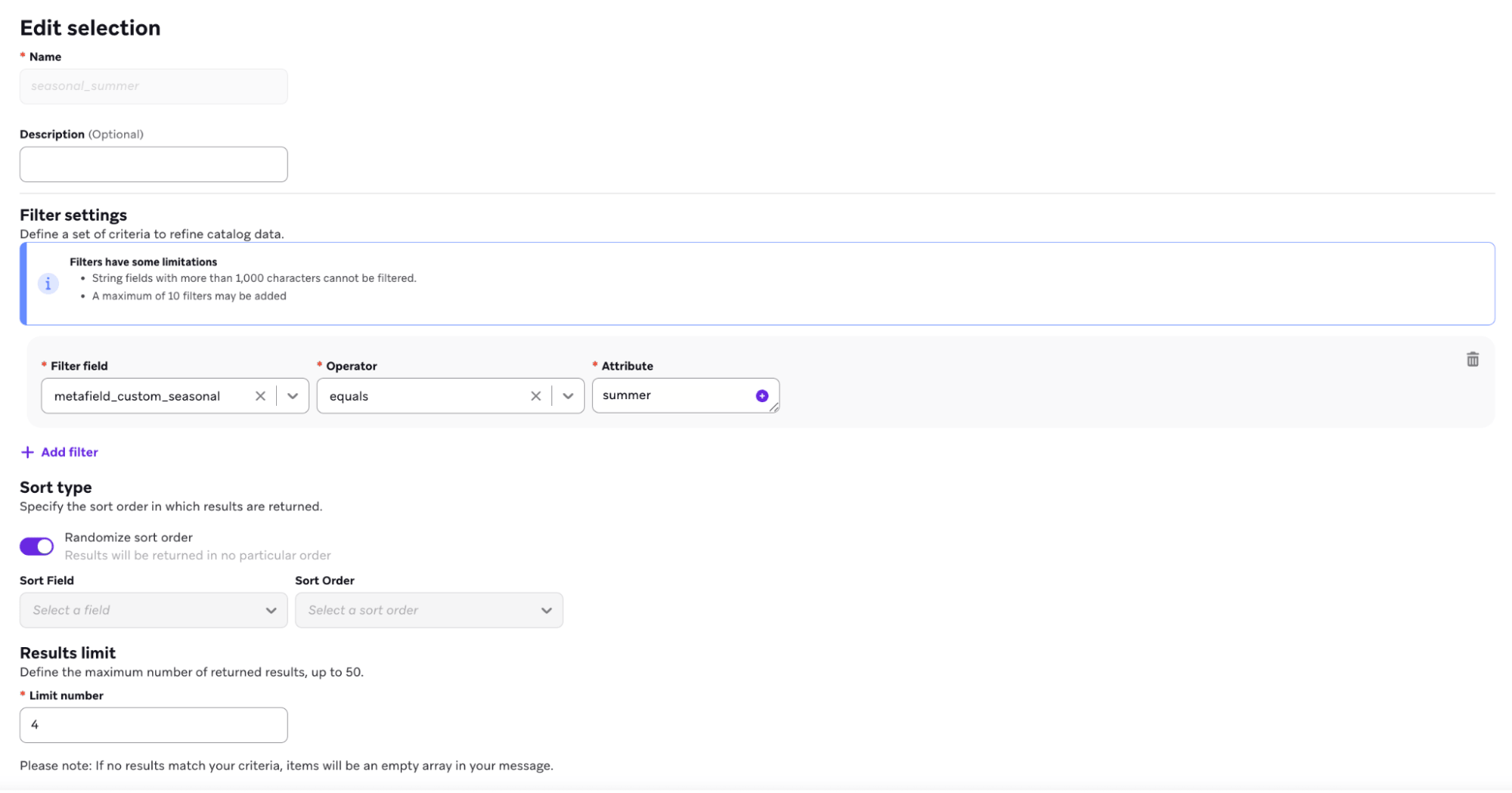
- Create a catalog selection that filters for metafields that include the respective value.
- In the message composer, add the selection where you want to template in product metafields. For example, you could use an HTML product block like this:
{% catalog_selection_items se-team-ecommerce_shopify_catalog seasonal_summer %}
{% if items[0] == blank %}
{% abort_message('Catalog selection returned no items') %}
{% endif %}
<table role="presentation" width="100%" cellpadding="0" cellspacing="0" style="border-collapse:collapse;">
{% for item in items %}
{% if forloop.index0 < 3 %}
{% assign title = item.product_title | default: '' %}
{% assign image_url = item.variant_image_url | default: '' %}
{% assign price = item.price | default: '' %}
{% assign url = item.product_url | default: '' %}
<tr>
<td width="200" valign="top" style="padding:12px 12px 12px 0;">
{% if image_url == blank %}
<div style="width:200px;height:200px;background:#f2f2f2;line-height:200px;text-align:center;font-family:Arial,sans-serif;font-size:12px;color:#666;">
No image
</div>
{% else %}
{% if url == blank %}
<img src="{{ image_url }}" width="200" height="200" alt="{{ title | escape }}" style="display:block;border:0;outline:none;text-decoration:none;" />
{% else %}
<a href="{{ url }}" style="text-decoration:none;">
<img src="{{ image_url }}" width="200" height="200" alt="{{ title | escape }}" style="display:block;border:0;outline:none;text-decoration:none;" />
</a>
{% endif %}
{% endif %}
</td>
<td valign="top" style="padding:12px 0;font-family:Arial,sans-serif;font-size:14px;line-height:20px;color:#111;">
{% if title != blank %}<div style="font-weight:600;">{{ title | escape }}</div>{% endif %}
{% if price != blank %}<div>Price: ${{ price }}</div>{% endif %}
{% if url != blank %}<div><a href="{{ url }}" style="color:#F84B09;">View product</a></div>{% endif %}
</td>
</tr>
{% endif %}
{% endfor %}
</table>
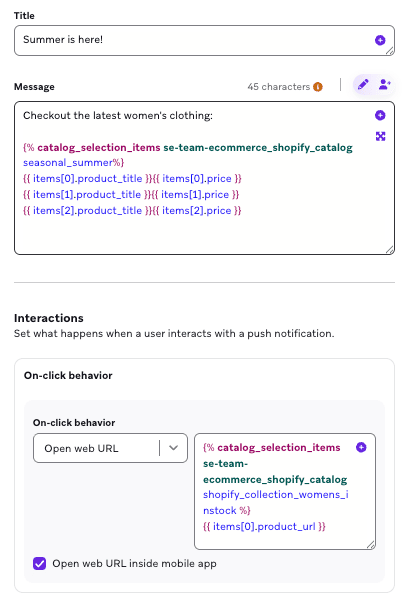
Or, if you want to mention specific products with a specific metafield value in a push notification, you can use the Add Personalization tool and specify your catalog items.
Check out the latest summer products:
{% catalog_selection_items se-team-ecommerce_shopify_catalog seasonal_summer %}
{{ items[0].product_title}}{{items[0].price}}
{{ items[1].product_title}}{{items[1].price}}
{{ items[2].product_title}}{{items[2].price}}
Catalog segmentation (SQL)
Use Segment Extensions to build segments based on users who interacted with a product metafield. For example, to find users who triggered an ecommerce event with a product whose metafield array contains a specific value, use this query:
-- -----------------------------------------------------------------------------
-- When the metafield is stored as a JSON array in catalog field_value (for example,
-- '["winter","summer"]' or a list-type Shopify metafield serialized to JSON),
-- use ARRAY_CONTAINS like product_tags. Cast the element you search for to
-- VARIANT so types match the parsed array elements.
-- -----------------------------------------------------------------------------
-- Description:
-- Fetches users who triggered the ecommerce event with a product whose
-- metafield array contains a specific value (for example, segment on "seasonal").
-- For a date range, add events.time >= $start_date AND events.time <= $end_date.
-- For first/last triggered, reuse the CTE pattern from Template 3 with this
-- ARRAY_CONTAINS predicate instead of items.field_value = '<metafield_value>'.
SELECT
DISTINCT(events.user_id)
FROM
USERS_BEHAVIORS_CUSTOMEVENT_SHARED AS events,
LATERAL FLATTEN(input => GET_PATH(TRY_PARSE_JSON(events.properties), 'products'), outer => false) AS event_item
JOIN CATALOGS_ITEMS_SHARED AS items ON (
(
items.field_name = 'id'
AND items.field_value = GET_PATH(event_item.value, 'variant_id')::STRING
)
OR
items.item_id = GET_PATH(event_item.value, 'variant_id')::STRING
)
WHERE
events.name = 'ecommerce.order_placed'
AND events.app_group_id = '<app_group_id>'
AND items.catalog_id = '<catalog_id>'
AND items.field_name = '<metafield_name>'
AND ARRAY_CONTAINS('<array_element_value>'::VARIANT, TRY_PARSE_JSON(items.field_value));
If you want to segment customers who have placed an order with the specific product metafields, use one of the following SQL Segment Extension templates (all time, specific time period, first or last triggered an event).
-- =============================================================================
-- Segment Extension: Metafields × Ecommerce Events — Example SQL Templates
-- =============================================================================
-- Metafield column names in CATALOGS_ITEMS_SHARED follow:
-- field_name = 'metafield_<namespace>_<key>'
-- Replace placeholders: app_group_id, catalog_id, event name, and the metafield
-- field_name + value. For array-type metafield values, use ARRAY_CONTAINS
-- with TRY_PARSE_JSON(items.field_value) similar to the product_tags example.
-- =============================================================================
-- -----------------------------------------------------------------------------
-- Template 1: Map metafields to event triggers (all time)
-- -----------------------------------------------------------------------------
-- Users who have ever triggered the ecommerce event with a product that has
-- the given metafield value. Event-agnostic: change events.name for the
-- desired event (e.g. ecommerce.order_placed, ecommerce.product_viewed).
-- -----------------------------------------------------------------------------
-- Description:
-- Fetches users who have engaged with catalog items that have a specific
-- product metafield. Joins the catalog to custom events by matching
-- events.properties.products (e.g. variant_id) to catalog items.
SELECT
DISTINCT(events.user_id)
FROM
USERS_BEHAVIORS_CUSTOMEVENT_SHARED AS events,
LATERAL FLATTEN(input => GET_PATH(TRY_PARSE_JSON(events.properties), 'products'), outer => false) AS event_item
JOIN CATALOGS_ITEMS_SHARED AS items ON (
(
items.field_name = 'id'
AND items.field_value = GET_PATH(event_item.value, 'variant_id')::STRING
)
OR
items.item_id = GET_PATH(event_item.value, 'variant_id')::STRING
)
WHERE
events.name = 'ecommerce.order_placed'
AND events.app_group_id = '<app_group_id>'
AND items.catalog_id = '<catalog_id>'
AND items.field_name = '<metafield_name>'
AND items.field_value = '<metafield_value>';
-- -----------------------------------------------------------------------------
-- Template 2: Map metafields to event triggers (for a specific period)
-- -----------------------------------------------------------------------------
-- Same as Template 1, restricted to events within a time window. Use
-- $start_date and $end_date (Segment Extension parameters) or literal
-- Unix timestamps.
-- -----------------------------------------------------------------------------
-- Description:
-- Fetches users who triggered the ecommerce event with a product that has
-- the given metafield value within the specified time range.
SELECT
DISTINCT(events.user_id)
FROM
USERS_BEHAVIORS_CUSTOMEVENT_SHARED AS events,
LATERAL FLATTEN(input => GET_PATH(TRY_PARSE_JSON(events.properties), 'products'), outer => false) AS event_item
JOIN CATALOGS_ITEMS_SHARED AS items ON (
(
items.field_name = 'id'
AND items.field_value = GET_PATH(event_item.value, 'variant_id')::STRING
)
OR
items.item_id = GET_PATH(event_item.value, 'variant_id')::STRING
)
WHERE
events.name = 'ecommerce.order_placed'
AND events.app_group_id = '<app_group_id>'
AND events.time >= $start_date
AND events.time <= $end_date
AND items.catalog_id = '<catalog_id>'
AND items.field_name = '<metafield_name>'
AND items.field_value = '<metafield_value>';
-- -----------------------------------------------------------------------------
-- Template 3: Map metafields — first or last triggered an event
-- -----------------------------------------------------------------------------
-- Users for whom the *first* (earliest) or *last* (most recent) matching
-- event (by time) involved a product with the given metafield. Switch
-- ORDER BY to time ASC for first, time DESC for last.
-- -----------------------------------------------------------------------------
-- Description:
-- Fetches users whose first (or last) occurrence of the ecommerce event
-- involved a catalog item with the specified metafield value.
WITH events_with_catalog_metafield AS (
SELECT
events.user_id,
events.time,
events.id AS event_id,
ROW_NUMBER() OVER (
PARTITION BY events.user_id
ORDER BY events.time ASC -- use DESC for "last triggered"
) AS rn
FROM
USERS_BEHAVIORS_CUSTOMEVENT_SHARED AS events,
LATERAL FLATTEN(input => GET_PATH(TRY_PARSE_JSON(events.properties), 'products'), outer => false) AS event_item
JOIN CATALOGS_ITEMS_SHARED AS items ON (
(
items.field_name = 'id'
AND items.field_value = GET_PATH(event_item.value, 'variant_id')::STRING
)
OR
items.item_id = GET_PATH(event_item.value, 'variant_id')::STRING
)
WHERE
events.name = 'ecommerce.order_placed'
AND events.app_group_id = '<app_group_id>'
AND items.catalog_id = '<catalog_id>'
AND items.field_name = '<metafield_name>'
AND items.field_value = '<metafield_value>'
)
SELECT
user_id
FROM
events_with_catalog_metafield
WHERE
rn = 1;
Use Shopify collections to pull curated product groupings into your messages that are also used on your Shopify site and app experiences. For example, feature “New Arrivals” in a promotional email, cross-sell “Best Sellers” in an abandoned cart Canvas, or target users who browsed a seasonal collection.
Catalog selection
- In Shopify, create a “New Women’s Products - In Stock” collection with your top-performing products.
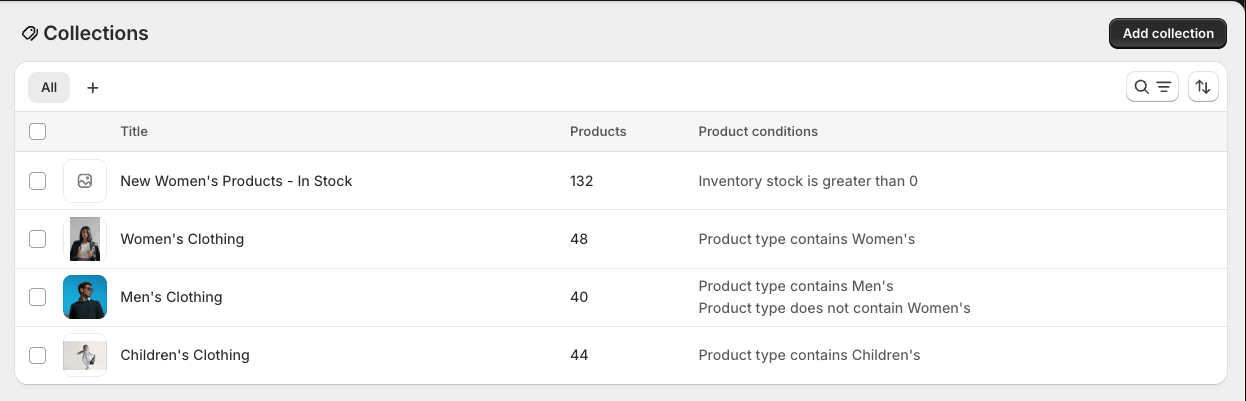
- In Braze, enable collection syncing and select “Women’s Products - In Stock”.
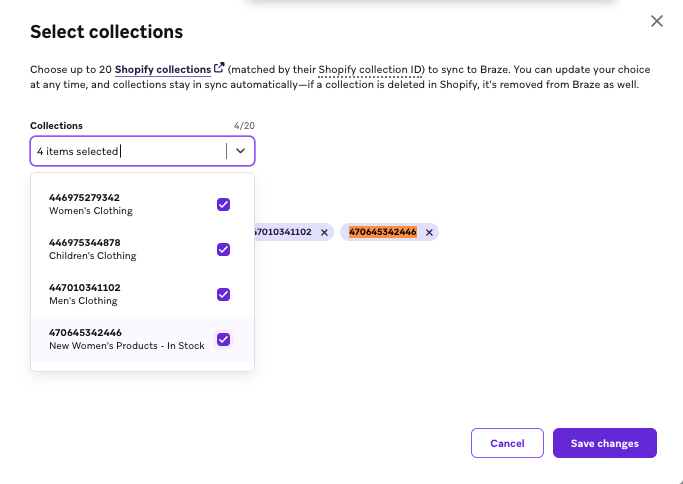
For Shopify collections, you must use the Collection ID, which is found in the URL when you view the collection. For example, a URL of https://admin.shopify.com/store/se-team-ecommerce/collections/470645342446 has the Collection ID of 470645342446.
Personalization
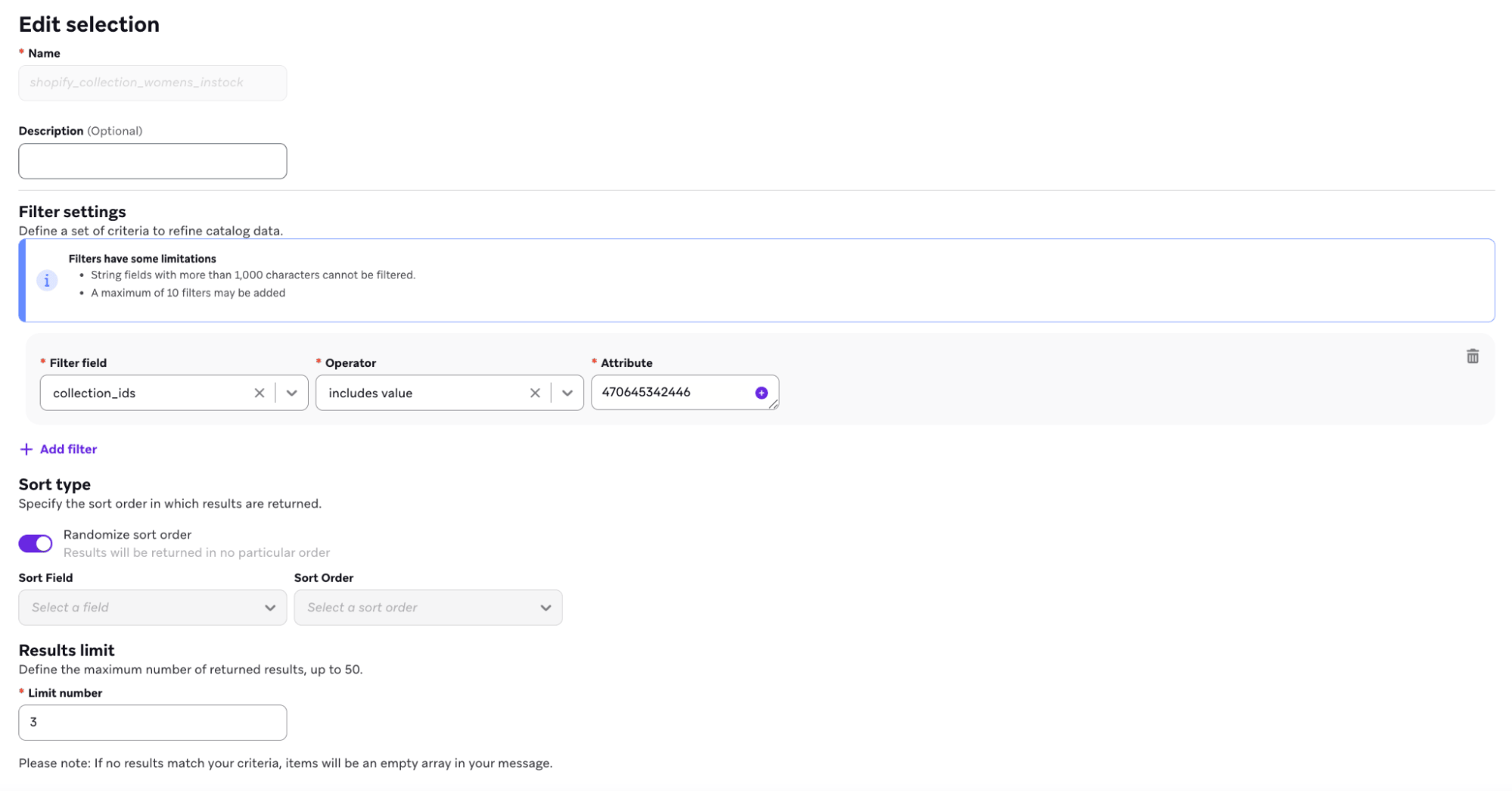
When referencing collection IDs in catalog selections, use only the numeric ID value without the array brackets [] that appear in the catalog data. For example, if collection IDs display as [123456789012, 987654321098] in your catalog, write just the numeric ID (such as 470645342446) in your selection filter.
- Create a catalog selection named “New Women’s Products - In Stock” that is filtered with products that have that collection’s ID. You can only use one unique array field within a single catalog selection, and up to 50 products in your collection.
- You can also create your own custom selections by filtering with the Collections field.
- In your message, template in your collection by using your created selection or directly referencing the collection. For example, you could use an HTML product block like this:
{% catalog_selection_items se-team-ecommerce_shopify_catalog shopify_collection_womens_instock %}
{% if items[0] == blank %}
{% abort_message('Catalog selection returned no items') %}
{% endif %}
<table role="presentation" width="100%" cellpadding="0" cellspacing="0" style="border-collapse:collapse;">
{% for item in items %}
{% if forloop.index0 < 3 %}
{% assign title = item.product_title | default: '' %}
{% assign image_url = item.variant_image_url | default: '' %}
{% assign price = item.price | default: '' %}
{% assign url = item.product_url | default: '' %}
<tr>
<td width="200" valign="top" style="padding:12px 12px 12px 0;">
{% if image_url == blank %}
<div style="width:200px;height:200px;background:#f2f2f2;line-height:200px;text-align:center;font-family:Arial,sans-serif;font-size:12px;color:#666;">
No image
</div>
{% else %}
{% if url == blank %}
<img src="{{ image_url }}" width="200" height="200" alt="{{ title | escape }}" style="display:block;border:0;outline:none;text-decoration:none;" />
{% else %}
<a href="{{ url }}" style="text-decoration:none;">
<img src="{{ image_url }}" width="200" height="200" alt="{{ title | escape }}" style="display:block;border:0;outline:none;text-decoration:none;" />
</a>
{% endif %}
{% endif %}
</td>
<td valign="top" style="padding:12px 0;font-family:Arial,sans-serif;font-size:14px;line-height:20px;color:#111;">
{% if title != blank %}<div style="font-weight:600;">{{ title | escape }}</div>{% endif %}
{% if price != blank %}<div>Price: ${{ price }}</div>{% endif %}
{% if url != blank %}<div><a href="{{ url }}" style="color:#F84B09;">View product</a></div>{% endif %}
</td>
</tr>
{% endif %}
{% endfor %}
</table>
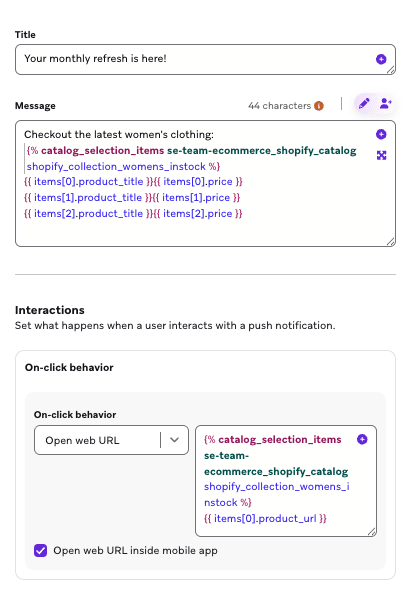
Or, if you want to mention specific new products in a push notification, you can use the Add Personalization tool and specify your catalog items.
Checkout the latest women's clothing:
{% catalog_selection_items se-team-ecommerce_shopify_catalog shopify_collection_womens_instock %}
{{ items[0].product_title}}{{items[0].price}}
{{ items[1].product_title}}{{items[1].price}}
{{ items[2].product_title}}{{items[2].price}}
Catalog segmentation (SQL)
Create a segment of users who interacted with a collection. Use Segment Extensions to build segments based on collection membership. For example, to find users who purchased products from a specific collection in the last year, use this query:
-- Description:
-- This query fetches users who have engaged with catalog items that contain a specific collection ID. It joins the catalog
-- to custom events by matching any element in an array within events.properties.products (e.g. any product
-- with variant_id equal to a catalog item), using Snowflake LATERAL FLATTEN to explode the array.
SELECT
DISTINCT(events.user_id)
FROM
USERS_BEHAVIORS_CUSTOMEVENT_SHARED AS events,
LATERAL FLATTEN(input => GET_PATH(TRY_PARSE_JSON(events.properties), 'products'), outer => false) AS event_item
JOIN CATALOGS_ITEMS_SHARED AS items ON (
(
items.field_name = 'id'
AND
items.field_value = GET_PATH(event_item.value, 'variant_id')::STRING
)
OR
items.item_id = GET_PATH(event_item.value, 'variant_id')::STRING
)
WHERE
events.name = 'ecommerce.order_placed'
and events.app_group_id = '<app_group_id>'
AND items.catalog_id = '<catalog_id>'
AND (items.field_name = 'collection_ids' AND ARRAY_CONTAINS('<collection_ids_value>'::VARIANT, TRY_PARSE_JSON(items.field_value)));
You can also set up price drop notifications and back-in-stock notifications!
Note that for each use case, you must create a custom event that captures a user’s subscription status in your catalog. The custom event requires an event property that maps to either the SKU or Shopify variant ID that you have selected as part of your Shopify product sync.
Deactivate your product sync
Deactivating the Shopify product sync feature will delete your entire catalog and products. This can also impact any messages that may be actively using the product data from this catalog. Confirm that you have either updated or paused these campaigns or Canvases before deactivation, as this could result in sending messages with no product details. Do not delete the Shopify catalog directly on the catalogs page.
Troubleshooting
If your Shopify product sync runs into an error, it could be a result of the following errors. Follow the instructions on how to correct the issue and resolve the sync:
| Error | Reason | Solution |
|---|---|---|
| Server Error | This occurs if there is a server error on Shopify’s side when we attempt to sync your products. | Deactivate sync and re-sync your entire inventory of products again. |
| Duplicate SKU | This occurs if you use SKU as your catalog item ID and multiple variants share the same SKU. Each catalog item_id must be unique, so affected items may fail to sync, accumulate error records, or have product information overridden unintentionally. |
Audit your full list of products and variants in Shopify to make sure that there are no duplicate SKUs. If there are duplicate SKUs, update these to be unique SKUs only in your Shopify store account. After this is corrected, deactivate sync and re-sync your entire inventory of products again. |
| Catalog Limit Exceeded | This occurs if you exceed your catalog limit. Braze will be unable to finish the sync or keep the syncing active due to no more storage availability. | There are two solutions to this issue: 1. Contact your account manager to upgrade your tier to increase your catalog limit. 2. Free up storage space by deleting any of the following: - Catalog items from other catalogs - Other catalogs - Selections created After using either of the solutions, the sync must be deactivated and then re-synced. |
For details on catalog item validation, see Troubleshooting in the catalog API documentation.