Simon AI
The Simon AI Agentic Marketing Platform helps marketing teams achieve true one-to-one personalization. It combines a composable CDP with AI agents that operate directly in the Snowflake AI Data Cloud to act as a marketer’s data and execution team.
Use the Braze and Simon AI integration to build and sync advanced audiences to Braze for real-time, no-code orchestration. With this integration, you can tap into Simon AI’s identity resolution, customer data unification, and AI-driven segmentation to power more personalized and impactful Braze campaigns downstream.
Prerequisites
To get started, you need to authenticate your Braze account within your Simon AI account.
| Requirement | Description |
|---|---|
| Simon AI | You must have an existing Simon AI account to leverage the Braze integration from within Simon AI. |
| Braze REST API key | A Braze REST API key with users.track, campaigns.trigger.schedule.create, and campaigns.trigger.send permissions. This can be created in the Braze dashboard from Settings > API Keys. |
| Braze Dashboard URL | Your REST endpoint URL. Your endpoint will depend on the Braze URL for your instance. |
Use cases
- Trigger a Braze Canvas or email
- Pass and maintain Segment Properties
- Sync Traits and Contact Properties

When using the Simon and Braze integration, Simon only sends deltas on each sync to Braze avoiding costs for irrelevant data. See Sync Traits and Contact Properties for more.
Integration
Authenticate your Braze account in Simon AI
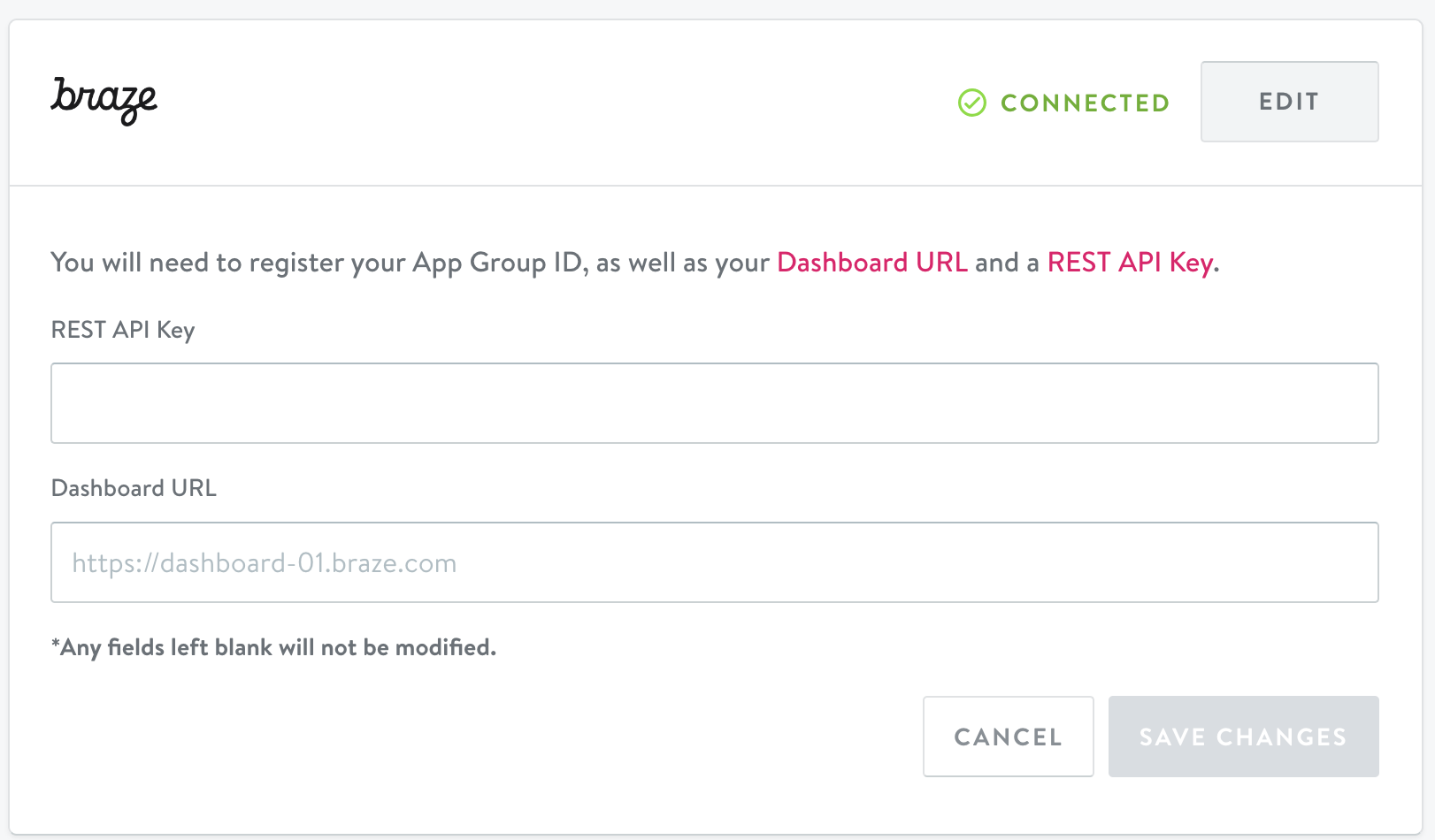
To use the Braze integration, first authenticate your Braze account in Simon:
- From the navigation menu, click Integrations then scroll to Braze.
- Enter your Braze REST API key and your dashboard URL.
- Click Save Changes.
A successful connection displays Connected in the window.
Add Braze actions to Flows or Journeys in Simon AI
After you’ve authenticated your Braze account in Simon AI you can add Braze actions to Flows and Journeys.
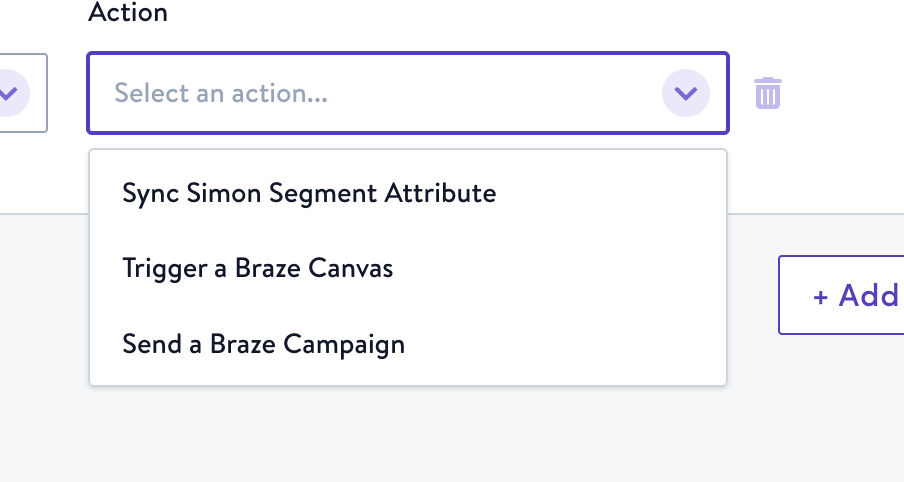
Three actions are available:
- Sync Simon segment attribute: Sync your segment details with a new or existing custom attribute in Braze.
- Trigger a Braze Canvas: Trigger a Braze Canvas that leverages your Simon segment data.
- Send a Braze campaign: Launch an entire Braze campaign from Simon.
Some actions are only available for specific Flow types or Journeys alone. Learn more at docs.simondata.com.
Sync traits and contact properties
To minimize data consumption, you can choose specific traits to sync by default, rather than updating every field for all customers in a segment.
To get started with trait syncing, submit a request in the Simon Support Center. Your account manager will let you know when you can proceed with the following steps.
After Contact Traits is activated by your account manager:
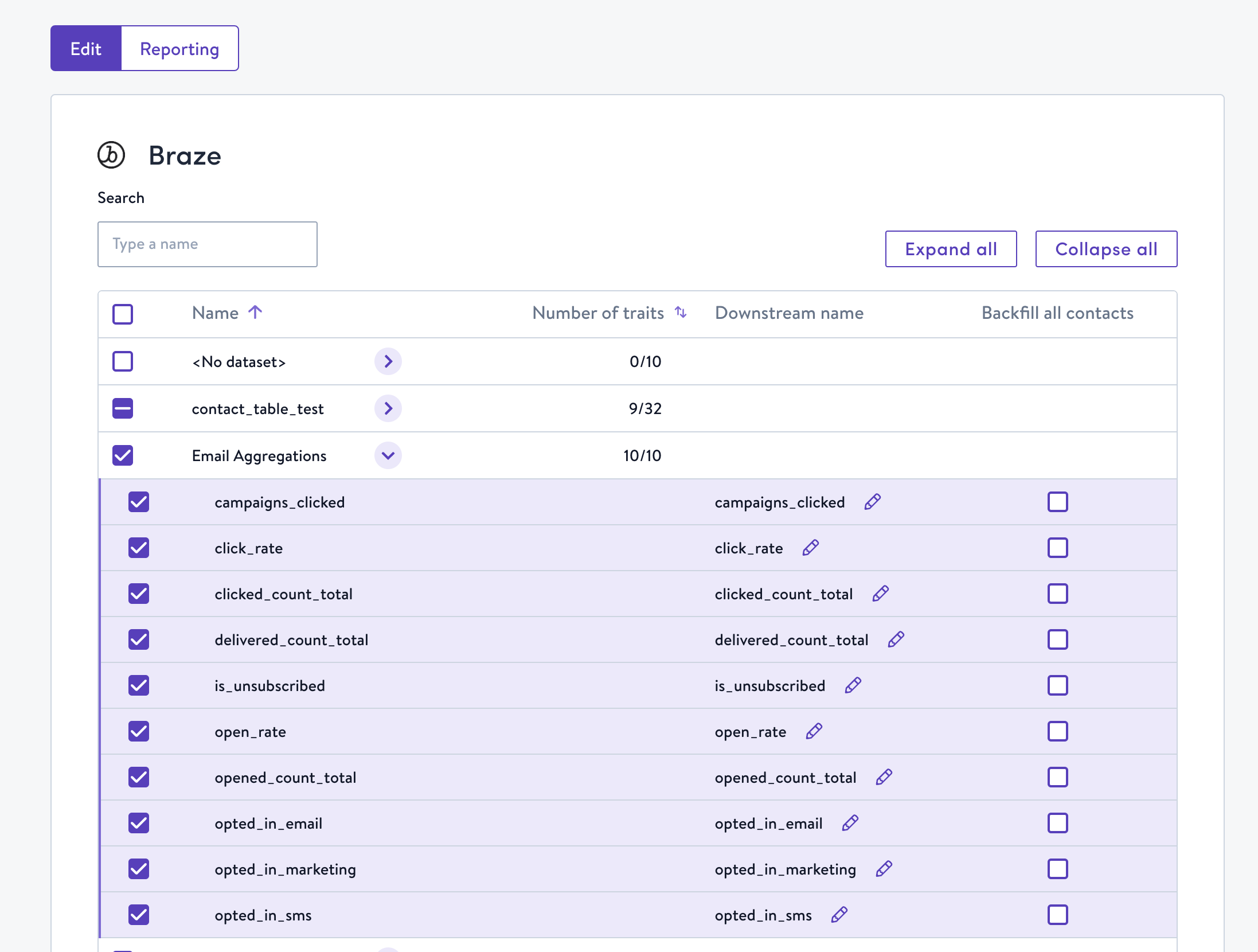
- In Simon, expand Admin Center in the left navigation and select Sync Contact Traits.
- Choose Braze. Contact properties are displayed here, nested by dataset.
- Select any fields you want synced when you use the Simon and Braze integration:
- Number or traits indicates how many traits are available to choose from in that dataset. You can choose all or expand the row to select individual fields.
- Edit the Downstream name if you want the field names to appear differently when they arrive in Braze.
- If this is your first time integrating with Braze from Simon, click Backfill all contacts. Backfilling sends all the data points to Braze the first time you use an action in a flow or journey to be sure all your data is fully in sync. Then on subsequent syncs, only the traits you choose in this screen are sent to Braze. This helps to make sure you’re only charged for the data you need.