Survicate
Survicate is a customer feedback platform that collects, analyzes, and acts on customer insights across multiple channels and throughout the user journey. Watch a quick demo
This integration is maintained by Survicate.
About the integration
Use the Survicate and Braze native integration to sync email, in-app, mobile, or web survey responses with Braze customer profiles. Survey responses sync automatically with Braze user profiles as custom attributes or events. Real-time feedback insights make it easy to track and analyze feedback alongside customer data and create target follow-ups and hyper-personalized segments.
Use cases
Braze and Survicate work together to cover a range of feedback use cases, helping you collect actionable user insights and improve the customer experience:
- Improve survey response rates with embedded surveys that can be answered from an email inbox.
- Gather insights at critical stages of the customer journey via Braze In-App Message.
- Use feedback stored in Survicate to create smarter segments in Braze.
- Automate follow-up campaigns based on customer feedback.
- Use customer insights to trigger personalized workflows.
- Reach a wider audience with automatically translated surveys.
- Send events to Braze contact profiles when someone responds to your survey
Prerequisites
| Requirement | Description |
|---|---|
| Survicate account | You need a Survicate account to activate this integration. |
| Braze REST API key | A Braze REST API key with the permission users.track. This can be created in the Braze dashboard from Settings > APIs and Identifiers. |
| Braze REST endpoint | Your REST endpoint URL. Your endpoint will depend on the Braze URL for your instance. |
Key features of the integration
The Survicate and Braze integration offers real-time data syncing, so the most up-to-date information from Survicate surveys is immediately available in Braze. Based on survey responses, you can use this data to take timely, personalized actions.
- Send survey responses to Braze as custom user attributes: Enrich Braze user profiles with data from survey responses.
- Trigger custom events in Braze: Use events based on survey answers to target specific groups or initiate follow-up campaigns.
- Build detailed segments: Create Braze segments using data from Survicate surveys to personalize your outreach further.
Integration
Creating your surveys in Survicate
Embed your survey in an email or create a shareable link survey
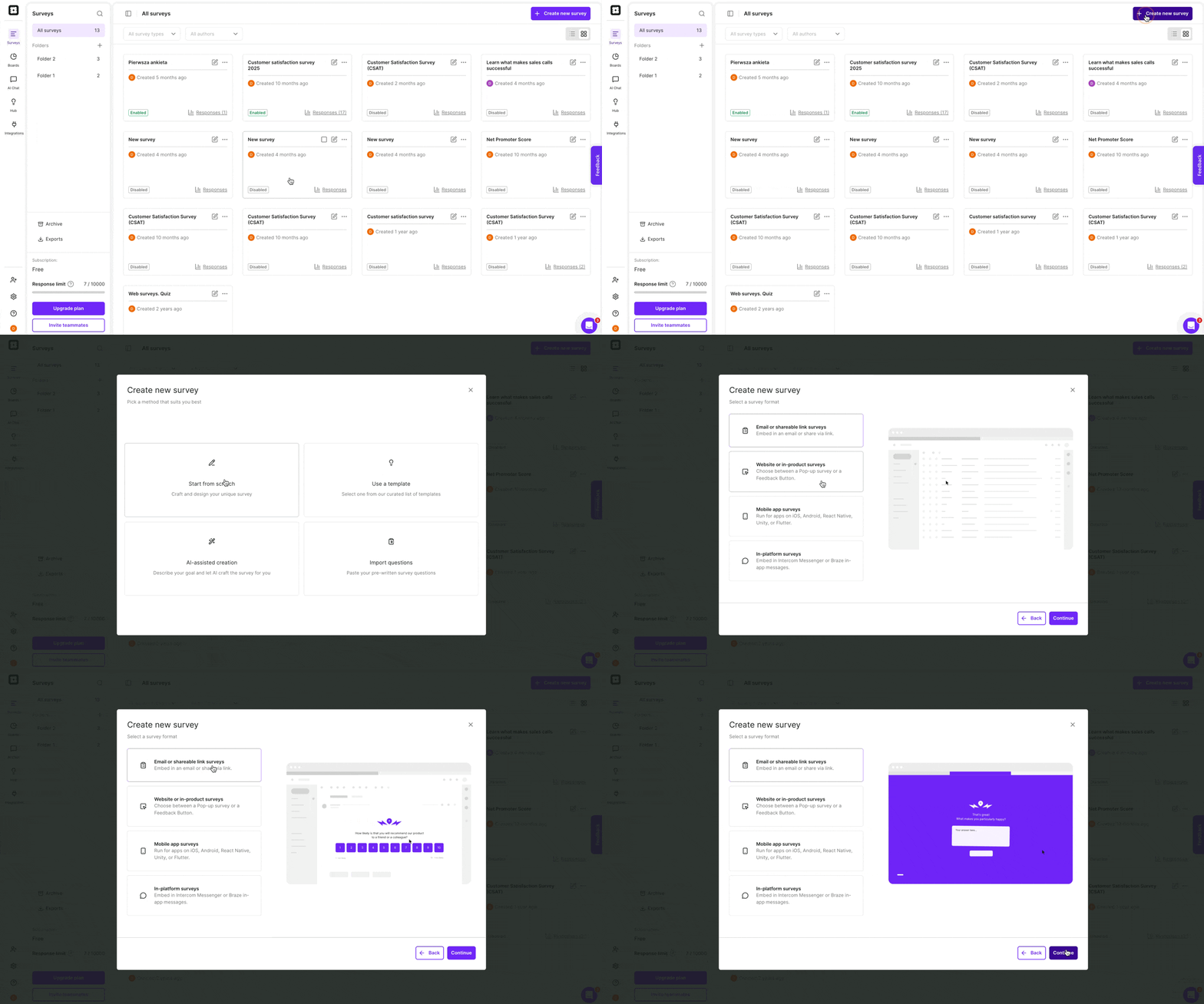
- In Survicate, click + Create new survey, select any creation method (a template, using AI survey creation, or adding your own questions), and the Email or Shareable link survey type:
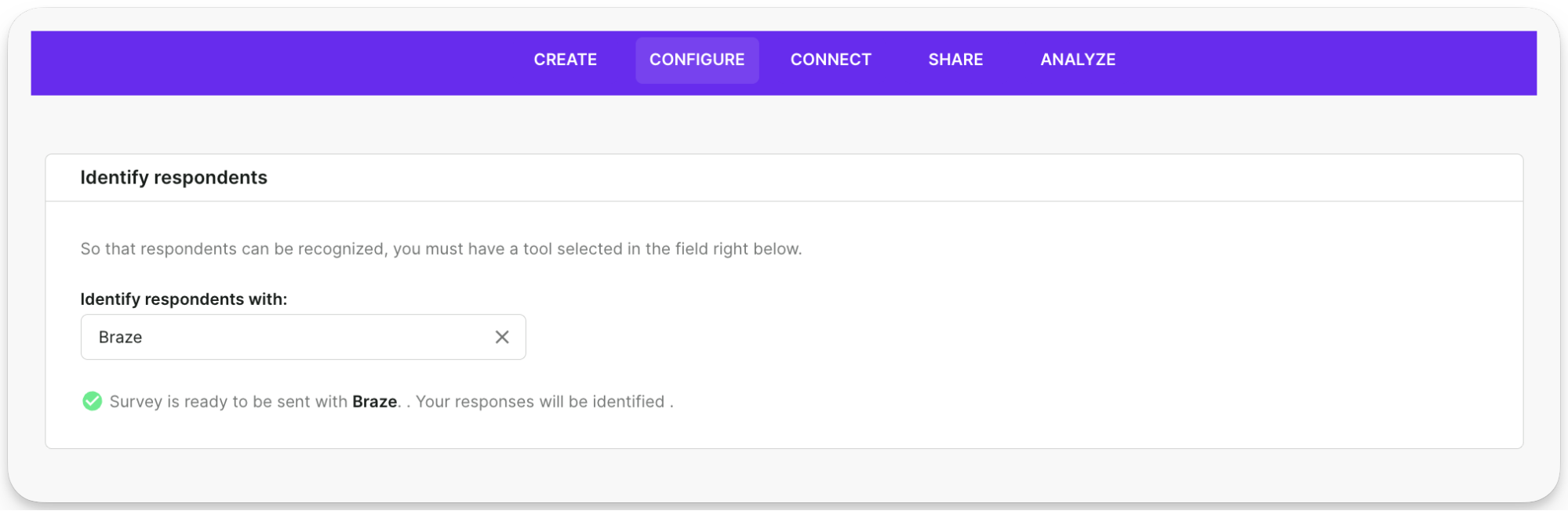
- In the Configure tab of the survey, select Braze as the tool to identify respondents with:
- After you set up your survey, go to the Share tab and decide how to send your email survey. There are two options: you can send your survey as a link or embed the first question in the email so that respondents start answering the survey right from the email.
Survey link option
- Grab a link to your survey from the Copy survey link button:
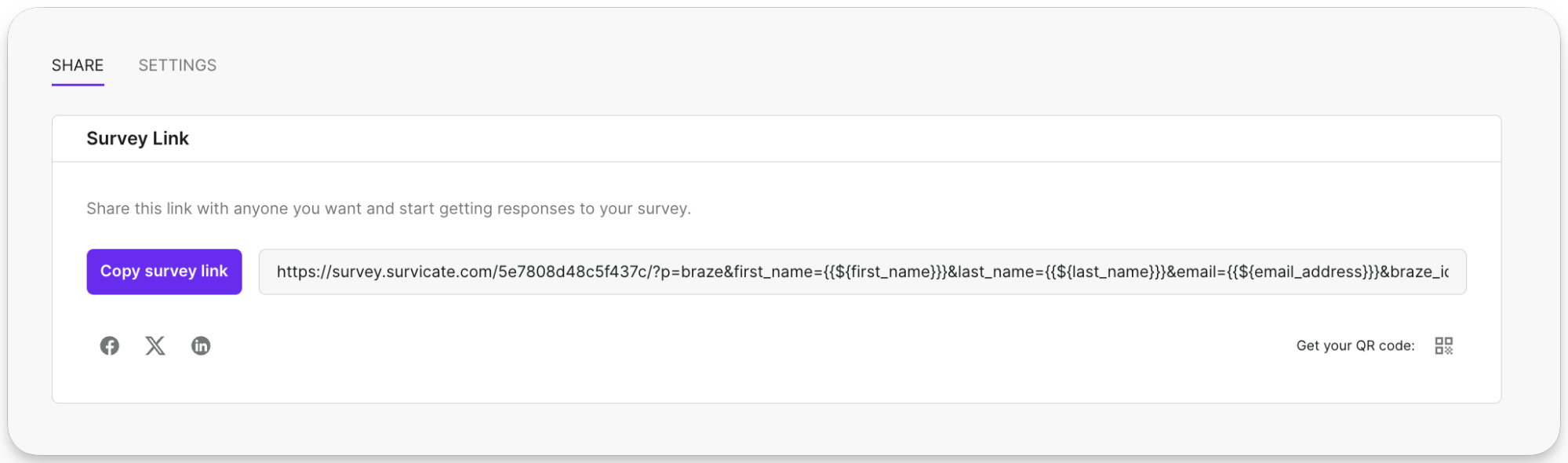
- Hide the survey link behind a CTA button or hyperlink in your Braze Email.
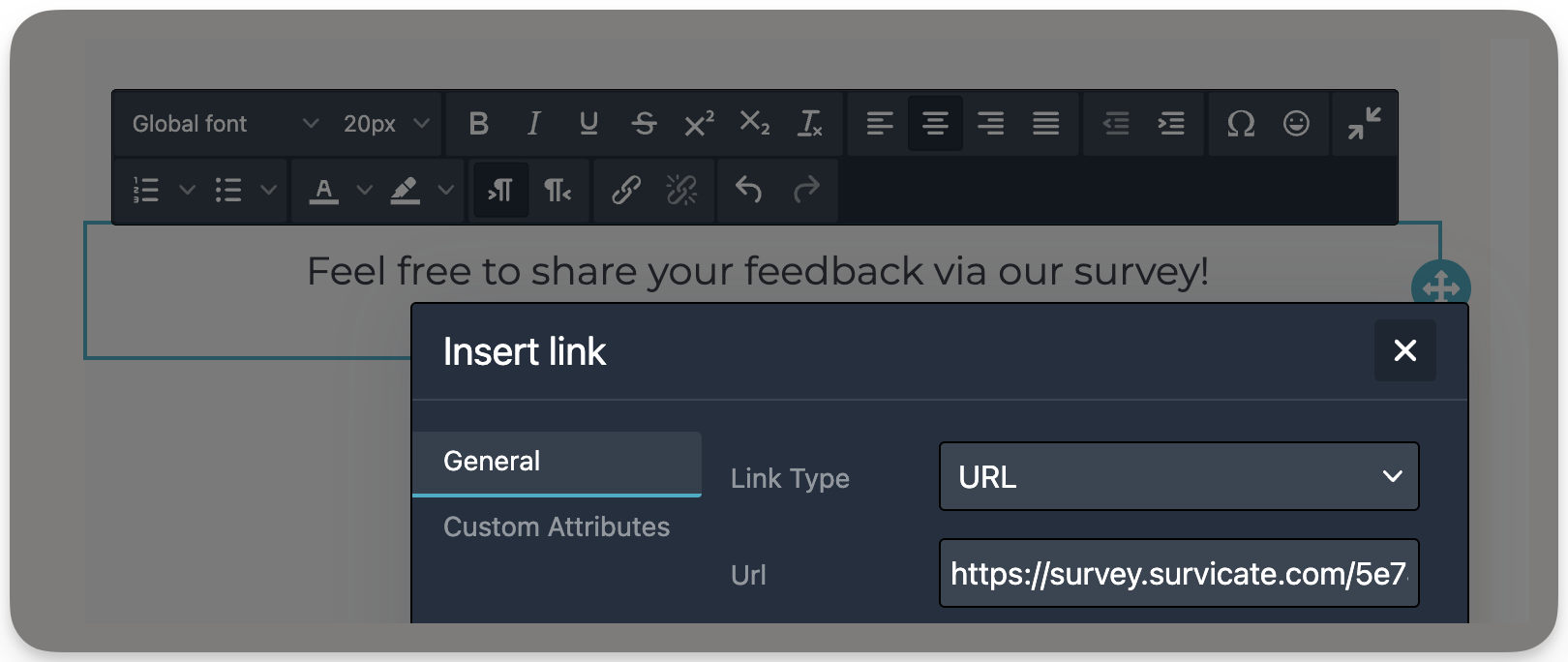
Email embed option
Display the first question directly in the email’s body to start the survey from the email. Respondents are then redirected to a landing page to take the rest of the survey.
- Click Get email code and then Copy the HTML code:
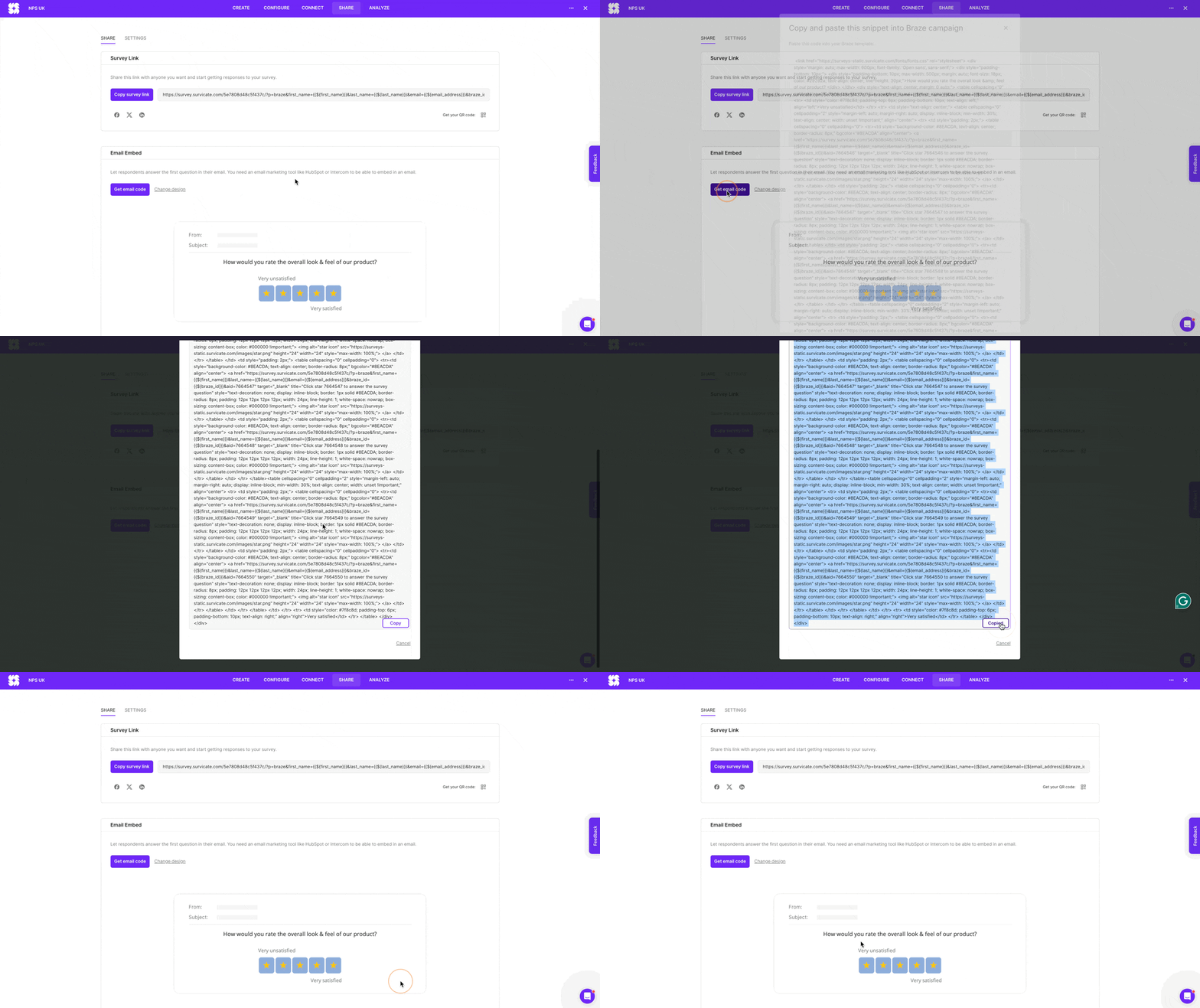
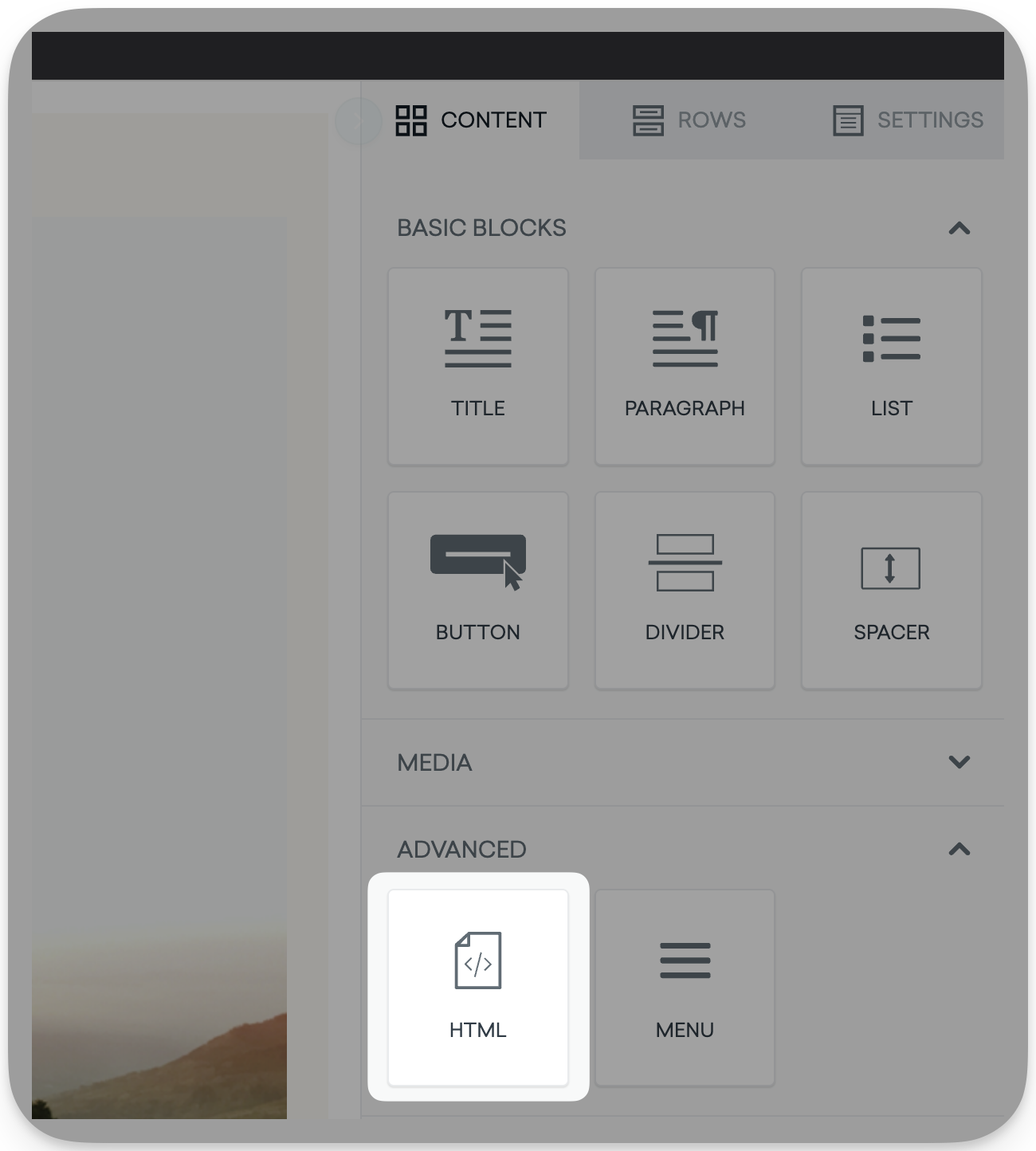
- Go to the Braze campaign you want to use for the survey, click Edit email body, and add an HTML block to your template:
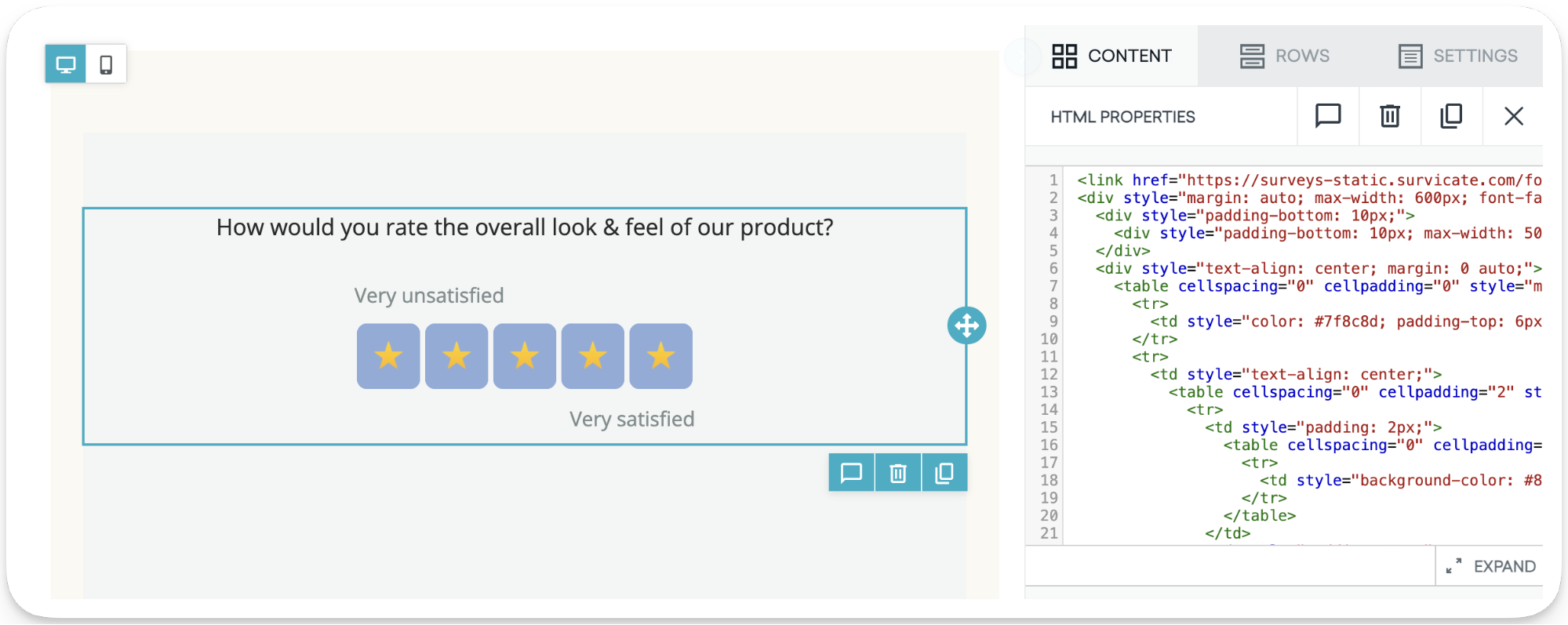
- Replace the code with the one you copied from your Survicate survey. You then see the survey’s first question in the template:
- Schedule the email, choose your Target group, and your campaign is ready to send.
Braze In-App Message survey
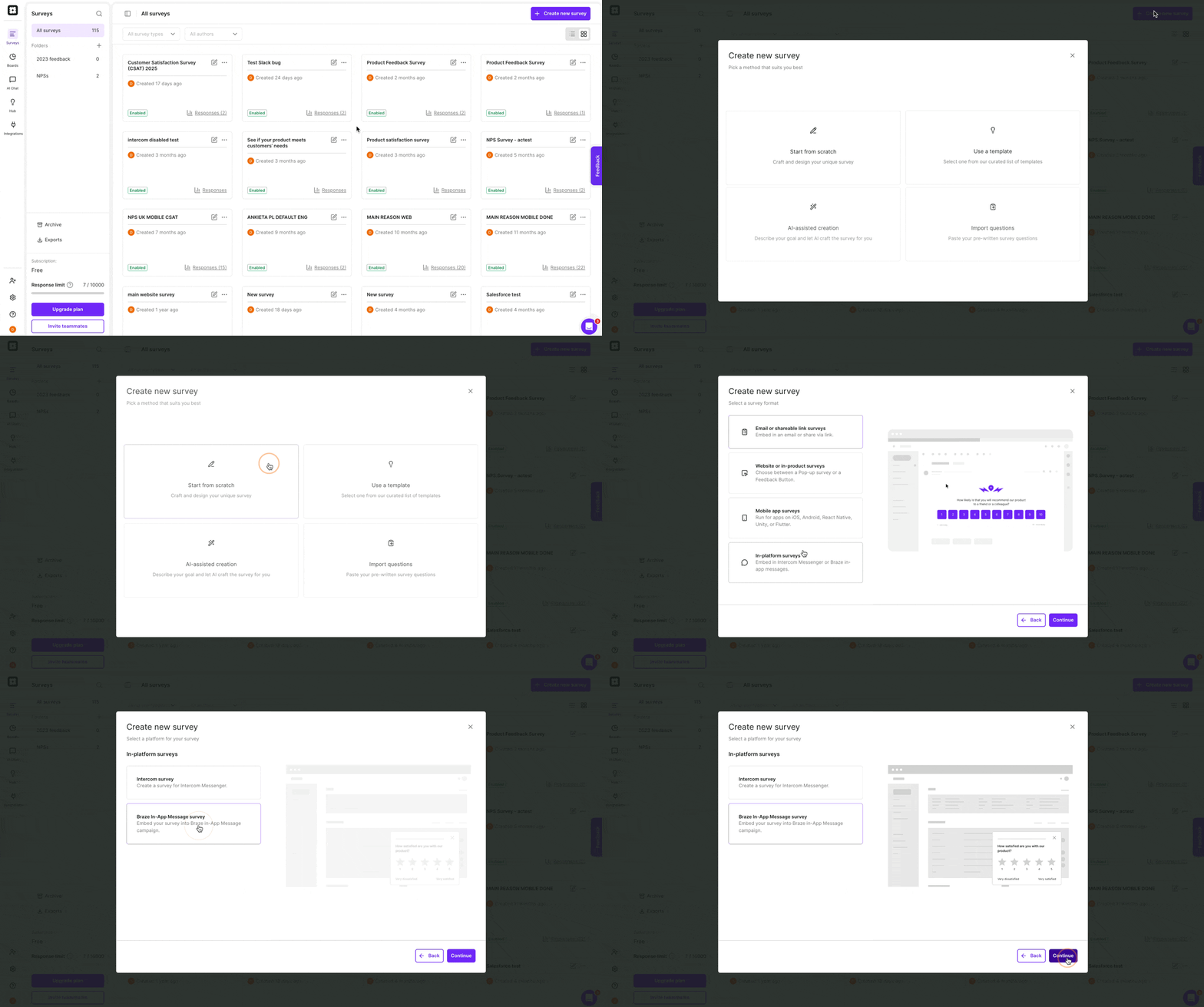
- Click + Create new survey, select any creation method (a template, using AI survey creation, or adding your own questions), and then choose In-platform surveys and the Braze In-App Message survey type:
- Launch your Braze In-App Message survey by navigating to your Braze account, then to Messaging > Campaigns > Create campaign > In-app message:
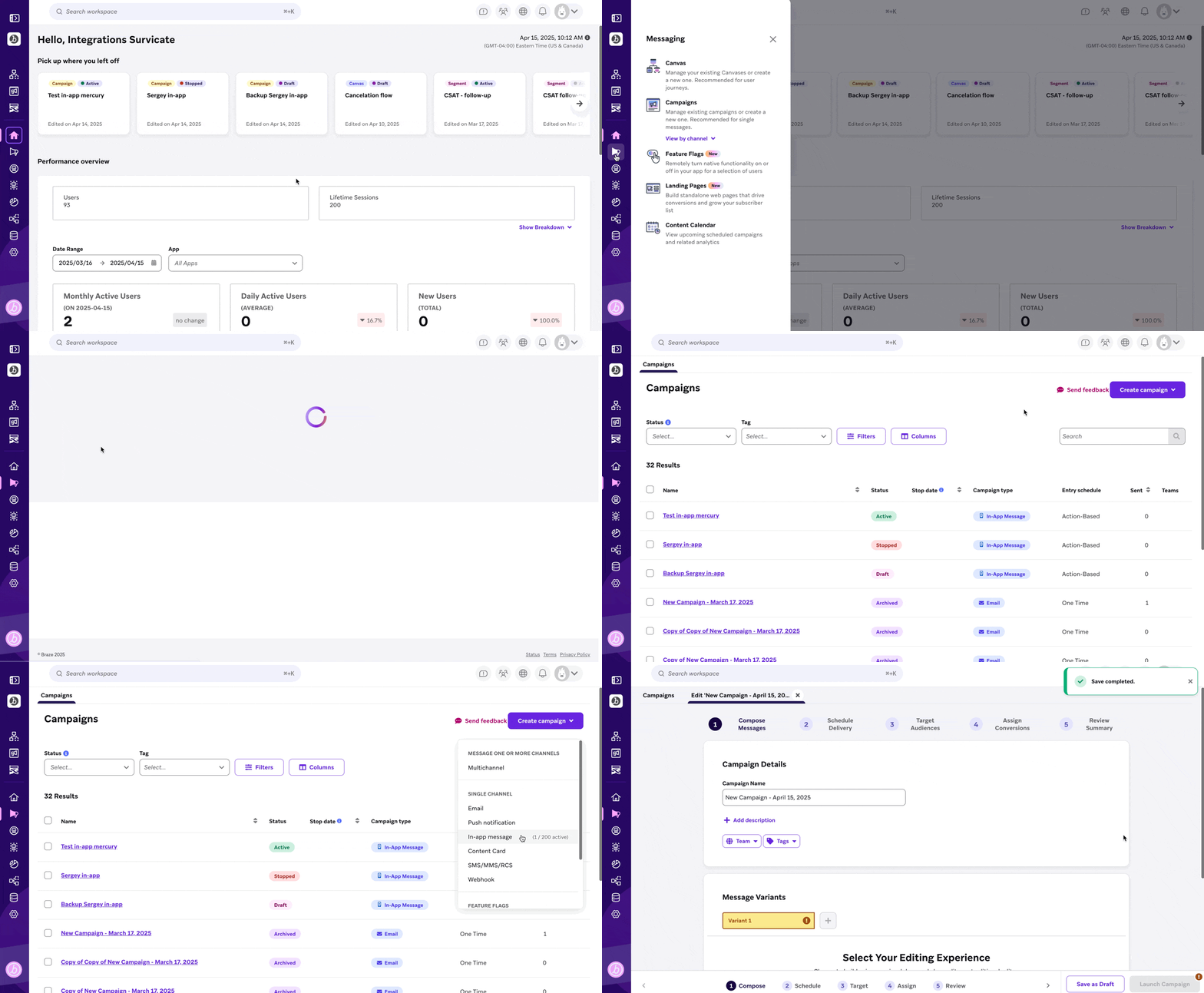
Launch your Braze In-App Messenger survey via the traditional editor
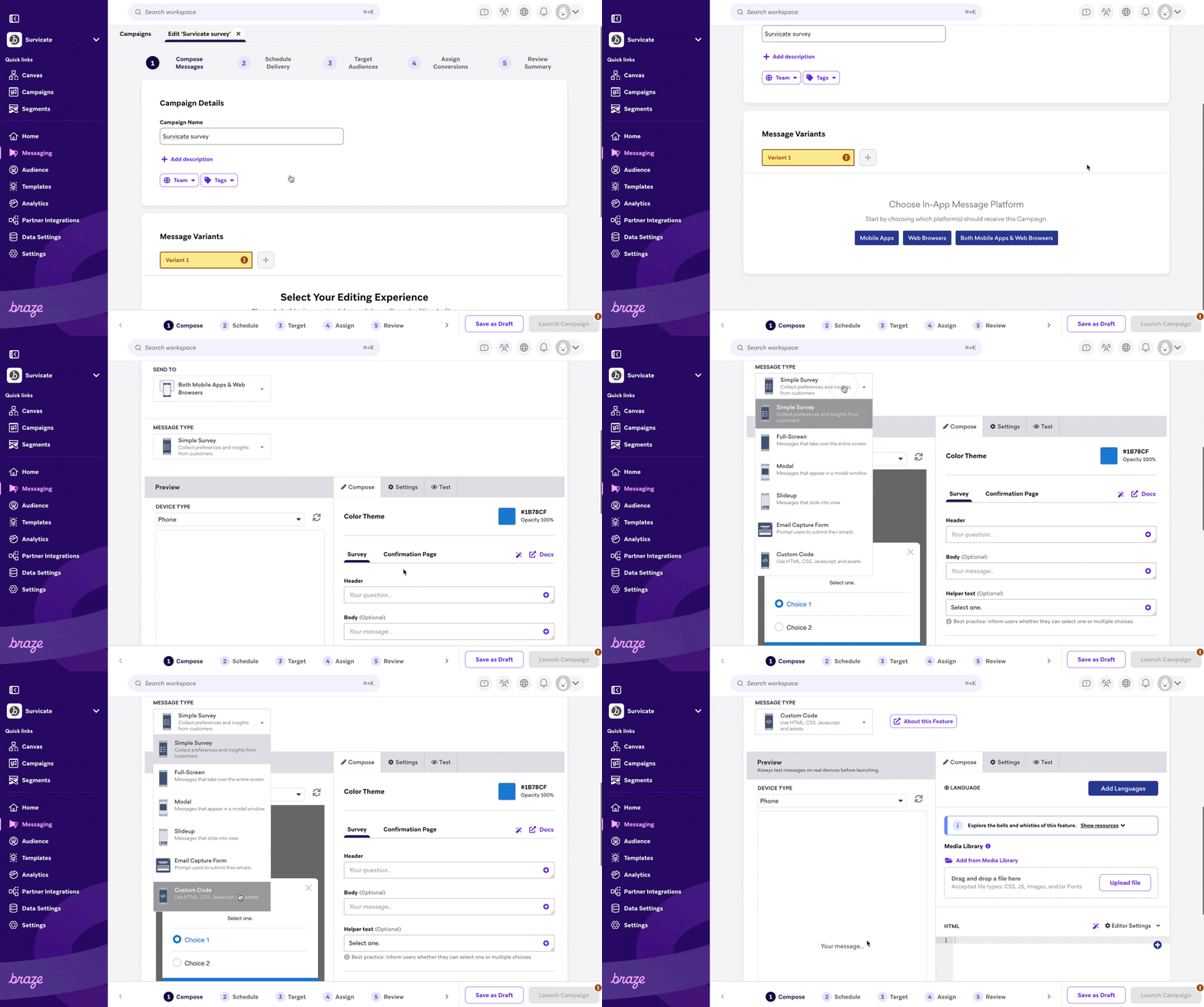
- If you use the traditional editor, in the Message type, choose Custom code:
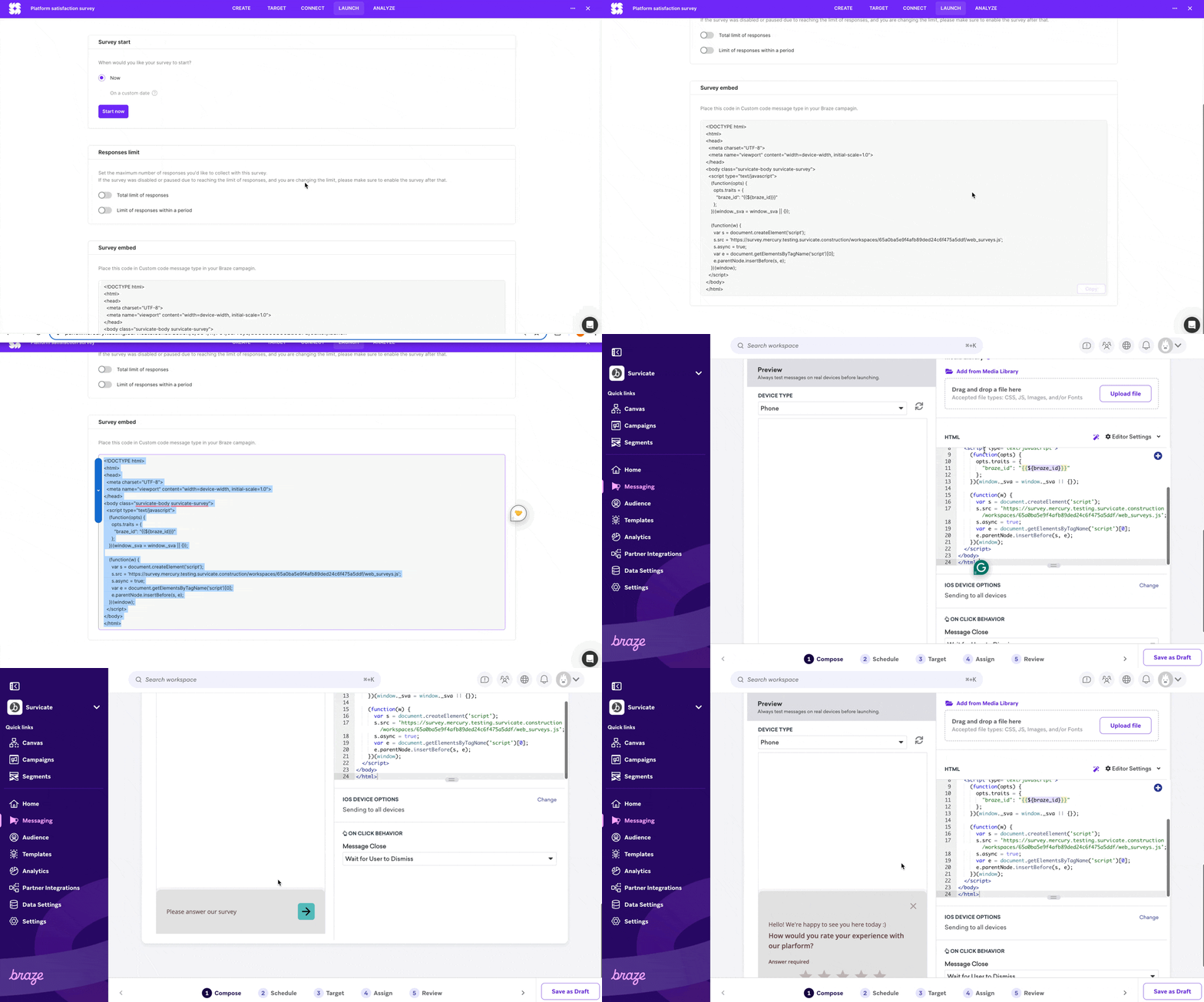
- Then paste the code from the Launch tab of your survey to the HTML field:
Braze displays in-app messages in an iframe by default while the app’s background is blocked. To allow interaction with your app, while Survicate surveys appear, you must:
- Add
opts.useBrazeIframeClipper = trueto your Survicate-Braze snippet. - Install the
@survicate/braze-bridge-npmpackage in the file where you initialize Braze and use theinitBrazeBridgefunction.
You can find a sample snippet and React implementation on Survicate’s developers’ site.
- In your Braze campaign, set up the Target and Assign steps. When complete, your campaign is ready to launch. In the Review step, you can see how the campaign looks. The survey appears on your website in the place specified in the Survicate panel, as described above.
Enabling the Braze integration
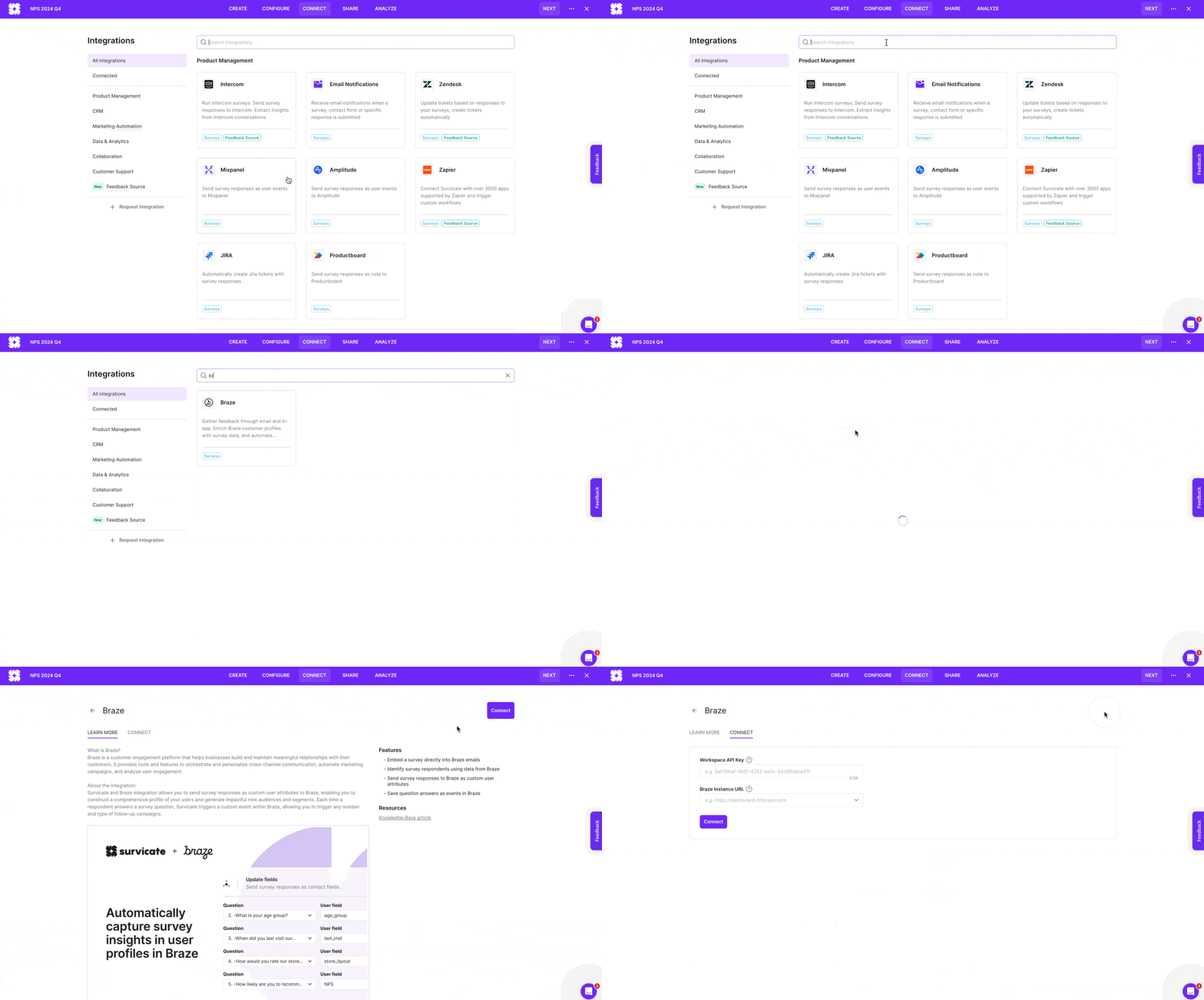
- To enable the Braze integration, go to Integrations, and search for and select “Braze”.
-
Click Connect to set up the authorization.
-
Insert your Braze account Workspace API Key and Braze Instance URL:
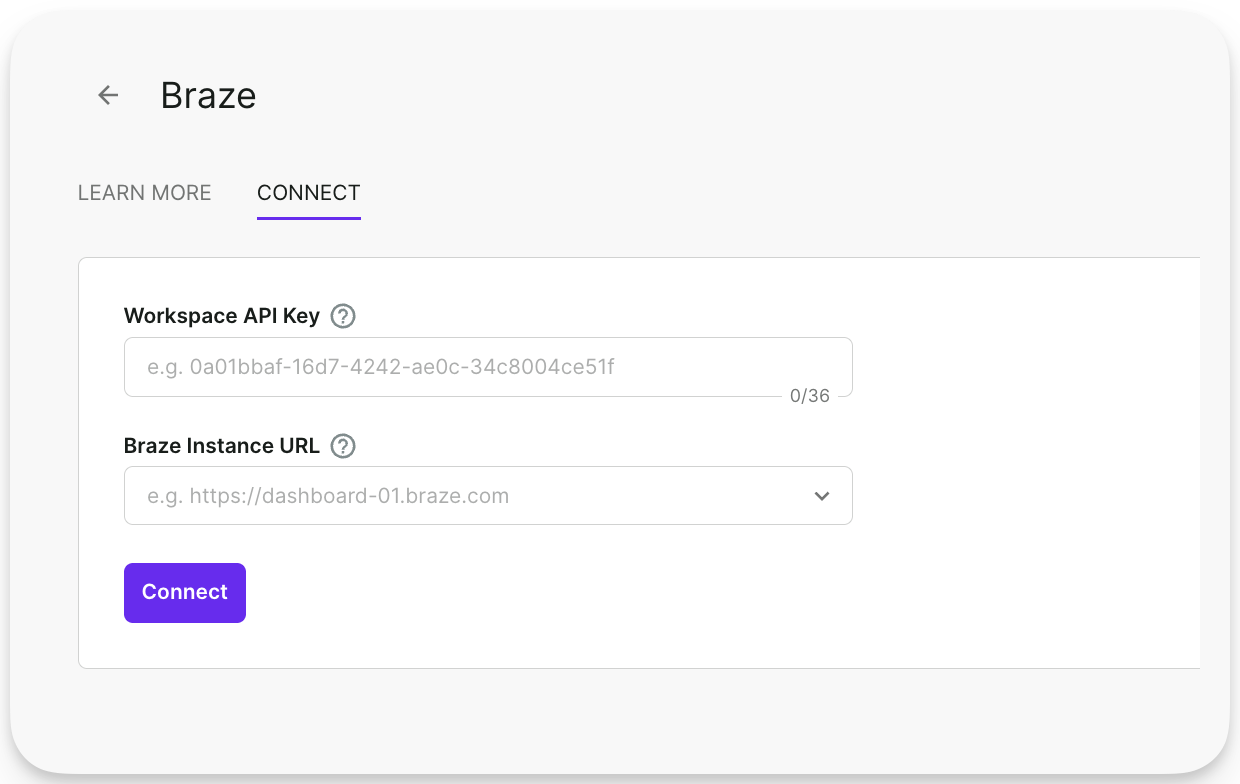
To connect Survicate to Braze, the Braze API key needs to have users.track permissions.
Connecting your surveys to Braze
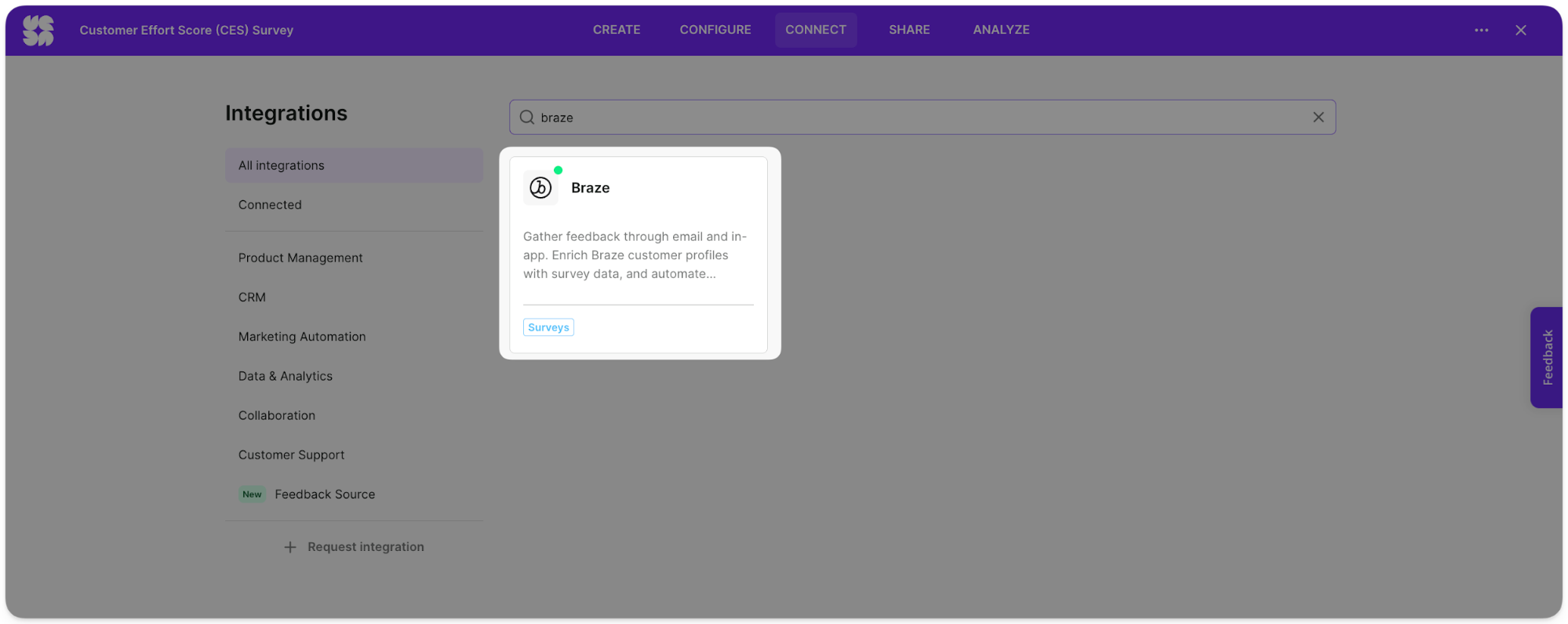
Now that the Braze integration is connected, you can set up individual settings for each survey. Go to your survey, select the Connect tab, and choose Braze from the list of available integrations.
Sending responses to Braze as custom attributes
Set up survey responses to flow into Braze as custom attributes, which enriches your Braze user profiles with collected data.
- In the Settings tab of Braze Integration, fine the Update fields section.
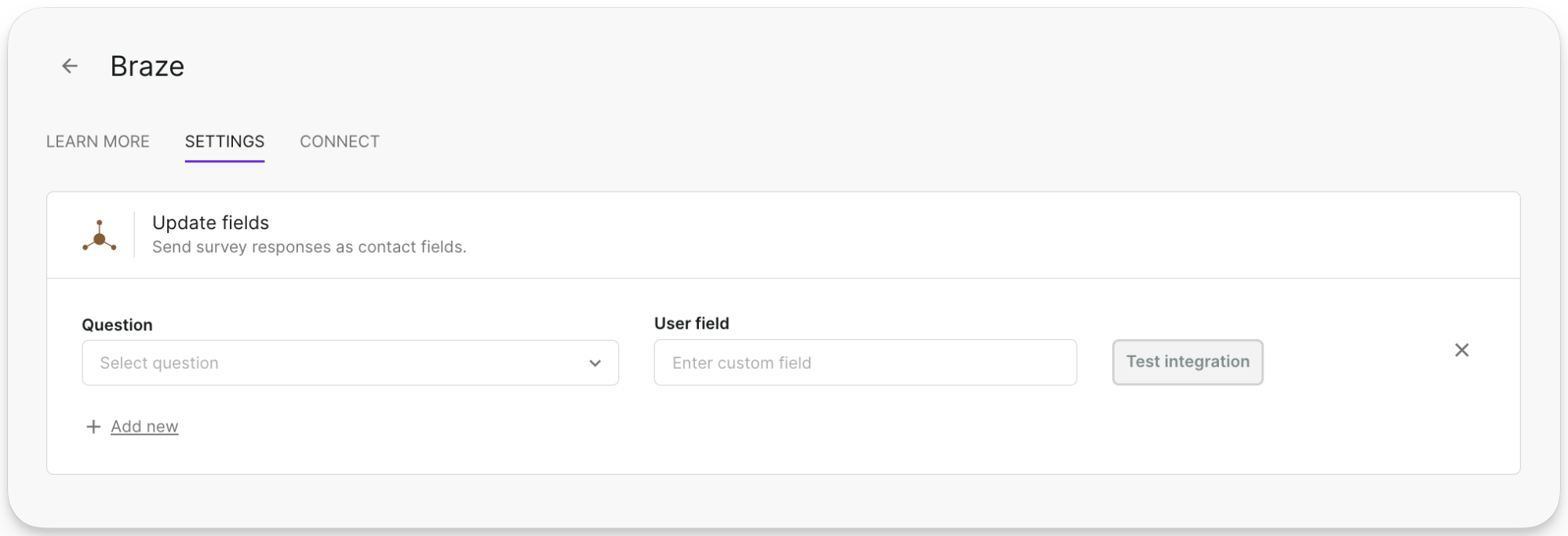
- Select the question you want to update the fields from. To avoid flooding your Braze user profiles with data, you can send responses to only chosen questions.
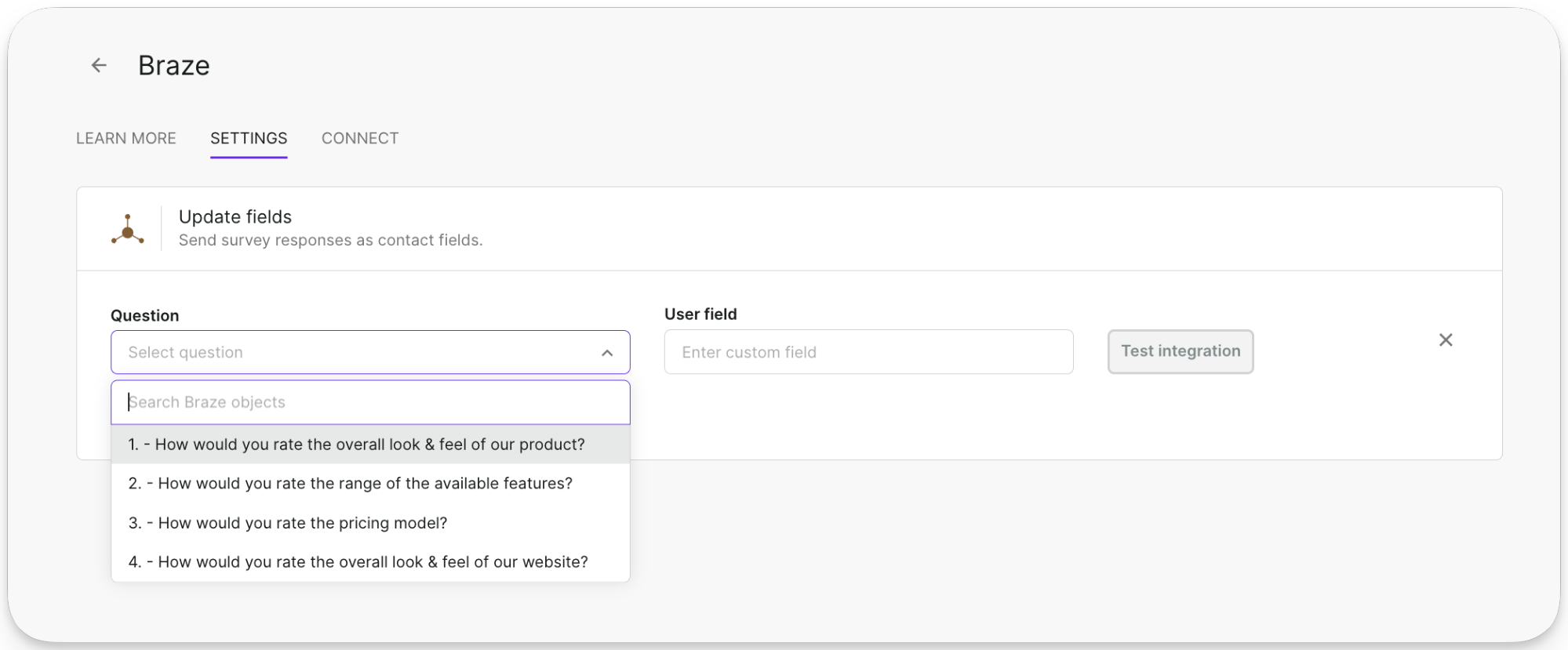
Ranking and Matrix questions are not supported with this Braze integration.
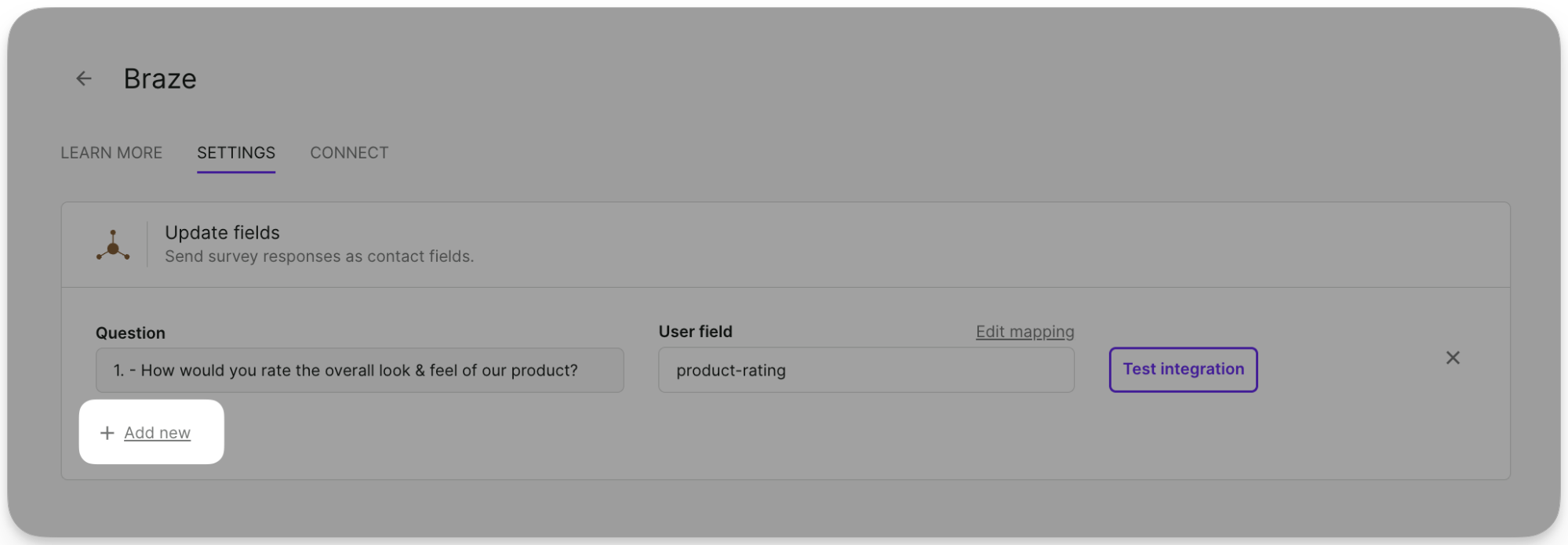
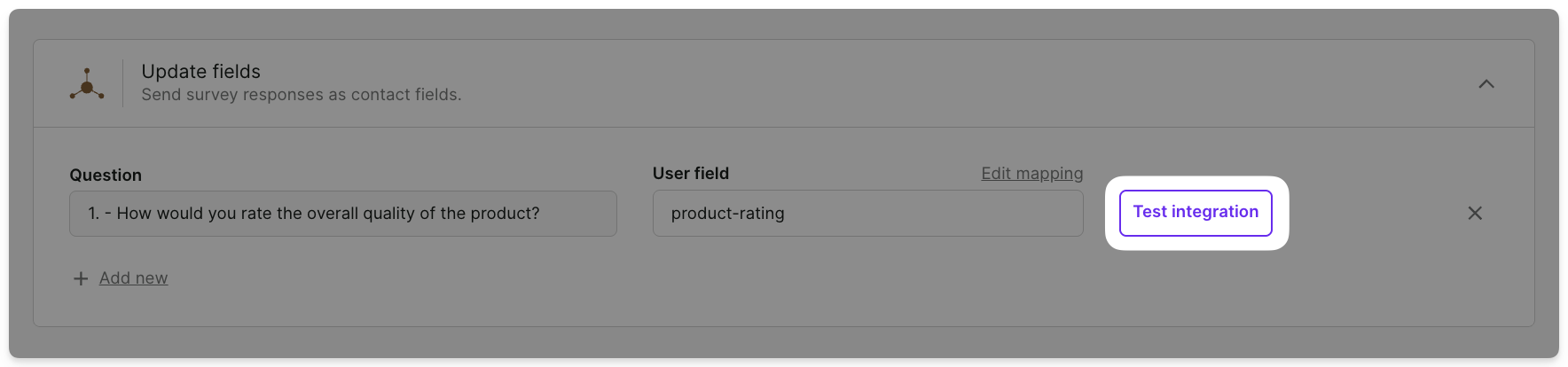
- Add the name of the custom attribute you want to update under the User field:
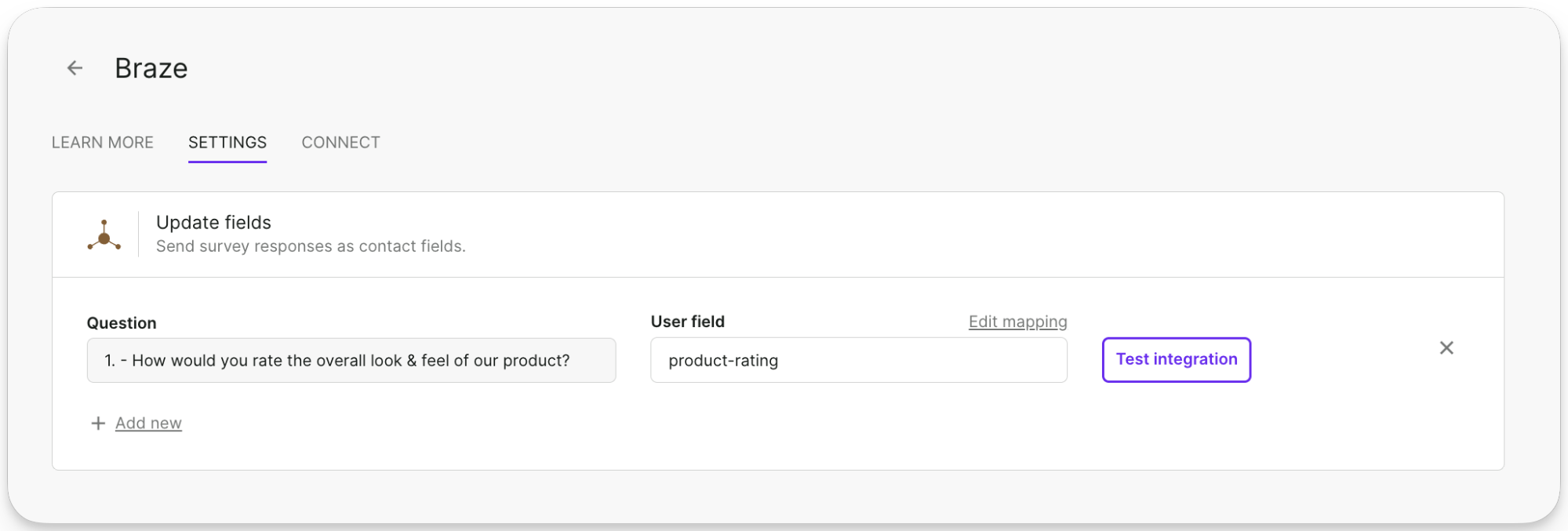
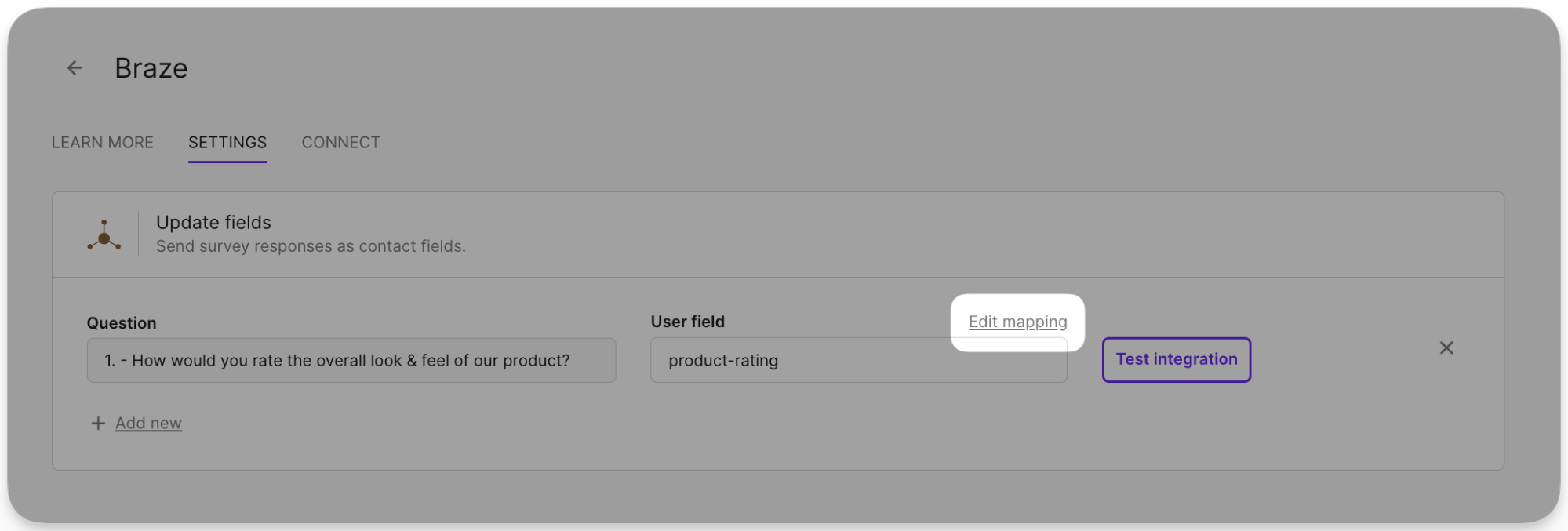
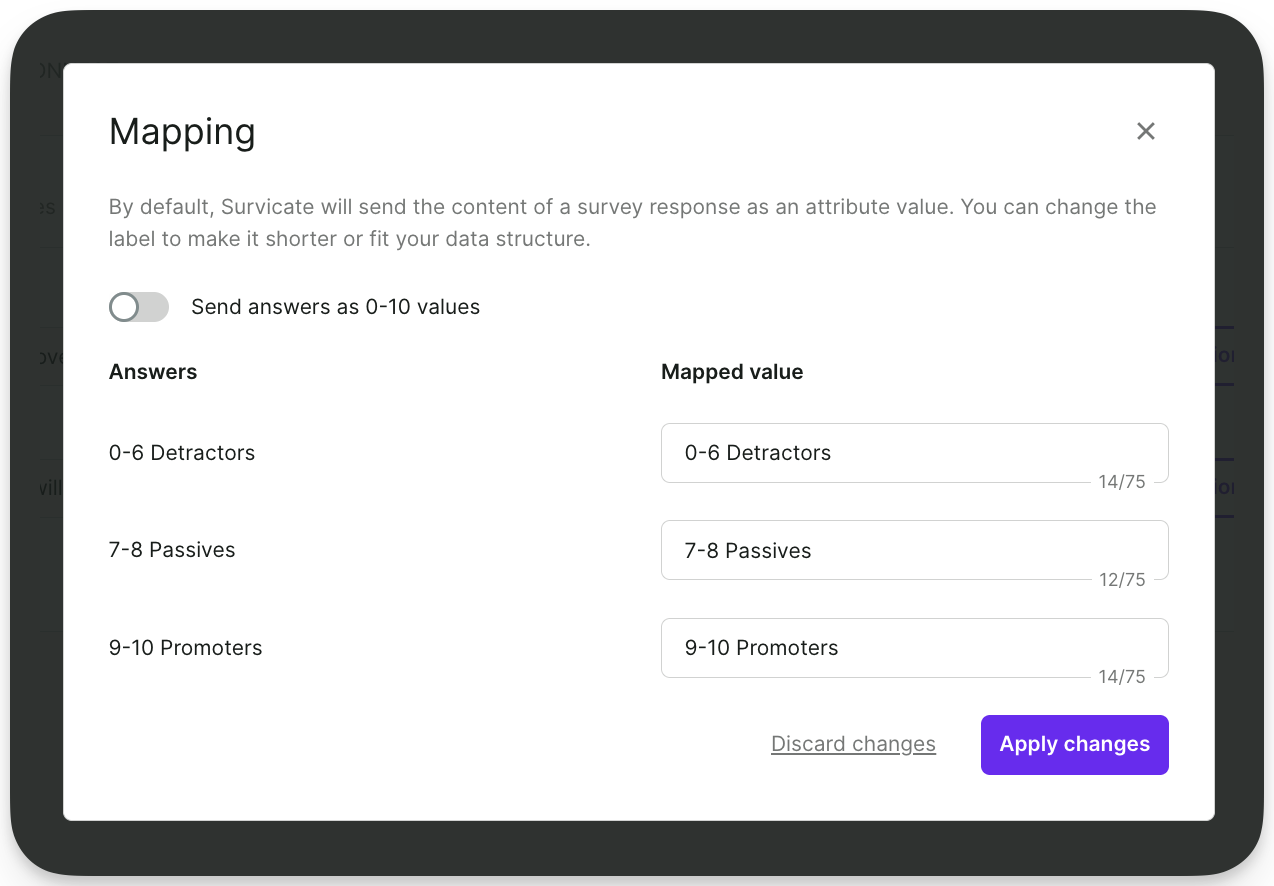
By default, Survicate sends the content of a survey response as an attribute value. You can change the label to make it shorter or fit your data structure by clicking Edit mapping to modify these values:
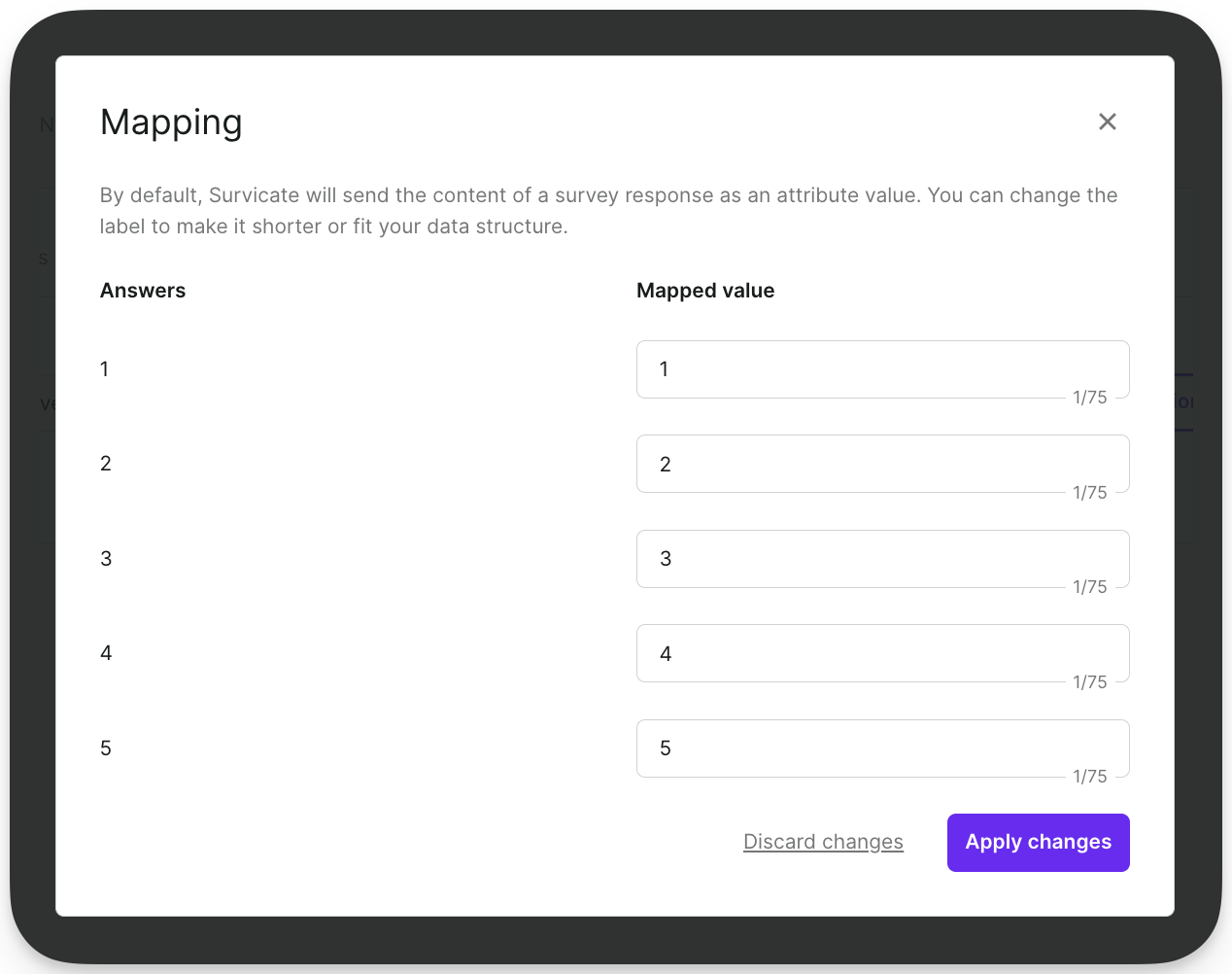
For NPS, Survicate sends mapped values based on the response group for the NPS® question. However, if you want to receive numeric values, you can switch on Send Answers as 0-10 values.
- Connect more questions to your integration by clicking + Add new and applying the same steps.
Sending events to Braze contacts’ profiles
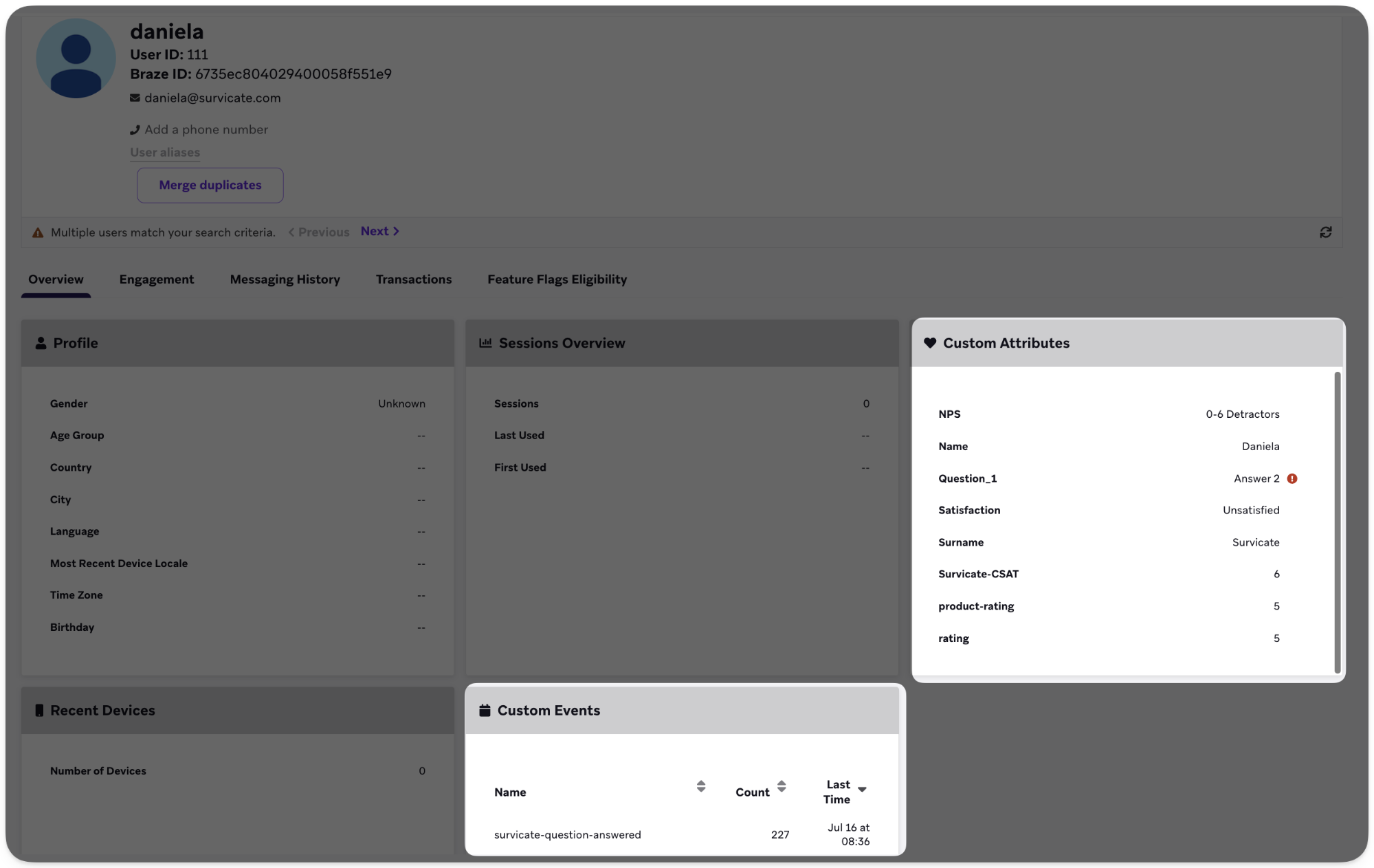
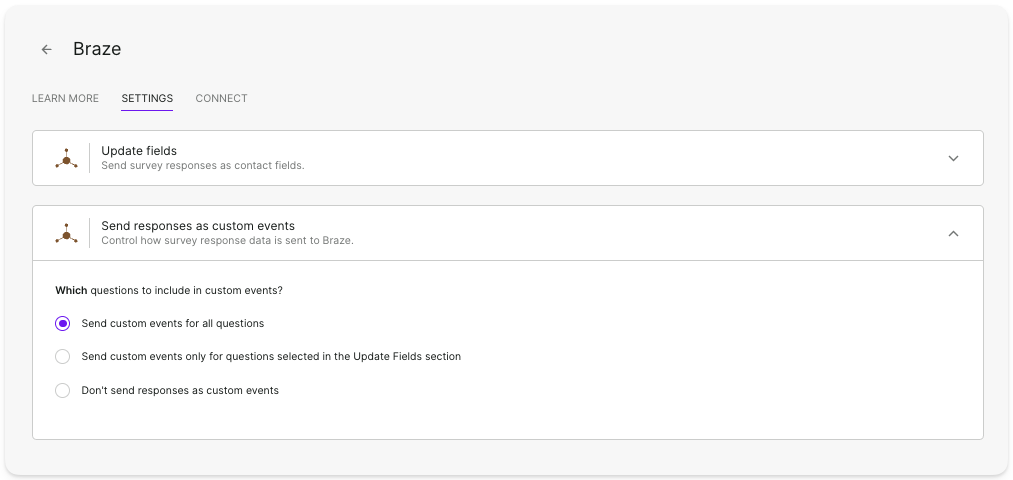
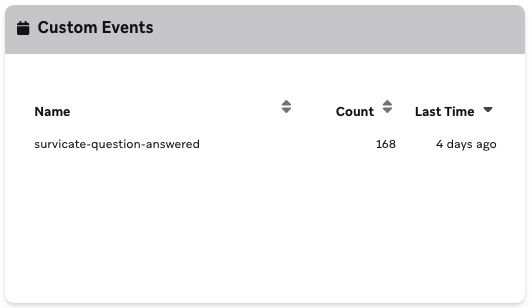
Apart from the previous settings, each time a respondent answers a survey question, Survicate can send a custom event in Braze named survicate-question-answered.
In the Survicate panel, under Send responses as custom attributes, you can choose if you want to send the event for all questions, questions chosen in the Update fields tab, or not at all:
If you choose to send the events, you can see in the users’ profiles how many times they responded to Survicate surveys and when they last responded:
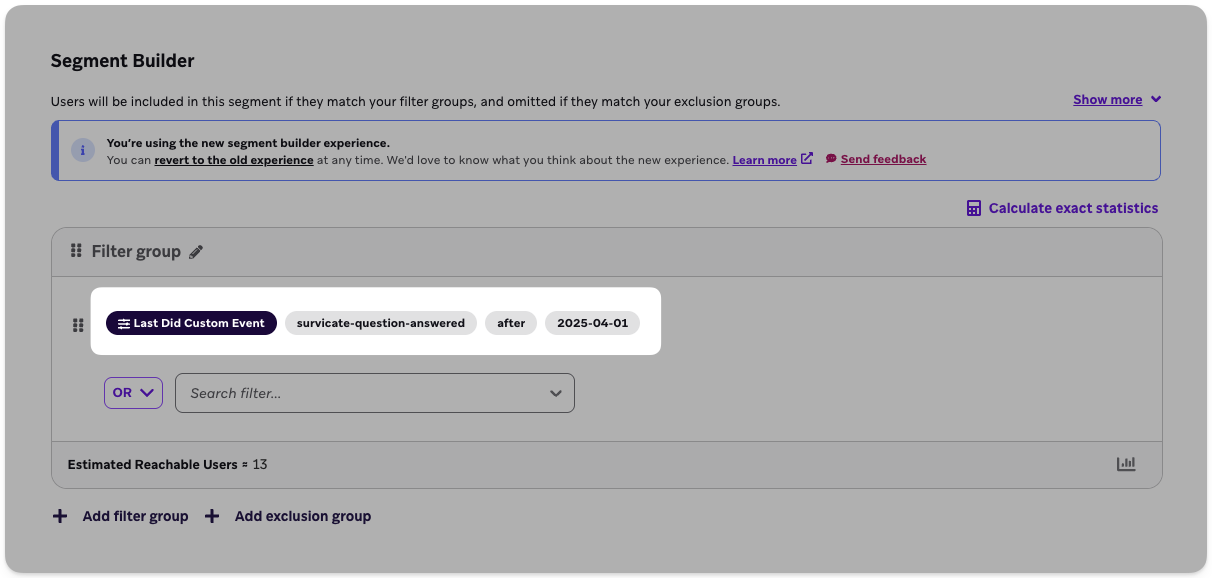
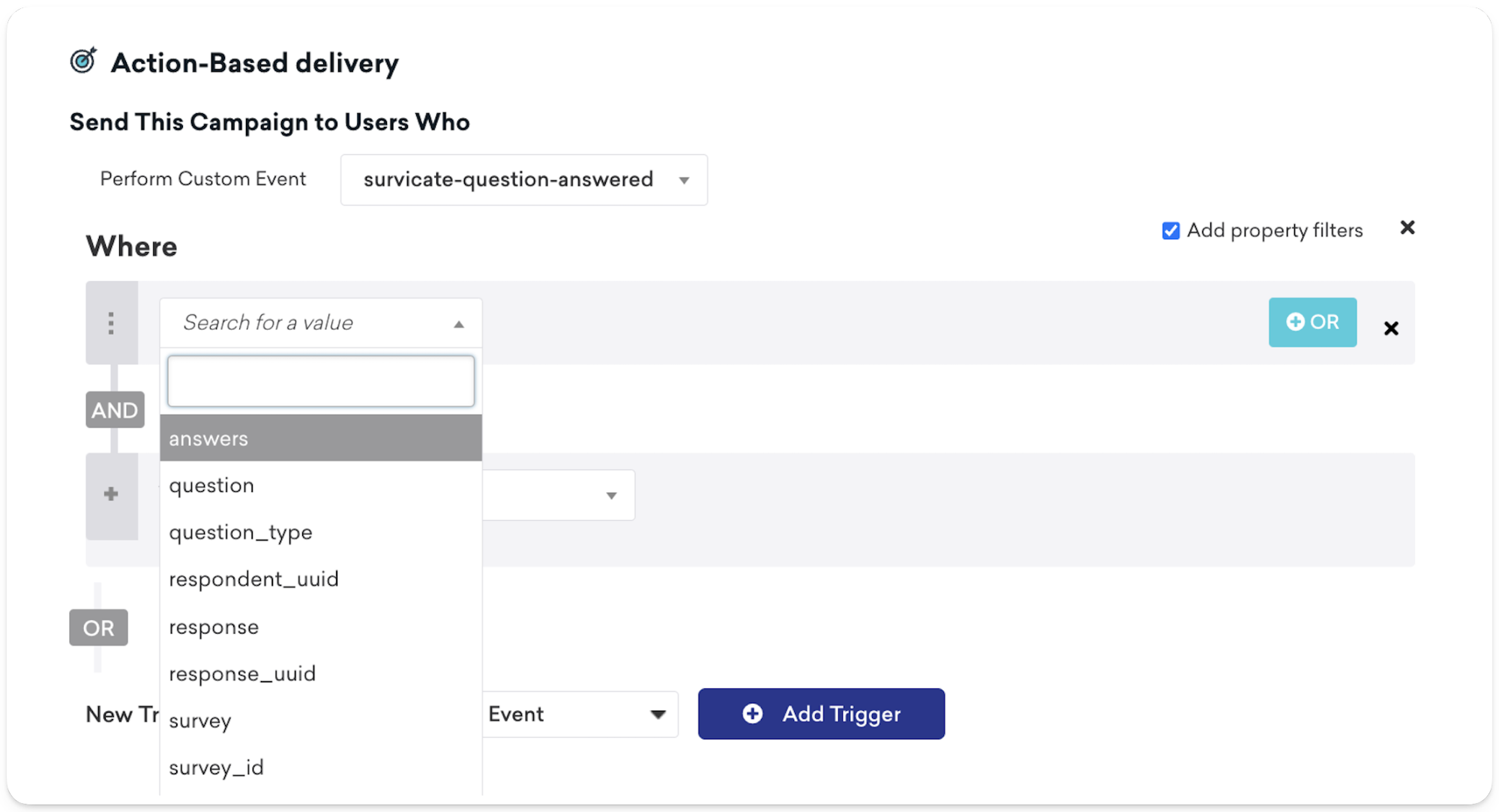
The event contains event properties with the answer to the question and information about the survey, question, and respondent. You can use this event to create segments. For example, create a segment of users who responded to a survey after a particular date or a particular number of times:
You can also use this data when creating a campaign in Braze.
Test the integration
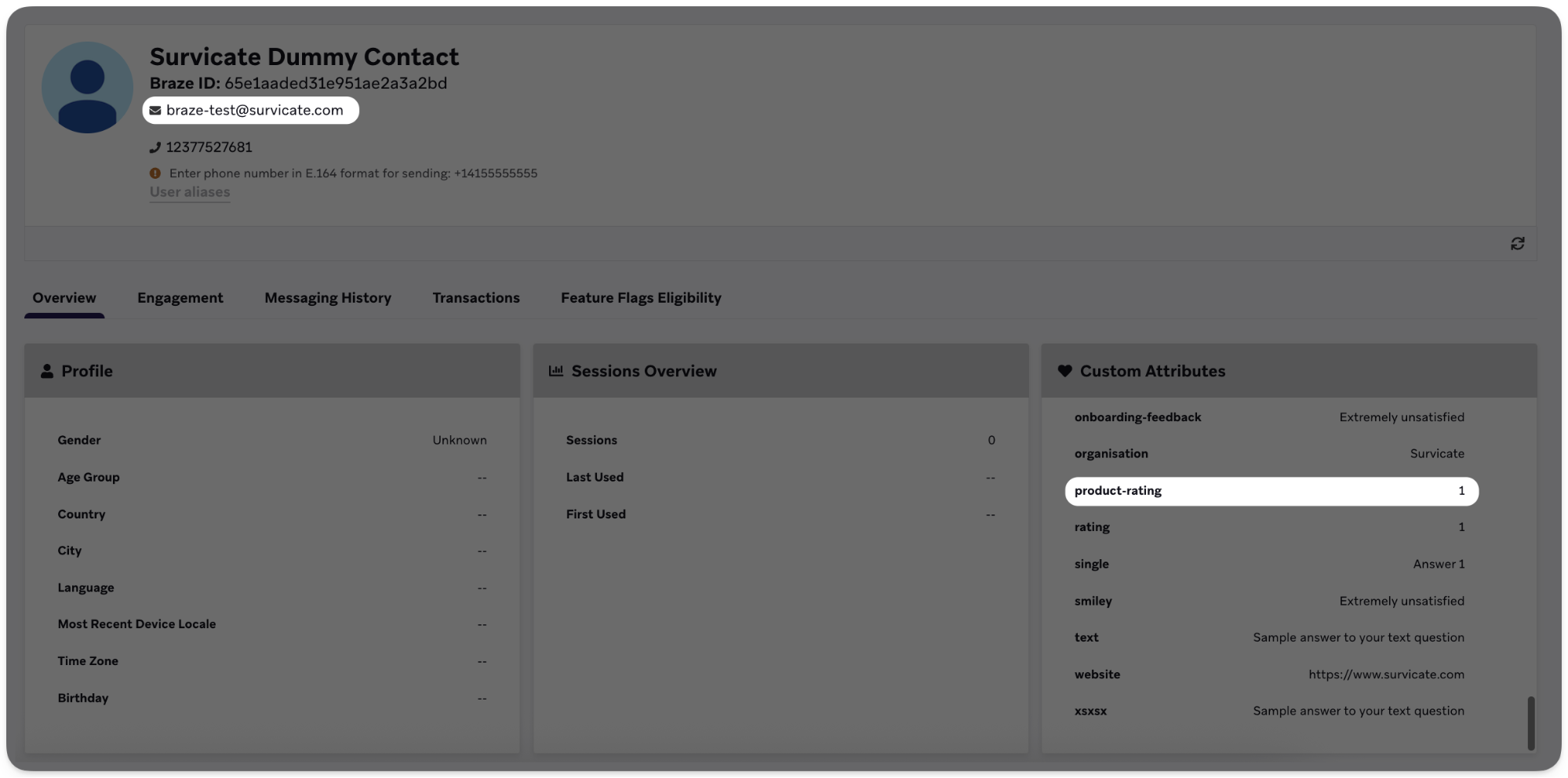
When you have your survey ready and integration set up, you can test it without leaving Survicate by clicking the Test Integration button next to any attribute, tag, or new contact setup that you’ve created. Survicate creates a test contact ([email protected]) in your Braze account. The contact’s profile includes updated fields as per the setup.
In Braze, you see sample data from the mapped fields in the Survicate Dummy Contact:
Analyzing your survey results
After collecting responses through your Braze survey, it’s time to look into the feedback and insights your respondents have shared. Survicate allows you to easily review results, statistics, and trends to take further action.
Feedback in Survicate
After your survey starts collecting responses, you see them immediately in the Analyze tab of the survey.
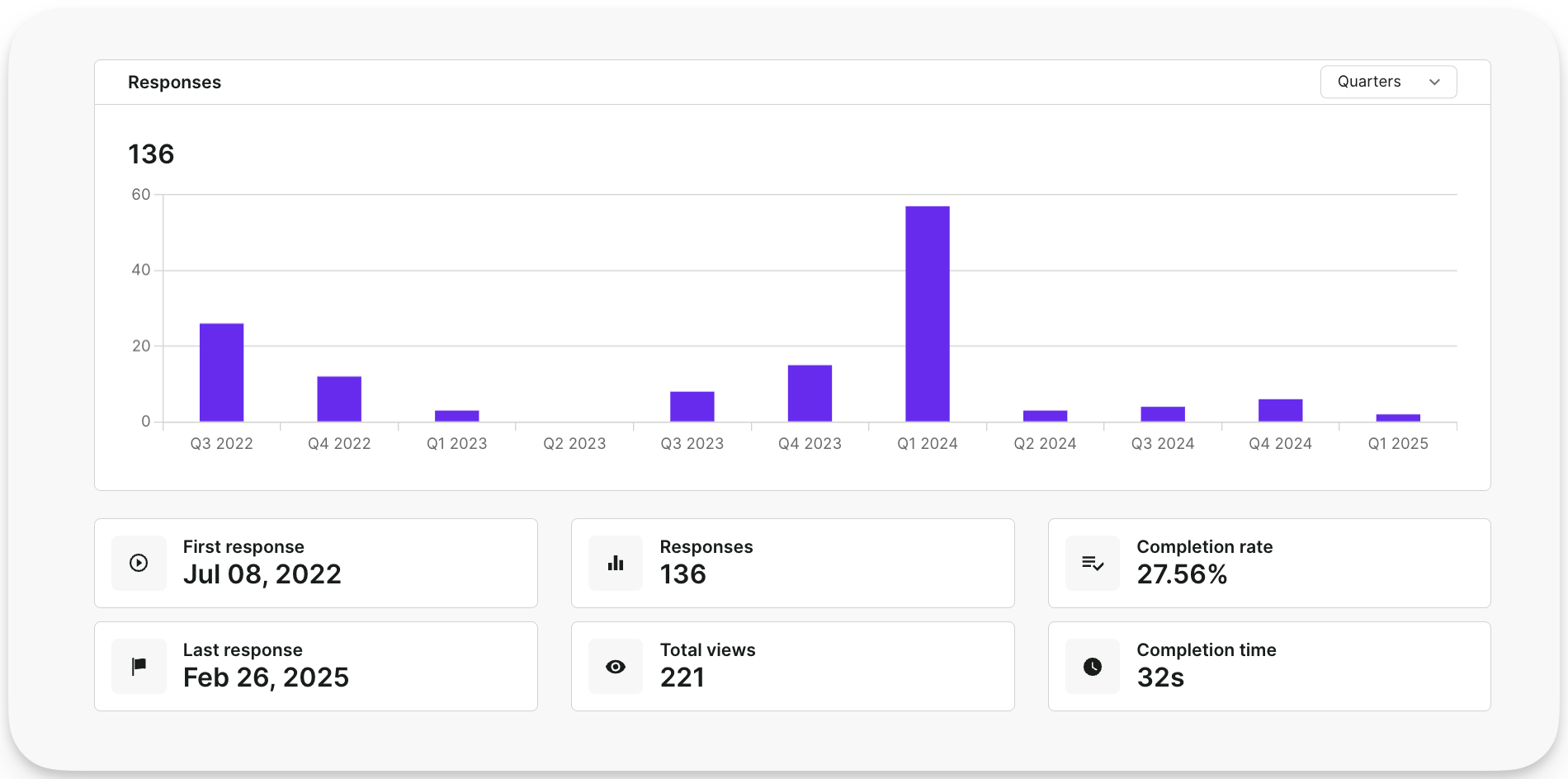
The Analyze tab shows you Overall results with statistics and over-time data, as well as individual responses to look into each survey submission in detail.
Feedback in Braze
If you update user fields with survey responses or send responses as custom events, you can see the survey data synced in real time. In Braze, go to a specific contact who responded to your survey. You see both the response-based data and events in the contact’s main view.