Create Content Cards
This article discusses the basic approach you’ll use when implementing custom Content Cards, as well as three common use cases. It assumes you’ve already read the other articles in the Content Card customization guide to understand what can be done by default and what requires custom code. It’s especially helpful to understand how to log analytics for your custom Content Cards.

Using Content Cards for banner-style messages? Try out Banners— perfect for inline, persistent in-app and web messages.
Creating a card
Step 1: Create a custom UI
First, create your custom HTML component that will be used to render the cards.
First, create your own custom fragment. The default ContentCardsFragment is only designed to handle our default Content Card types, but is a good starting point.
First, create your own custom view controller component. The default BrazeContentCardUI.ViewController is only designed to handle our default Content Card types, but is a good starting point.
Step 2: Subscribe to card updates
Register a callback function to subscribe for data updates when cards are refreshed. You can parse the Content Card objects and extract their payload data, such as title, cardDescription, and imageUrl, then use the resulting model data to populate your custom UI.
To obtain the Content Card data models, subscribe to Content Card updates. Pay particular attention to the following properties:
id: Represents the Content Card ID string. This is the unique identifier used to log analytics from custom Content Cards.extras: Encompasses all the key-value pairs from the Braze dashboard.
All properties outside of id and extras are optional to parse for custom Content Cards. For more information on the data model, see each platform’s integration article: Android, iOS, Web.
import * as braze from "@braze/web-sdk";
braze.subscribeToContentCardsUpdates((updates) => {
const cards = updates.cards;
// For example:
cards.forEach(card => {
if (card.isControl) {
// Do not display the control card, but remember to call `logContentCardImpressions([card])`
}
else if (card instanceof braze.ClassicCard || card instanceof braze.CaptionedImage) {
// Use `card.title`, `card.imageUrl`, etc.
}
else if (card instanceof braze.ImageOnly) {
// Use `card.imageUrl`, etc.
}
})
});
braze.openSession();

Content Cards only refresh on session start if subscribeToContentCardsUpdates() is called before openSession(). You can also manually refresh the feed at any time.
Step 2a: Create a private subscriber variable
To subscribe to card updates, first declare a private variable in your custom class to hold your subscriber:
// subscriber variable
private IEventSubscriber<ContentCardsUpdatedEvent> mContentCardsUpdatedSubscriber;
Step 2b: Subscribe to updates
Add the following code to subscribe to Content Card updates from Braze, typically inside of your custom Content Cards activity’s Activity.onCreate():
// Remove the previous subscriber before rebuilding a new one with our new activity.
Braze.getInstance(context).removeSingleSubscription(mContentCardsUpdatedSubscriber, ContentCardsUpdatedEvent.class);
mContentCardsUpdatedSubscriber = new IEventSubscriber<ContentCardsUpdatedEvent>() {
@Override
public void trigger(ContentCardsUpdatedEvent event) {
// List of all Content Cards
List<Card> allCards = event.getAllCards();
// Your logic below
}
};
Braze.getInstance(context).subscribeToContentCardsUpdates(mContentCardsUpdatedSubscriber);
Braze.getInstance(context).requestContentCardsRefresh();
Step 2c: Unsubscribe
Unsubscribe when your custom activity moves out of view. Add the following code to your activity’s onDestroy() lifecycle method:
Braze.getInstance(context).removeSingleSubscription(mContentCardsUpdatedSubscriber, ContentCardsUpdatedEvent.class);
Step 2a: Create a private subscriber variable
To subscribe to card updates, first declare a private variable in your custom class to hold your subscriber:
private var contentCardsUpdatedSubscriber: IEventSubscriber<ContentCardsUpdatedEvent>? = null
Step 2b: Subscribe to updates
Add the following code to subscribe to Content Card updates from Braze, typically inside of your custom Content Cards activity’s Activity.onCreate():
// Remove the previous subscriber before rebuilding a new one with our new activity.
Braze.getInstance(context).subscribeToContentCardsUpdates(contentCardsUpdatedSubscriber)
Braze.getInstance(context).requestContentCardsRefresh()
// List of all Content Cards
val allCards = event.allCards
// Your logic below
}
Braze.getInstance(context).subscribeToContentCardsUpdates(mContentCardsUpdatedSubscriber)
Braze.getInstance(context).requestContentCardsRefresh(true)
Step 2c: Unsubscribe
Unsubscribe when your custom activity moves out of view. Add the following code to your activity’s onDestroy() lifecycle method:
Braze.getInstance(context).removeSingleSubscription(contentCardsUpdatedSubscriber, ContentCardsUpdatedEvent::class.java)
To access the Content Cards data model, call contentCards.cards on your braze instance.
let cards: [Braze.ContentCard] = AppDelegate.braze?.contentCards.cards
Additionally, you can maintain a subscription to observe for changes in your Content Cards. You can do so in one of two ways:
- Maintaining a cancellable; or
- Maintaining an
AsyncStream.
Cancellable
// This subscription is maintained through a Braze cancellable, which will observe for changes until the subscription is cancelled.
// You must keep a strong reference to the cancellable to keep the subscription active.
// The subscription is canceled either when the cancellable is deinitialized or when you call its `.cancel()` method.
let cancellable = AppDelegate.braze?.contentCards.subscribeToUpdates { [weak self] contentCards in
// Implement your completion handler to respond to updates in `contentCards`.
}
AsyncStream
let stream: AsyncStream<[Braze.ContentCard]> = AppDelegate.braze?.contentCards.cardsStream
NSArray<BRZContentCardRaw *> *contentCards = AppDelegate.braze.contentCards.cards;
Additionally, if you want to maintain a subscription to your content cards, you can call subscribeToUpdates:
// This subscription is maintained through Braze cancellable, which will continue to observe for changes until the subscription is cancelled.
BRZCancellable *cancellable = [self.braze.contentCards subscribeToUpdates:^(NSArray<BRZContentCardRaw *> *contentCards) {
// Implement your completion handler to respond to updates in `contentCards`.
}];
Step 3: Implement analytics
Content Card impressions, clicks, and dismissals are not automatically logged in your custom view. You must implement each respective method to properly log all metrics back to Braze dashboard analytics.
Step 4: Test your card (optional)
To test your Content Card:
- Set an active user in your application by calling the
changeUser()method. - In Braze, go to Campaigns, then create a new Content Card campaign.
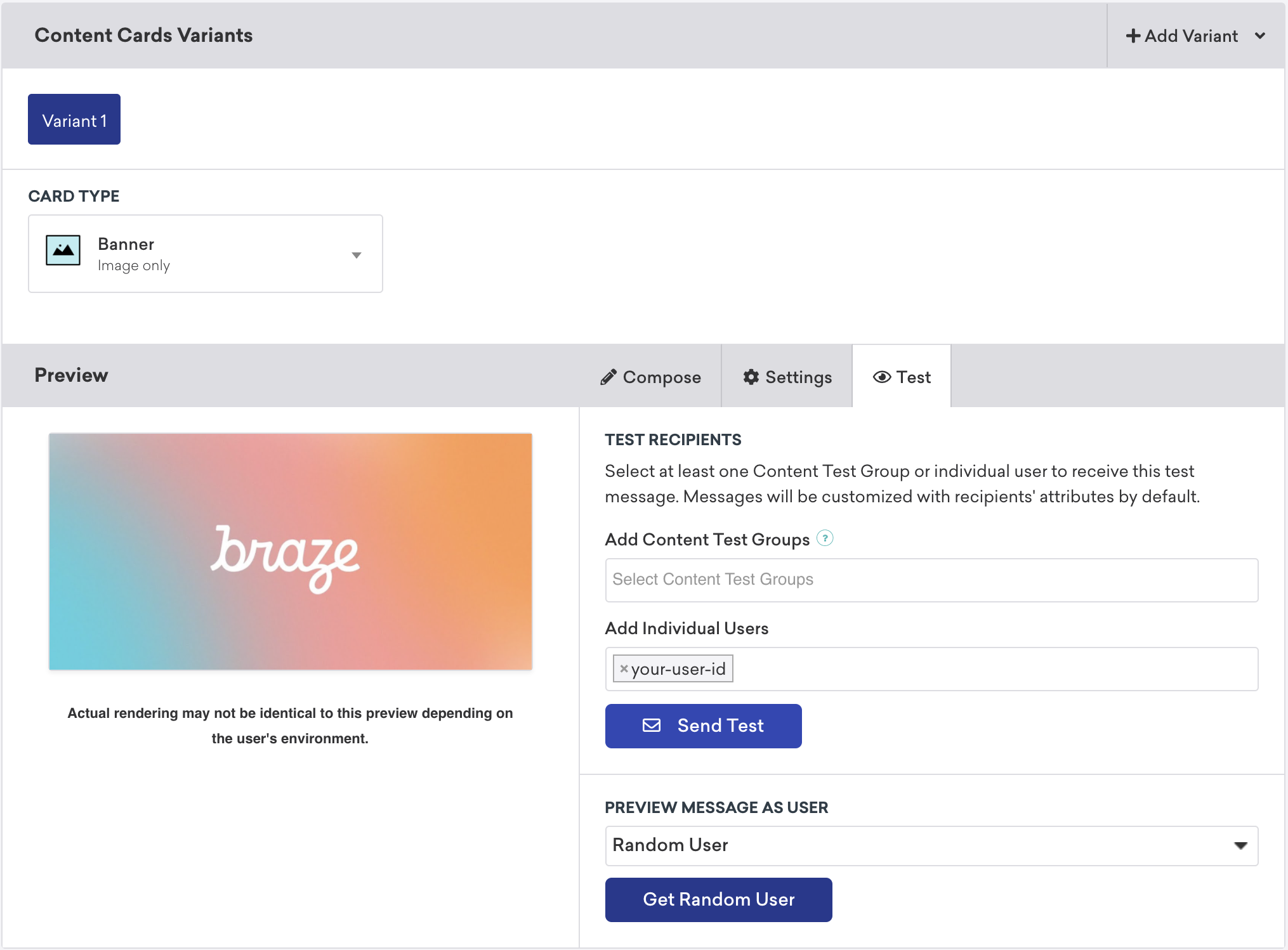
- In your campaign, select Test, then enter the test user’s
user-id. When you’re ready, select Send Test. You’ll be able to launch a Content Card on your device shortly.
Content Card placements
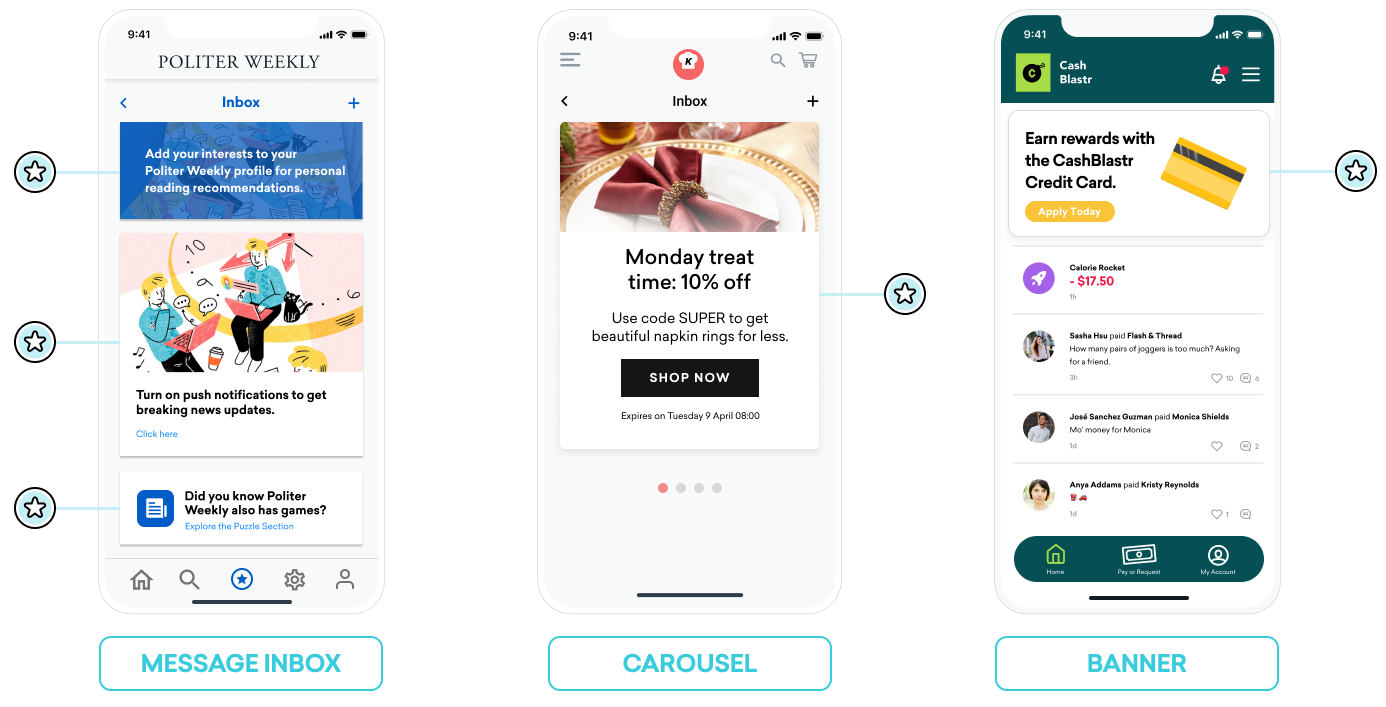
Content Cards can be used in many different ways. Three common implementations are to use them as a message center, a dynamic image ad, or an image carousel. For each of these placements, you will assign key-value pairs (the extras property in the data model) to your Content Cards, and based on the values, dynamically adjust the card’s behavior, appearance, or functionality during runtime.
Message inbox
Content Cards can be used to simulate a message center. In this format, each message is its own card that contains key-value pairs that power on-click events. These key-value pairs are the key identifiers that the application looks at when deciding where to go when the user clicks on an inbox message. The values of the key-value pairs are arbitrary.
Example
For example, you may want to create two message cards: a call-to-action for users to enable reading recommendations and a coupon code given to your new subscriber segment.
Keys like body, title, and buttonText might have simple string values your marketers can set. Keys like terms might have values that provide a small collection of phrases approved by your Legal department. Keys like style and class_type have string values that you can set to determine how your card renders on your app or site.
Key-value pairs for the reading recommendation card:
| Key | Value |
|---|---|
body |
Add your interests to your Politer Weekly profile for personal reading recommendations. |
style |
info |
class_type |
notification_center |
card_priority |
1 |
Key-value pairs for a new subscriber coupon:
| Key | Value |
|---|---|
title |
Subscribe for unlimited games |
body |
End of Summer Special - Enjoy 10% off Politer games |
buttonText |
Subscribe Now |
style |
promo |
class_type |
notification_center |
card_priority |
2 |
terms |
new_subscribers_only |
Additional information for Android
In the Android and FireOS SDK, the message center logic is driven by the class_type value that is provided by the key-value pairs from Braze. Using the createContentCardable method, you can filter and identify these class types.
Using class_type for on-click behavior
When we inflate the Content Card data into our custom classes, we use the ContentCardClass property of the data to determine which concrete subclass should be used to store the data.
private fun createContentCardable(metadata: Map<String, Any>, type: ContentCardClass?): ContentCardable?{
return when(type){
ContentCardClass.AD -> Ad(metadata)
ContentCardClass.MESSAGE_WEB_VIEW -> WebViewMessage(metadata)
ContentCardClass.NOTIFICATION_CENTER -> FullPageMessage(metadata)
ContentCardClass.ITEM_GROUP -> Group(metadata)
ContentCardClass.ITEM_TILE -> Tile(metadata)
ContentCardClass.COUPON -> Coupon(metadata)
else -> null
}
}
Then, when handling the user interaction with the message list, we can use the message’s type to determine which view to display to the user.
override fun onCreate(savedInstanceState: Bundle?) {
super.onCreate(savedInstanceState)
//...
listView.onItemClickListener = AdapterView.OnItemClickListener { parent, view, position, id ->
when (val card = dataProvider[position]){
is WebViewMessage -> {
val intent = Intent(this, WebViewActivity::class.java)
val bundle = Bundle()
bundle.putString(WebViewActivity.INTENT_PAYLOAD, card.contentString)
intent.putExtras(bundle)
startActivity(intent)
}
is FullPageMessage -> {
val intent = Intent(this, FullPageContentCard::class.java)
val bundle = Bundle()
bundle.putString(FullPageContentCard.CONTENT_CARD_IMAGE, card.icon)
bundle.putString(FullPageContentCard.CONTENT_CARD_TITLE, card.messageTitle)
bundle.putString(FullPageContentCard.CONTENT_CARD_DESCRIPTION, card.cardDescription)
intent.putExtras(bundle)
startActivity(intent)
}
}
}
}
Using class_type for on-click behavior
When we inflate the Content Card data into our custom classes, we use the ContentCardClass property of the data to determine which concrete subclass should be used to store the data.
private ContentCardable createContentCardable(Map<String, ?> metadata, ContentCardClass type){
switch(type){
case ContentCardClass.AD:{
return new Ad(metadata);
}
case ContentCardClass.MESSAGE_WEB_VIEW:{
return new WebViewMessage(metadata);
}
case ContentCardClass.NOTIFICATION_CENTER:{
return new FullPageMessage(metadata);
}
case ContentCardClass.ITEM_GROUP:{
return new Group(metadata);
}
case ContentCardClass.ITEM_TILE:{
return new Tile(metadata);
}
case ContentCardClass.COUPON:{
return new Coupon(metadata);
}
default:{
return null;
}
}
}
Then, when handling the user interaction with the message list, we can use the message’s type to determine which view to display to the user.
@Override
protected void onCreate(Bundle savedInstanceState) {
super.onCreate(savedInstanceState)
//...
listView.setOnItemClickListener(new AdapterView.OnItemClickListener() {
@Override
public void onItemClick(AdapterView<?> parent, View view, int position, long id){
ContentCardable card = dataProvider.get(position);
if (card instanceof WebViewMessage){
Bundle intent = new Intent(this, WebViewActivity.class);
Bundle bundle = new Bundle();
bundle.putString(WebViewActivity.INTENT_PAYLOAD, card.getContentString());
intent.putExtras(bundle);
startActivity(intent);
}
else if (card instanceof FullPageMessage){
Intent intent = new Intent(this, FullPageContentCard.class);
Bundle bundle = Bundle();
bundle.putString(FullPageContentCard.CONTENT_CARD_IMAGE, card.getIcon());
bundle.putString(FullPageContentCard.CONTENT_CARD_TITLE, card.getMessageTitle());
bundle.putString(FullPageContentCard.CONTENT_CARD_DESCRIPTION, card.getCardDescription());
intent.putExtras(bundle)
startActivity(intent)
}
}
});
}
Carousel
You can set Content Cards in your fully-custom carousel feed, allowing users to swipe and view additional featured cards. By default, Content Cards are sorted by created date (newest first), and your users will see all the cards they’re eligible for.
To implement a Content Card carousel:
- Create custom logic that observes for changes in your Content Cards and handles Content Card arrival.
- Create custom client-side logic to display a specific number of cards in the carousel any one time. For example, you could select the first five Content Card objects from the array or introduce key-value pairs to build conditional logic around.
If you’re implementing a carousel as a secondary Content Cards feed, be sure to sort cards into the correct feed using key-value pairs.
Image-only
Content Cards don’t have to look like “cards.” For example, Content Cards can appear as a dynamic image that persistently displays on your home page or at the top of designated pages.
To achieve this, your marketers will create a campaign or Canvas step with an Image Only type of Content Card. Then, set key-value pairs that are appropriate for using Content Cards as supplemental content.