AppboyKit (also known as the Objective-C SDK) is no longer supported and has been replaced by the Swift SDK. It will no longer receive new features, bug fixes, security updates, or technical support—however, messaging and analytics will continue to function as normal. To learn more, see Introducing the New Braze Swift SDK.
Swift Package Manager integration
Installing the iOS SDK via Swift Package Manager (SPM) automates the majority of the installation process for you. Before beginning this process, ensure that you use Xcode 12 or greater.
tvOS is not currently available via Swift Package Manager.
Step 1: Adding the dependency to your project
Import SDK version
Open your project and navigate to your project’s settings. Select the Swift Packages tab and click on the add button below the packages list.
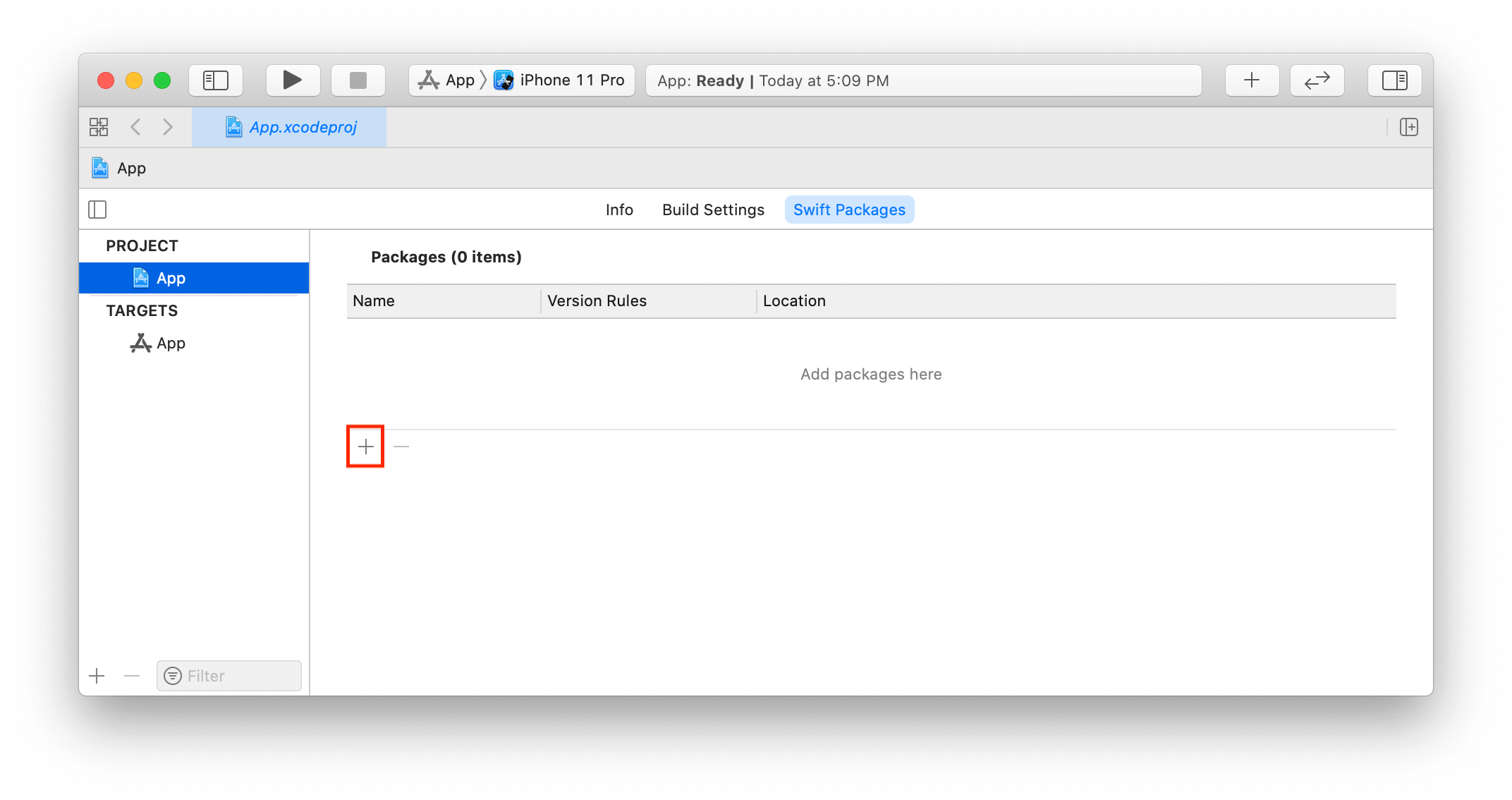
When importing SDK version 3.33.1 or later, enter the URL of our iOS SDK repository (https://github.com/braze-inc/braze-ios-sdk) in the text field and click Next.
For versions 3.29.0 through 3.32.0, use the URL https://github.com/Appboy/Appboy-ios-sdk.
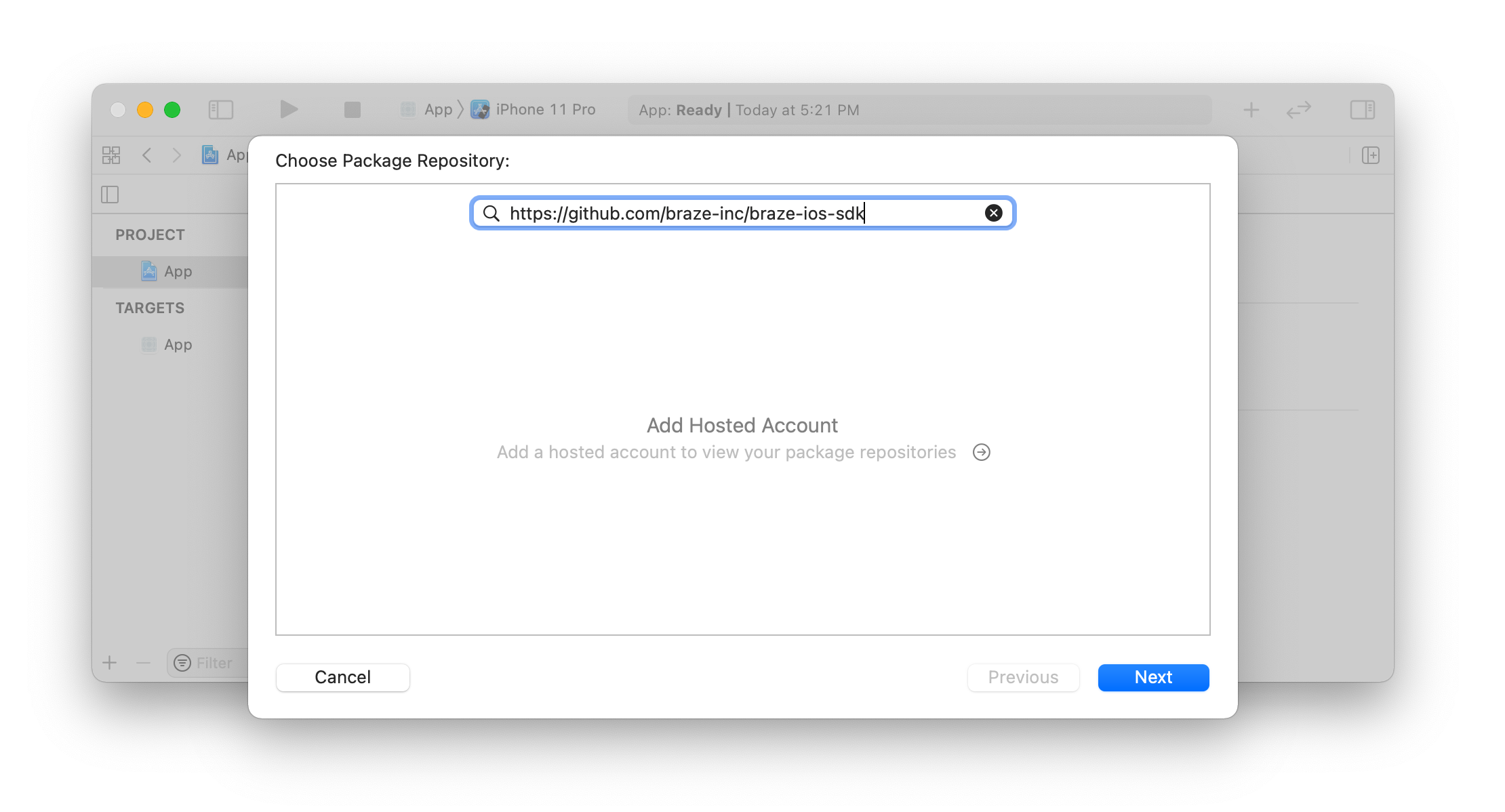
On the next screen, select the SDK version and click Next. Versions 3.29.0 and later are compatible with Swift Package Manager.
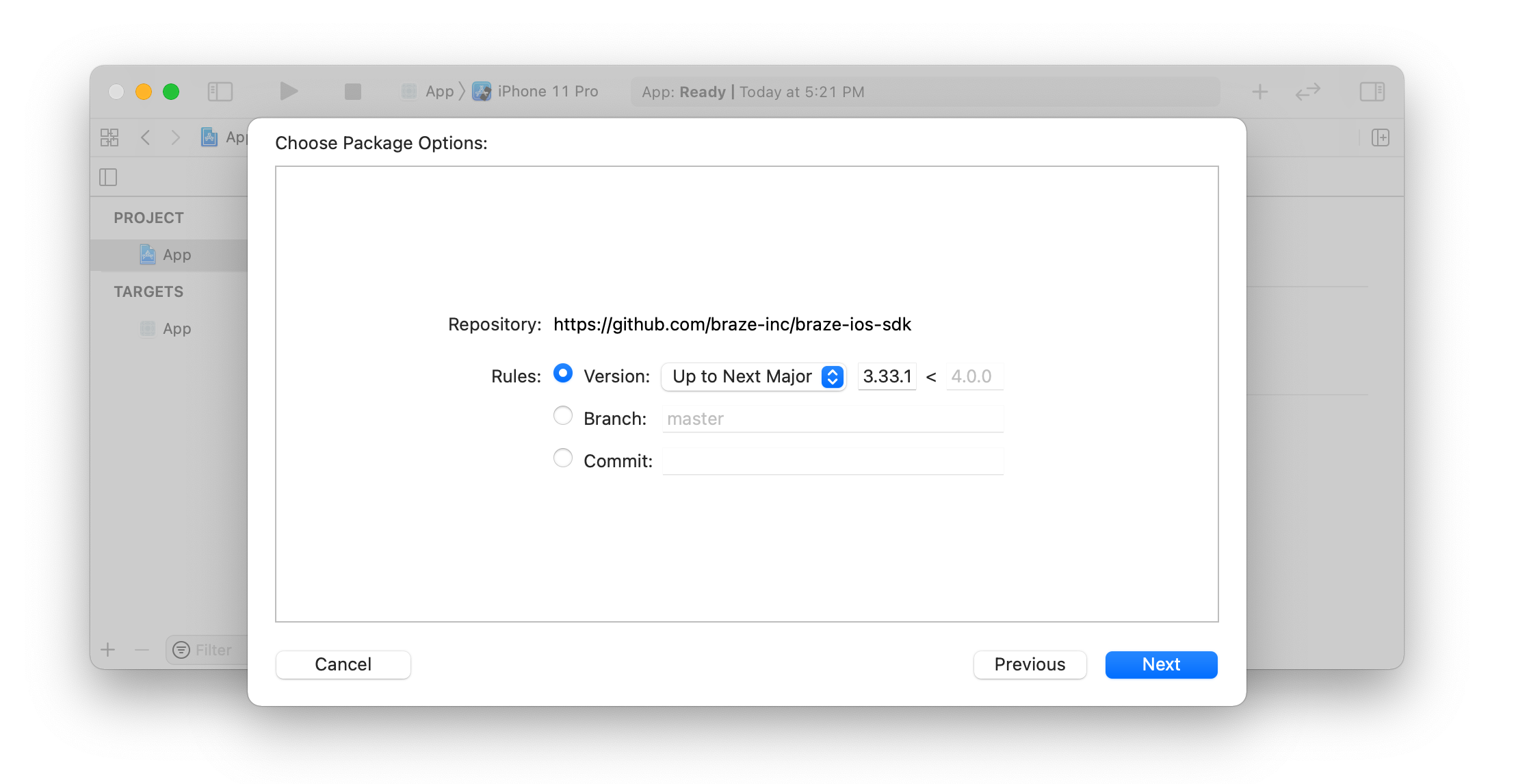
Select packages
Select the package that best suits your needs and click Finish. Make sure you select either AppboyKit or AppboyUI. Including both packages can lead to undesired behavior:
AppboyUI- Best suited if you plan to use UI components provided by Braze.
- Includes
AppboyKitautomatically.
AppboyKit- Best suited if you don’t need to use any of the UI components provided by Braze (for example, Content Cards, in-app messages, etc.).
AppboyPushStory- Include this package if you have integrated Push Stories in your app. This is supported as of version
3.31.0. - In the dropdown under
Add to Target, select yourContentExtensiontarget instead of your main app’s target.
- Include this package if you have integrated Push Stories in your app. This is supported as of version
Step 2: Configuring your project
Next, navigate to your project build settings and add the -ObjC flag to the Other Linker Flags setting. This flag must be added and any errors resolved in order to further integrate the SDK.
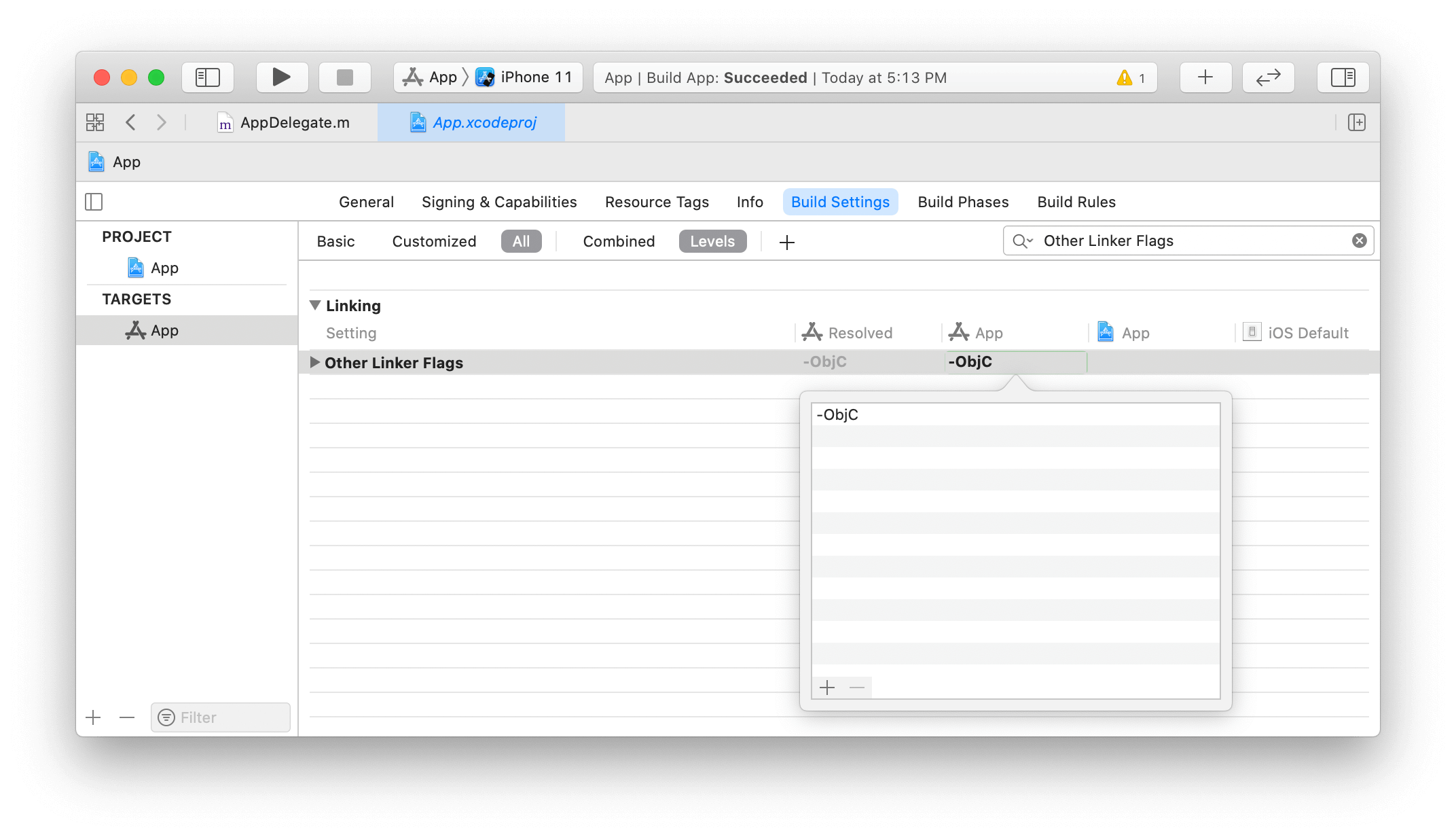
If you do not add the -ObjC flag, parts of the API may become missing and behavior will be undefined. You may encounter unexpected errors such as “unrecognized selector sent to class”, application crashes, and other issues.
Step 3: Editing the target’s scheme
If you are using Xcode 12.5 or newer, skip this step.
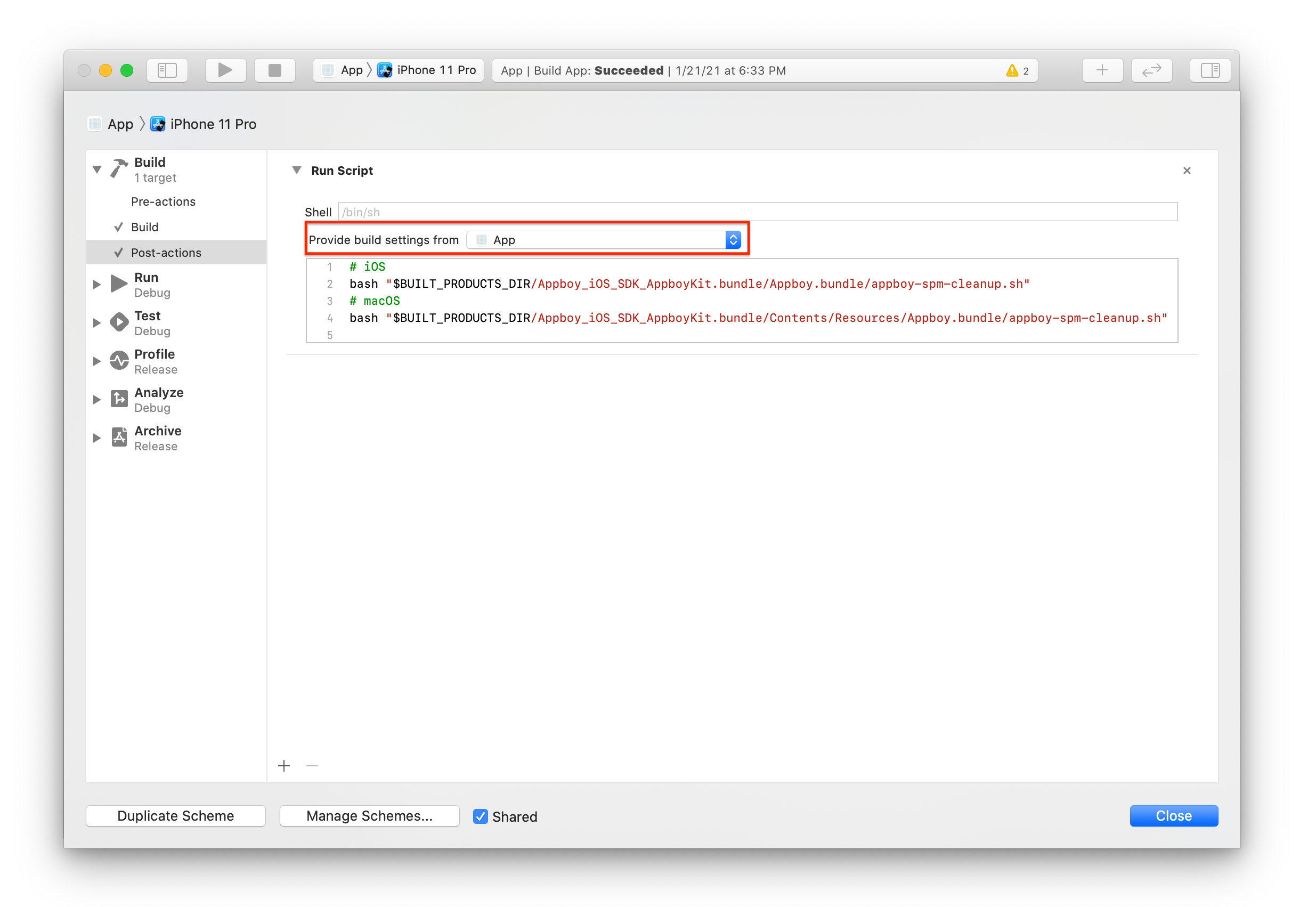
If you are using Xcode 12.4 or earlier, edit the scheme of the target including the Appboy package (Product > Scheme > Edit Scheme menu item):
- Expand the Build menu and select Post-actions. Press the plus (+) button and select New Run Script Action.
- In the Provide build settings from dropdown, select your app’s target.
- Copy this script into the open field:
1
2
3
4
# iOS
bash "$BUILT_PRODUCTS_DIR/Appboy_iOS_SDK_AppboyKit.bundle/Appboy.bundle/appboy-spm-cleanup.sh"
# macOS (if applicable)
bash "$BUILT_PRODUCTS_DIR/Appboy_iOS_SDK_AppboyKit.bundle/Contents/Resources/Appboy.bundle/appboy-spm-cleanup.sh"
Next steps
Follow the instructions for completing the integration.
 Edit this page on GitHub