Image copy style guide
Optimize placement and sizing
Whenever possible, place images near relevant text and be mindful to use image styling markdown to resize larger images. For some content, this should be done by anchoring text to the left or right side of the page depending on the image and the space available.
| Do | Don't |
|---|---|
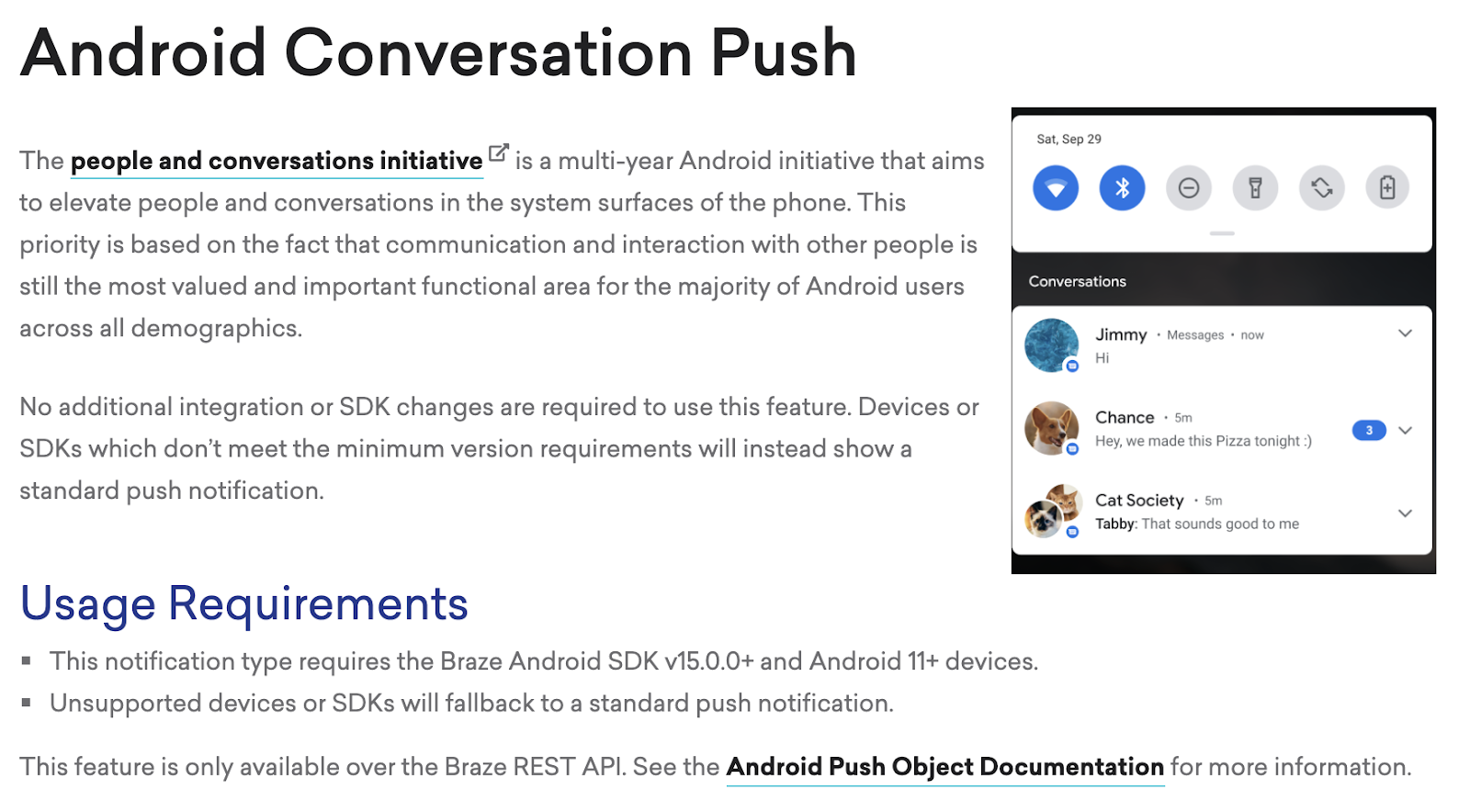 | 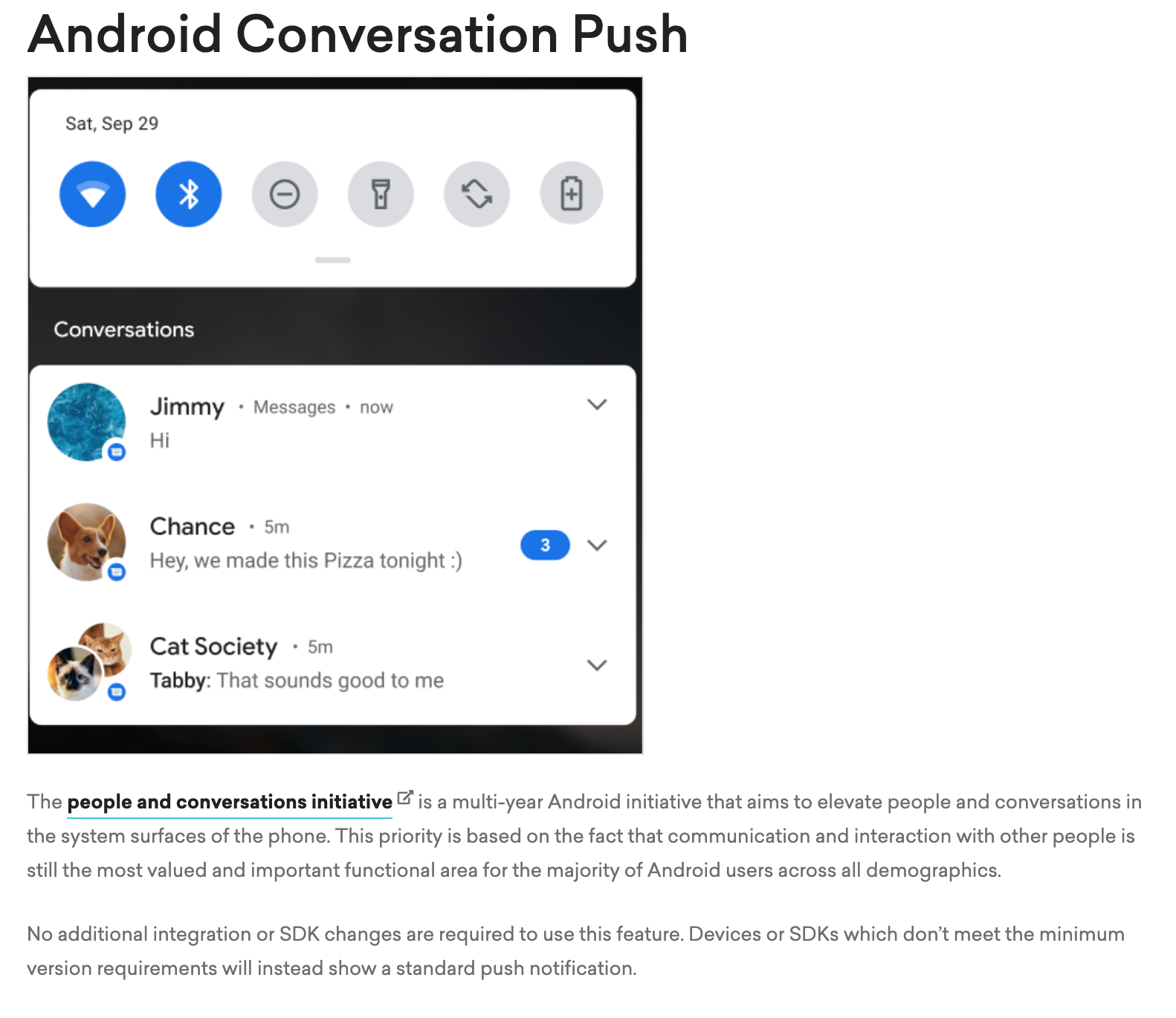 |
Crop images
Crop relevant sections closely. Unless necessary, do not include the left navigation bar and instead include navigation directions in the article. This limits the number of images that need to be changed when UI changes occur.
| Do | Don't |
|---|---|
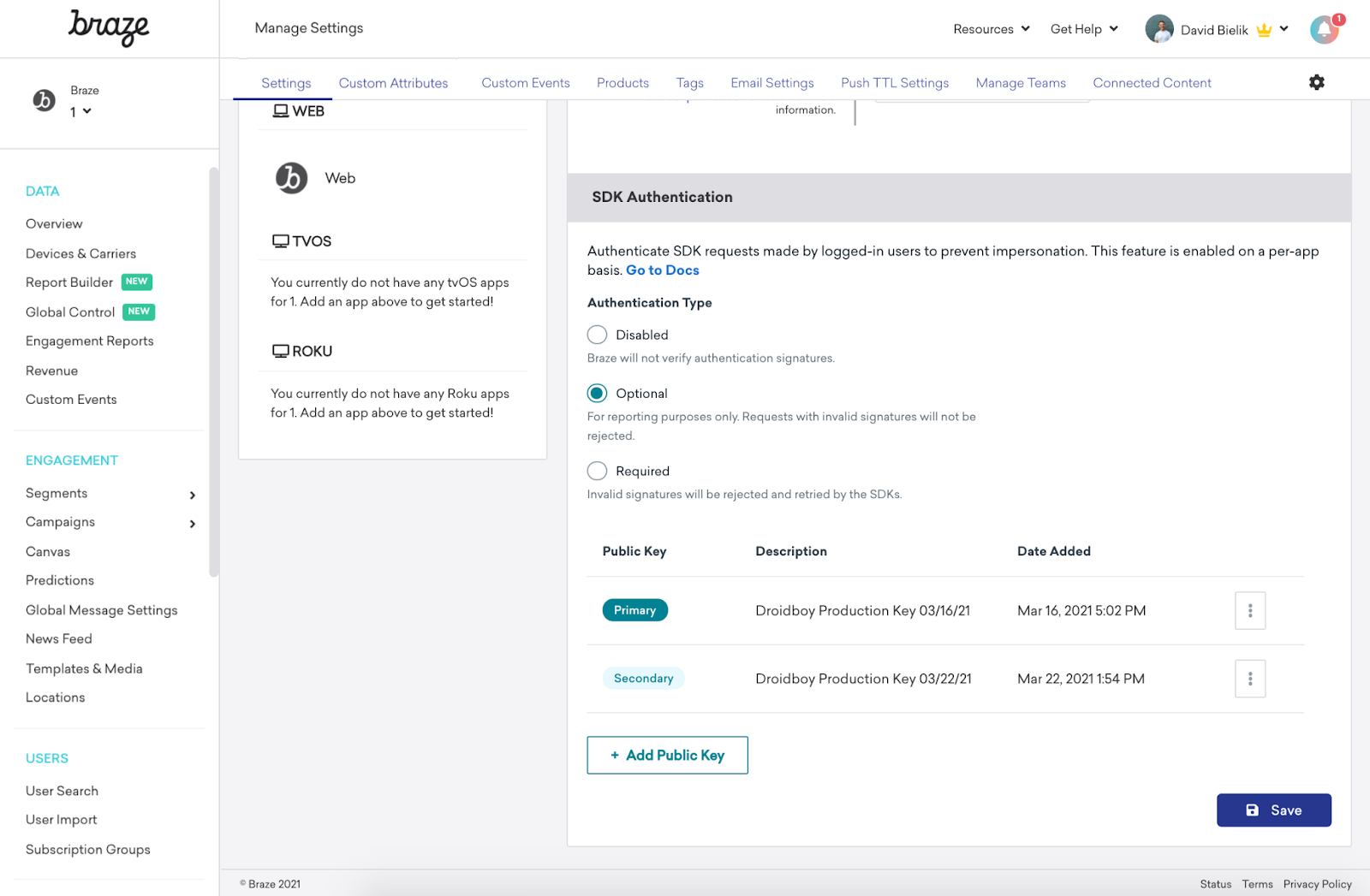 | 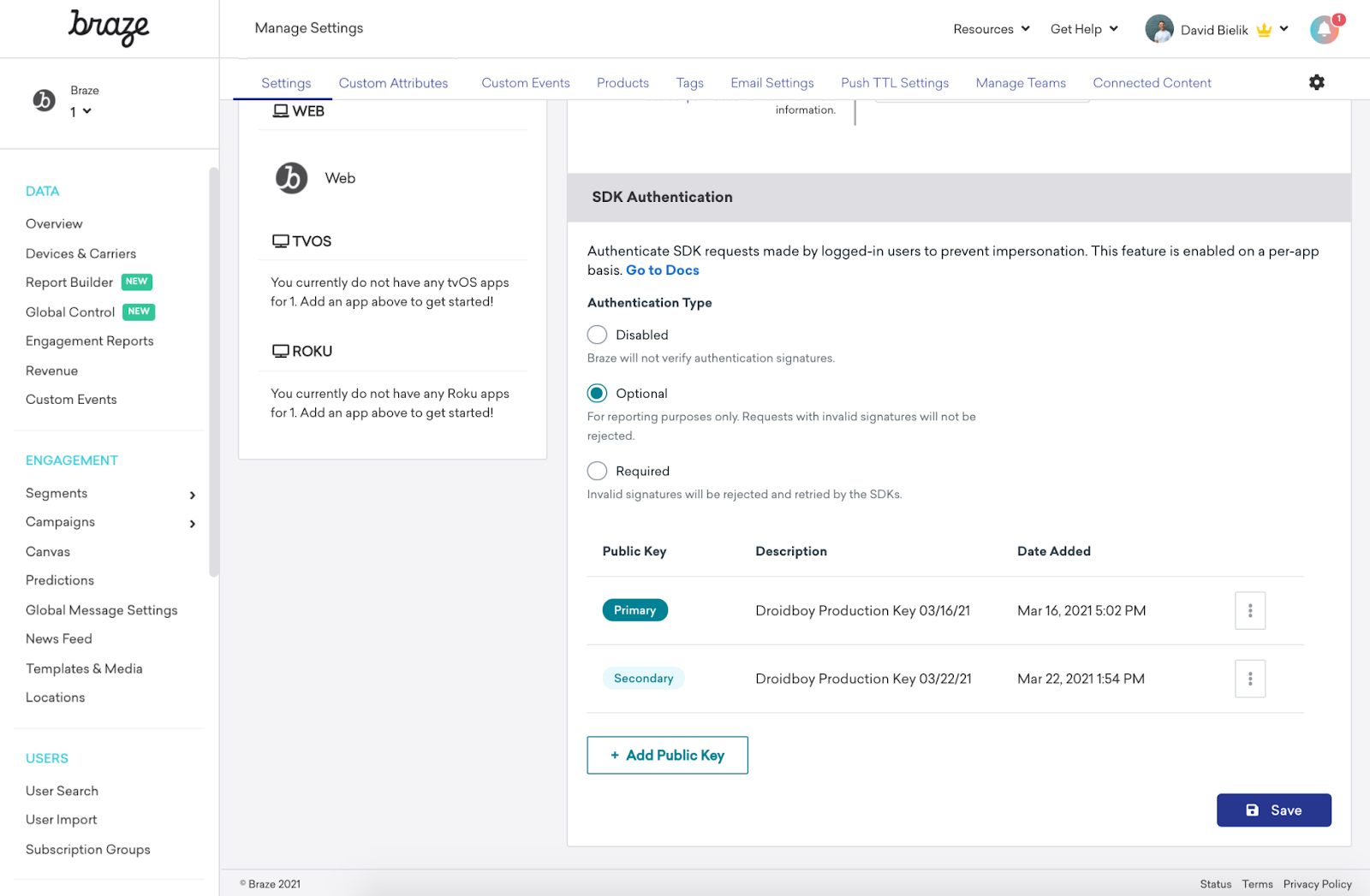 |
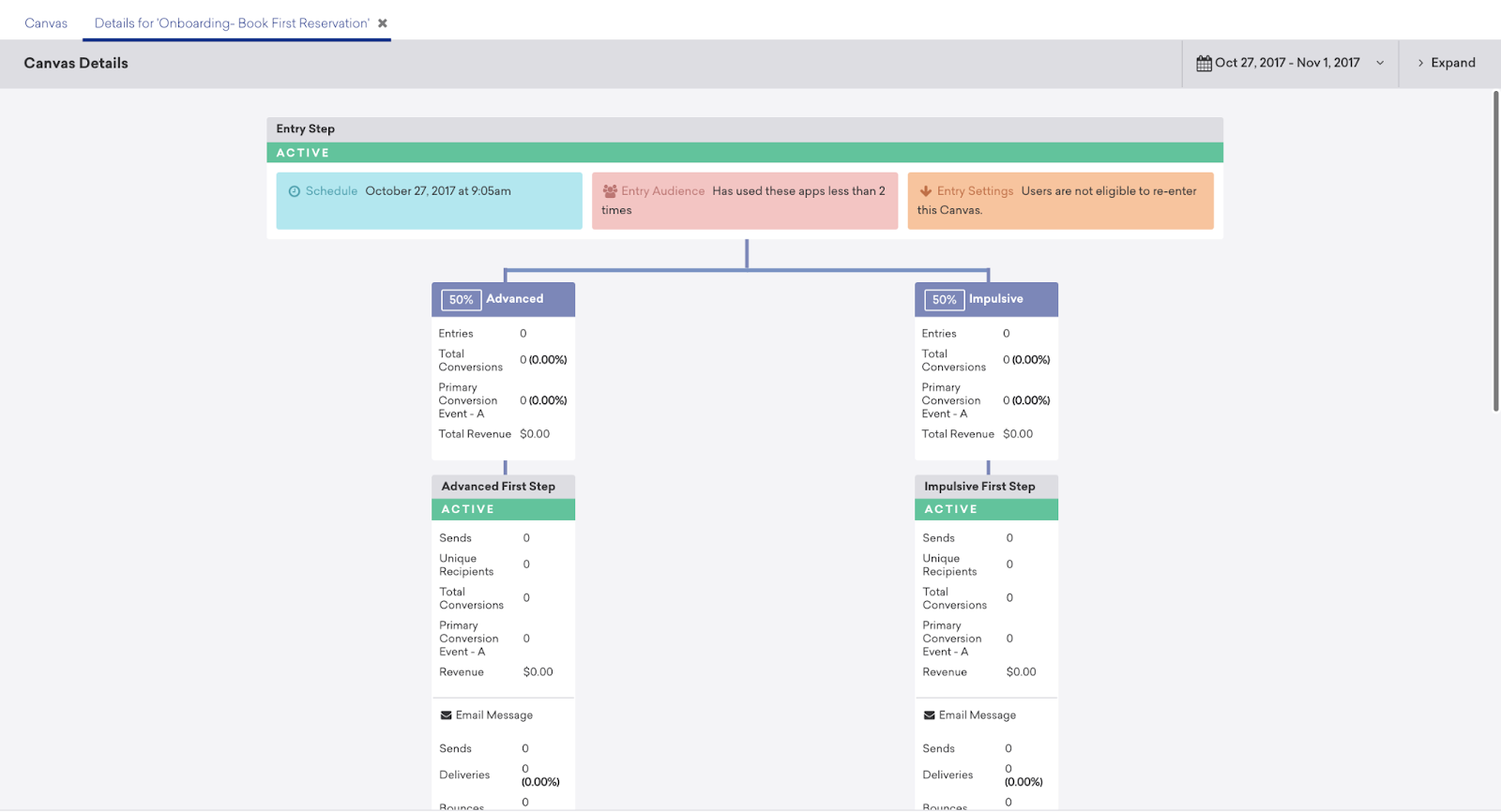 | 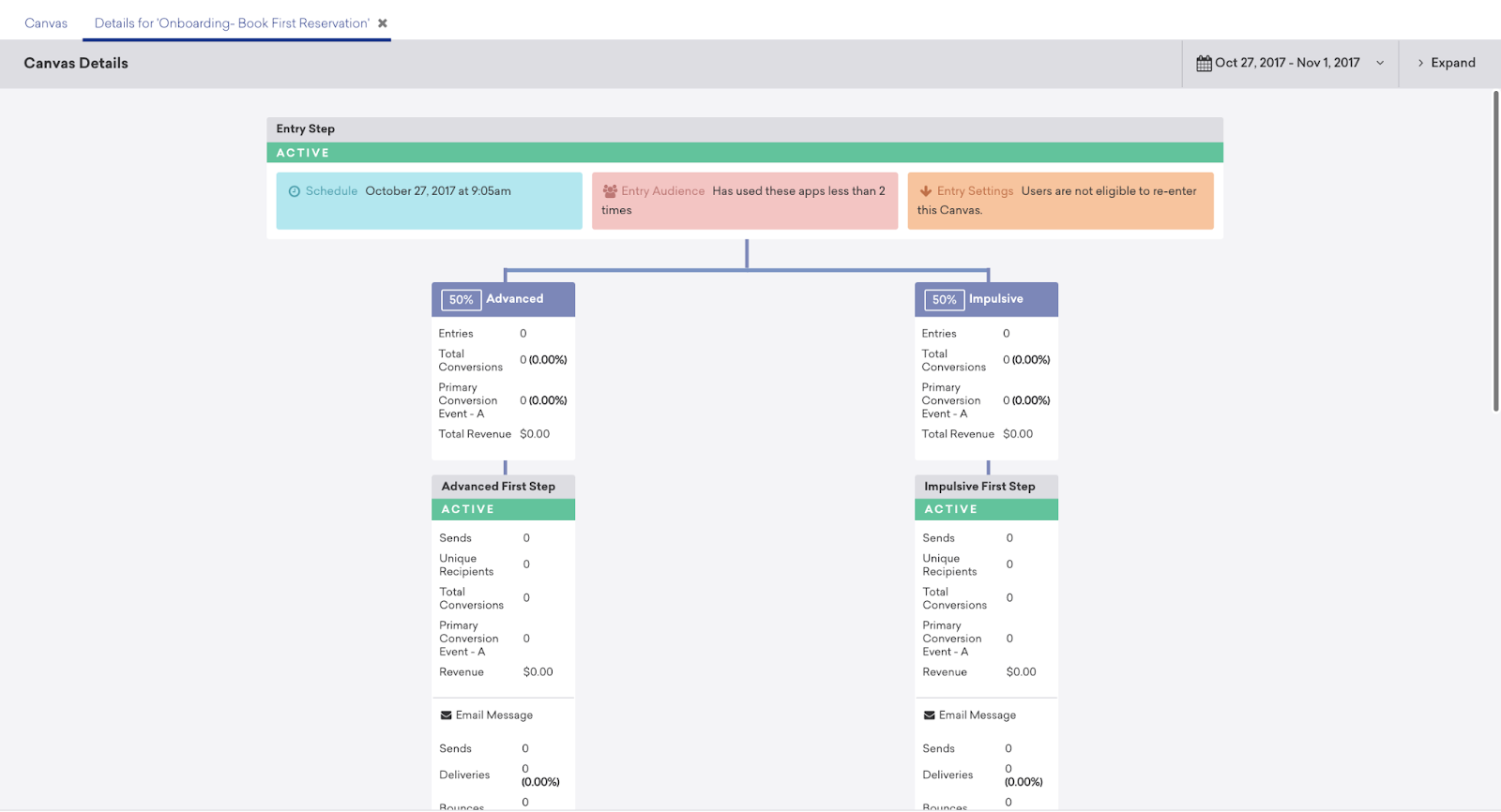 |
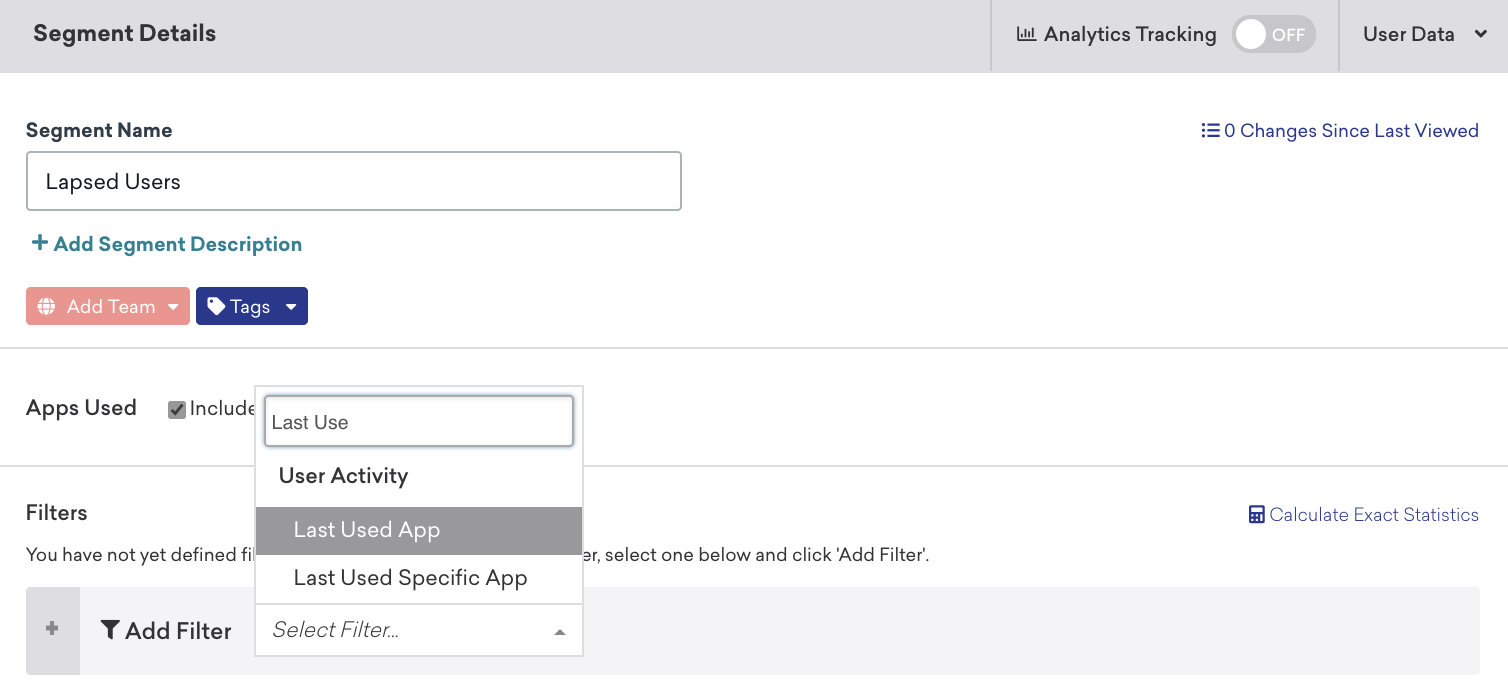
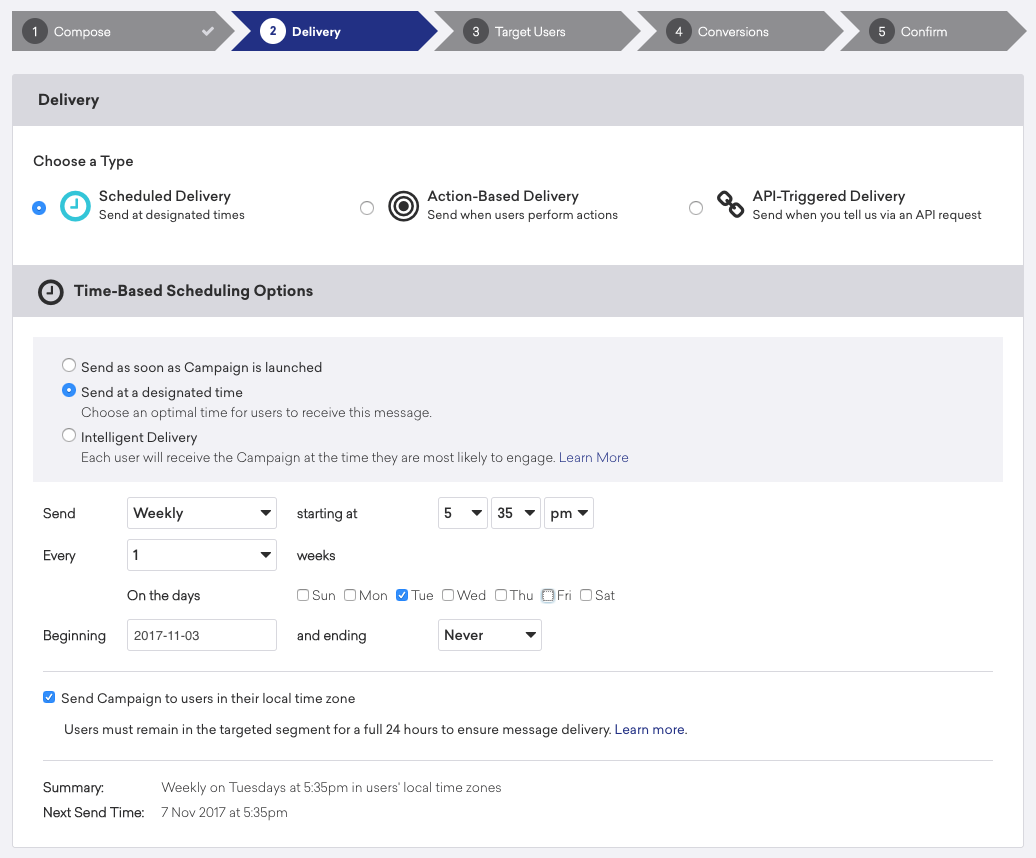
Because Braze docs already add a border to each image, omit borders in a section screenshot. We are looking for a clean crop. The border can be left in if there are components that live outside or within the border, see the following images as examples.
Do:
Don’t:
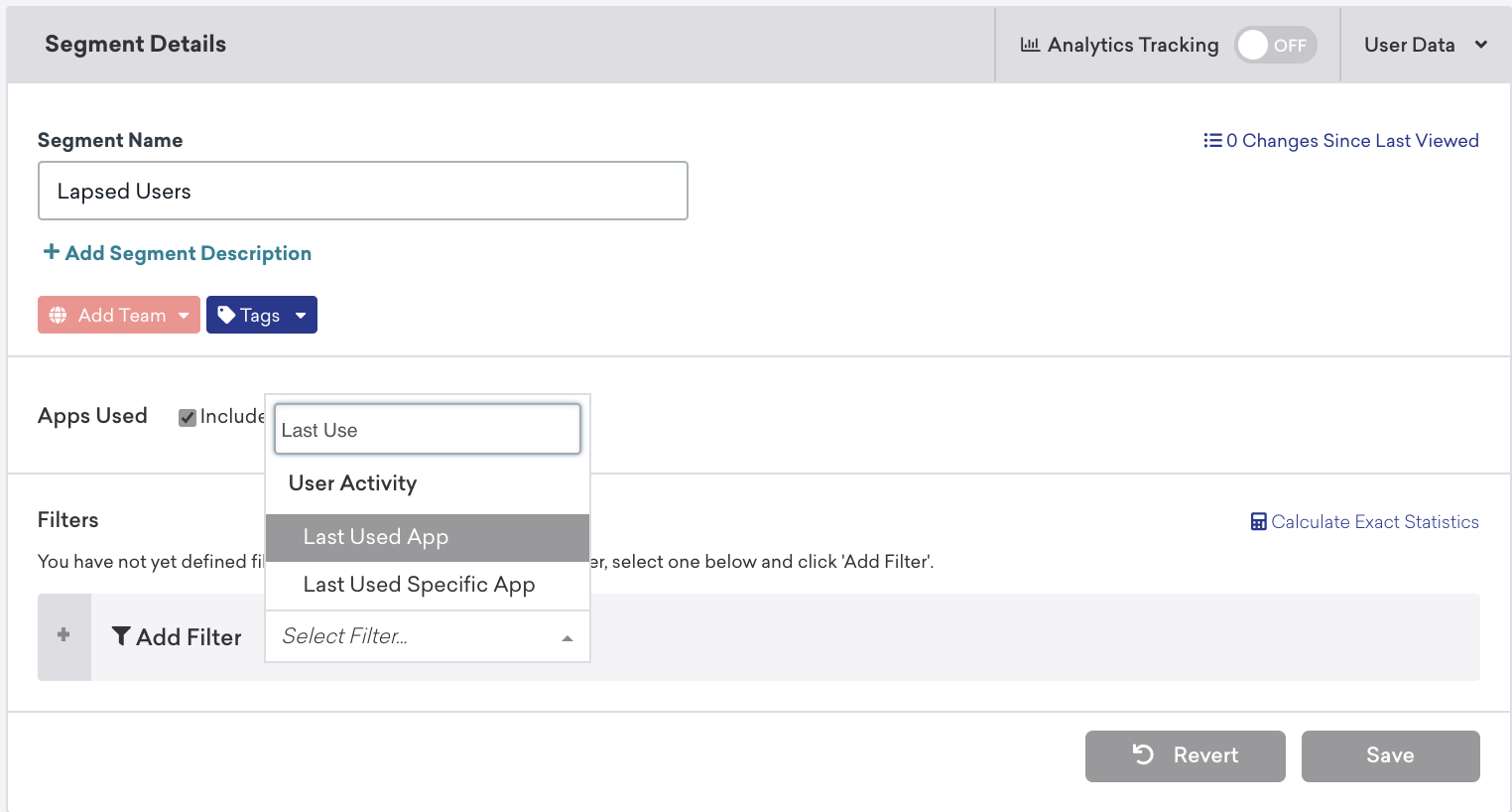
Do:
Blur sensitive information
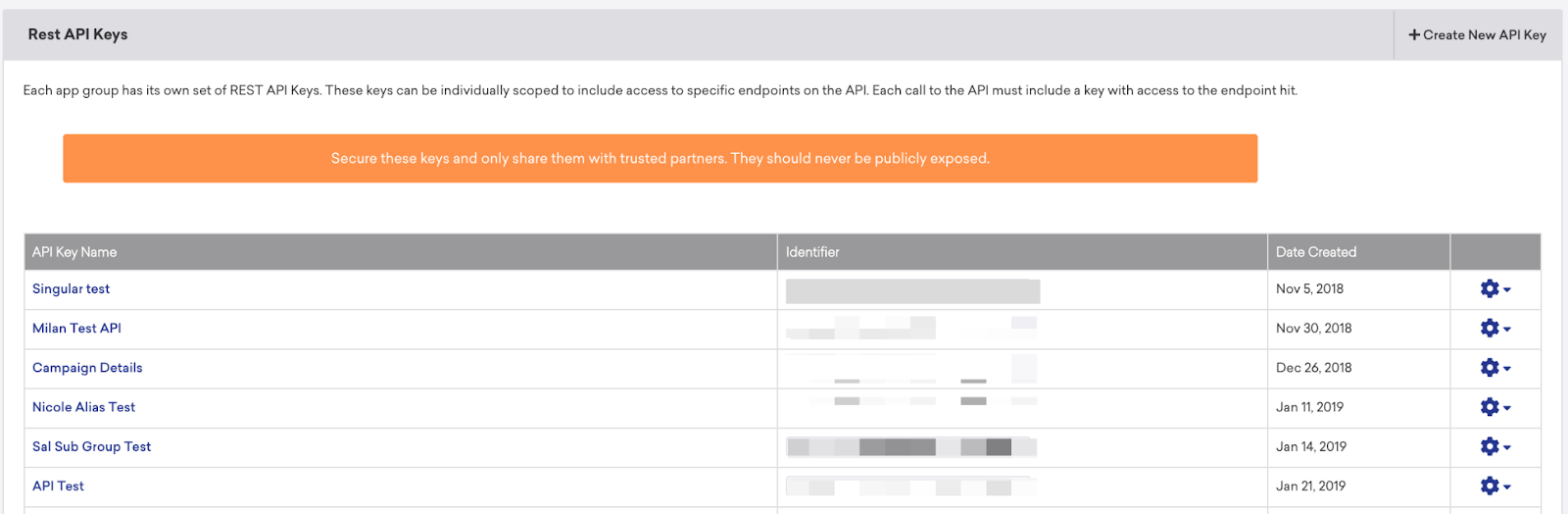
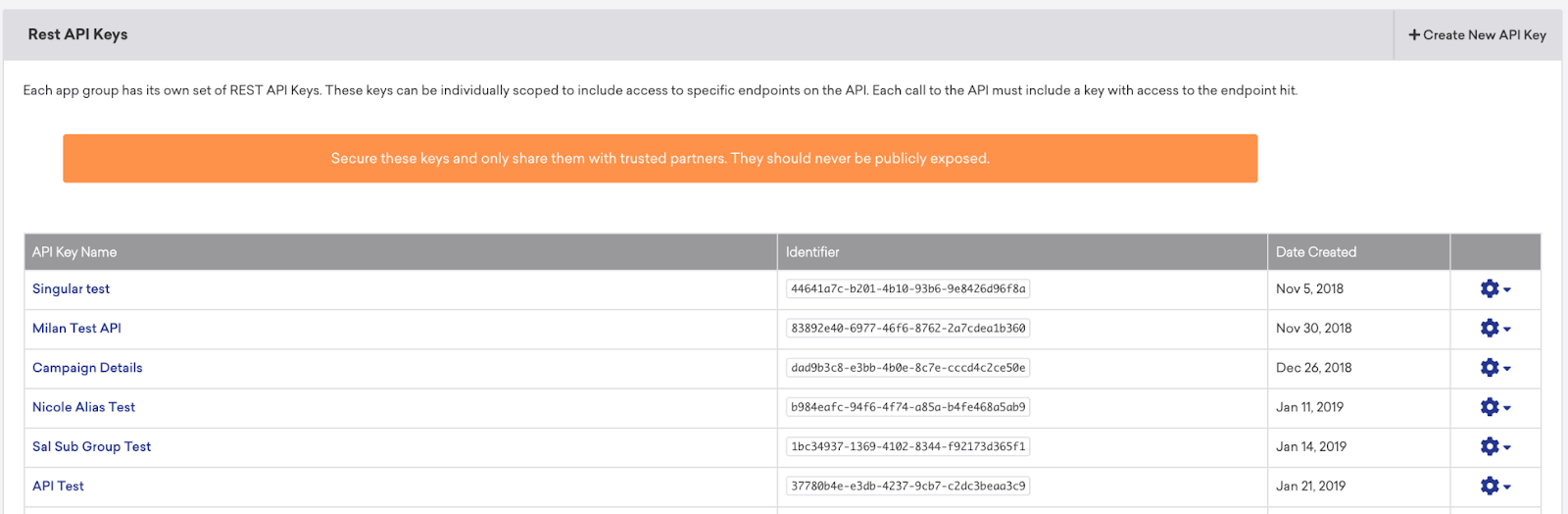
Blur any personal identifiable information (PII) like names, emails, and API keys.
| Do | Don't |
|---|---|
 |  |
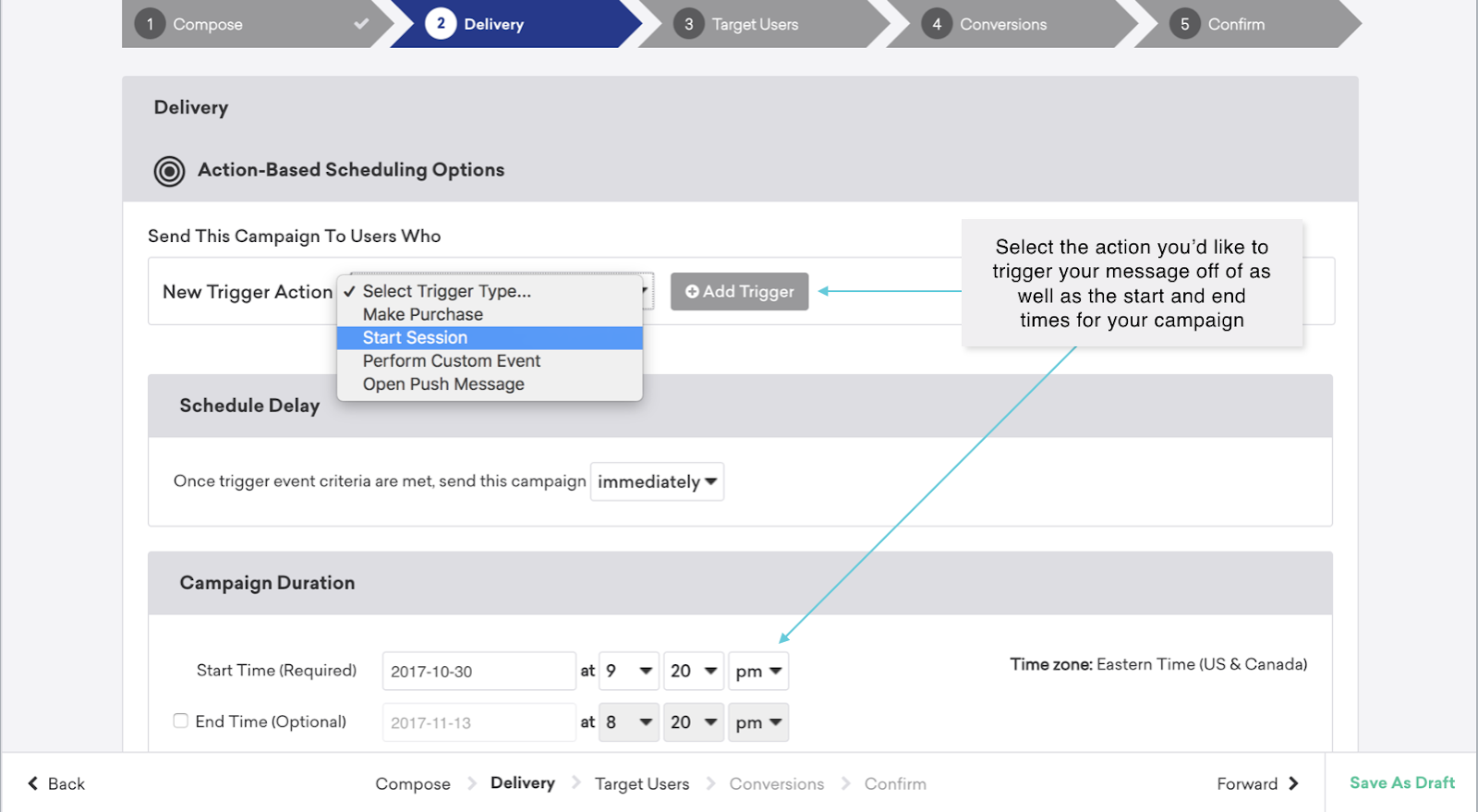
Don’t embed important text inside images
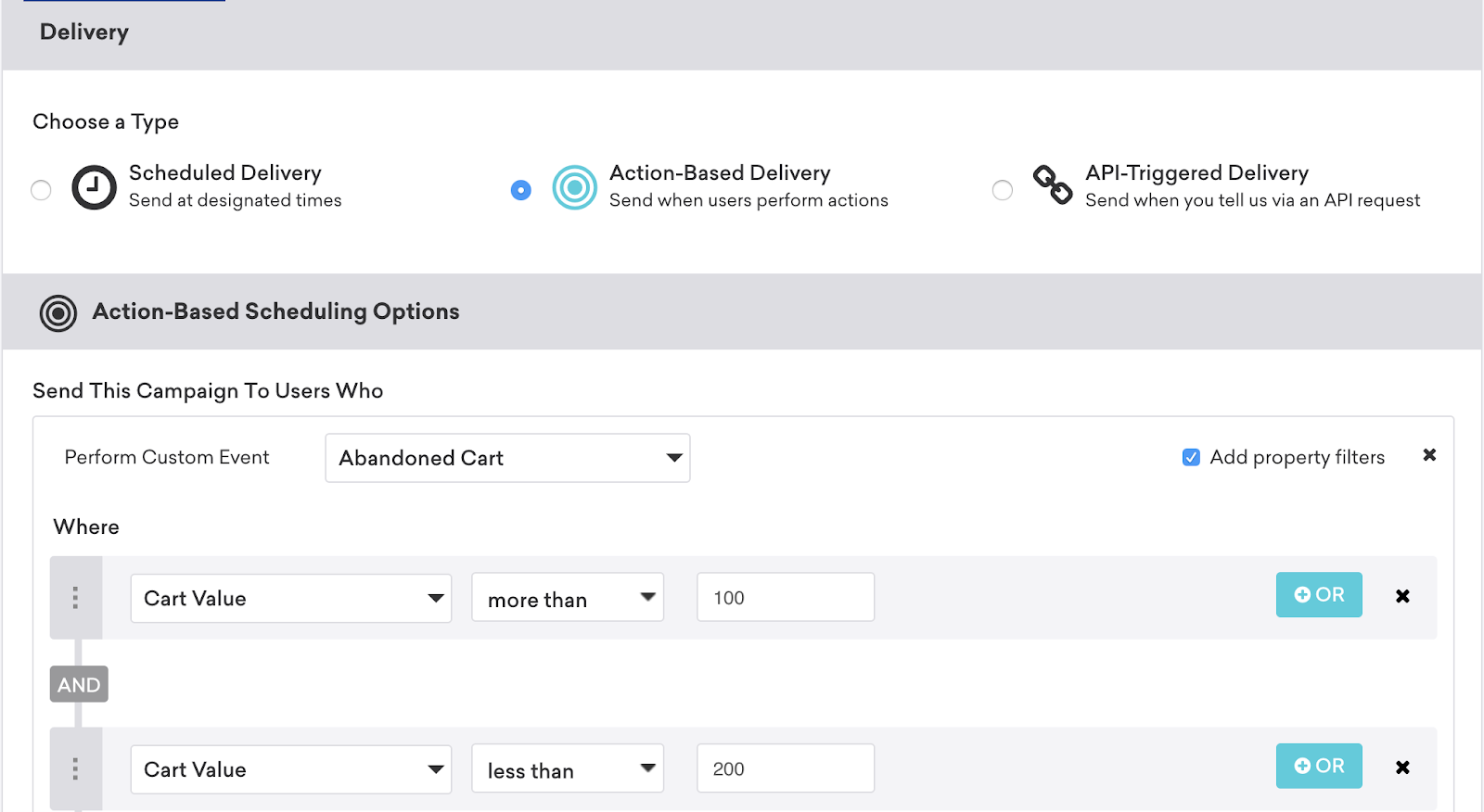
Avoid embedding text inside images as not all users can read English text (and page translation tools do not translate images). This text should be provided in the article. Provide alt text for images for maximum accessibility for users.
| Do | Don't |
|---|---|
 |  |
Don’t emphasize components
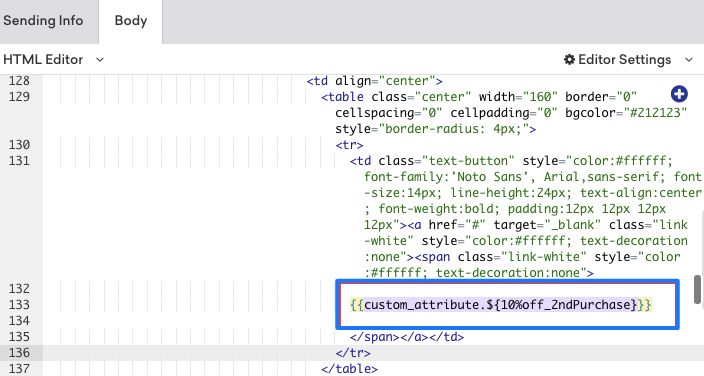
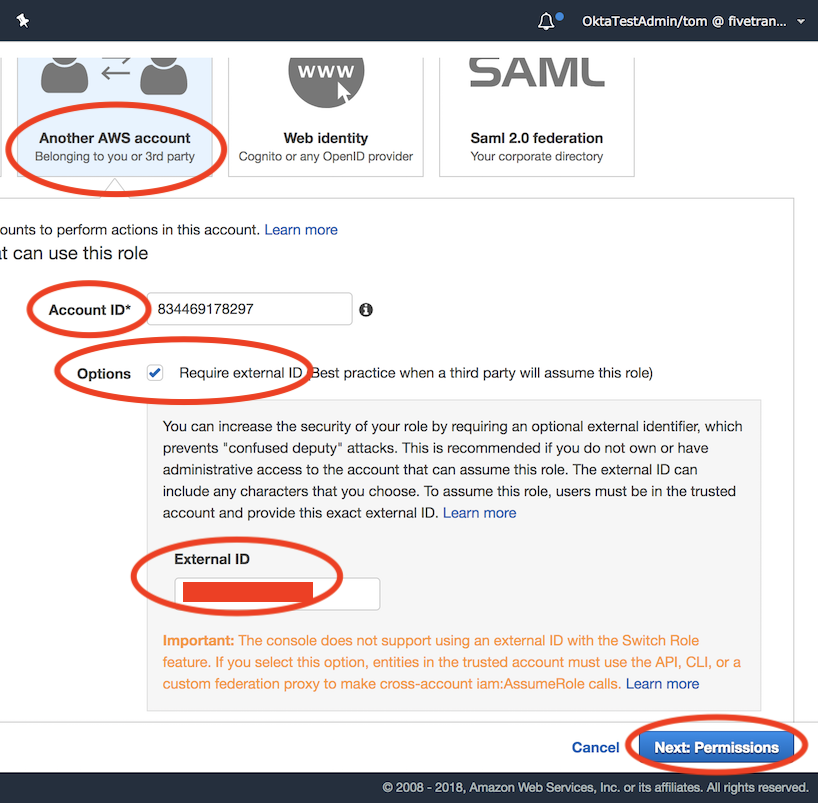
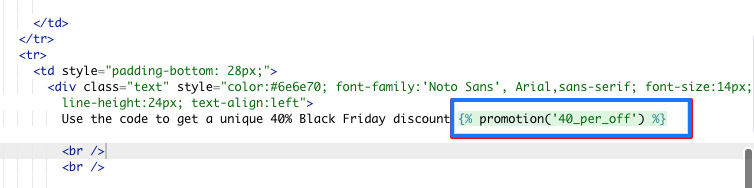
Do not emphasize components of images unless necessary. Use blue squares (the most accessible option) with a thin-medium thickness to highlight different components of images. Make sure the “highlighted sections” do not obstruct the normal UI.
| Do | Don't |
|---|---|
 |  |
 | 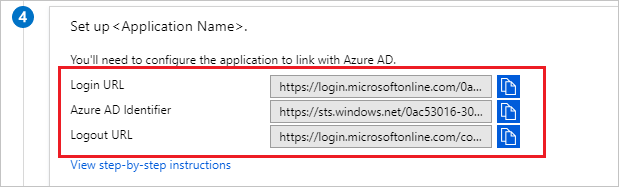 |
 Edit this page on GitHub